
Checklists and messages · Guide 1 of 4
Shift View - Checklists
How operators find, open, fill in and manually start checklists in Shift View, including pin colours, task types and images.
On this page
Checklists is a feature that will allow operators to perform necessary checks on time, removing paper and pen, all is done in the Evocon system.
Checklists can be used for recording quality checks, doing first-hand maintenance and can serve as a reminder for certain tasks by prompting a notification on the Shift View.
Navigation Menu
- Footer menu

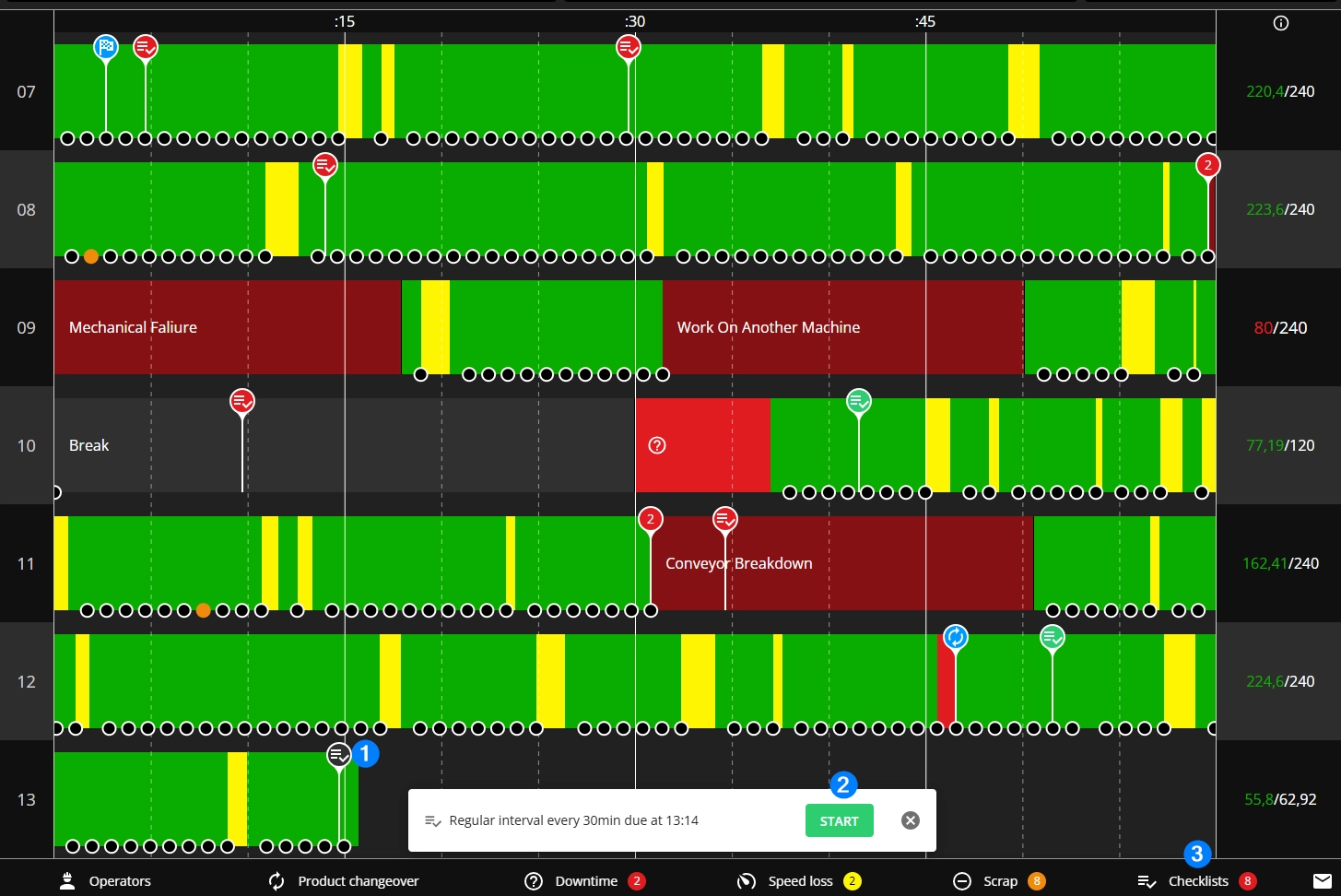
Note: number inside the circle indicates the number of checks that are currently missed.
Checklist icons
Icon 📍 - indicates a checklist on the Shift View.
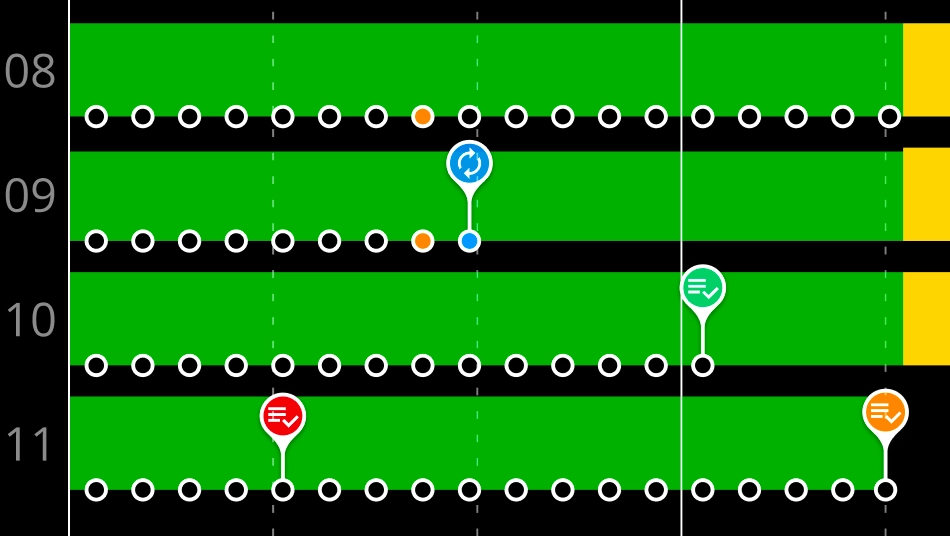

- To do (new), black pin - a checklist that is new and needs to be done/filled. Pin will remain black for 20 minutes before it goes red, which indicates a missed check.

- Successful, green pin - a checklist that was in the allowed range and satisfactory, done.

- Unsuccessful, orange pin - a checklist that was done, but was marked as 'Unacceptable', some tasks were outside of MIN/MAX range, not completed (not done) inside the Checklist. The Checklist pin becomes orange when just one task is not satisfactory. The reason for this is to visually highlight issues with the control result.

- Missed, red pin - 20 minutes after the checklist due time the check will be counted as missed. This will happen automatically if the check is not done. Missed Checklists can be filled in later.

- Image has been added. The little square indicates that at least one image has been added to a task result in that Checklist. Color of the square is the same as the pin (according to the status).
Where to open checklists?
Checklists can be opened from several places:
-
Click directly on the Checklist pin
- Read-only users can also open checklists from pins, but they can not add or edit any values.
-
Click on the 'Start' button on the notification pop-up (pop-up visible for 10 minutes)
Note: This pop-up is not shown for manually activated Checklists.
-
Click on the checklist button in the bottom menu
Types of checklist tasks
-
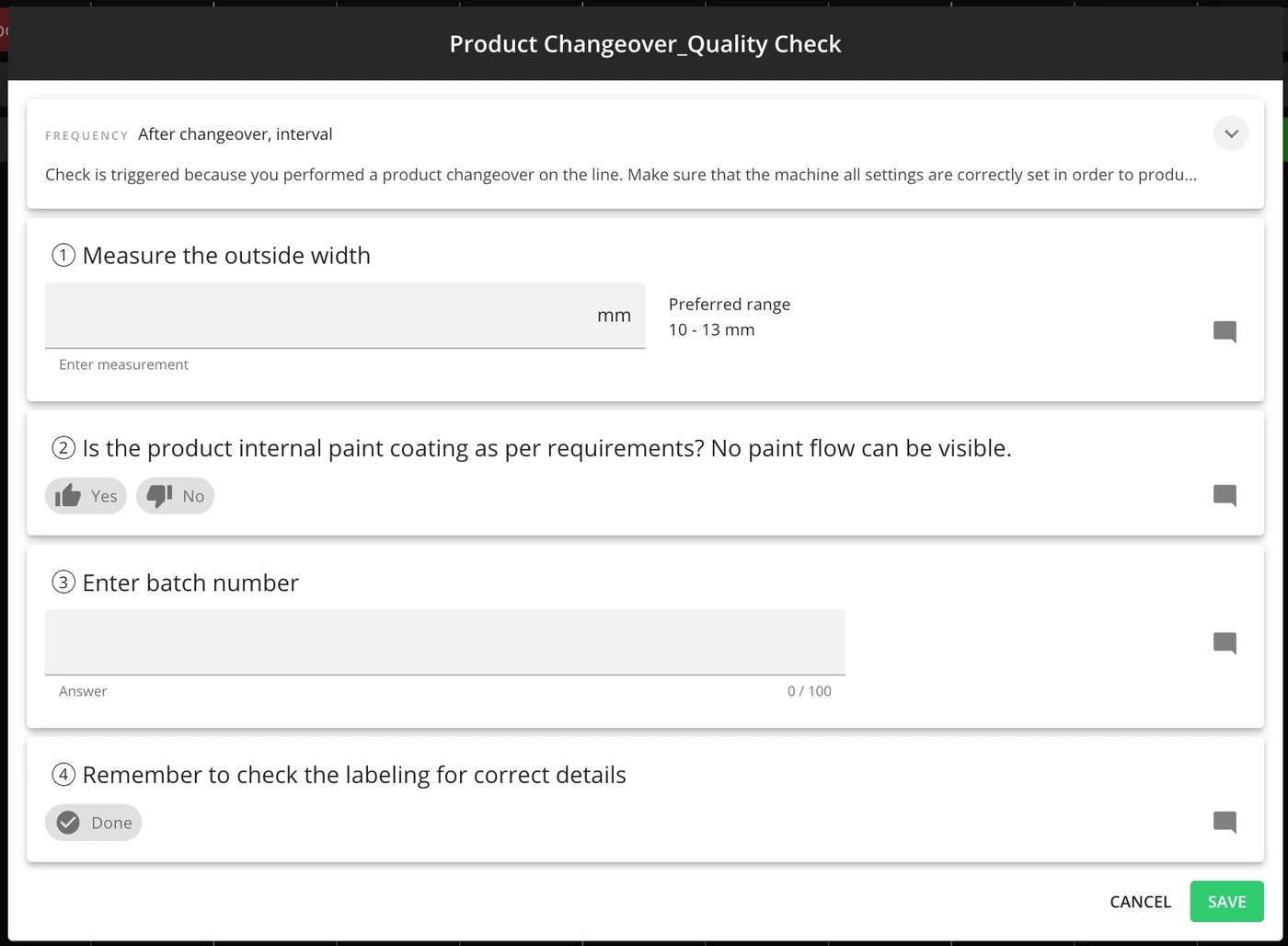
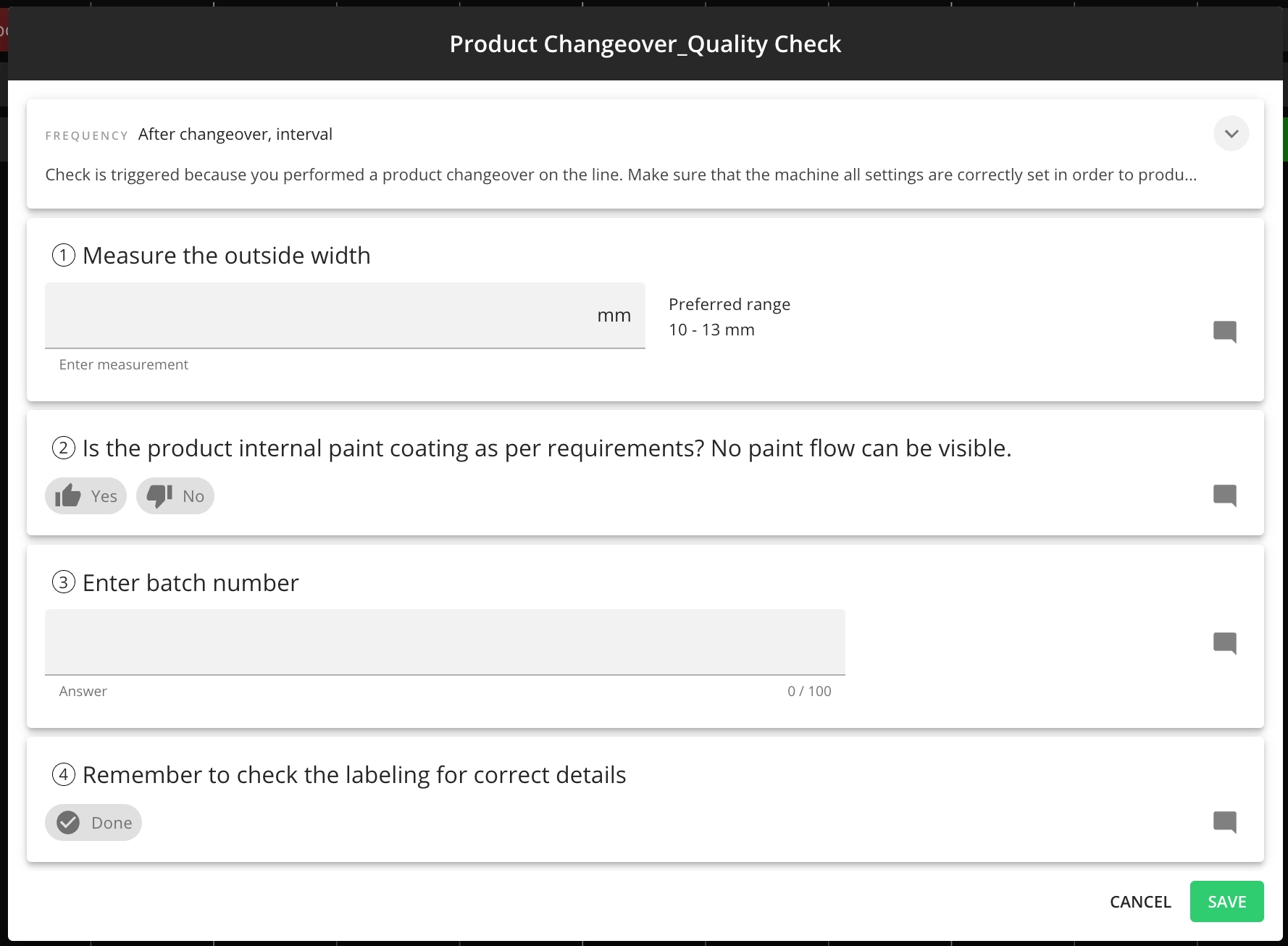
Yes/No - The operators will confirm if the result of the check was good (Yes) or bad (No). If the result of the check is marked as unacceptable (No) then the check will be unsuccessful (orange).
-
If there is a message set for the operators for the failed result ("No"), then it is shown after the operator marks the "No":

-
-
Free text - The operators can enter free text (numbers and letters).
-
Measurement - The operators will enter the number of the check result. If the result of the check is out of range then the check will be unsuccessful (orange icon). In case there is a message entered by the administrators to be shown to operators in case the result is out of range, this message is displayed after entering the measurements (orange background):

-
If there is an option/requirement to add multiple measurement results, then operators can add those and the average is automatically calculated:

-
-
Mark as done - If the task has been done, it can be confirmed (see task 4 below).
-
Select - operator can select either one (in case it is a single-select task) or multiple (in case it is a multi-select task) options from the given list.

How to add and remove images?
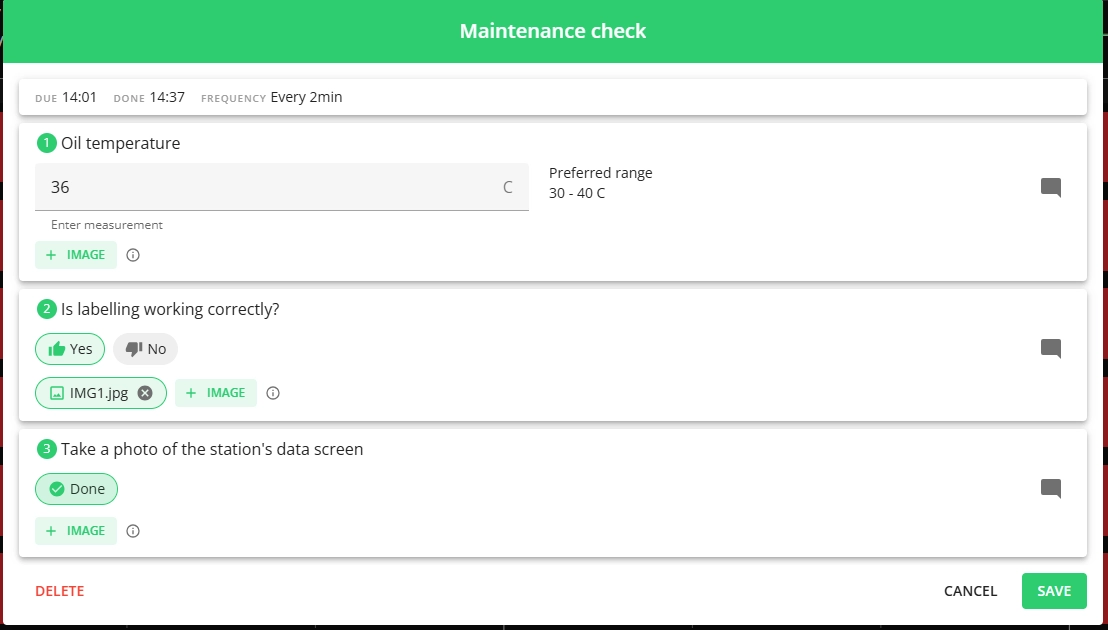
Operators and supervisors can attach photos as part of task completion, from both mobile and desktop devices—adding visual confirmation and context to checklist items. There are a few limitations:
- it is possible to add up to 5 images per task.
- the maximum size of one image is 5MB.
- accepted formats: JPEG, PNG.
This option (if made available from Settings) is visible under individual tasks:

-
Click on the "+IMAGE" button
-
Select the image from your device
-
Confirm by saving the checklist
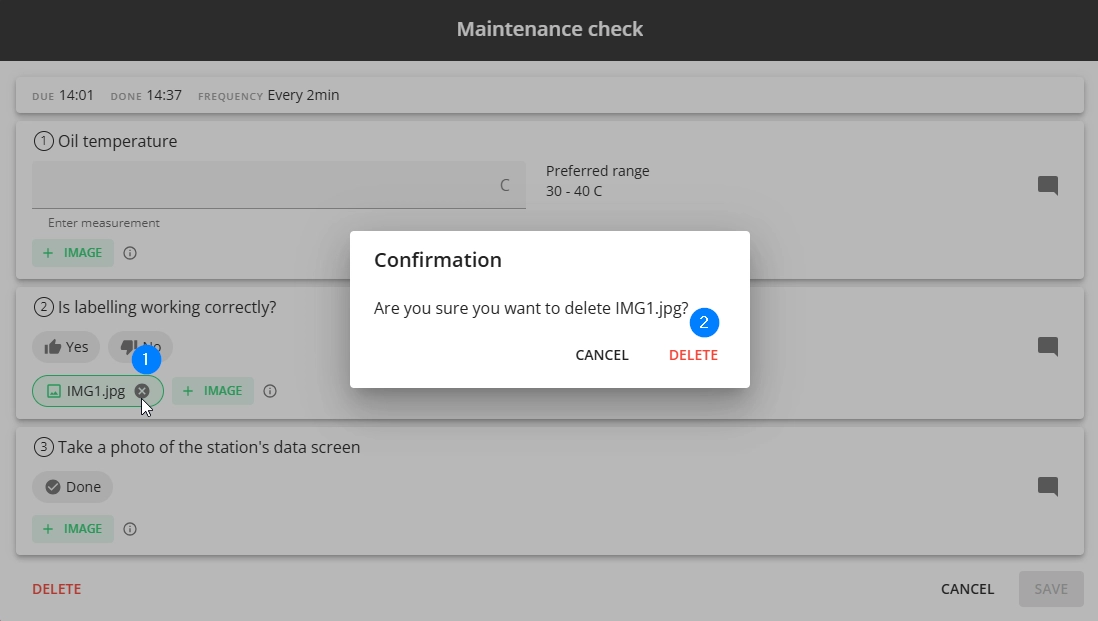
How to delete images from tasks?
-
Click on the "X" and confirm by clicking "Delete"
How to start checklists manually?
If there are checklists that have "Manual activation" option set, operators can start these from Shift View when needed, for example when timing checks is complicated and automatic checks can not be applied. Manual checklists can be started in the current and also in ended shifts (up to a week back).
- In case a checklist has an interval set and also the manual activation allowed, starting it manually does not restart the interval counter - the manual check will be in addition to the interval ones.
-
In Shift View, click on a signal, and from the popover select "Start checklist"

In case you want to start a checklist on a stop, click on the stop and select "Start checklist". The pin is added to the end of the stop. If you need the pin on a specific minute within a stop, select that minute using the brackets and then proceed the same way.

-
Click "Do" on the checklist you want to start

-
Then perform the tasks for the checklist and click "Save"
