
Manage the shift time · Guide 4 of 4
Starting, editing and closing extra shifts
How to start an extra shift, edit its times and finish it from the Shift View bottom menu.
Note: this requires enabling from the station settings. Please find more information here.
How to start an extra shift?
-
Click on the dotted icon in the bottom left corner of the Shift View to open additional options and choose "Start shift":


-
Select starting an extra shift - this option is on the left (right one indicates starting a planned shift early) and is showing the name that is set for extra shifts under the station settings:

-
Modify shift start and end times as needed:

-
Click on "Save" to start the new shift.
How to edit an extra shift?
-
Click on the dotted icon in the bottom left corner of the Shift View to open additional options and choose "Edit shift time":

-
Edit the times as needed within the allowed timeframes and click "Save" to confirm:

How to end an extra shift?
-
Click on the "Finish shift" button in the bottom left corner of the Shift View:

-
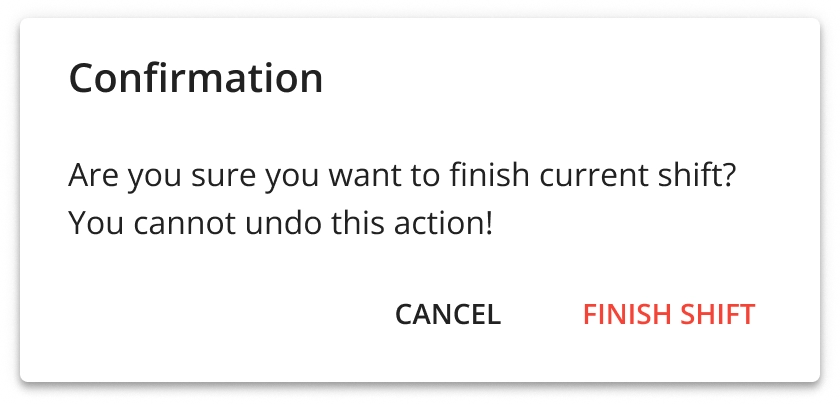
Confirm:
-
Click "Finish shift" or press "Enter" to finish the shift.