
Checklists and messages · Guide 3 of 4
Sending messages
How operators send, archive, restore and delete messages in Shift View, and how to send an e-mail message to a station's Shift View.
On this page
Sending a message from the shop floor is an effective and quick way for operators to notify people responsible for the machine about different issues they notice during production.
Quite often these are remarks about the upcoming need for maintenance, problems in logistics, or other issues that obstruct the normal production process.
How to send a message from Shift view?
- Click on the "Messages" icon in the footer.
- Click on the "New message" button.
- Enter the subject, choose the recipients and write the message (up to 500 characters).
- Click on the "Send" icon to send the message.

How to archive messages?
-
Click on the "Messages" icon in the footer.
-
Choose the message from inbox
-
Click on "Archive".
-
You can see archived messages under the "Archived tab" (next to "Inbox").

How to restore or delete archived messages?
It is not possible to delete messages from the inbox, but they can be deleted after archiving.
- Click on the "Messages" icon in the footer.
- Choose the message under "Archived" tab.
- Click on "Restore" or "Delete".
How to send a message to Shift view?
If there is a message from Shift view to you, you can just send a message by replying to that message.
However, if you wish to initiate the first message to the station's Shift view, please follow these steps:
-
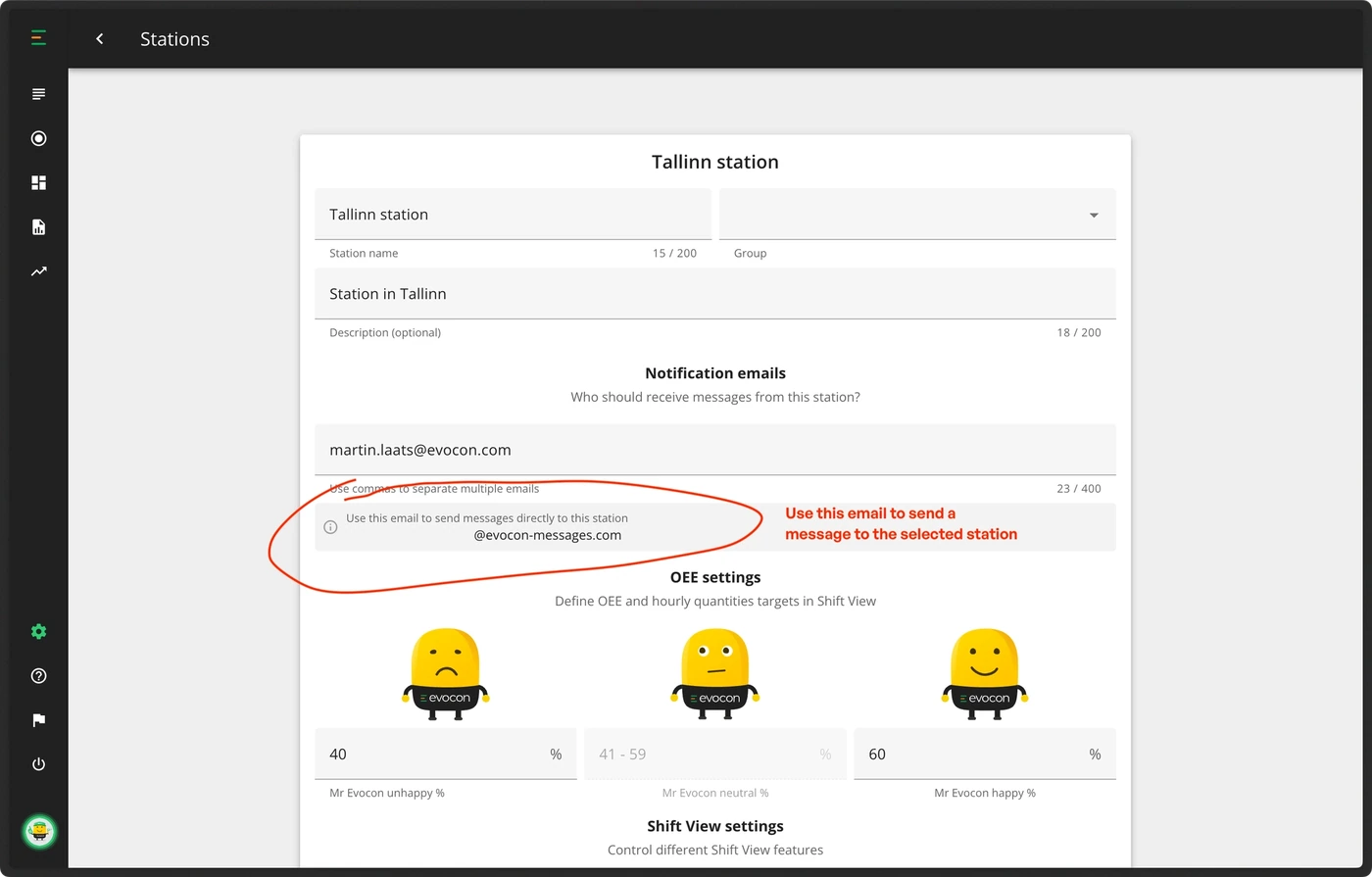
Go to Stations in Settings.

-
Find the station you want to send the message to and open its details.
-
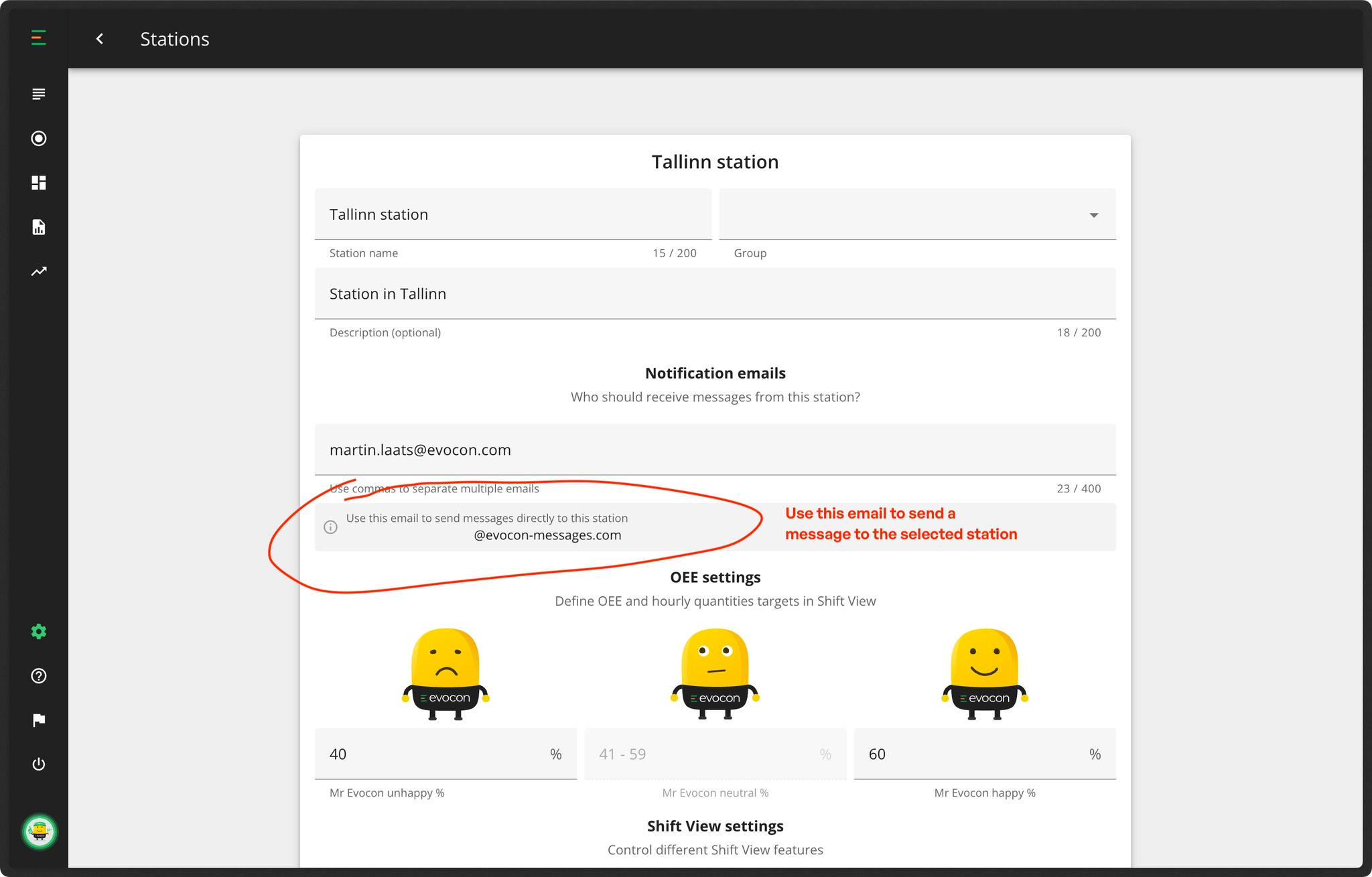
Copy the recipient e-mail address from the field "Use this email to send messages directly to this station" and send the message from your mailbox.
If there is a new message, the icon will have a green dot indicating that plus a notification bar in the bottom of the Shift View:
