
Start your shift · Guide 1 of 6
Registering operators to shifts
How operators register themselves or a team to a shift in Shift View, adjust working hours and change operators during the shift.
You can register operators to work a shift in Evocon once the shift has started. We highly recommend it because it gives supervisors the ability to analyse the performance of all operators. The information can identify who works best on what machine and who needs more training. This information also lets you follow up with questions about the progress of the shift. It is possible to add multiple operators to work as a team on one shift or change operators during a shift.
It is also possible to make the registration of an operator (or team of operators) mandatory (more information here). Most of Evocon users choose to do this because it ensures that all production stops are identifiable and it brings more transparency to the manufacturing process. The other reason is that sometimes people just forget as they are more focused on the work at hand. This feature can be enabled/disabled under station settings by administrative users.
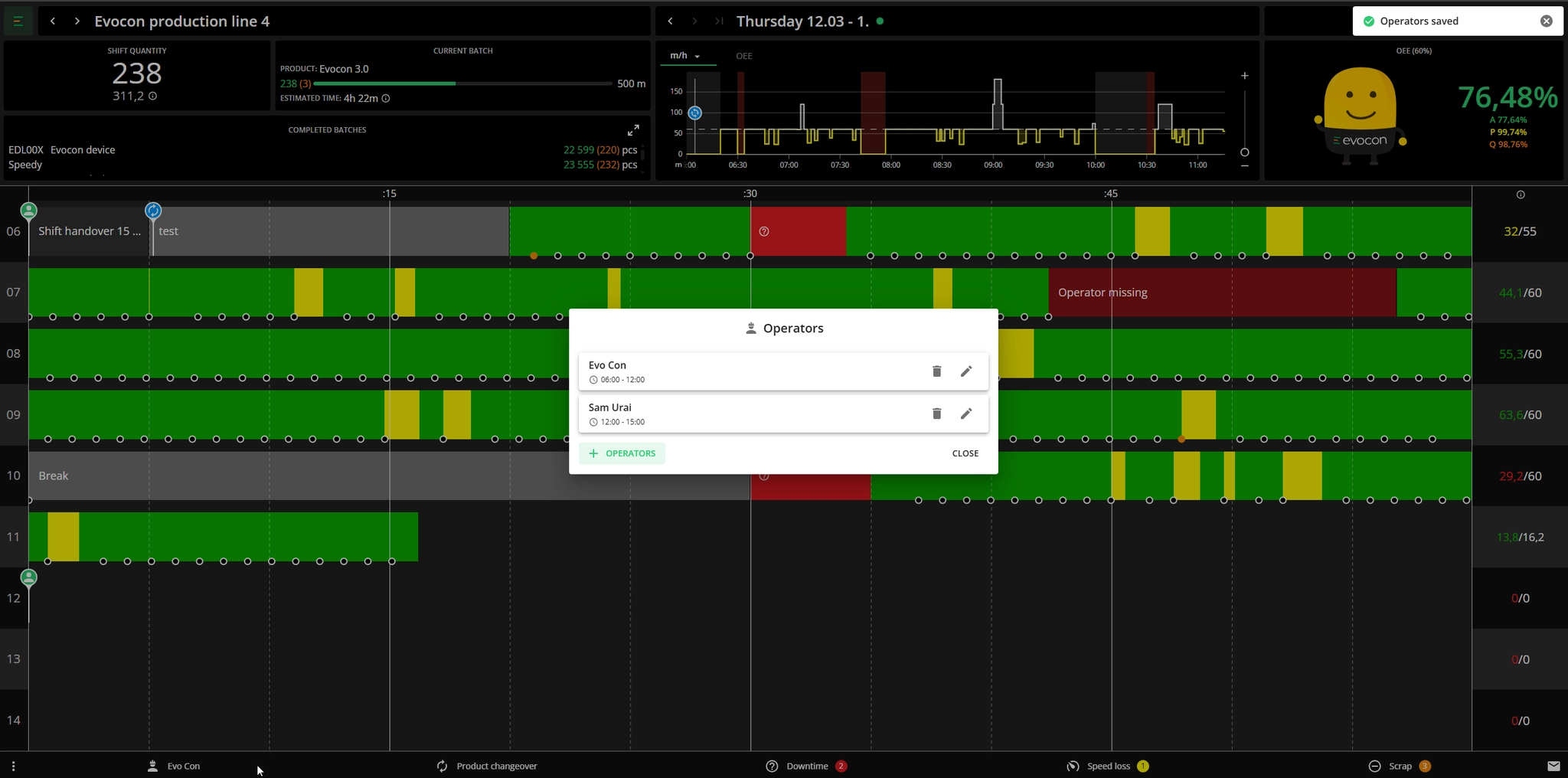
How to register operators to shift?
-
Open the operator tab in the bottom menu.
- When the operator selection is required and an operator has not been selected yet, there will be a red dot indicator.
-
Select an operator or operators who will be working the shift and set the start and end time.
Note: If the selection applies to the whole shift, you don't need to specify the start and end time, the whole shift is selected by default.

-
If necessary, you can adjust the working hours for each operator/team, add and remove operators and teams by opening the operators' tab in the bottom menu.
- In case there is one operator assigned to the shift, the bottom menu tab shows that operator's name.
- In case there is a team assigned to the shift, the bottom menu tab shows one operator's name (first in alphabetical order) plus the number of other operators in the team.
- In case there is no operator assigned (for the whole shift or the end part of it), the bottom menu tab shows "Operator".
-
Click Save or press Enter to save the changes.
Changing operators during the shift
-
Open the Operator tab in the bottom menu.
-
Make the necessary changes.

-
Click Save or press Enter to save the changes and close the modal.