
Record production · Guide 1 of 4
Marking product changeovers
How operators mark a product changeover (new batch or production order) on a signal or stop in the Shift View.
Product changeovers are marked by production operators when they start a new batch or production order. When marking changeovers it is very important that the operators choose the correct time for it.
All production signals that the system registers are displayed as black circles on the hourly timeline, which allows operators to easily find the correct signal and mark it on the Shift View as a new batch (this signal is then included in the new batch). This is indicated by the blue product changeover pin:
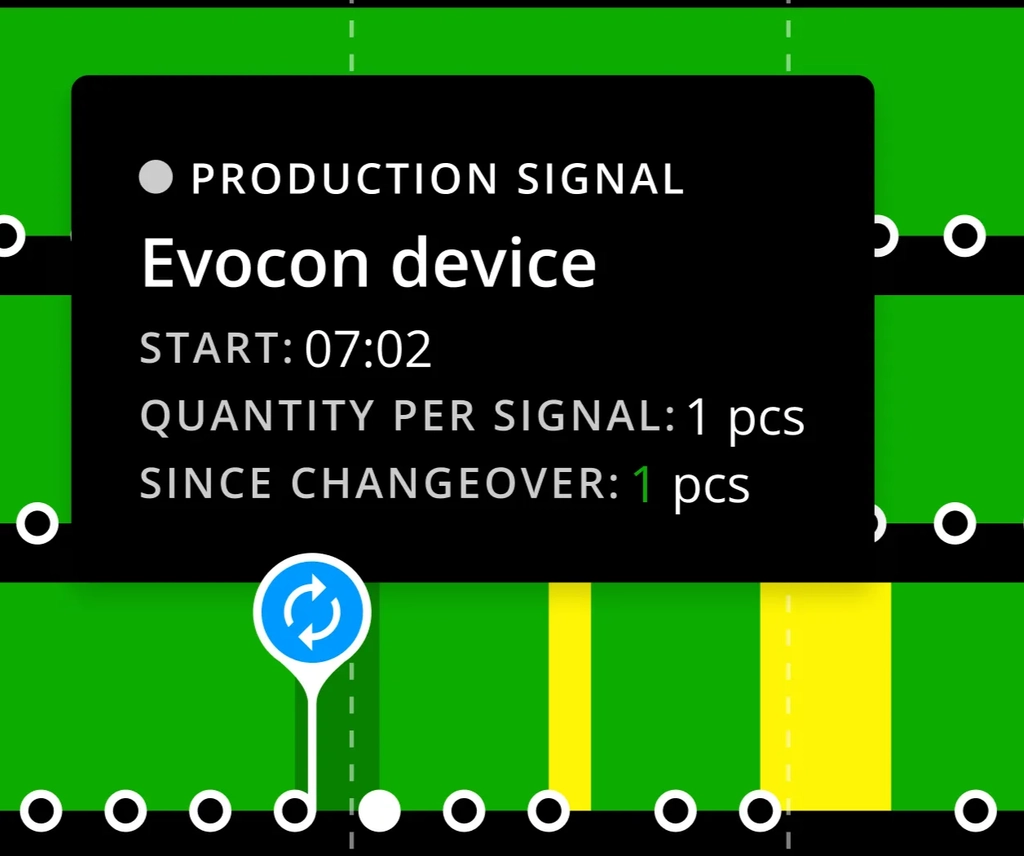
Another way is to make the product changeover on a production stop – then the blue changeover pin is displayed at the beginning of the stop, and the first signal included in the new batch is the one right after the stop:
Product changeover can also be started from the footer by clicking on the Product changeover menu item. Then you have 3 options to mark the signal or production stop where you want to make the changeover:
-
Just click on the signal or stop.
-
Use the arrows in the popover to move left-right between signals and stops.

-
Use the arrows on your keyboard to move left-right and up-down between signals and stops.
How to mark product changeovers?
-
Click on the production signal or stop that marks the new product.
-
Choose Add changeover in the popover.
-
Choose the group and then the product (or production order) from the list or use search (all fields are included in the search: name, product code, order number).
- Fill the optional fields if necessary: target quantity, LOT/Batch information and the extra note.
- LOT/Batch number can be found in the "Production runs" custom report (contact our support for more information if this report is needed).
- LOT/Batch number can be seen in Shift View when hovering over the changeover icon or over the batch information in the header (current batch and ended batches).
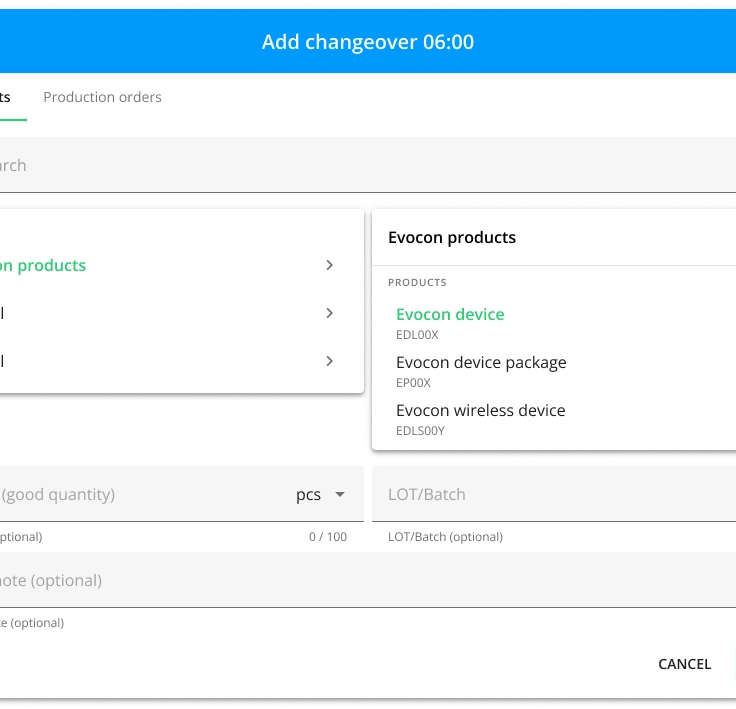
- Fill the optional fields if necessary: target quantity, LOT/Batch information and the extra note.
-
Click Save or press Enter to confirm.
-
A blue icon will appear that marks the start of a new batch/order.
Editing and deleting a product changeover
- To edit a product changeover click on the blue product changeover pin. Make