Record production · Guide 3 of 4
Deleting incorrect production signals
How operators delete false production signals in the Shift View, one at a time or several at once.
On this page
Operators have the option to delete information that represents false production signals in Shift View registered during the production process.
When to use this feature?
- When operators make a test product which should not be counted.
- When there is a problem with the sensor and it registers more products than the actual production amount.
- False product signals during changeovers.
How to delete product circles?
On stations where this feature is enabled, operators can delete incorrect production signals (one-by-one or multiple at a time).
-
Click on the production signal that you want to delete.
-
Choose Delete signal in the popover.

-
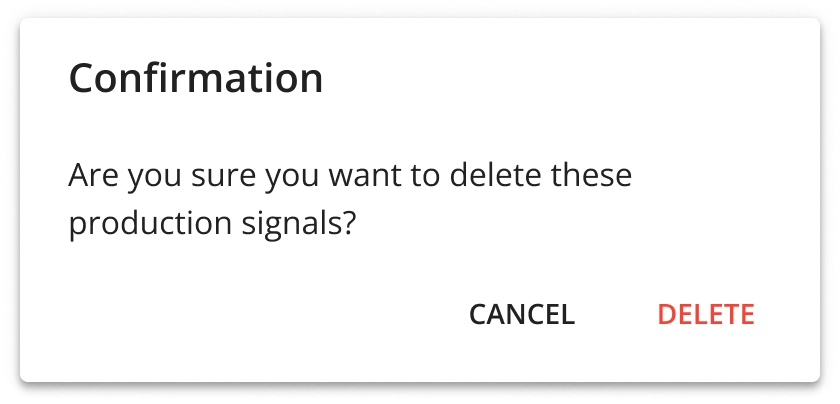
Click Delete to confirm. Please note that this action is not reversible.
How to delete multiple signals at once?
-
Click on a production signal you want to include in the deleted signals.
-
Drag the brackets to include all the signals you want to delete (they are marked with gray).
-
Click Delete signals in the popover:

-
Click Delete to confirm: