
Understand the screen · Guide 5 of 13
Shift View display modes
The 6 Shift View display modes, from mobile to 4K screens, with the screen widths at which each is used and what changes in each.
On this page
Shift view has adapted views that depend on the resolution of the device you are using. Currently, we have 6 modes to display Shift View.
Extra small (mobile)
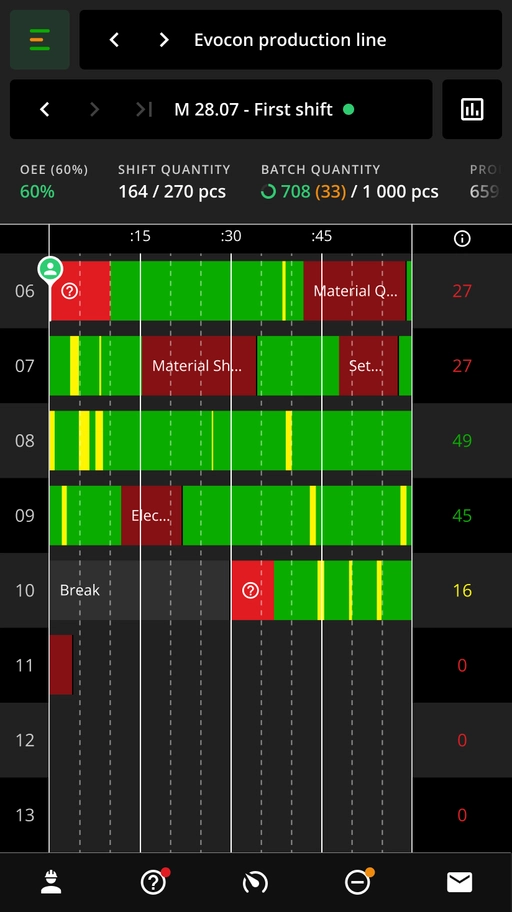
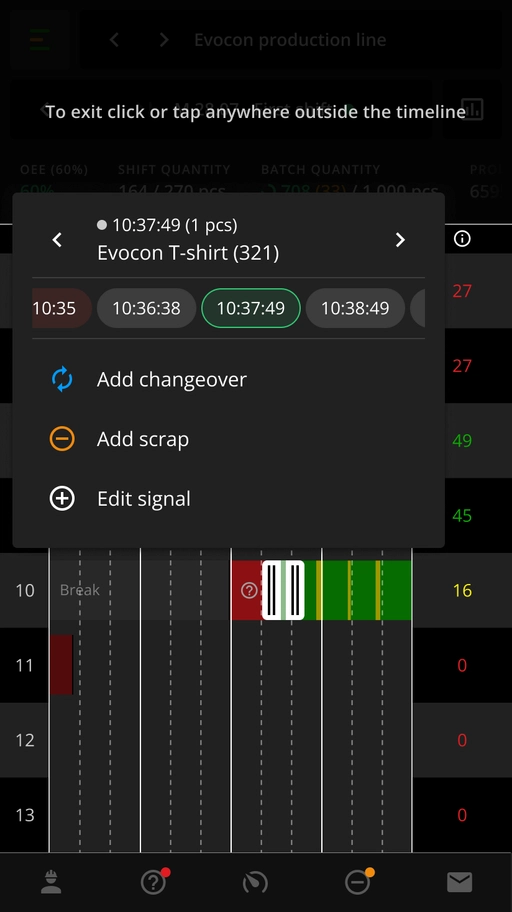
- Enforced for width range <600px.
- Also enforced for landscape, so height is <600px.
- Station names shortened if needed.
- Widgets can be opened from the chart icon.
- Bottom menu buttons are without text.
- Selecting signals, adding signals, marking changeovers, adding checklists, marking scrap, downtime and speed loss are available on mobile using the popover (see the example image above).
- The popover can be easily repositioned within the interface by simply holding the header and dragging it to the desired location.
- Selecting the correct signal or stop can be done by using the arrows in the popover.
Small (most tablets in portrait)
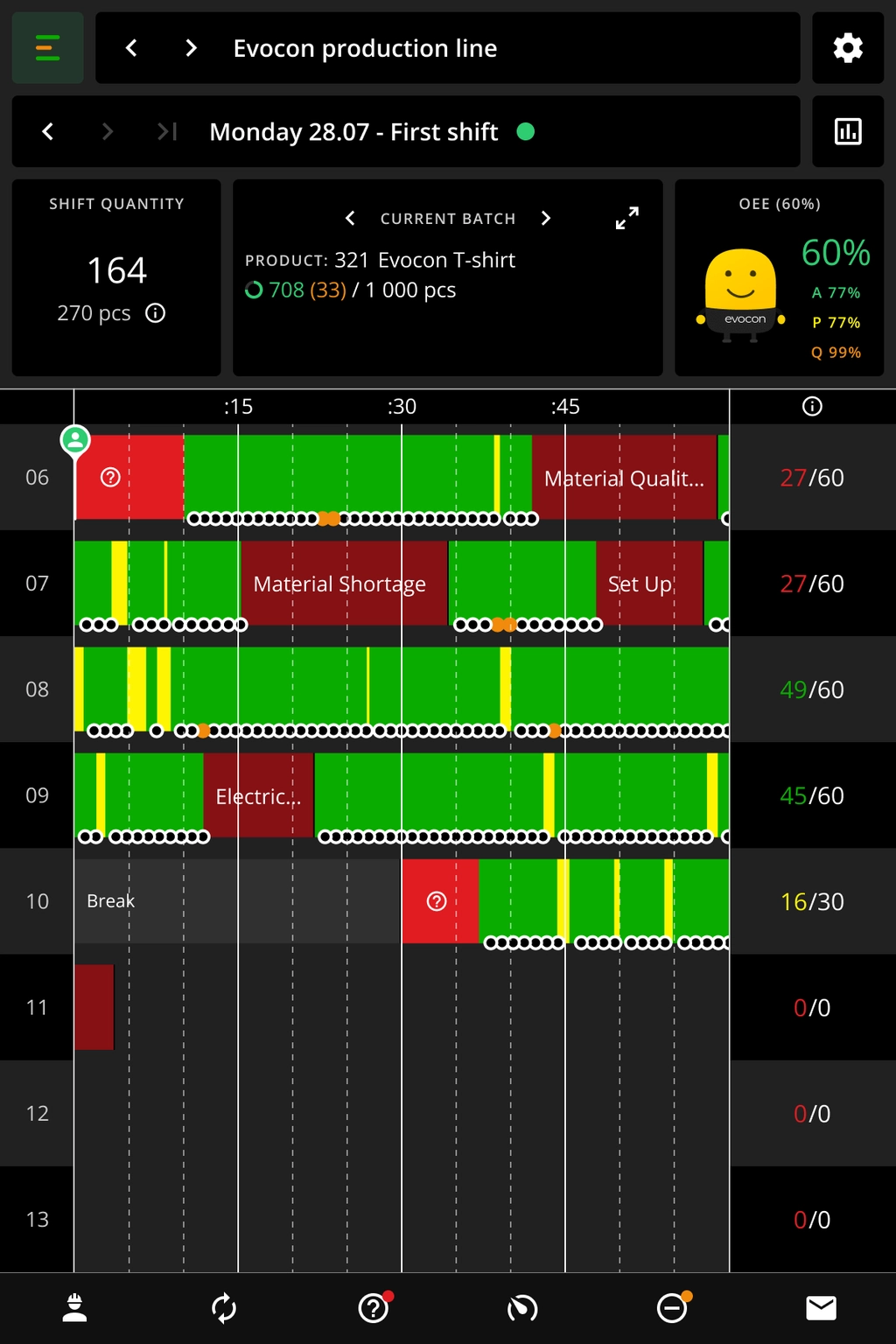
- Enforced for width range between 600px and 960px.
- Main difference compared to desktop view - speed and OEE widgets can be opened from the chart icon.
- Hour lines have a set minimum height, so if they don't fit on the screen, they are scrollable.
- Bottom menu buttons are without text.
Medium (small laptops and most tablets in landscape)
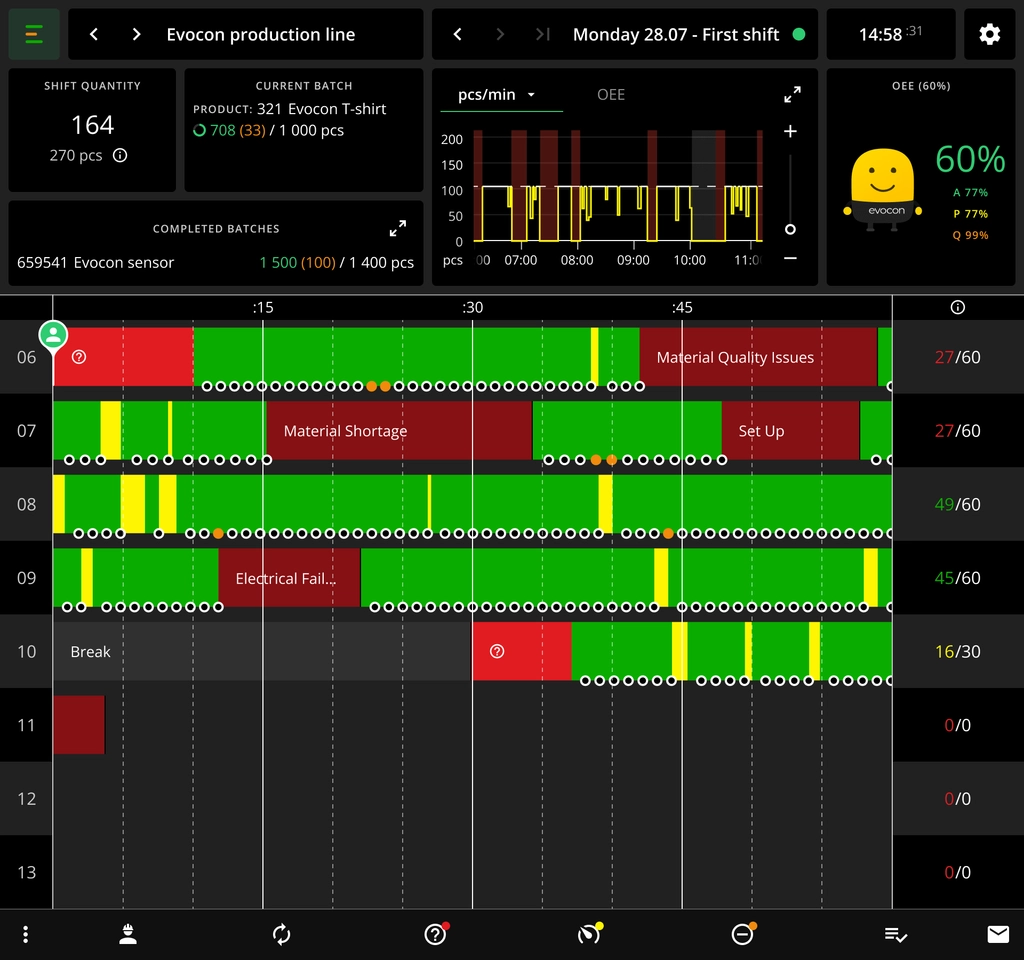
- Enforced for width range between 960px and 1264px.
- Hour lines have a set minimum height, so if they don't fit on the screen, they are scrollable.
Large (desktop)
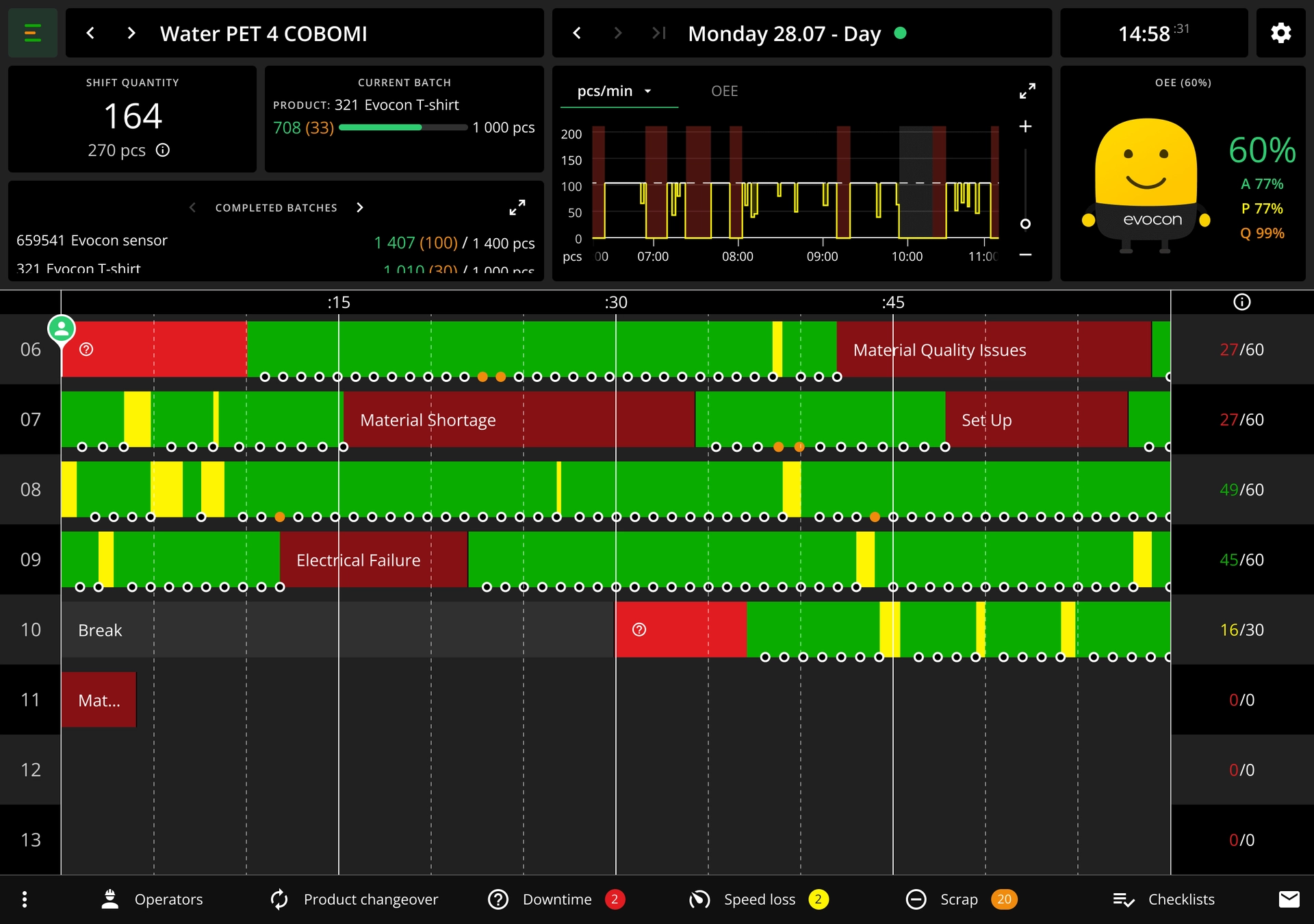
- Enforced for width range between 1264px and 1440px.
- This is the most common view used - all buttons visible, all functionalities available, etc.
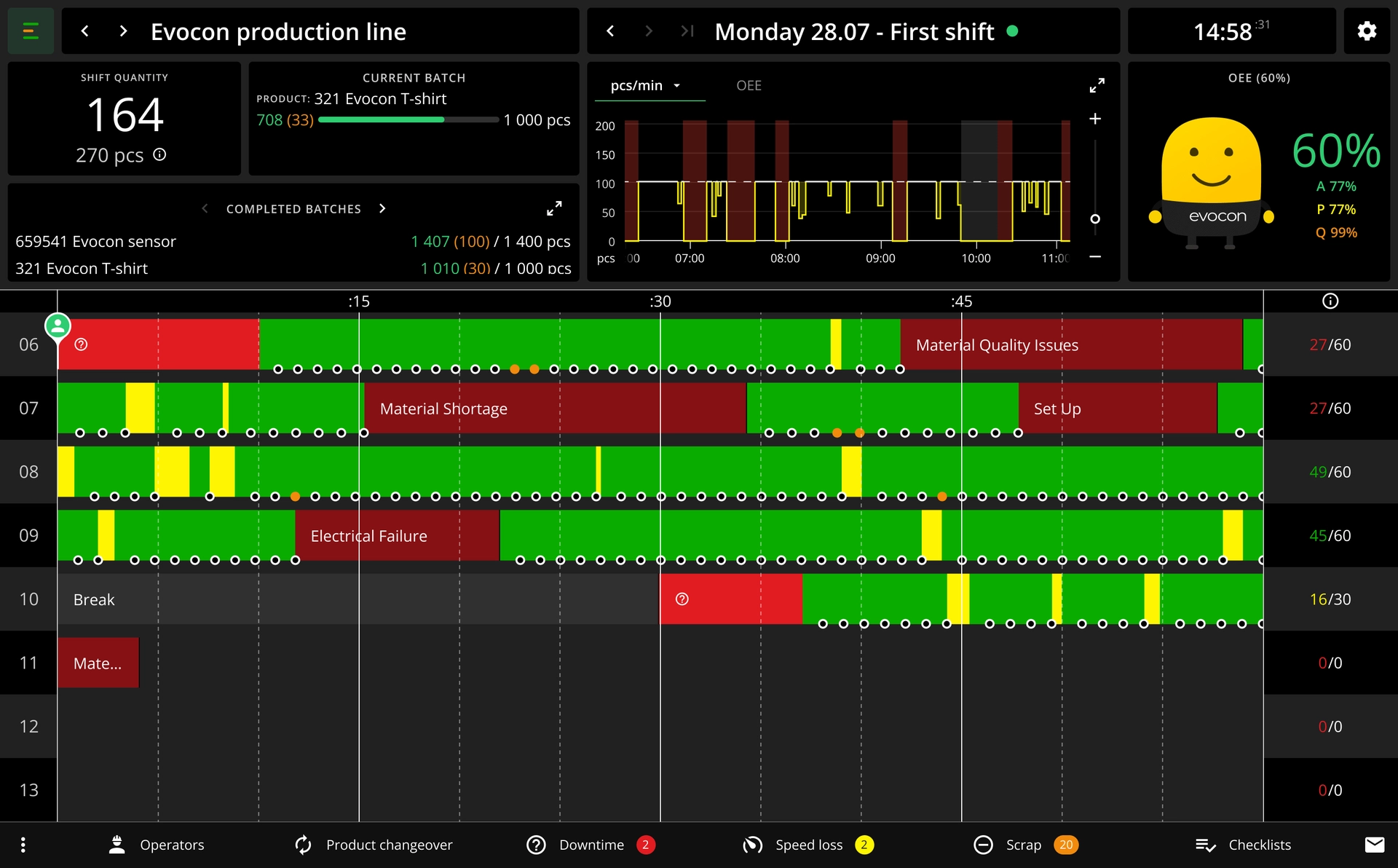
Extra large (larger desktop)
For larger desktop sizes we have another step which is enforced for width range between 1440 and 1904px.
Extra extra large (very large displays, 4K and ultra-wide)
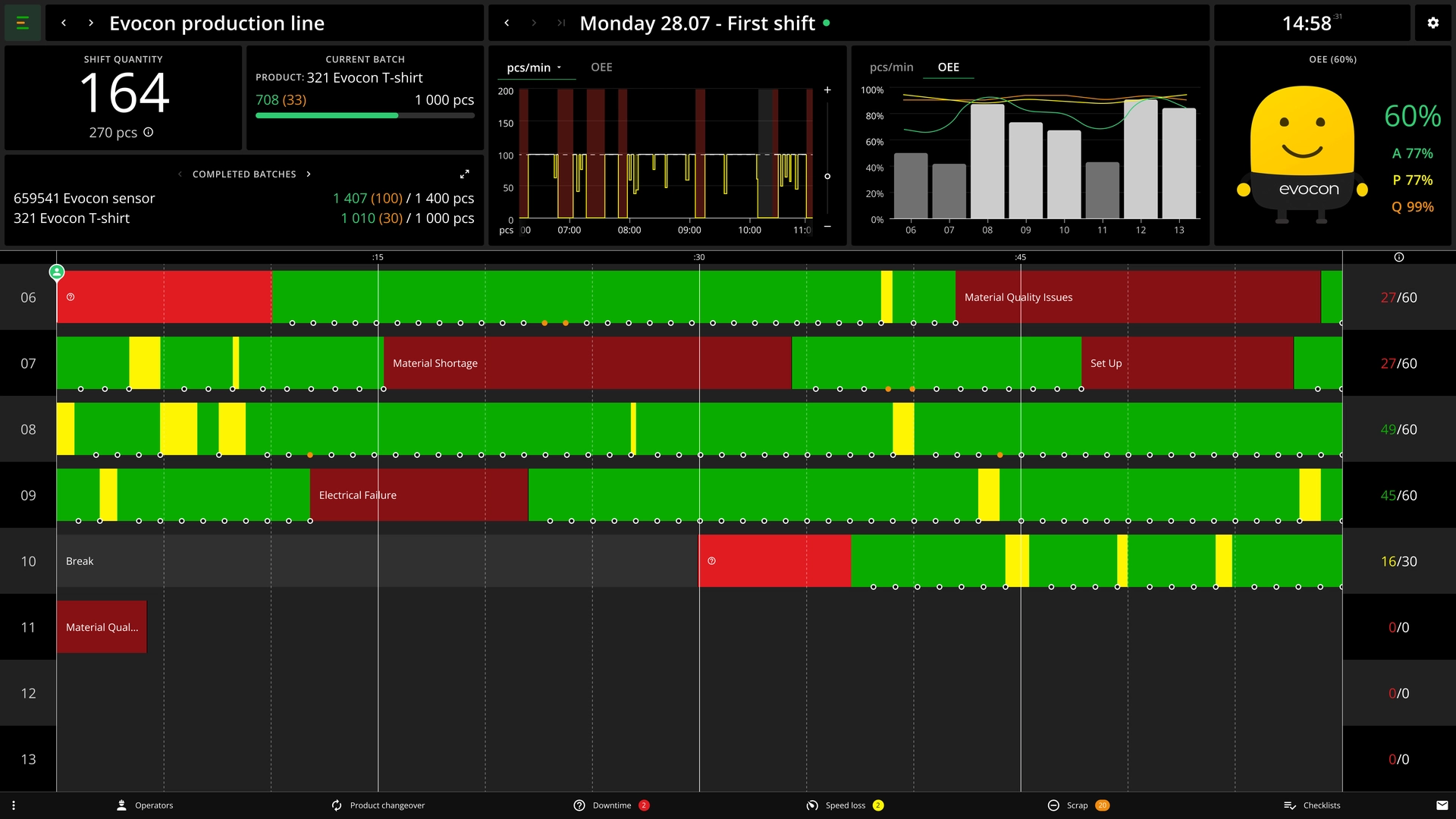
- Enforced for width range >1904px
- In this case there are 2 widgets shown at the same time - so, for example, you can see OEE and Speed graph next to each other and don't have to use the tab to check one or the other