
Understand the screen · Guide 3 of 13
Shift View overview
Description of every element of the Shift View: the header (station, shift, batches, Speed/OEE graphs, shift OEE) and the hour lines with their colors, signals and pins.
On this page
Shift View provides all the necessary information about an ongoing or past shift. Please find below the descriptions of the different Shift View elements.
Header
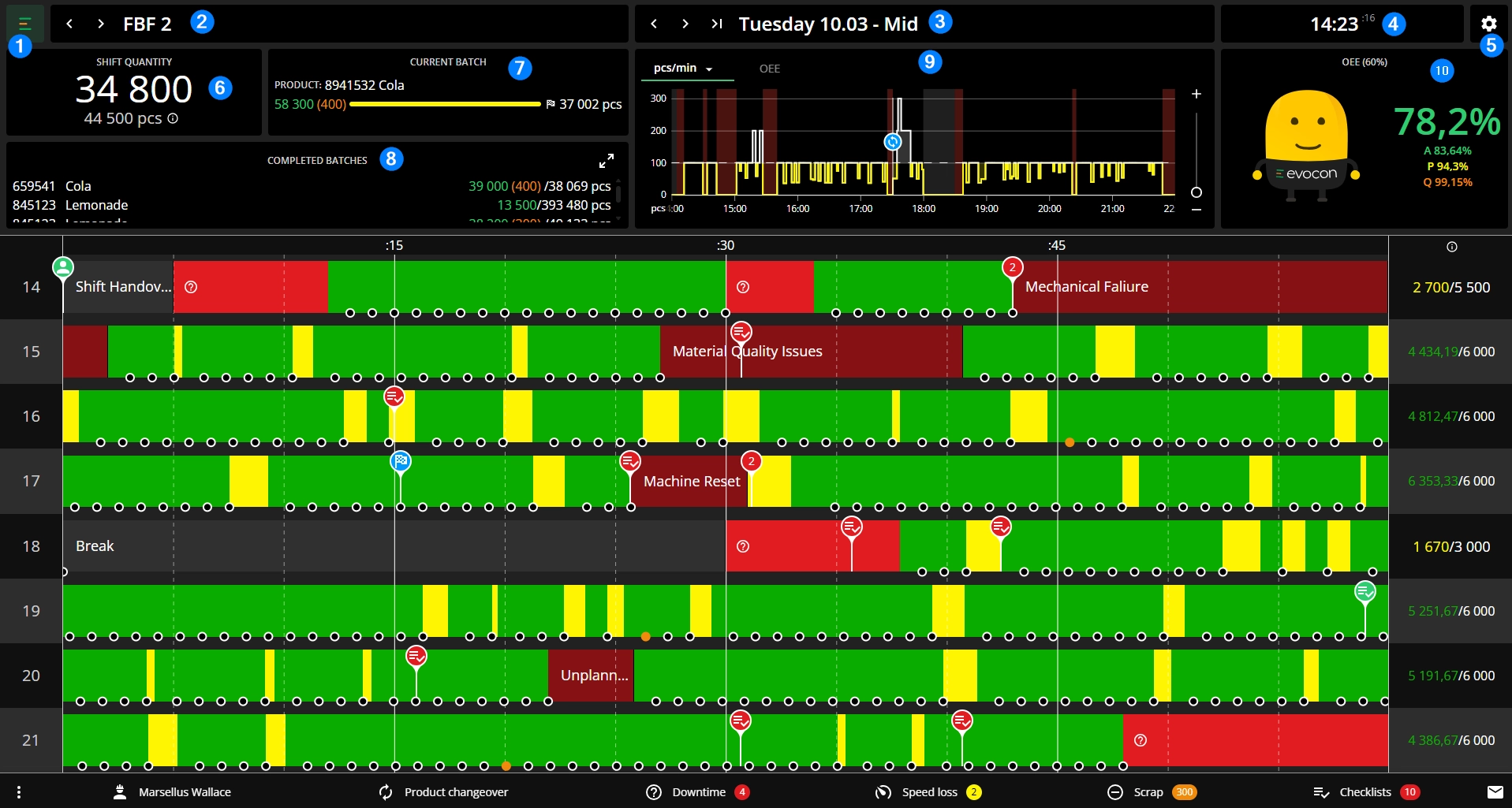
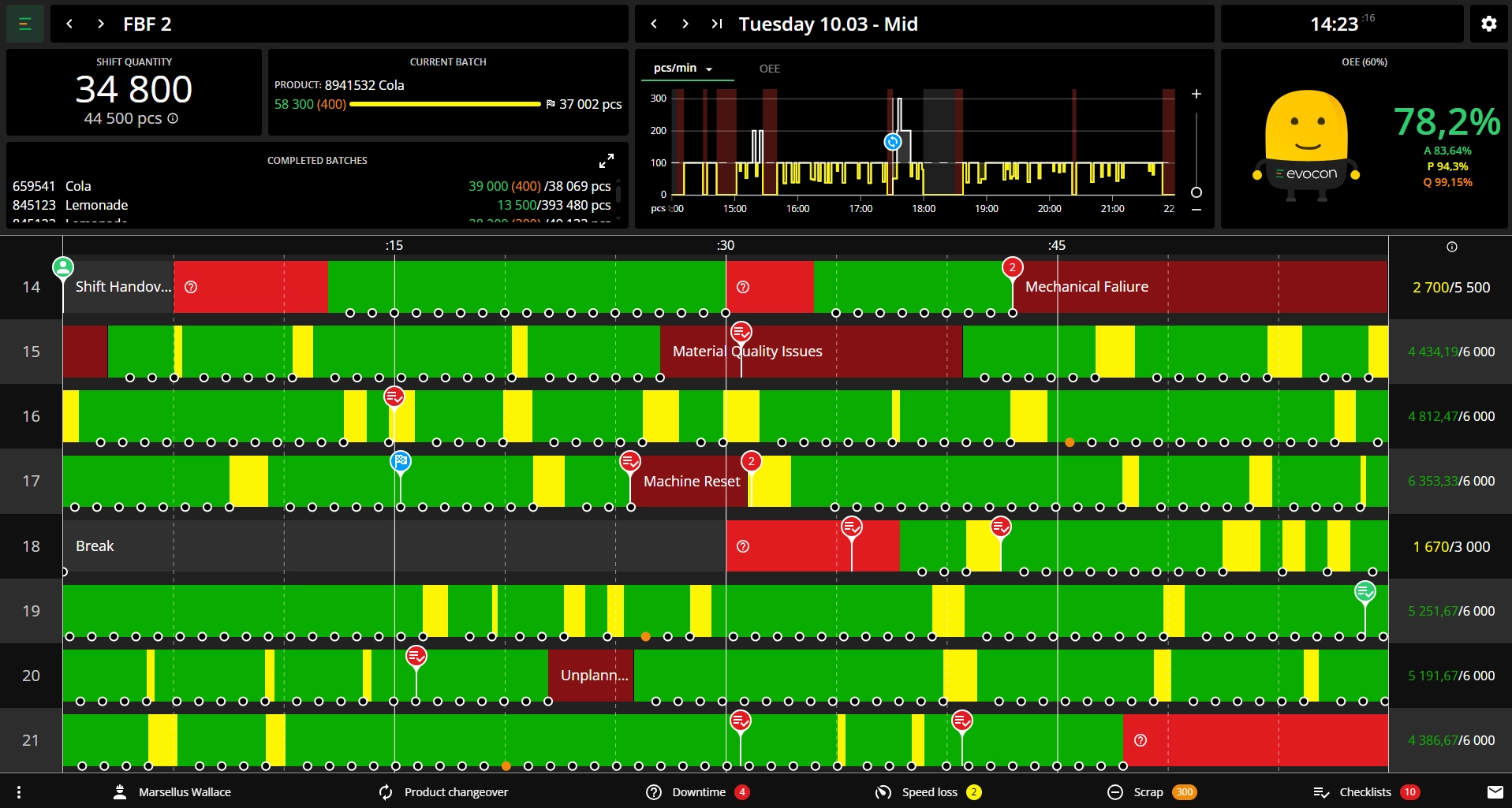
The header in Shift View contains crucial information about the performance of the shift as well as quantities about the current and previous batches.
-
Menu button
-
Current station (How to change stations?)
- You can use the arrows to move between stations.
-
The weekday, date and the shift name you are currently viewing. You can choose any date and shift by clicking on the field and specifying the details.
- You can use the arrows to move between shifts or to go to the latest one.
- You can see the "Live" indicator for ongoing shifts and if there is an issue with the Evocon device connectivity, then you can see the "Offline" indication there (for ongoing shifts).
-
Current time
-
View settings to set your preferences for Shift View
-
Shift quantity and ideal quantity
- Ideal quantity indicates the quantity it would be possible to produce during the planned time at the ideal speed (speed that has been set in the product settings).

-
Current batch information shows the current product code and name (and production order if set up) and is underlined by the progress bar (if there is a target set). If the target is set, the estimated time to complete the batch is also shown (under the progress bar).

- If the batch is produced over several shifts, the produced good quantity is added up across shifts.
- If the progress bar turns yellow, then you have exceeded your target.
- Green indicates good quantity, orange in brackets is the amount of scrap and the number after the progress bar indicates the batch target set on changeover.
-
If you have production orders integrated to Evocon, then you can see the completed and upcoming orders here. In case you are not using orders, just products - then you can see the last produced batches ("Completed").

- If you hover the product/batch, you see the batch data (like LOT/Batch number and target, if added).
- For the "Next" tab, you can see all the upcoming/active orders - if there are many, then the list becomes scrollable.
- You can open the batches modal (showing completed, current and upcoming) from the arrows icon in the corner.
-
You can alternate between "Speed" and "OEE" graph by clicking on the tabs.
Note: you can scroll the Speed graph by dragging, and also zoom in and out (using your mouse scroll).

-
Shift OEE

- Above is the target OEE % for the station - level of stable OEE which has been set under station settings as the "Mr Evocon happy %".
- The shift OEE and the OEE components' values (availability, performance and quality).
- Mr Evocon's emoticon. The states change based on set OEE targets in station settings.

Hour lines
-
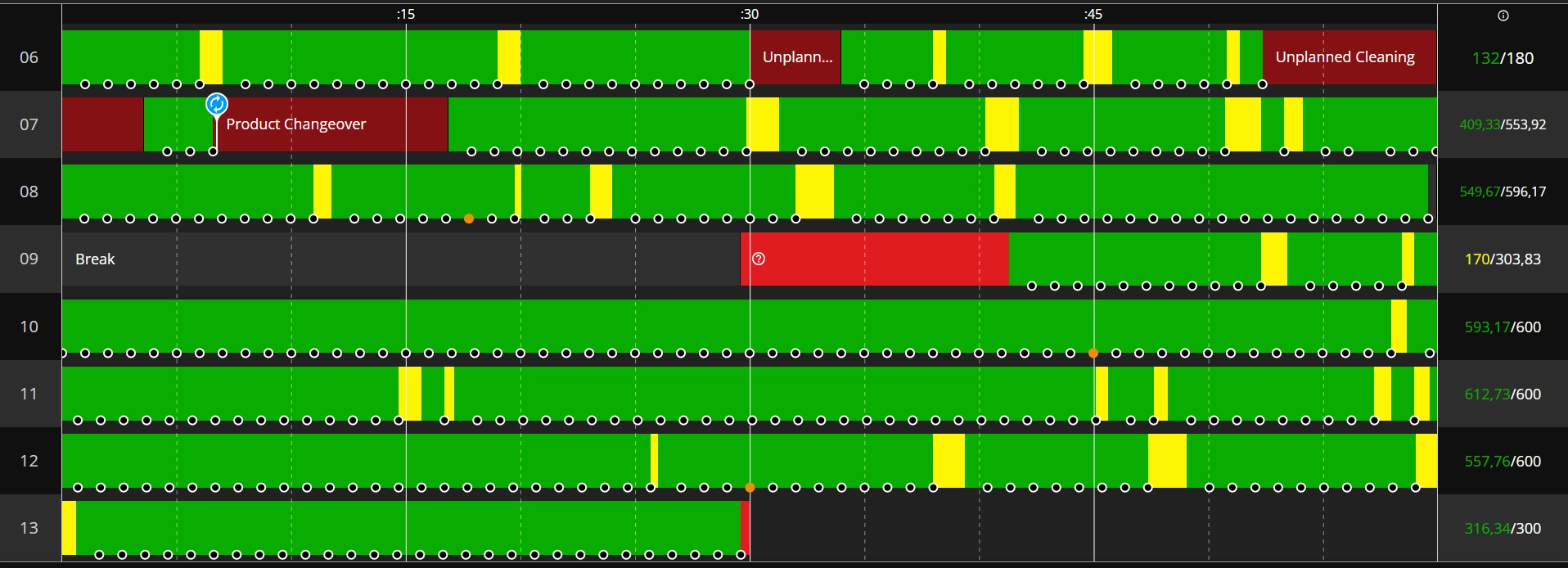
Each horizontal line represents one hour of the shift (e.g. from 06:00 to 07:00)
-
The numbers at the end of each hour show produced quantity (good or total, based on the user's preference in view settings) vs target quantity. Learn more

-
Uncommented production stops are displayed in red and commented unplanned stops are displayed in dark red with the stop name.

-
Planned stops that are included in the OEE calculation are displayed in light grey and planned stops that are excluded from the OEE calculation are displayed in dark grey.


-
Green indicates that the production line/machine is running within the set norm.

-
Yellow indicates speed loss (when signals between cycles exceed the set cycle time).


-
Black circles represent production signals.
Note: the amount indicated by one circle depends on your production process.
-
Orange circles represent scrap.
-
Signals that indicate a product changeover have a blue pin on it.

-
Signals that have comments, are grey.