Shifts, signals, alerts and checklists · Guide 7 of 11
Adding scrap so it increases the total produced quantity
How to set up and use special scrap reasons that add the scrap quantity to the total produced quantity.
On this page
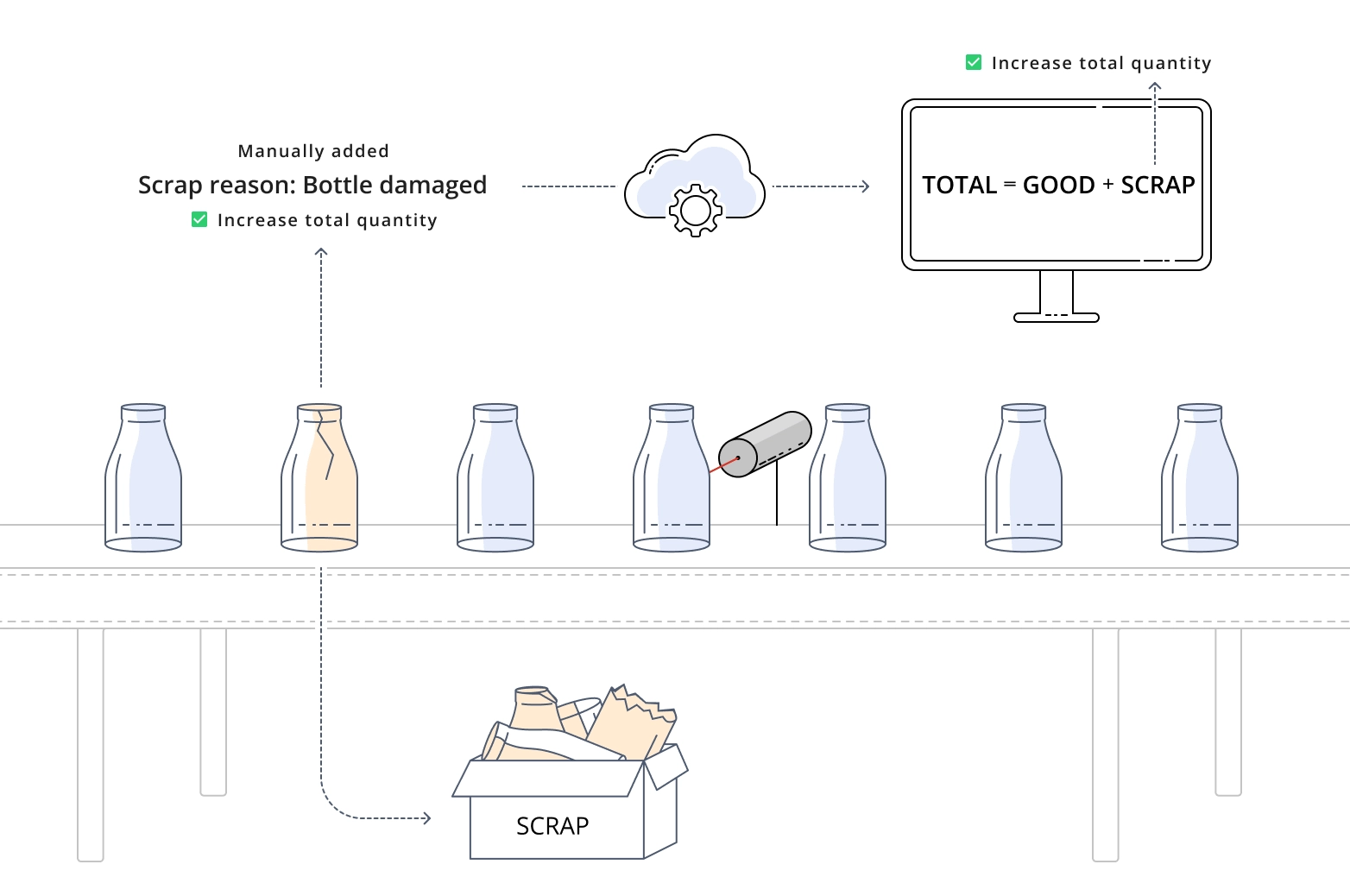
The goal of this feature is to allow clients to capture quality data accurately when it cannot be achieved by using our sensor solution. It applies to cases when one sensor is counting the good products and another is counting scrap. Meaning that the scrap pieces need to be added to the good pieces to get the correct total amount.
How does it work?
We have solved this by special scrap reasons. Administrative users can set up special scrap reasons that, when applied in Shift View, will increase the total quantity by the amount of scrap marked with that reason.
Please note that in all scrap marking options (signal, multiple signals, scrap overview), the added quantity will increase the quantity of the last signal in that selection - resulting the performance of that signal exceeding 100%.
- Marking from one signal: scrap is marked only to this signal, even though the added quantity exceeds the signal's original quantity.
- Marking with brackets (multiple signals): we add the scrap quantity to the last signal that has no scrap.
- Marking from scrap overview: scrap is marked to the last signal in the batch that does not have scrap.
How to set up a scrap reason that would increase the total quantity?
Please note that one scrap reason can only have one behaviour - it either marks the scrap from the existing total quantity or - with this feature - adds the amount to the total quantity.
-
Go to Settings —> Scrap reasons

-
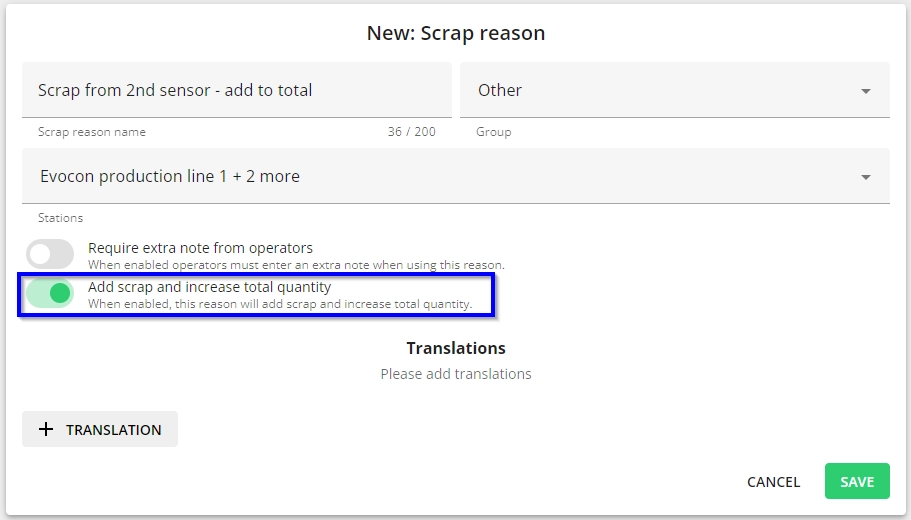
Create a new scrap reason or edit an existing one to add this feature. More information on how to edit or create scrap reasons can be found here.
-
Enable the "Add scrap and increase total quantity" feature from the toggle:
-
Click "Save"
How to use the scrap reason that increases the total quantity in Shift View?
-
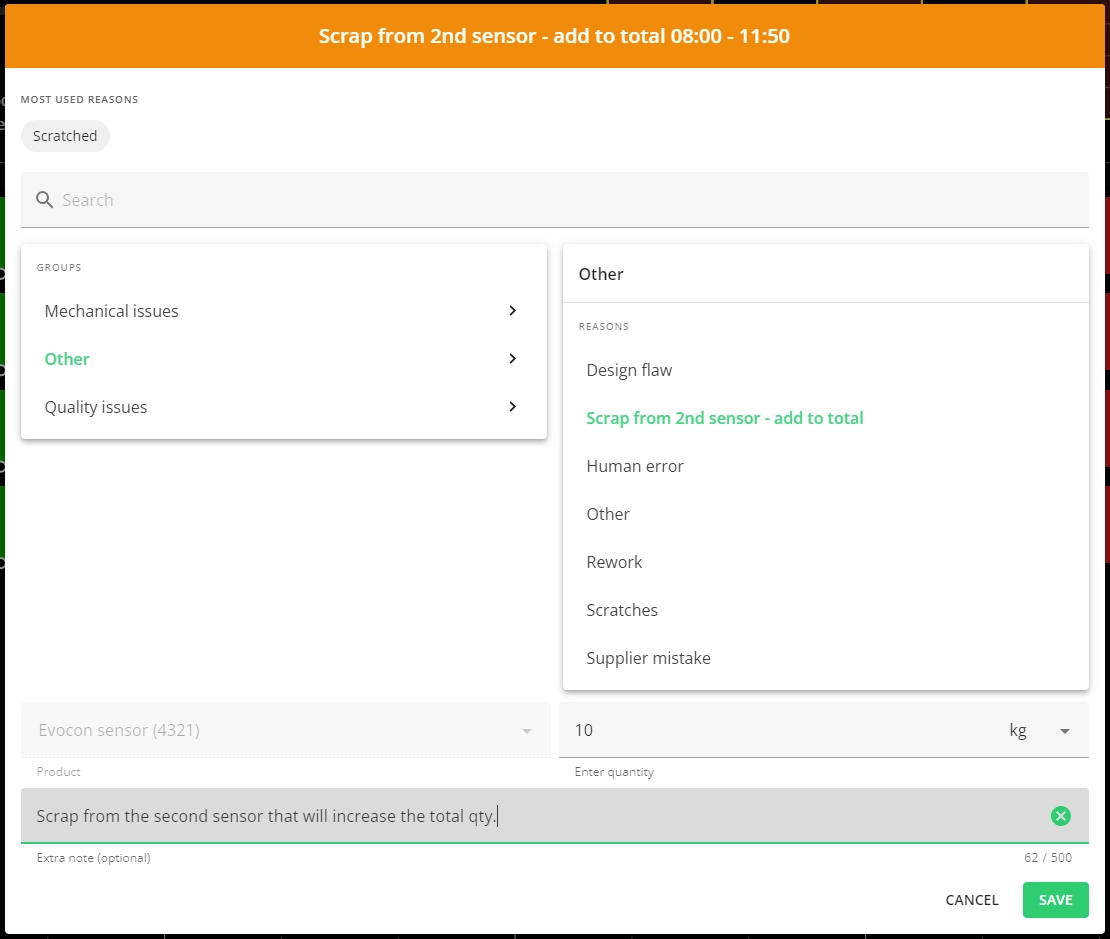
Select the signal(s) to be marked as scrap or open the scrap modal from the footer in Shift View.
-
Select the scrap reason group and the reason that has this feature enabled. Adjust the quantity or the unit and add an extra note if needed (optional).