
Security and audit · Guide 2 of 7
Managing security settings
How Company administrators use the Enterprise Security settings to create security profiles, request SSO and SCIM setup and restrict access with allowed IP addresses.
On this page
Advanced security settings provide the Company administrators the means to manage user's access to Evocon by ensuring that the users have the needed security level.
What options do advanced Security settings offer?
Under the Security section it is possible to
- Create security profiles
- Set up single sign-on (SSO)
- Set up user provisioning (SCIM)
- Set IP restrictions
Who and how can access the Security settings?
Security settings is only available for the Company administrator user accounts (meaning that Factory administrators do not have this card under Settings).
Regarding SSO and SCIM - these require setup from the Evocon support side, so to use these features, Evocon support needs to be involved (the contact form is prompted from the system when the security feature setup is started).
-
Go to Settings and click on the "Security" card:

How to manage Security settings?
Users
Security profiles
Security profiles can be used to manage login methods and overall account security per user. Security profiles must first be created and then attached from user's settings.
Adding a profile:
-
To enter the security profiles management, just click on the "Security profiles" row under the "Users" group:

-
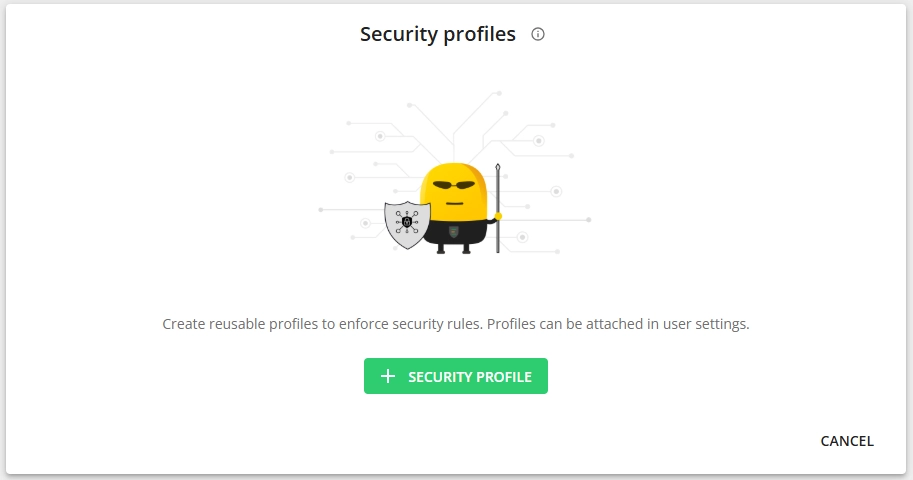
To add a profile, click on the "+SECURITY PROFILE" button:
-
Set the details as per your preferences:
-
Name - give the profile a short name. This should be informative enough so that you can distinguish it from other profiles in case there are multiple.
-
Require single sign-on (SSO) - when this is enabled, the users with this profile can use SSO to sign into Evocon.
- Please note that this requires the SSO to be set up (and setting up SSO will require involving Evocon support).

-
Require enabling two-factor authentication (2FA) - when enabled, users with this profile will see a reminder in the system to set up 2FA from their profile settings until they have done it. They will also see the 2FA setup prompt when logging into the system.
- Please note that this is not available when SSO is enabled for the profile, as 2FA is handled externally by your SSO provider if applicable.
- Users can not disable 2FA from their profile settings themselves as long as the requirement is set from the security profile.
-
Log out after _ days - when enabled, the users with this profile are automatically logged out and need to log in after every the set amount of days (between 1 and 365 days).

-
-
Click "Save" to save the profile.
Editing and deleting profiles:
-
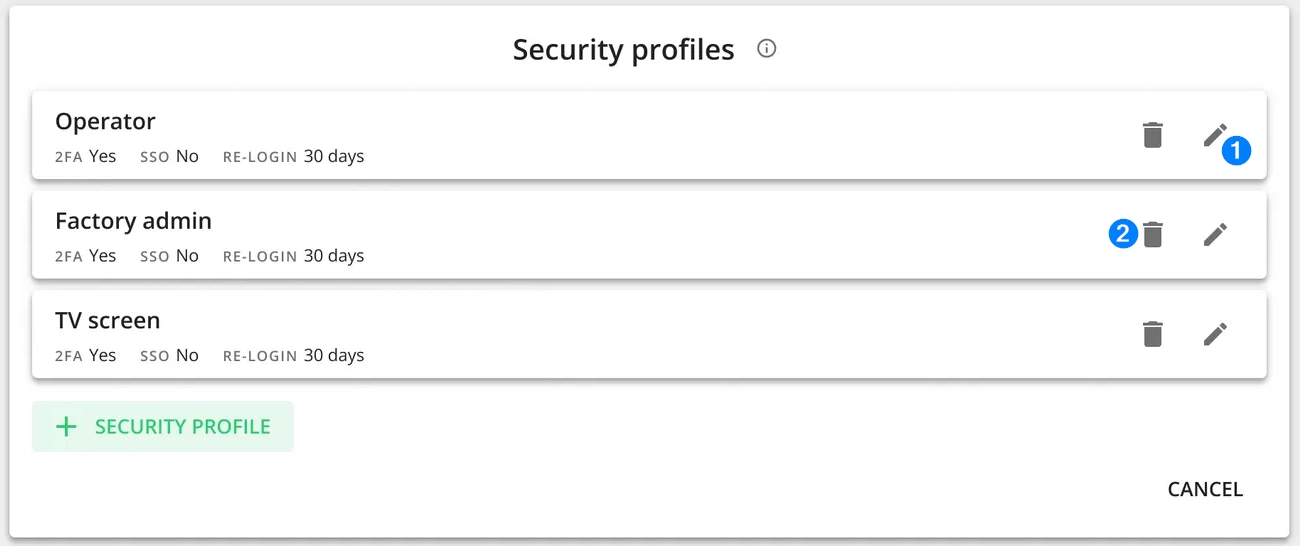
To edit a profile, click on the editing icon (marked with 1 in the below image), make the necessary changes and click "Save".
-
To delete a profile, click on the deleting icon (marked with 2 in the below image) and confirm by clicking "Delete".
- Please note that you can only delete a profile that has not been assigned to any users.
Setting a security profile for a user account - please refer to the information in this article:
Setting security profiles for user accounts
Single-sign on (SSO)
-
To set up SSO, use the "Contact Support" button to open the contact form and request assistance with the setup from the Evocon support team:


User provisioning (SCIM)
-
To set up SCIM, use the "Contact Support" button to open the contact form and request assistance with the setup from the Evocon support team:

Network
Allowed IPs
-
To enter the allowed IPs management, just click on the "Allowed IPs" row under the "Network" group:

Adding IPs:
-
Click on the "+IP ADDRESS" button:
-
Set the details:
- Public IP address - set the IP or use the "Get my IP" button if the IP currently used should be added.
- Description - add a short informative description that helps you distinguish this IP address from any others.
- Roles - Assign roles if you wish to restrict only certain user roles, any role with higher level of permissions can still access Evocon.
- The user levels hierarchy is Company administrator (highest), Factory administrator, Office user, Shift View user (lowest).
