
Stations, products and reasons · Guide 6 of 14
Managing production stop groups and reasons
How to create, edit, delete, reorder and translate production stop groups and stop reasons in Evocon Settings.
On this page
Predefined production stop reasons are necessary so operators can register information on why stops occur in the production process. This creates an important layer of transparency and enables manufacturers to understand the reasons for production downtime and why OEE losses occur.
Before production stop reasons can be defined in Evocon, stop groups need to be created. The most commonly used groups are organisational stops, breakdowns, planned stops, maintenance, other etc. Once stop reasons are defined, operators can start adding them in Shift View. Follow this link to learn more.
How to add production stop groups?
-
Go to Settings in Evocon and click the “Stop reasons” card.

-
Click the “+ Group” button.
-
Define a name for the group of reasons (e.g. “Breakdowns”).
- There can not be multiple stop groups with the exact same name, so in case several are needed, please add some kind of indicator to the name (e.g. “Breakdowns F1” and “Breakdowns F2” for different factories).
-
Choose a colour for the group – this is useful when analysing the Downtime report as all reasons within one group will be displayed in the defined colour and you can easily spot which group of stops contribute most to production downtime.
-
Define the factories for this group or set it as global. The list of factories depends on the access permissions you have and which factories you have marked active while creating a new group.
-
Add translations if necessary.
- If translations have been added, users can see stop group and reason names in the language they have set for themselves (under user settings).
- Translations apply to both Settings and Shift View.
- For example: Operator uses an account that has Spanish set as language. Company administrator adds new stop reasons under Settings in English, but adds the Spanish translations. In this case the operator can see the Spanish version of the name when they use stop reasons in Shift View.
-
Click “Save”.

To edit or delete comment groups, click on the group name and then the editing icon.
How to add production stop reasons?
-
Go to Settings in Evocon and click on the “Stop reasons” card.
-
Click the “+ Reason” button.
-
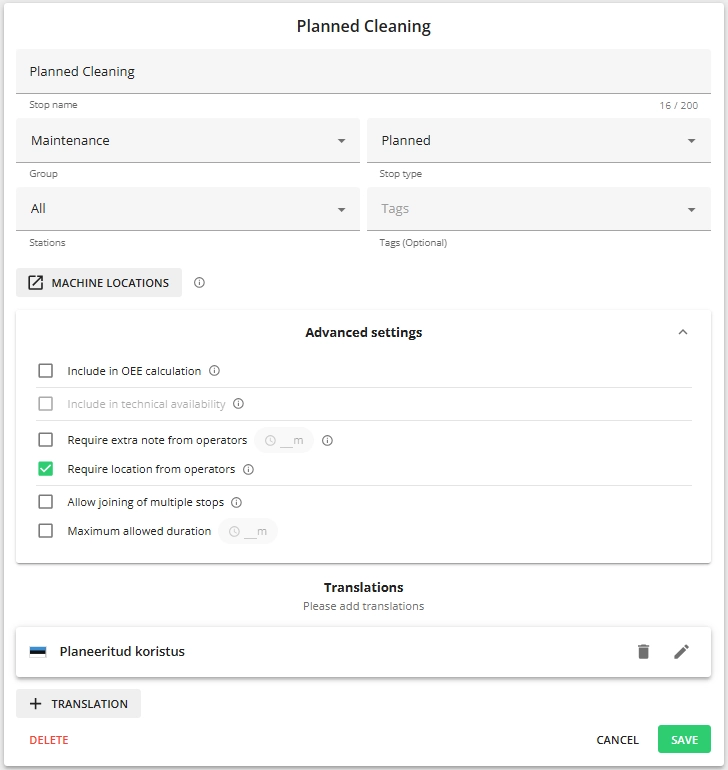
Fill out the form:
-
Name – Describe a common production stop reason.
- Please note that there can’t be two stop reasons with the same name.
- If the stop name is changed, it will be changed historically as well.
-
Group – Select a group for the stop reason.
-
Type – All unplanned stops reduce OEE (e.g. machine breakdown). For planned stops, it is possible to select whether they reduce OEE or not.
- If the type is changed, then historical data will remain as it is and the change is applied for comments added since the change is done.
-
Stations – Select stations where the stop reason will be visible.
-
“Machine locations” - this link opens the locations settings page in a new tab, if it is necessary to link this reason to specific location(s).

-
Include in OEE calculation - For planned stops, it is also possible to select whether they reduce OEE or not. By default this is set to enabled (does reduce OEE) when creating new stop reasons.
-
If this is changed, then historical data will remain as it is and the change is applied for comments added since the change is done. For example, if stop X was excluded from OEE calculation until Monday the 25th of November, then it will remain to show that in Reports as well (reducing planned time, not affecting OEE). And the newly added comments (with the “included in OEE calculation” set now) will show according to new setting (affecting OEE).

-
-
Include in technical availability – Enable "Include in technical availability" if this unplanned stop should be included in the calculations for technical availability. More info here.
-
Require extra note from operators – Enable this in case this stop reason requires a free text comment from the operators (e.g. reason "Other"). You can also set the duration for the stop from where the note is required.
-
Require location from operators - Enable this in case this stop reason requires the operators to specify a machine location (station-specific locations must be defined in the settings; otherwise, the stop reason cannot be saved on Shift View.).
-
Allow joining of multiple stops - Enable this in case stops that are commented with this reason, need to have the option to be joined as one. More info here.
-
Maximum allowed duration – Set the value for the maximum duration if necessary (optional). This feature is usually enabled for lunch breaks, planned cleaning, maintenance etc. More info here.
-
-
Add translations if necessary.
-
Click “Save”.
How to edit/delete stop groups and reasons?
Groups:
-
Go to group view and click on the editing icon for the group

-
Make the edits or click on “Delete” to delete group.
-
Confirm the changes/deleting.
Reasons:
- Find the reason from list view or under the stop group in group view.
- To open the reason, click on the row or on the arrow icon at the end of the row.
- Make the edits or click on “Delete” to delete group.
- Confirm the changes/deleting.
How to change the order of production stop groups and stop reasons within a group?
The order can be changed in group view by dragging the items (groups or stop reasons within a group) by the dotted icon in front of the item:


How to add translations to stop groups?
-
Go to Group view of stop reasons (from the top right corner).
-
Open the edit view of the stop group you want to add a translation to by clicking on the editing icon in front of the group name.
-
Click on the “+TRANSLATION” button below:
