
Stations, products and reasons · Guide 11 of 14
Using machine locations for production stop and speed loss reasons
When and how to define machine locations so operators can register where on the line stops and speed losses occur.
On this page
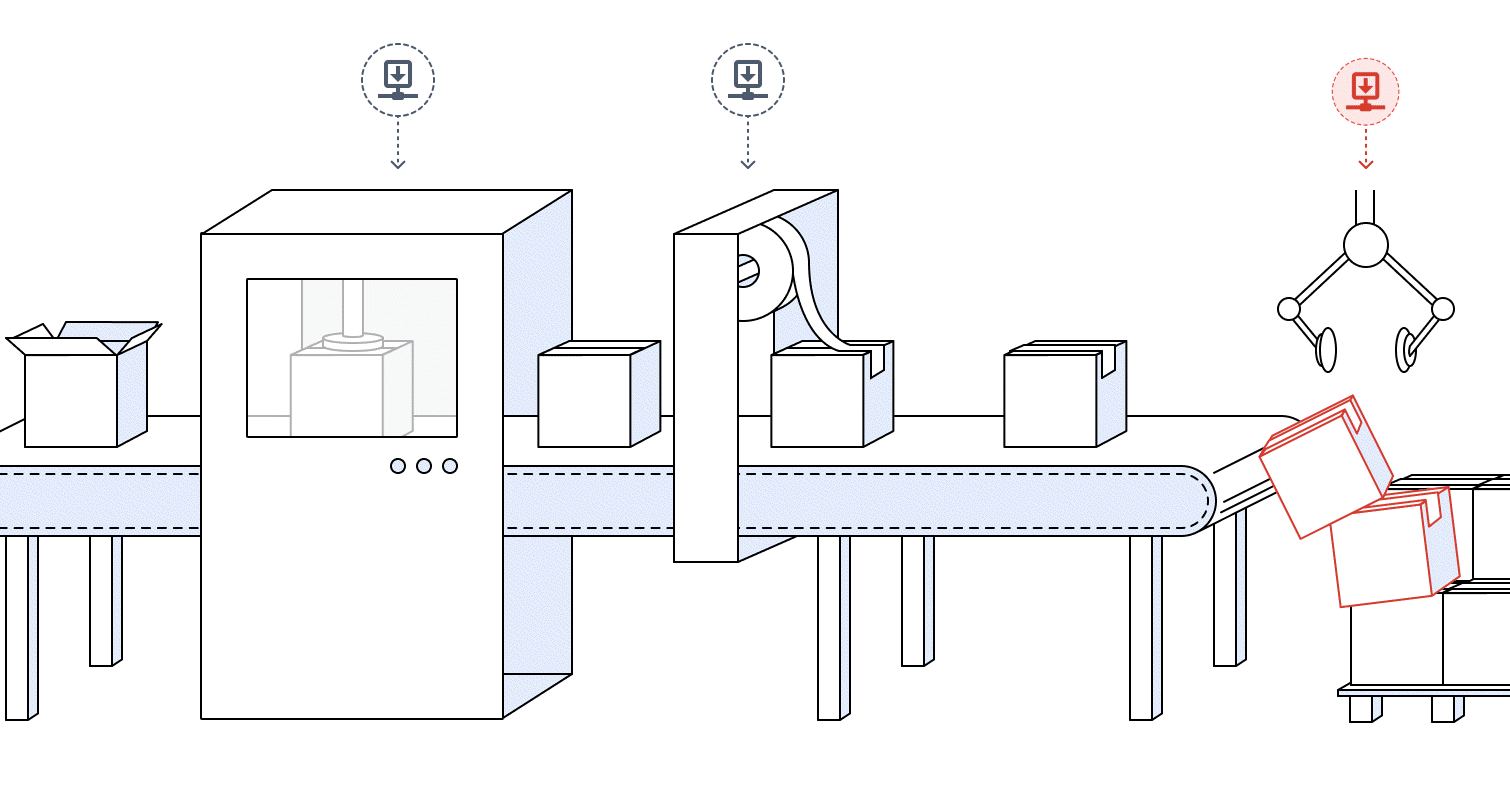
"Machine locations" is a feature that Evocon clients use to get more insight into production downtime by registering where stops occur on the production line. Locations, which can also be referred to as machines within a production line, can be defined for specific stop and speed loss reasons.
Once locations are defined and registered in Shift View, then analysis on which location within the production line caused the downtime can be done in the Downtime report using the chart display options for X axis.
When to use machine locations?
- When the production line has multiple workstations or machines (e.g. bottling line) and it is important to know in which part of the production line the stop/speed loss occurred.
- When there is a common production stop/speed loss reason but it occurs in different parts of the production line.

How not to use machine locations?
Machine locations should not be used as a “third level” for stop or speed loss reasons. They are not represented or analyzed the same way as reasons, and in the end the incorrect setup will probably cause data analysis issues, plus the need to restructure the reasons and locations in a correct way (which can cause frustration and engagement loss for operators).
How to add a new machine location?
Operators can choose locations when they are adding stop reasons in Shift View.
-
Go to Settings in Evocon and click on the “Locations” card.

-
Click on the "+Location" button
-
Fill the form:
- Machine location - enter the name of the location
- Stations - enter the stations for this location
- Stop reasons (optional) - mark the stop reasons that can happen at that location
- Speed loss reasons (optional) - mark the speed loss reasons that can happen at that location
- If there aren’t any speed loss reasons defined, this dropdown is not shown.

-
Add translations if needed.
-
Click “Save”.
Note: you can edit and delete locations from the edit icon (>) or just click on the entire row:

How to add translations to machine locations?
Note: Translations will be visible both in Settings and Shift View. Meaning if the original is created in English and for example German translations have been added, then users with German language set in their profile can see the locations in German both in Settings and in Shift View.
-
Click on the “+ TRANSLATION” button

-
Choose the language from the drop-down and write the translation

-
Click “Save” and add more translations if needed.
-
Click “Save” to save all the added translations.

How to change the order of machine locations?
The sequence of the locations can be changed within “groups” - they are grouped by stations. So please use the “Stations” view:

Locations can be ordered by dragging from the dotted icon:
