
Stations, products and reasons · Guide 7 of 14
Setting maximum duration for stop reasons
How to limit planned stops such as lunch breaks to a maximum allowed duration so operators must explain any overrun.
Some stops in the production process are planned and we know their duration. In order for operators to stick to these limits, these stops can be set to have maximum allowed duration and in case of operators exceeding the time limit, they have to add an extra comment for why this happened. In most cases, this is used for lunch breaks and various other planned stops (maintenance, cleaning, training etc).

Max duration is applied to a single stop occurrence within a shift (so there can be several stops with the max limit within one shift), but it is divided into two in case the “extend stop reason after shift change” is enabled. In this case, the stop in the end of one shift and in the beginning of the next one must be ≤ max duration.
How to add maximum duration for stop reasons?
-
Go to Settings in Evocon and click on the “Stop reasons” card.
-
Click on the entire row or on the arrow on the right for the stop that you want to set a maximum duration:

-
Set a time limit in minutes:
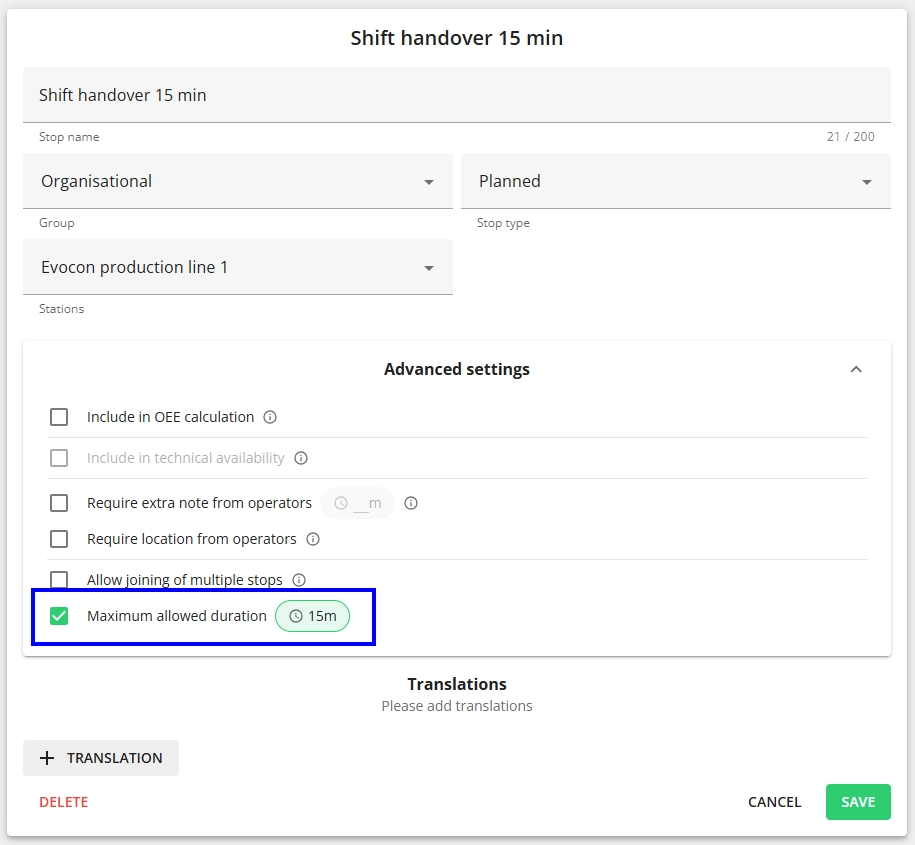
Note: The duration must be between 1 and 1440 minutes.
-
Click “Save” and the stop reason will now be limited to the set time.
