This is available for Company administrator users only.
How to use stop reasons export and import?
Step 1: Download existing data
Open the export/import modal for stop reasons
- Or use this [direct link](https://app.evocon.com/#/settings/comments/dataImport?reportName=StopReasonExport).
Click the “Download” button in the first section to get the current stop reason data in an Excel file
“Include deleted data” means including previously deleted items in the spreadsheet. All data that is deleted in Evocon is in a state called “soft deleted” (stop reason stays in database, but is not visible in the user interface). If “Include deleted data” is checked, then deleted items will be shown in the exported file.
Step 2: Edit the Excel file to add/edit data
“Stations” tab
This is the list of stations.
“Colors” tab
This is the list of available group colors. It is not possible to add new colors here.
“Stop groups” tab
Adding new groups:
Leave the “Stop group ID” field empty when adding new groups - this is automatically generated later by the system. You will see it with the next export.
Use unique group names. Meaning that two groups can not have the exact same name - if the names are not unique, the import will fail.
Use Excel’s “UNIQUE” function if you have a list of groups, to get unique product group names. Here is link to guide how to use this function.
Enter the new group names into the “Stop group name” column
Mark the new group(s) as active by entering 1 in the “Active or deleted item” column
Ordering - specify the ordering of the groups by adjusting the assignment of the given ordering numbers.
If there are numbers missing, then those ordering numbers are assigned to deleted groups and can not be used when ordering existing groups.
It might be easier to adjust the ordering from the system, please find the instructions here.
Color name - select a group color for your stop groups using the dropdown option. The available colors are listed under the “Colors” tab.
If you see colors as codes for some groups, these might indicate colors that are no longer available to be selected, but you do not need to change them (they appear in the system correctly).
Editing existing groups:
Don’t make any changes to Group ID.
If the ID is removed, then the upload will consider it a new entry, so it will try to create this as a new group - but there can not be two groups with the same name, resulting in failure.
Edit the group names, ordering or color as needed.
After making changes to group names and uploading the file, you will see errors for stop reason and group relations because the stop reasons had the old group name attached. This does not require any action and the group names will be updated the next time you export this file.
Deleting stop groups
Deleting stop groups is not possible via import.
This can be done in the Evocon application under Settings —> Stop reasons. More info can be found here.
“Stops” tab
Adding new stop reasons:
Stop ID - leave this field empty, it will be generated automatically by the system and you can see it with the next export.
Stop name - Enter the new stop reason name into this field.
The maximum length for the name is 200 characters.
Station - select the station this applies to from the dropdown.
If multiple stations need to be selected, please enter multiple rows (same reason, different station).
Stop group - select the group (from dropdown) where this reason should belong to.
Stop type - set the type for the stop reason.
1 means “planned” and 0 means “unplanned”
Maximum duration - set the maximum allowed duration for the stop reason if needed. If not, enter 0 (meaning there is no maximum allowed duration set).
Technical availability - include the stop reason in technical availability calculation if needed. 1 means it is included and 0 means it is not.
Extra note required - mark it 1 if extra note should be required and 0 if not.
Extra note limit - set the time for the extra note requirement, meaning that extra note is only required if this set time limit is exceeded.
Note that the time is set in seconds, not minutes.
Include in OEE - set it to 1 if this stop reason should be included in the OEE calculation, and 0 if not.
Require location from operators - set it to 1 if location should be required for this stop reason, and 0 if not.
Allow joining of multiple stops - set it to 1 if joining should be allowed for this stop reason, and 0 if not.
Active or deleted item - to delete the stop reason, set it to 0, to have it as active, set to 1.
Editing existing stop reasons:
Don’t make any changes to Stop reason ID.
If the ID is removed, then the upload will consider it a new entry, so it will try to create this as a new stop reason - but there can not be two reasons with the same name, resulting in failure.
Make any changes needed to the name or the settings of the stop reason(s).
Deleting stop reasons
To delete an existing stop reason, mark “Active or deleted item” as 0.
Step 3: Upload the edited file
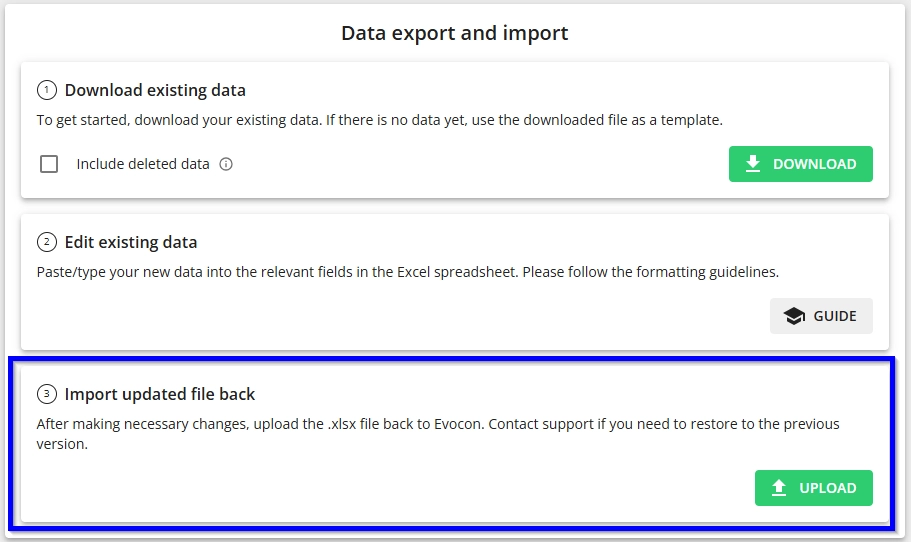
Go to the “Import updated file back” section of the “Data export and import” modal
Click on the “UPLOAD” button.
Click on the green area to upload the file and select the edited .xlsx file from your computer
Confirm overwriting data
Make sure to check the box for Confirm overwriting data. This will overwrite the existing settings with the imported data.
It is not possible to upload the file without marking this (the “ADD” button is disabled).
Start the import process by clicking on the “ADD” button
Step 4: Validate the import
Review the data
After the import, review the data to confirm it appears correctly.
If there were errors, you will receive a report with an error file to review and correct the issues.
If the import is successful, you will see the number of successfully updated items.