
Shifts, signals, alerts and checklists · Guide 10 of 11
Settings - Creating and managing Checklists
How to create checklist groups and checklists, set their frequency and tasks, and edit or duplicate checklists in Settings.
On this page
For your operators to start using Checklists, you must first have the Checklists feature enabled by Evocon's support team on your selected station(s) - it is a separately licensed feature. Checklists are station-specific (per station licenses). Please get in touch with our support to set this up. Once that has been done, you can start adding Checklists in the Settings module.
How to create a Checklist group?
-
Go to Settings and open Checklists

-
Click on the "+ GROUP" button in the top right corner of the overview
-
Fill out the form
- Group name – the name of the group that will include similar or related checklists.
- Colour – the chosen colour will represent this group's checklists in reports.
-
Click "Save" if you're done.

How to add new Checklists?
-
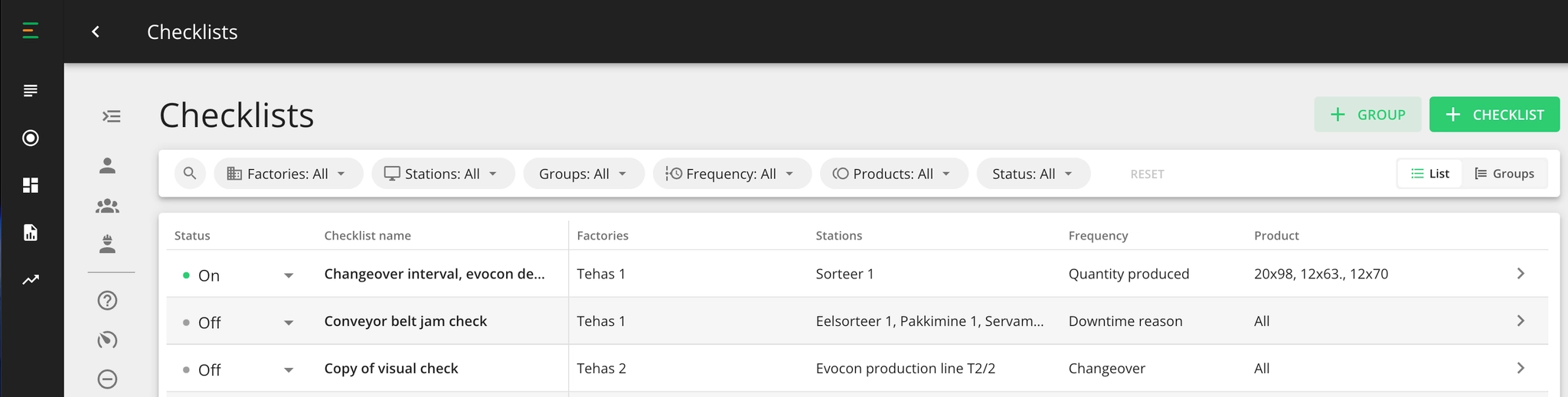
Go to Settings in Evocon and click on the "Checklists" box:

-
Click on the green "+ Checklist" button (top right corner) to create a new checklist.

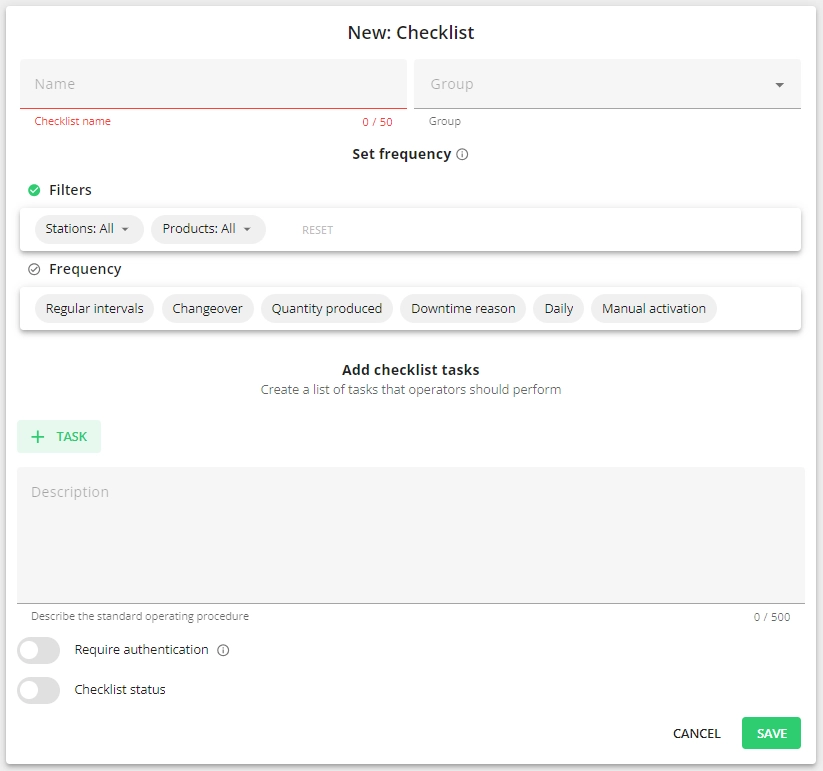
Setting up a checklist
-
Fill out the form
- Checklist name – the name of the checklist that will also be the header on Shift View.
- Group – use groups to gather similar or related checklists within a unified category.
- Filters – choose factories and workstations on which the checklist should be used. You can also make the Checklist product-specific.
- Set frequency – choose the interval and the conditions when the checklist appears on Shift View. More details on setting up frequency here.
- + Task – create different tasks. More details on setting up checklist tasks here.
- Description (optional) - describe the standard operating procedure. You can also add clickable URLs here, for example to production instruction documents, etc.
- Require authentication - if needed, require that operators authenticate themselves when filling this checklist.
- Checklist status - use the toggle to activate or disable the checklist.
-
Click "Save" if you are done.
How to set up checklist frequency?
When creating a new checklist in Evocon, it must also be assigned to at least one station. The checks will appear only on the chosen station(s) on Shift View.
You can see the options in the "Frequency" section under checklist settings:

- Regular intervals - the checklist will show at the chosen interval. E.g. every 40h of planned shift time (hours when the Evocon system records the shifts). More details below.
- Changeover - the checklist will appear on Shift View after a product changeover, delayed by the time that you have specified. This option can be product-specific or a checklist will be shown after any product changeover. You can add an interval for the changeover check. More details below.
- Quantity produced - the checklist will show after a set number of cycles/products have been produced (total quantity). More details below.
- Downtime - commented stop reason will trigger the check. If downtime is continuing to run, the checklist will appear at the minute when downtime was commented. If the downtime has been commented into the past, then the checklist will appear at the end of the stop. More details below.
- Daily - Choose a specific day(s) and add time(s) for the check to appear. More details below.
- Manual activation - operators can start this checklist when necessary. This option can be added to automatically triggered checklists as well. More details below.
Frequencies
- Periodical
- Regular interval
- Shift time
- Changeover
- Quantity produced
- Downtime
- Manual activation
How to add checklist tasks?
There are two different ways to perform the checks. One is by confirming something (i.e. checking visually if the quality of the surface of the planed frame is clean), and the other measuring something (i.e. surface temperature in °C or paint thickness in gsqm).
The user can add as many tasks as they like. The operators must do all the tasks; otherwise, the checklist is considered unsuccessful in Shift View.
The ordering of the tasks can be changed by drag-and-drop from the dotted icon in front of the task name (see below). The tasks appear in the set order in Shift View as well.

Images in Checklist tasks
To allow images to be added when operators are filling Checklists in the Shift View, please enable this option under each task separately (instructions have been added under every task type below).
-
Click "+ TASK" to add a task.

-
Choose the task type from the dropdown and fill in the details
- Measurement (see details)
- Yes/No (see details)
- Enter text (see details)
- Mark as done (see details)
- Single-select (see details)
- Multi-select (see details)

Tasks
- Measurement
- Yes/No
- Enter text
- Mark as done
- Single-select
- Multi-select
How to edit Checklists?
Only administrators (Factory and Company administrators) can add and edit checklists from Settings.
In Settings, Checklists can be edited by clicking on the checklist row or on the arrow icon on the checklist row in the overview. Editing interval and quantity checklists will reset the counter (there will be a notification when confirming the changed).
Switching it on or off can be done from the overview, without opening the edit view:
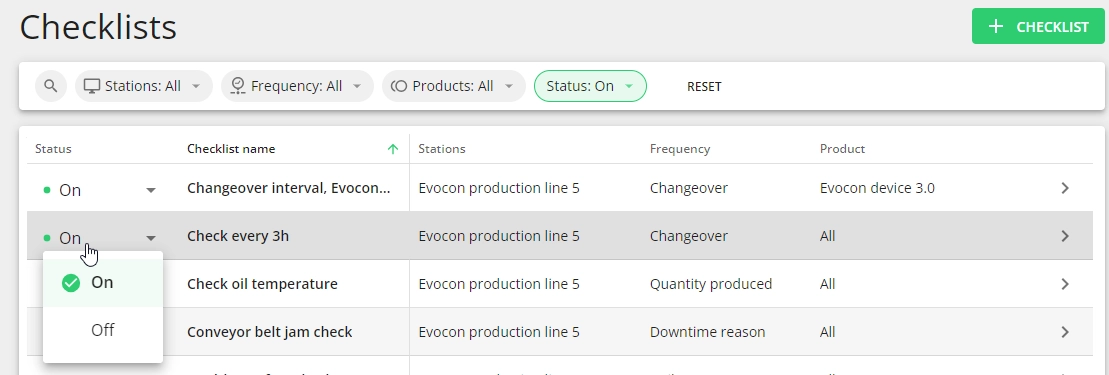
In Shift View, users can change the check results if needed (and if time restriction is not preventing this). In Shift View, time restriction can be set for Shift View and Office user accounts, so editing possibilities depend on user account settings.
How to duplicate Checklists?
In case you need to create similar checklists, you can use the duplication feature to make the creation process easier.
-
Go to "Settings" and open "Checklists"
-
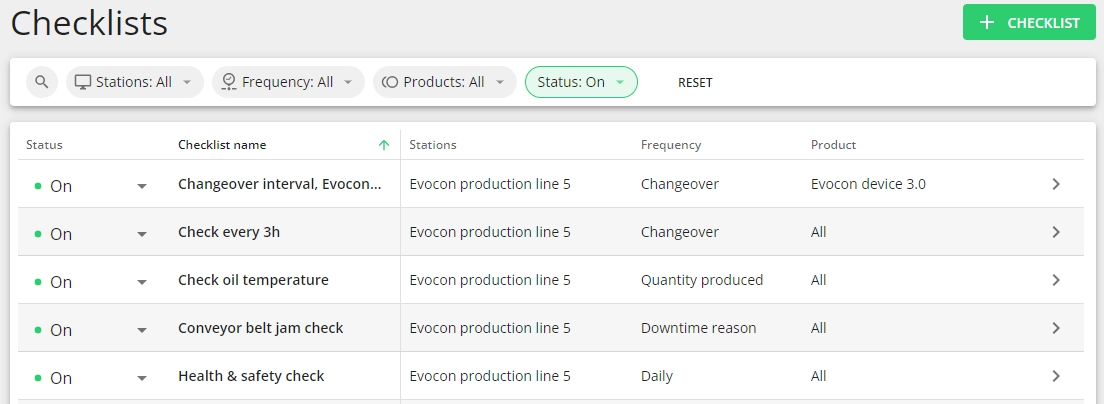
Open the checklist from the arrow icon or click on the row in the overview
-
Click on the duplication icon at the bottom and change/fill the form as needed.