Stations, products and reasons · Guide 3 of 14
Adding and managing products
On this page
To mark product changeovers on the Shift View you first need to add products to the Evocon system. We make the initial configuration when we set up the system but you can always add new products or edit existing ones in our Settings module.
It is also possible to get all the product information to Evocon via an API connection with your ERP provider. Please contact our support for more information on how to do this.
Steps for setting up products
1. How to add new product groups?
- Go to Settings in Evocon and click on the “Products” card:

-
Click the „+GROUP“ button on the top right:
-
Define a name for the product group.
-
In the case of a multi-factory setup, define the factories for this group or set it as global. The list of factories depends on the access permissions you have and which factories you have marked active while creating a new group. If you do not have more than one factory, this step is skipped.
-
Click “Save”.
2. How to add new products?
-
Go to Settings in Evocon and click on the “Products” card.
-
Click the „+ Product“ button:
-
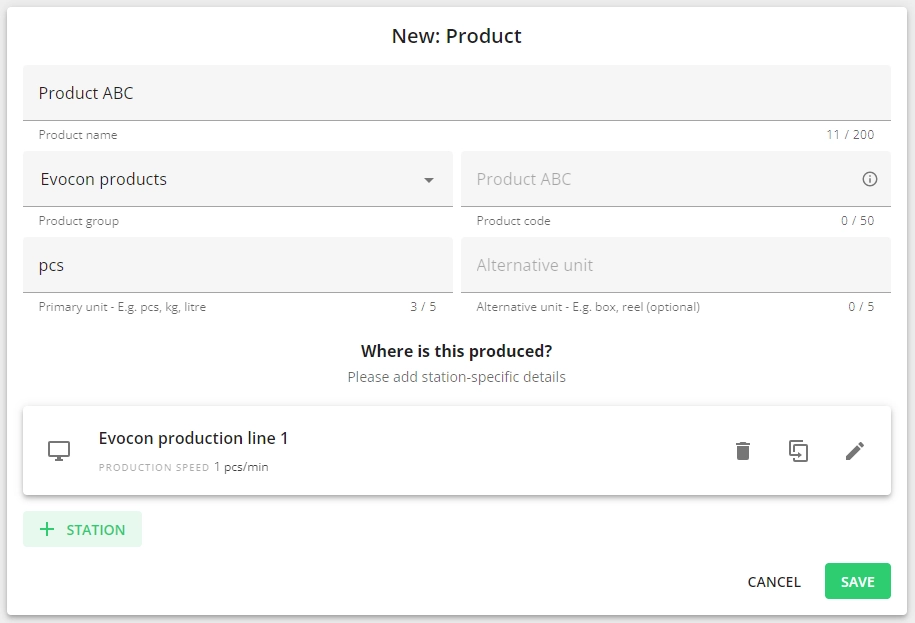
Fill out the form
-
Name – the name of the product.
-
Group – select a product group for the product.
-
Product code – enter your own unique code for the product or if you don’t use product codes, leave it as it is (showing the product name by default).
-
It needs to be unique. When a product with the same code already exists, the system indicates that with an error upon saving.
-
It is mandatory.
-
In the products overview the code is not shown if it is the same as the product name:
-
-

- In case the product code is the same as product name, the code is also not shown in Shift View (batch info, changeover modal).
-
Primary unit – describe the primary measuring unit e.g. pcs (pieces), kg (kilograms), L (litres). Limited to 5 letters.
-
Alternative unit - if you have multiple units, you can also define an alternative unit. More information can be found here.
- If you enter a unit to the “Alternative unit” field, you can set the conversion between this and the primary unit when you set the details of production speed for each station.
- Click “Save” or see the next chapter to assign this product to a station.
Note: To edit product information, just click on the edit icon and make the necessary changes.
How to duplicate products?
In case you have similar products, you can use the copying function to make the process quicker and easier:
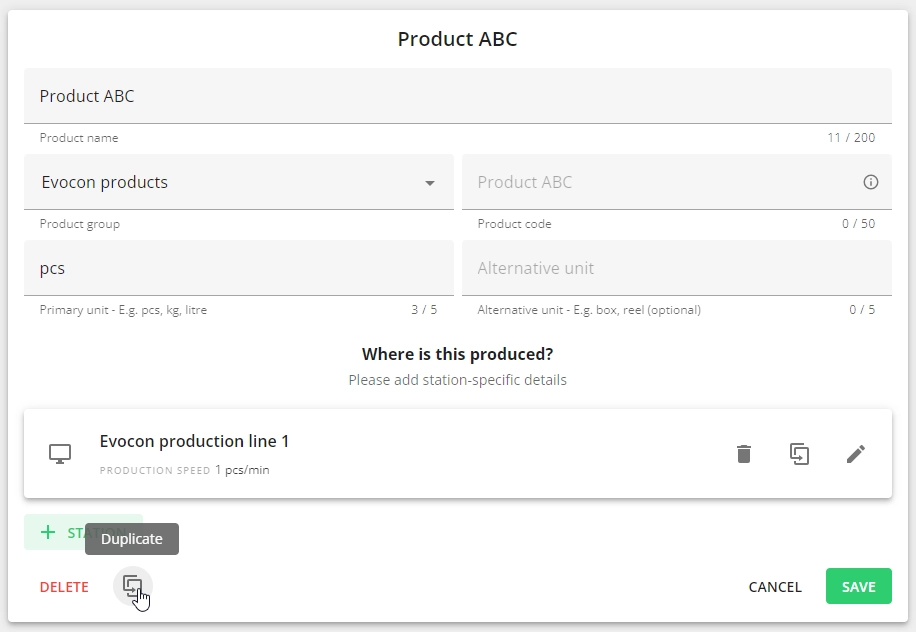
- To create a copy of a product, open the edit view of the product and click on the duplicating icon:
- You are then automatically taken to the product creation view (the new product is not saved yet). The name always states which product’s copy this is and you can change the name. Also, the product code field is always cleared for the copy, as the product code has to be unique.
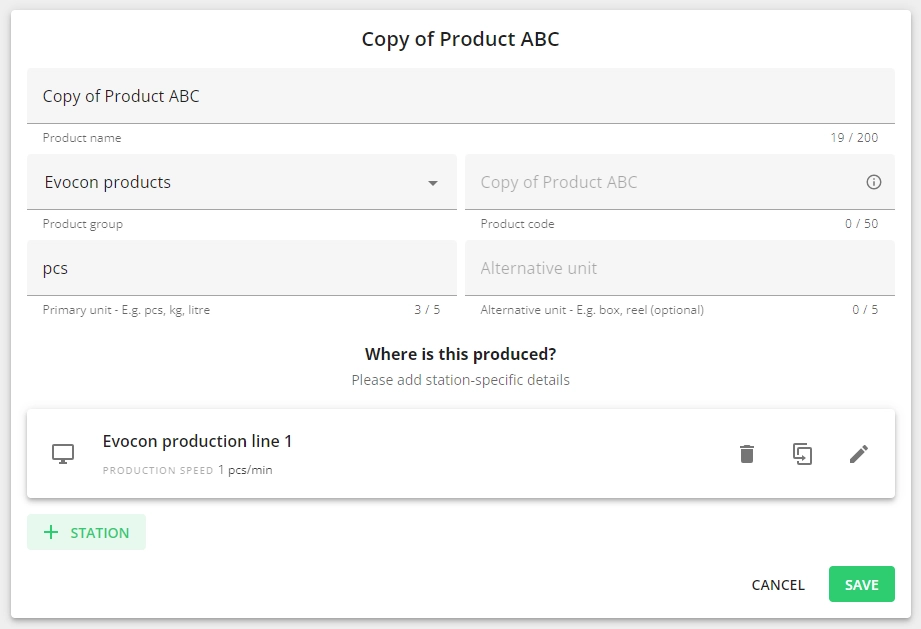
- Make your changes and click “Save”.
3. How to assign a product to a station?
When creating a new product in Evocon, it must also be assigned to a station or if the same product is produced on multiple stations, then these settings must be done for each station separately. This is necessary so the system can calculate OEE correctly. It is also important to note that if stations are not defined for products, then operators cannot access them in Shift View and product changeovers cannot be made.
-
Go to Settings in Evocon and click on the “Products” card.
-
Find the product you want to add to a station and click on the edit icon (or just the entire row):

- Below the product details, there is the "Where is this produced?" section. Click on "+Station" and select a station (production line) that produces this product:

-
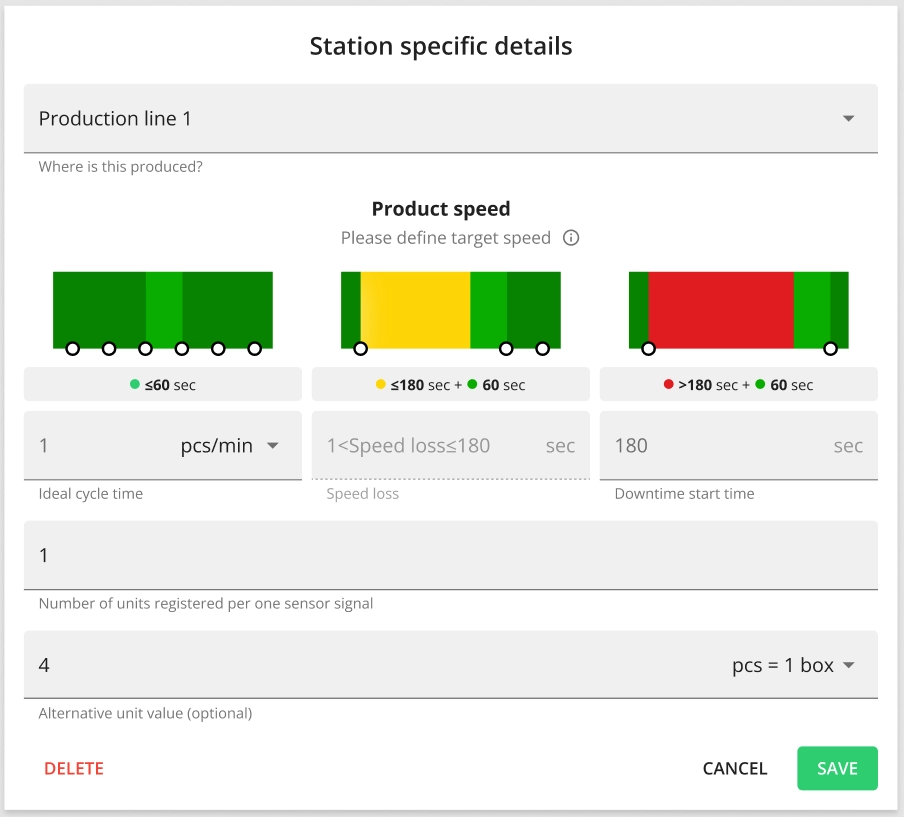
Fill out the form:
-
Station - select the station where this product is produced.
-
Ideal cycle time - enter the ideal cycle time (ideal production speed) based on the speed unit chosen from the drop-down. It is necessary to calculate OEE. If the ideal cycle time is not known, then enter the cycle time that you think the product should have and if performance is actually faster than 100%, then adjust the setting afterward.
Note: The system converts all cycle times into seconds. You can see the conversions under the images.
-
Speed loss – Speed loss is calculated automatically and will appear as yellow on Shift View. Speed loss is the time between the Ideal cycle time and the Downtime start time.
-
Downtime start time – enter a value in seconds, when the time between 2 products is considered as a production stop and has to be commented by the line operator. Cycle times exceeding this value will be displayed in red color on Shift View. The recommended value to start with is 180 seconds (3 minutes).
-
Number of units registered per one sensor signal – enter the number of products registered by one sensor signal. For example, if 6 bottles are inside one box and the sensor detects them as 1 box passing, then the value to enter is 6. By default, the value is 1. Change it according to your production specifics.
-
-
Click “Save” for the route settings and "Save" again under product settings.
- To assign the same product with similar/same details to another station, please use the route duplication functionality: