
Stations, products and reasons · Guide 9 of 14
Managing scrap reasons
How to create scrap reason groups and scrap reasons, set their options and change their order in Evocon Settings.
On this page
Once scrap reasons have been entered into the system and connected to specific stations, operators can select these reasons when they mark scrap in Shift View. The entered information is can be analyzed in the Scrap report.
How to add and manage scrap reasons?
-
Go to Settings and open "Scrap reasons"

-
Select the group you want to add a new scrap reason to or create a new group (click on "+GROUP") and define:
- Group name: Define a name for the group of reasons.
- Colour: Choose a colour for the group. Scrap reasons don't have a "standard" report yet, but when it is done, the colours are used similarly to stop reasons.
- Global group: This option is available only in multi-factory setup. Please find more information here.
- Factory: In multi-factory setup: define the factories for this group. The list of factories depends on the access permissions you have and which factories you have marked active while creating a new group.
- Translation: Add translations if necessary.

-
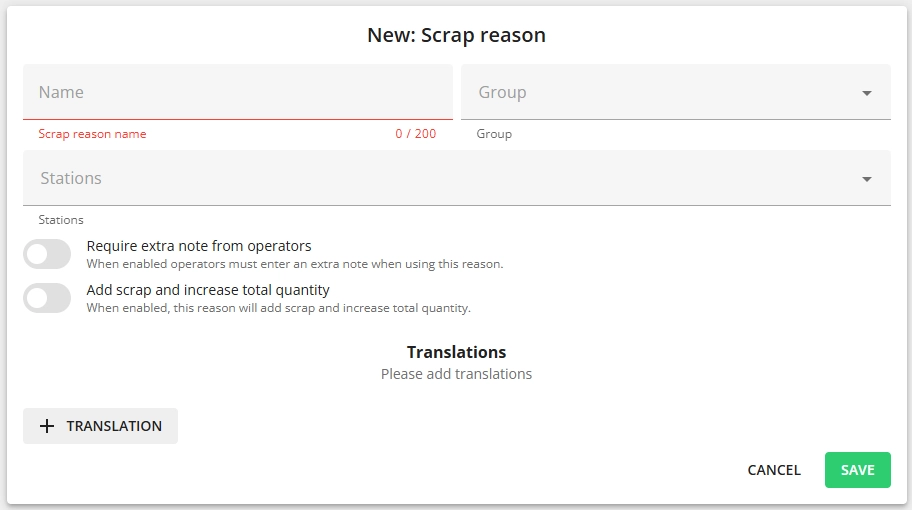
Add scrap reasons by clicking on "+Scrap reason" button and filling the short form:
Name: Enter a name for the scrap reason.
Group: Select the group where this scrap reason belongs to.
Stations: Select the stations this scrap reason can be used on.Require extra note from operators: Enable this in case you need the operators to add extra information when using this specific reason.
Add scrap and increase total quantity: if this is enabled, then this reason will add scrap and increase the total quantity by the same amount (as scrap).
Note: This option is only visible in cases where you are using the 2-sensor setup.
Translations: Add translations if necessary.
-
Click "Save".
How to change the order of scrap reason groups and scrap reasons within a group?
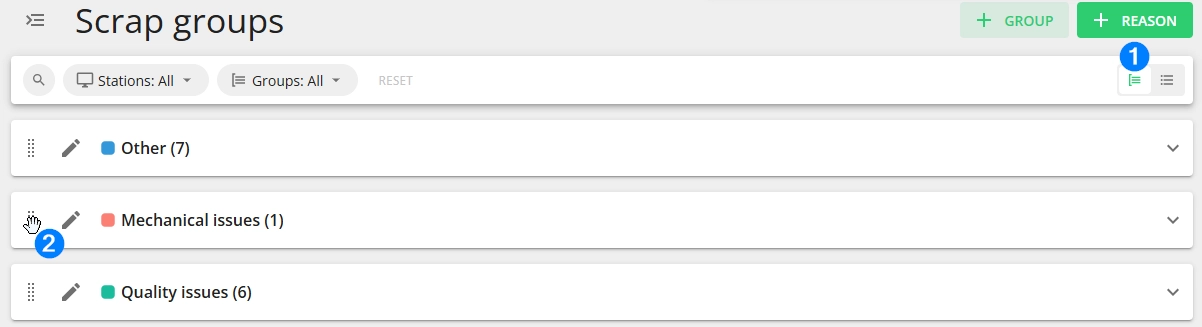
The order can be changed in group view (marked with 1 in the image below) by dragging the items (groups or reasons within a group) by the dotted icon (marked with 2) in front of the item:
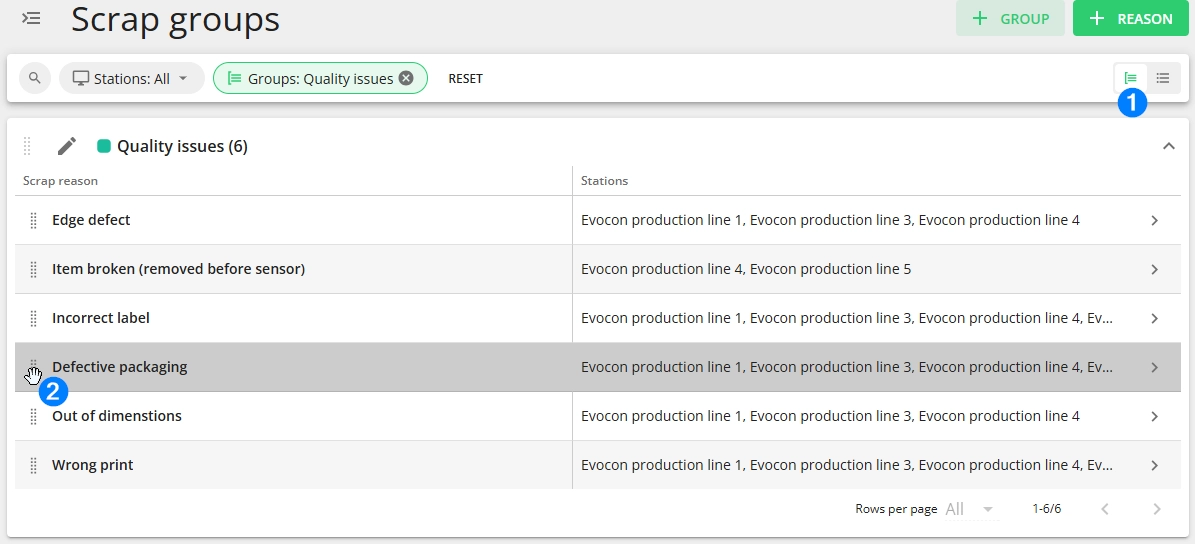
So, the reasons can only be ordered within one group and not in the list view.