
Security and audit · Guide 7 of 7
Activity logs - Shift View
How to access the Shift View activity logs, which filters and columns they offer and which timeline events and user actions are logged.
On this page
There is often a need for clear, traceable records of user actions in Shift View. User activity logs ensure that every change, adjustment, or interaction is documented with a time stamp and the responsible user.
How to access the Shift View logs?
Go to "Activity logs" card on the Settings page, Shift View logs are selected by default:

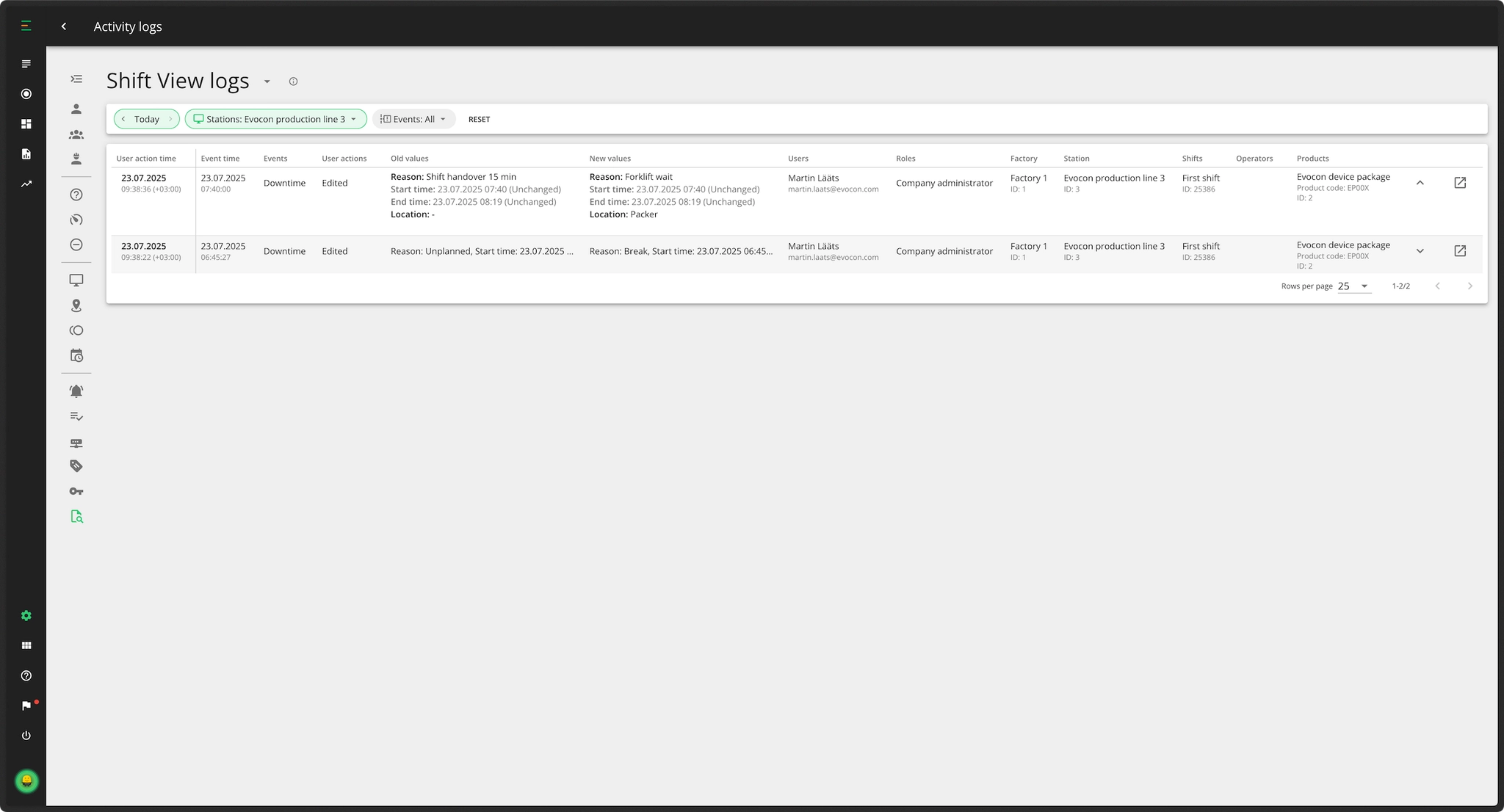
What filters are available for Shift View logs?
Timeframe
- The available timeframes are today, yesterday, this week, last week and in addition the "custom" selection.
- By default the value is "Today".
Stations
- Station selection is a single choice - meaning that only one station's logs can be viewed at a time.
- In case there are station groups defined, stations are displayed by group.
- By default the user's default station is selected. Or if this is not set for the user, then the first station in the list.
Events
- Select the event(s) to display in the results.
User actions
- Filter to select which user actions are shown (for example "edited" or "deleted").
What fields are displayed in the Shift View logs table?
The logs table includes the following columns:
- User action time: Time when the user interacted with the timeline event - (hh:mm), shown in the station's local time.
- Event time: Start time of the event on the Shift View timeline - (hh:mm), shown in the station's local time.
- Events: Indicating the elements within the Shift View that were modified (e.g., Downtime, Checklist, Changeover, Signal).
- More information can be found under section "What timeline events and user actions can be seen in the logs?" below.
- User actions: Action performed (e.g., added, edited, deleted).
- Old values: Previous values of the timeline event (before the modification).
- New values: First entry or newly entered values (only changed values).
- Users: User's name and username.
- Roles: User role under which the action was performed (e.g., Company administrator, Shift View user).
- Factory: Factory name and ID.
- Station: Station name and ID.
- Shifts: Shift name and shift ID.
- Operators: Comma-separated list of operators who were assigned at the start time of the concerned timeline event.
- Products: Product name, code, and ID.
Each row has two icons:
- The first extends the row so all the information would be visible.
- The second opens the corresponding Shift View in a separate tab.
What timeline events and user actions can be seen in the Shift View logs?
Downtime
- User actions:
- added (stop reason is added to an uncommented stop)
- edited (this also includes when a reason is added to an uncommented stop)
- deleted (user has removed a stop reason from a stop, stop becomes uncommented)
- Fields: Reason, Location, Extra note, Joined stop (Yes/No)
Checklists
- User actions:
- first fill
- added (used only for manually activated Checklists)
- edited
- deleted
- Fields: Checklist name, Status (Successful/Unsuccessful), Done by, Task results
Changeover
- User actions:
- added
- edited
- deleted
- Fields: Product name, Product code, Production order, Target, Quantity per signal, LOT/Batch, Extra note
Shift
Applies to both planned and extra shifts.
- User actions:
- started
- edited (ending the shift is also included here)
- deleted
- Fields: Start time, End time
Scrap
- User actions:
- added
- edited
- deleted
- Fields: Reason, Quantity, Extra note
Signal
- User actions:
- added
- edited
- deleted
- Fields: Quantity, Extra note