
Record stops, speed loss and scrap · Guide 4 of 8
Joining stops
How operators join several stops in a shift so they count as one, add stops to a joined group, and unjoin them again.
On this page
The joining stops functionality allows operators to join stops in a shift that should be counted as one in standard reporting, providing data accuracy as the main benefit.

To merge several stops into one, this functionality (joining) must be allowed for the specific stop reasons in Settings. This can be done by administrators, and more information can be found here.
How to join several stops into one?
-
Select several stops in a shift (by clicking on them one-by-one or dragging the brackets).
-
Click on Add reason:

-
Select the stop group and the reason you want to add and then click on the joining button to merge the selected stops into one:
- The joining button only appears for reasons that have that functionality set in Settings.
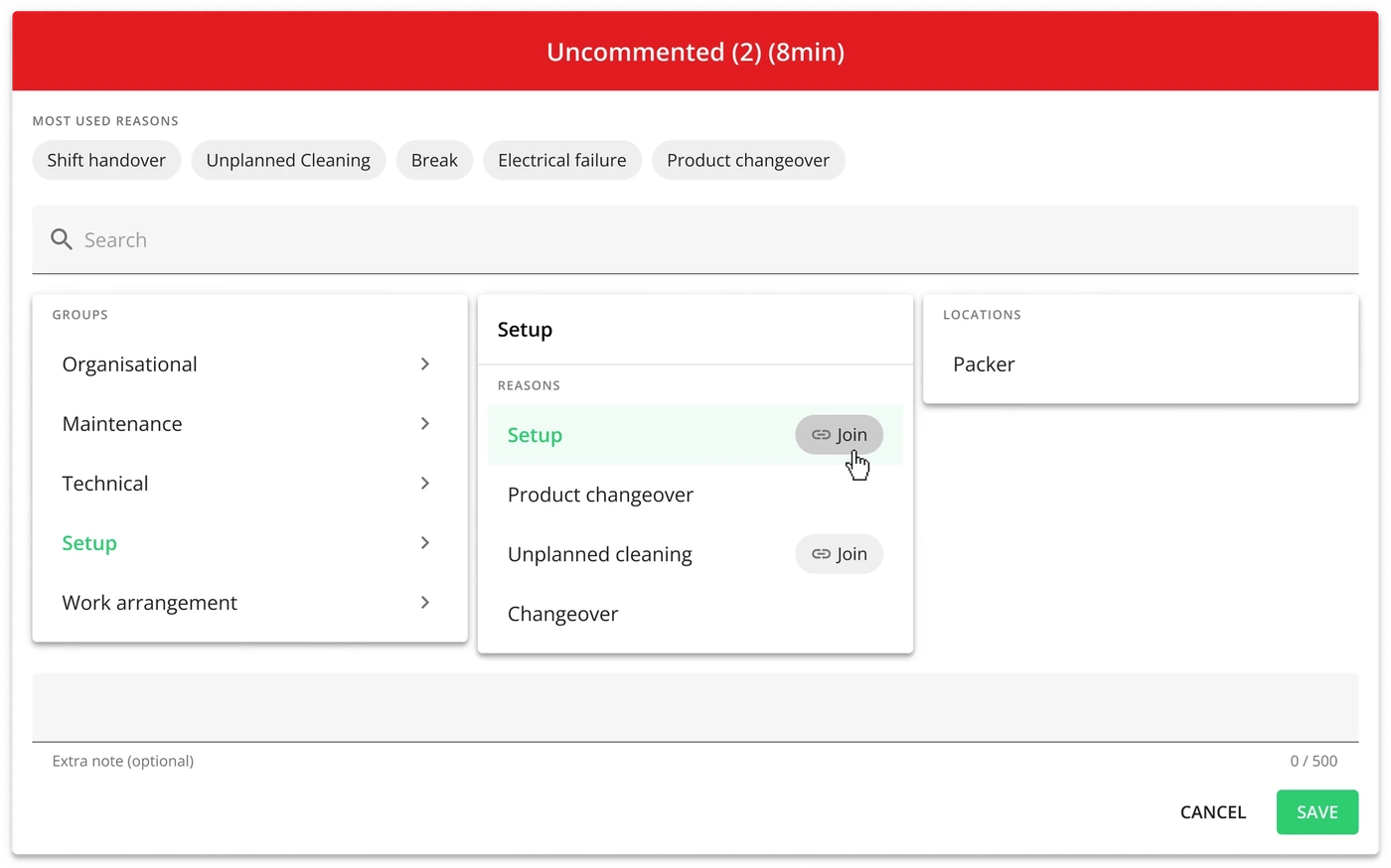
-
Select a location and add an extra note if needed.
-
Click Save.
-
The stops now have the "joined" icon in front of the reason name to indicate that they have been merged:

-
They are now counted as one in the statistics (Dashboard Downtime widget and Downtime standard report).
-
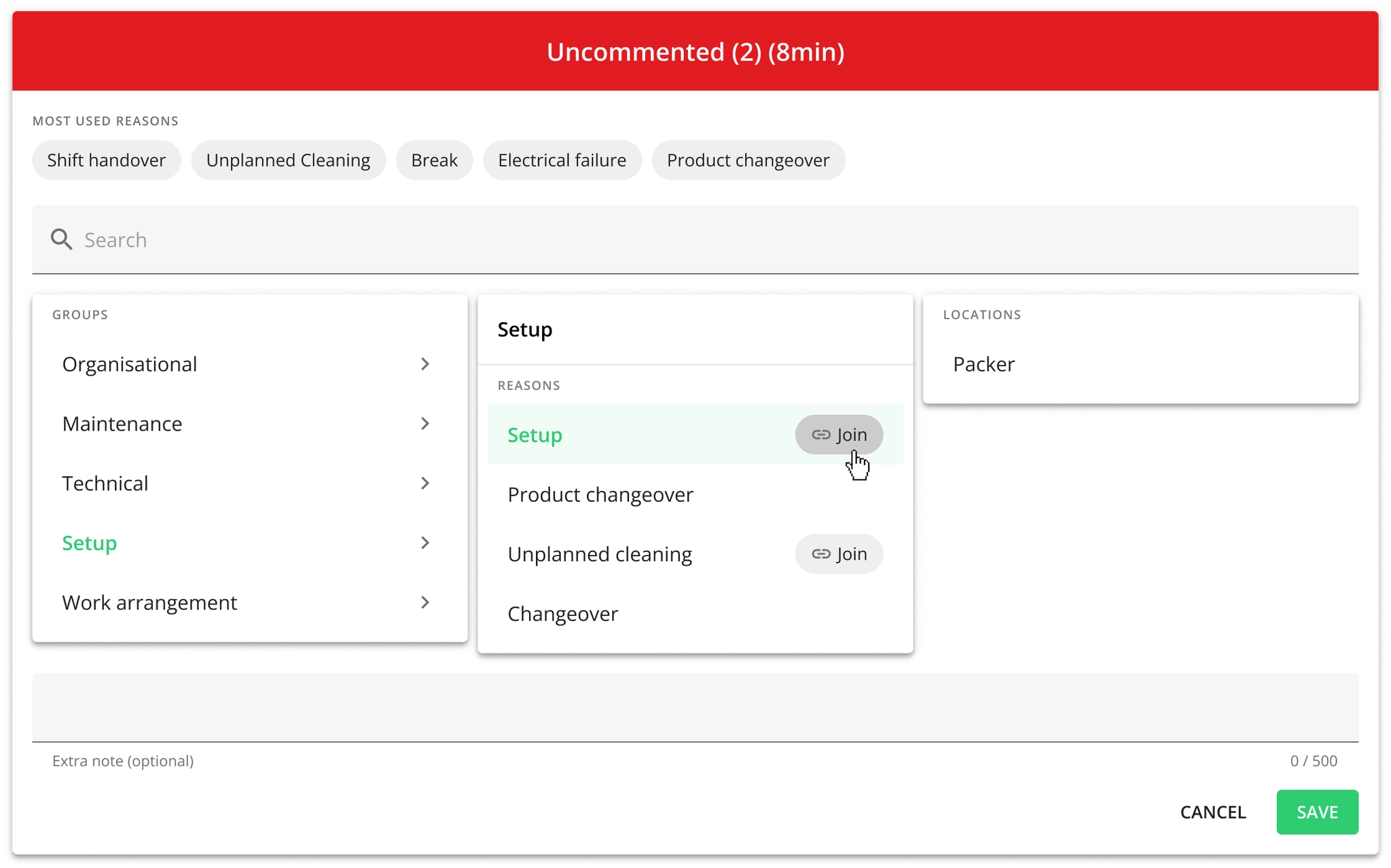
How to add another stop to already joined stops?
-
Click on one of the merged stops – this will select all the stops that have been merged.
-
Now click on the stop you want to merge into the others and select Add reason.

-
The reason the merged stops have applied is already selected, and the joining option is already selected:

-
Click Save. Now the additional stop has been merged into the others.
How to unjoin stops?
Removing the stop reason from a merged stop group will unjoin the stops.
To unjoin all selected stops:
-
Open the Downtime overview modal from the footer.
-
Find the merged stop and click on the unjoin icon:

-
The stops are then unmerged and displayed separately. They are also counted separately in statistics.
To unjoin some stop instances, but not all:
-
Click on a joined stop; all the merged stops are highlighted.
-
Click on the stops that you want to keep joined (deselecting them for this action) and leave the ones you want to unjoin highlighted.
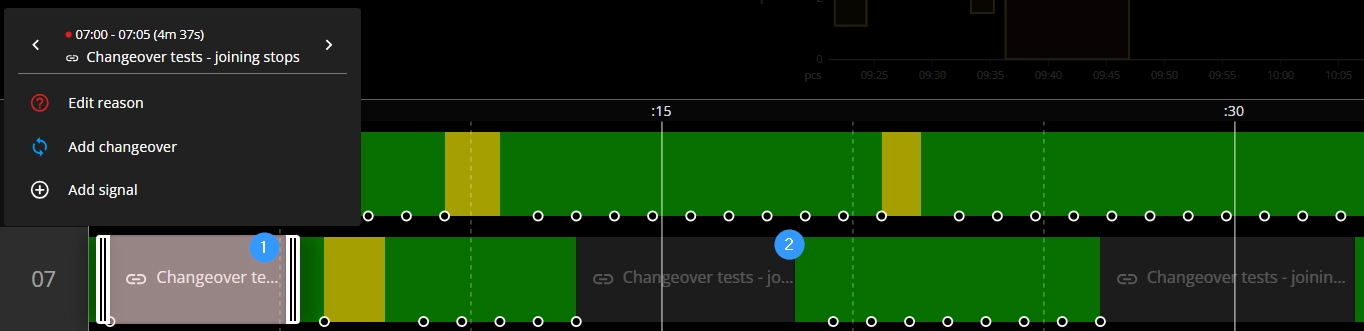
- Number 1 marks a highlighted/selected stop, and number 2 marks a stop that has been deselected for the following action with the merged stops.
- In the example below, there are 3 stops joined. One (the one marked with 1) is highlighted and the other two have been deselected. Following through with the steps described below, this would result in the first stop being unjoined and the second and third remaining joined.
-
Select Edit reason.

-
Click on the joining icon next to the stop reason name to deselect it (and unjoin the selected stops):

-
Click Save. The selected stops have now been unjoined.
How do product changeovers work with joined stops?
- Adding a changeover to one of the stops – add the changeover to the correct stop first and then join the stops.
- Editing/deleting a product changeover from the joined stops – click on the changeover icon and make the changes or delete it.
What happens to extra notes and locations?
Joining an uncommented stop with a stop that has an extra note and location
- The result is that the uncommented stop will be commented with the same reason, having the same location and the same extra note.
Joining two commented stops that have different locations and extra notes
- When joining, you are selecting the reason to be applied (from the edit view), the location to be set and also the extra note this group of merged stops should have.