
Record stops, speed loss and scrap · Guide 1 of 8
Marking reasons for production stops
How operators add stop reasons, multiple reasons and locations to production stops in the Shift View, and find them in the Downtime menu.
On this page
Production stops in Evocon Shift View are marked as red areas which the users can comment.
Knowing the exact reasons for production stops is important in order to gain transparency and understand where production efficiency is lost. Further analysis of downtime gives valuable information on what to improve and how to reduce waste.
Adding reasons for production stops
-
You can add a stop reason to a single production stop by double-clicking on the stop (go to step 3 from here) or clicking on it once and choosing Add reason from the popover. You can also move the brackets to select multiple stops and add the same stop reason to all of them, or click on each individual stop you would like to comment in one go.

-
You can see the count of selected stops and the total duration in the popover. Click the Add reason button in the popover to add a stop reason to the selected stops.

-
Choose the stop group and reason (and location if available).
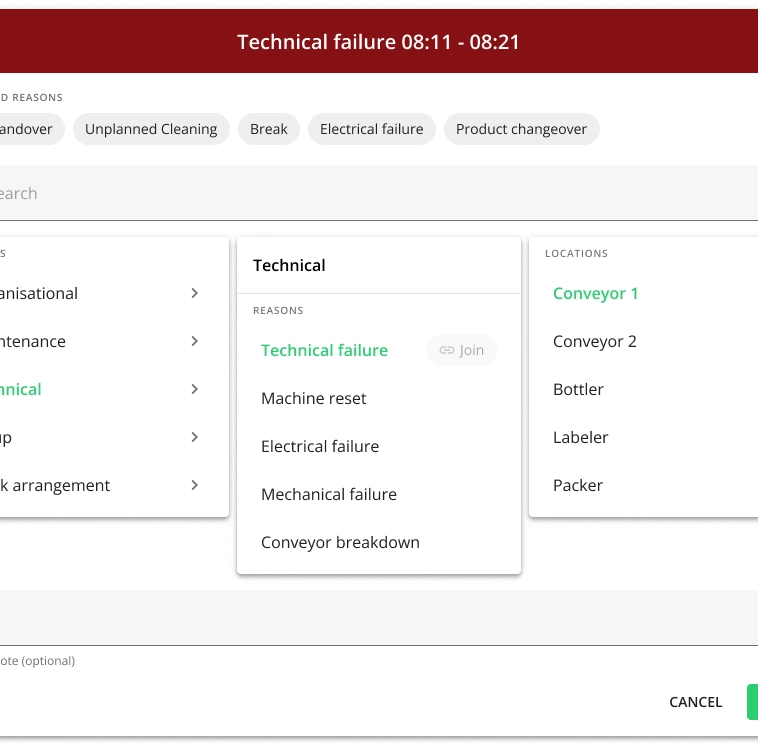
- The sequence of Group, Reason and Location depends on the configuration you have:
- Group → Reason → Location (Default)
- Location → Group → Reason
- Group → Location → Reason
- Most used reasons are brought out on top. These are calculated based on the last 30 days, by occurrence, not duration.
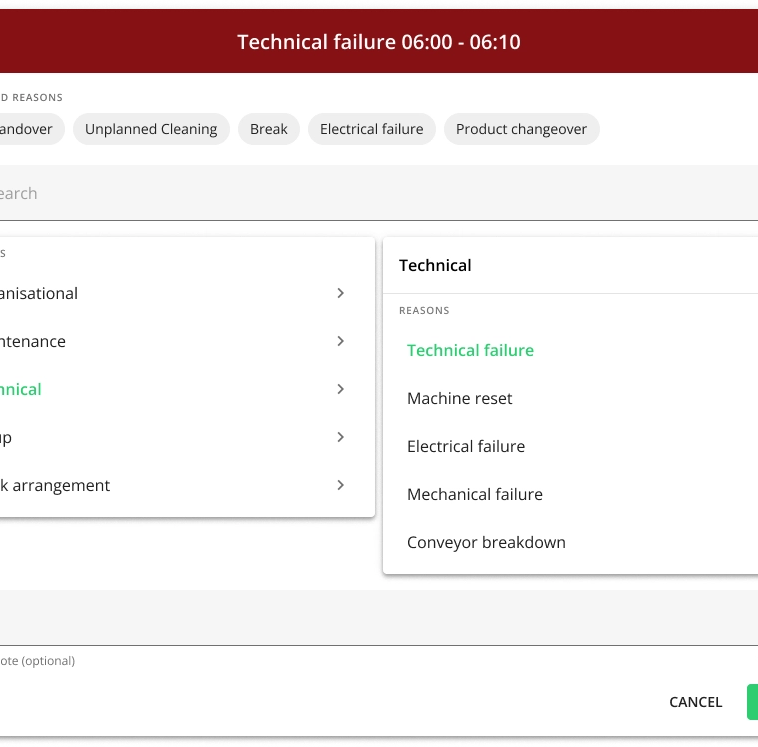
Note: The search field and most used stop reasons are shown in case you have more than 10 stop reasons and more than 1 stop group defined for the station.
Note: Most used stop reasons are stored locally on your browser.
- The sequence of Group, Reason and Location depends on the configuration you have:
-
Add extra note for the stop if necessary or required.
Note: Required extra note for a stop reason means that the specific reason requires a free text comment from the operators (e.g. reason "Other").
Note: The last 10 used extra notes are displayed to the operator to make it easier to add repetitive notes (this data is stored locally in the browser, meaning that other users outside of this browser window cannot see the last extra notes).
Note: Extra note is indicated by this icon on the stop:

-
Click Save to confirm the selection.
Adding multiple reasons to one production stop
-
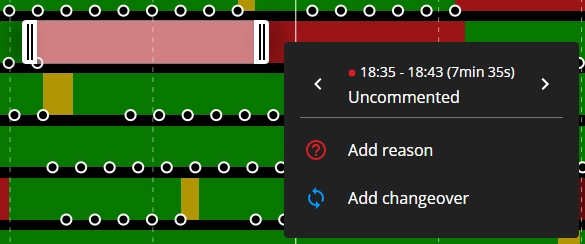
Single-click on a production stop.
-
Drag the brackets to match the area you need to comment.
-
Click on Add reason in the popover or double-click on the selected part of the stop.
-
Choose the stop group and reason and click Save.
-
Repeat the steps to add another reason for the remaining red area. You can use this cropping function to change the length of a commented area.
Adding locations to production stop reasons (optional)
If you enable stop locations for production stations, then operators can register the exact place where the stop occurred.
-
Select the production stop or stops that you want to comment and add the location detail to.
-
Choose stop group and reason.
-
Choose the location of the stop.
-
Add an extra note for the stop if necessary.
-
Click Save to confirm the selection.
Adding, changing or removing production stop reasons
-
Click Downtime in the bottom menu.
-
Find the production stop reason that you want to comment, change or remove. Note that there are three tabs (by stop type) to search from: Uncommented, Unplanned and Planned.
