
Reports and analysis · Guide 19 of 28
Chart display options for X- and Y-axis, secondary y-axis
How to change the x-axis factor and time aggregation of report charts, and the y-axis and secondary y-axis in Downtime, Speed loss and Scrap reports.
For all standard reports, it is possible to display data based on different x-axis factors (for example shifts or stations). This granularity variety can be very useful when looking at the same data from different angles and also to just improve the data readability.
This drop-down can be found in the top right corner of the chart area:

It is also possible to choose how the data is aggregated on the charts based on the set time period - days, weeks, months or years. For example, when conducting an analysis of the whole year, you have the option to display data in months. This gives your team the flexibility they need to effectively analyze collected production data.
For Downtime, Speed loss and Scrap reports there is also the option to change the data display by changing the values of the y-axis and add a secondary y-axis.

For example, you can view the chart by average duration or count, instead of duration in Speed loss and Downtime reports:
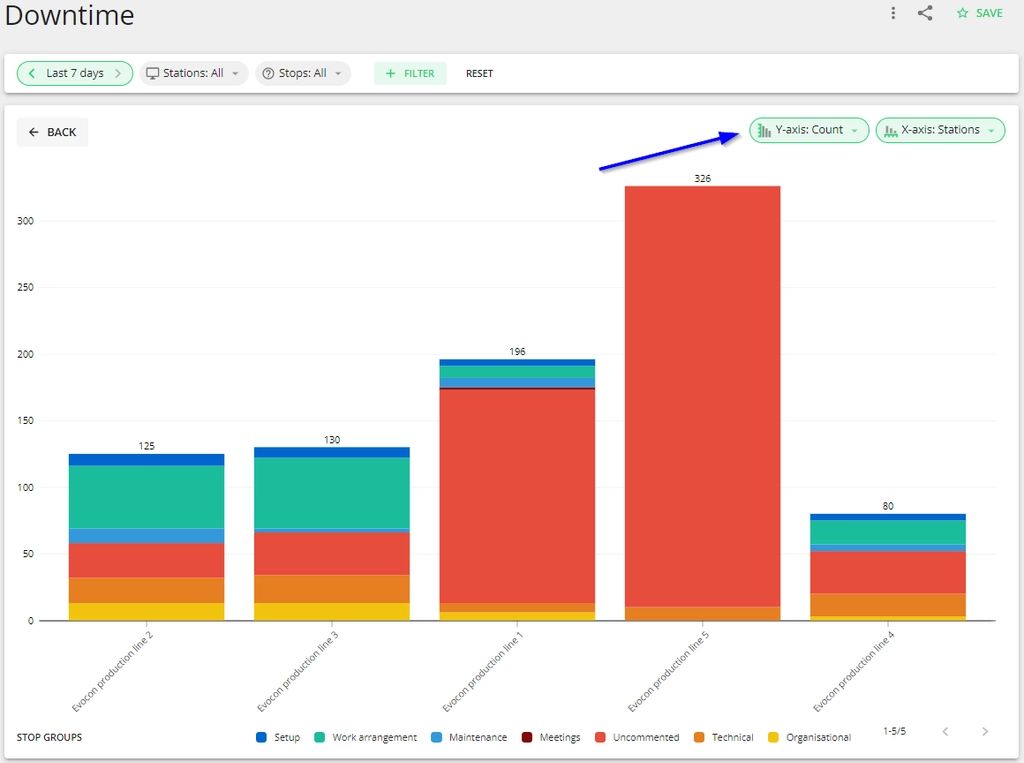
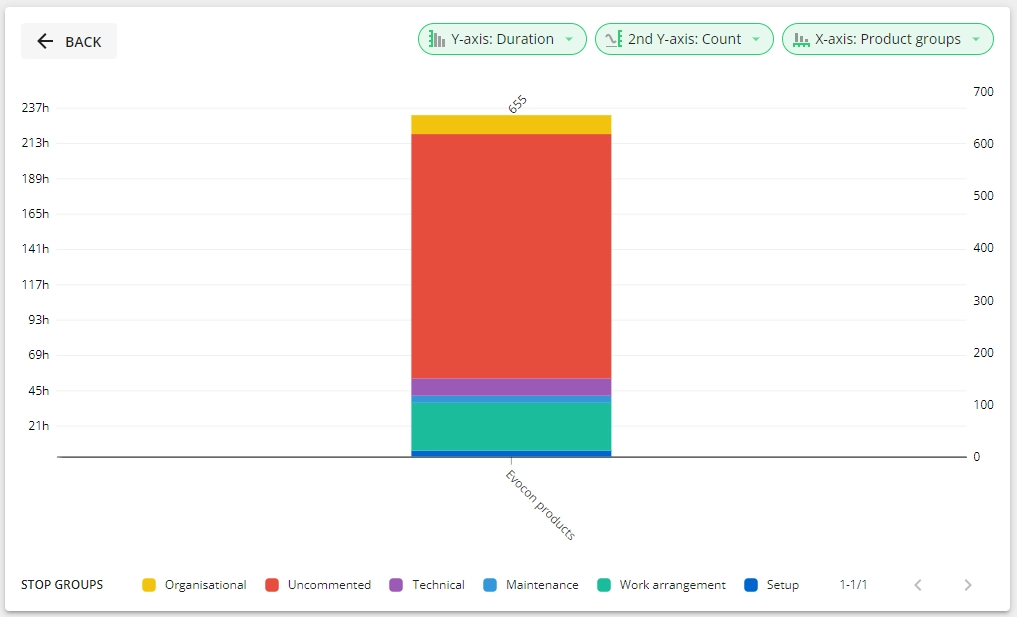
And if you want to see both duration and count as y-axis, just add the secondary one to Speed loss and Downtime reports:
For Scrap report the secondary y-axis options are % of produced and % of planned time and in case alternative unit is used, it is possible to select the preferred unit for y-axis as well:

