
Stations, products and reasons · Guide 12 of 14
What are tags and how to use them?
What the Enterprise Tags feature is, how to create, edit, delete and assign tags, and how to use tagged data for custom reporting via the API.
On this page
- What are tags?
- What is the current scope?
- Why use tags?
- What are the prerequisites?
- Creating and managing tags
- How to create a new tag?
- How to edit a tag?
- How to delete a tag?
- How to assign tags?
- How to use tags for reporting?
- How to query tag data via API?
- Use cases and examples
- Best practices and tips
- What are future possibilities?
- Conclusion
This guide explains what are tags, when to use them and provides step-by-step instructions on how to implement them effectively.
What are tags?
The “Tags” feature allows you to label and categorize key elements within Evocon, such as stops, speed loss, and scrap. Each tag consists of two fields:
- Name: A descriptive text label (e.g., "Cleaning").
- Alias: A unique key used by the system (e.g., "CLN").
What is the current scope?
Tags can currently be applied to the following:
- Stop reasons
- Stop groups
- Speed loss reasons
- Speed loss groups
- Scrap reasons
- Scrap groups
Why use tags?
Tags serve as identifiers that enable you to create custom reports via our API, making them ideal for organizations that need:
- Centralized monitoring of performance data across multiple factories.
- Local flexibility to define factory-specific reasons or groups while linking them to broader reporting structures.
- Custom analysis, particularly for Enterprise clients, using tools like PowerBI to visualize and interpret data in-depth.
For example, you might use tags to group stop reasons under categories like "Cleaning" across different factories, simplifying trend analysis or performance comparisons.
What are the prerequisites?
Before using tags, ensure:
- The tags feature is enabled for your company in Evocon. If not, please contact Evocon support team ([email protected]) to enable it.
- You have API access and credentials to query tag data, along with an external tool (e.g., PowerBI) for reporting, if needed.
Creating and managing tags
Tags must be defined before they can be used in the system. Follow these instructions to create and manage them.
How to create a new tag?
-
Open Tags from Settings

-
Click on “+Tag” button in top right corner
-
Enter a descriptive name for the tag (“Tag” field, e.g. "Cleaning")
-
Enter an alias for the tag, this is like a key used by the system (e.g., "CLN")
-
Select to which data dimensions the tag should be available for

-
Click “Save” to save the tag.
How to edit a tag?
- Open Tags from Settings
- Find the tag you need to edit and click on it to open it.
- Make the changes and click “Save” to save them.
How to delete a tag?
- Open Tags from Settings
- Find the tag you need to delete and click on it to open it.
- Click on “Delete” and then confirm by clicking on “Delete”
Note: Deleting a tag may impact existing assignments or reports.
How to assign tags?
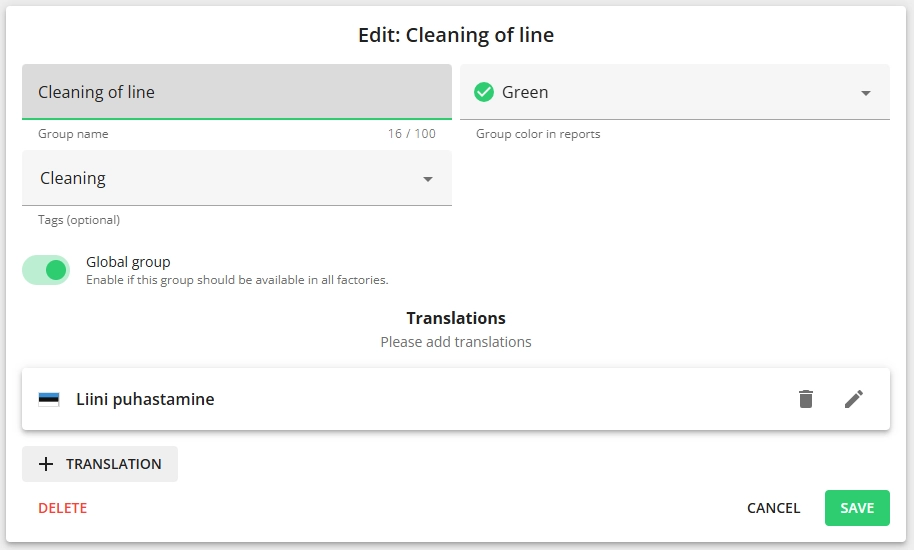
To utilize tags, they need to be connected to the reasons or groups that you need. To do that:
- Open the stop reason, stop group, speed loss reason, speed loss group, scrap reason or scrap group for editing.
- Add the tag(s) from the dropdown.
- Multiple tags can be assigned to a single reason/group, and the same tag can apply to multiple reasons/groups.
- Example: A tag like "Cleaning" could be assigned to various stop reasons across multiple factories.
- Multiple tags can be assigned to a single reason/group, and the same tag can apply to multiple reasons/groups.
- Save the changes by clicking on “Save”.
How to use tags for reporting?
How to query tag data via API?
- Create an API key for custom reporting: Using API keys
- Use losses_json endpoint described here to connect the Evocon data to Excel or PowerBI.
- Build your reporting based on the data table and use the “Refresh all” button to pull in data.
Use cases and examples
Here’s a couple of examples how tags can address your needs:
Customer X: Labeling stop reasons
- Scenario: Customer X tags stop reasons (e.g., "Operator Error," "Cleaning") to group similar issues.
- Benefit: They generate internal reports that aggregate data across factories, identifying common problems and patterns despite varying stop reason names.
Customer Y: Connecting local and global data
- Scenario: Customer Y manages global groups and reasons centrally but allows local factories to add their own. They tag local reasons (e.g., a factory-specific stop reason tagged with "Cleaning") to link them to centralized reports.
- Benefit: Maintains local flexibility while ensuring global reporting consistency.
Best practices and tips
Maximize the tags feature with these recommendations:
- Consistent naming: Use clear, uniform conventions for names and aliases (e.g., “CLN” for “Cleaning”, "EQUIP_FAIL" for “Equipment failures”).
- Descriptive labels: Choose names that reflect their purpose (e.g., "Cleaning" vs. "Tag 1").
- Unique aliases: Ensure aliases are distinct to avoid API query errors.
- Regular maintenance: Review tags periodically to keep them relevant.
- Internal guide: Document your tags and their uses for team alignment.
What are future possibilities?
Tags could eventually support:
- Tagging stations for regional performance reports.
- Tagging operators to track supervisor-related data.
- Tagging shifts for time-based analysis.
But generally, tags can be used to aggregate data in which ever way is needed.
Conclusion
The “Tags” feature empowers large manufacturing companies to monitor and track losses centrally while preserving local flexibility. Whether you’re creating custom PowerBI dashboards or linking local data to global reports, tags provide a versatile