
API and integrations · Guide 3 of 8
Using API keys
How Company and Factory administrators generate, use and delete Evocon API keys, including Basic authentication with the API key and Secret key.
On this page
API keys are used to connect other applications or services (ERP, Excel, Power BI, custom programs) to Evocon and move data between Evocon and these services. Once created, API keys can no longer be edited - they can only be disabled, enabled or deleted.
API keys are available only to Company and Factory administrator users in Evocon.
How to generate an API key?
To generate a new API key, follow these steps:
-
Go to Settings and click on the API keys card:

-
Click on the + API KEY button in the top right corner.
-
Add a name for this key that describes where it's used and choose the key rights.

-
Custom reports
This option restricts access to the
api.evocon.com/api/reports/…URL and is used for connecting Evocon reporting data to an external reporting tool like Excel or Power BI with read-only rights. This option gives access to all stations' data. Filters can be applied on the report level. -
User rights
This option copies the access rights of an existing user. For example, if a user has read-only access to "Station 1" and read-write access to "Station 2", then with this key the external system can read information about "Station 1" and "Station 2", but only write information (insert stops, changeovers etc.) for "Station 2". This integration can be used for sending production orders to Evocon or building API-based automations.
-
-
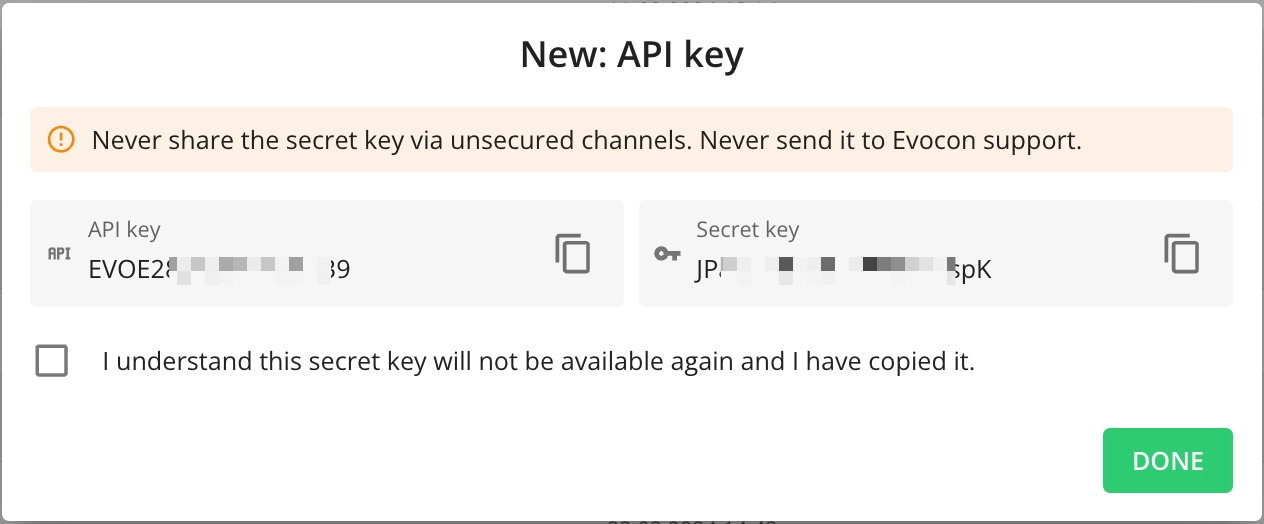
Click Create to generate the new key. The key is active and can be used as soon as it's generated.
-
Save the values securely, tick the box and click Done to confirm.
How to use the key?
Below are a few examples of how the key can be used when interfacing with Evocon.
Exporting data from Evocon
- Evocon API - Connecting OEE and Losses production data to Excel
- Evocon API - Connecting Process Metrics data to Excel
- Evocon API - Connecting Checklists data to Excel
Importing data to Evocon
How to delete a key?
To delete an API key, please follow these steps:
-
Go to Settings and click on the API keys card:
-
Find the key you want to delete.
-
Click on the deleting icon on the key row

-
Confirm by clicking Delete.