
Dashboards and Factory Overview · Guide 7 of 14
What are the different widgets available on the Dashboard?
Description of the Dashboard widgets OEE overview, Production data and Downtime summary, and how Dashboard days are counted.
The Dashboard's objective is to provide real-time production information about the different indicators available in the system. All users in Evocon (excl. Shift View users) have their own dashboard so they can create widgets and monitor the KPI-s that are most important to them. The dashboard is also used as a mean to display live production information on large screens on office or shop floor walls.
Note: In Dashboard one day accounts for the shifts that have started during that date. So for example, if a shift starts 8PM on Monday and finishes 8AM on Tuesday, in Dashboard (and Reports) this shift is taken into account under Monday.
Different types of widgets
-
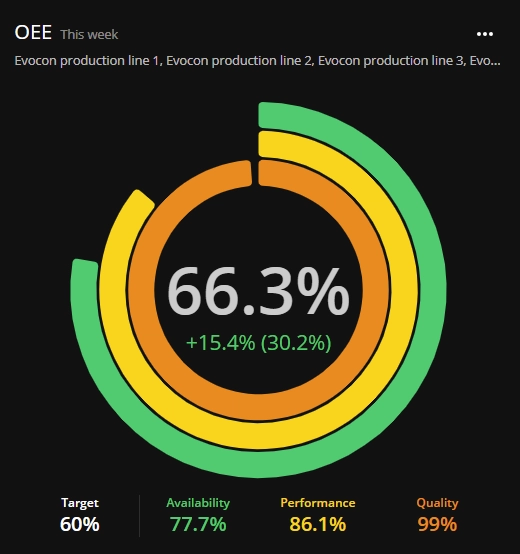
OEE overview – This widget is a doughnut chart that gives real-time feedback of the OEE (and its components) of a production line(s) for the selected time period. The widget also displays the change of OEE compared to the last period (below the OEE value). For example, if the widget displays OEE for this month, then the change compared to the last month is displayed below it:
- increase % is displayed in green and decrease % in red
- the first % indicates the difference in % values. For example the last week was 50,9% and this week is 66,3%, so the difference is 66,3-50,9=15,4%
- the second % indicates how big the change was compared to the initial value. For example if last week it was 50,9% and the change was 15,4%, then OEE has increased 30,2%
You can also set a target for the OEE in this widget, that is displayed in white.
-
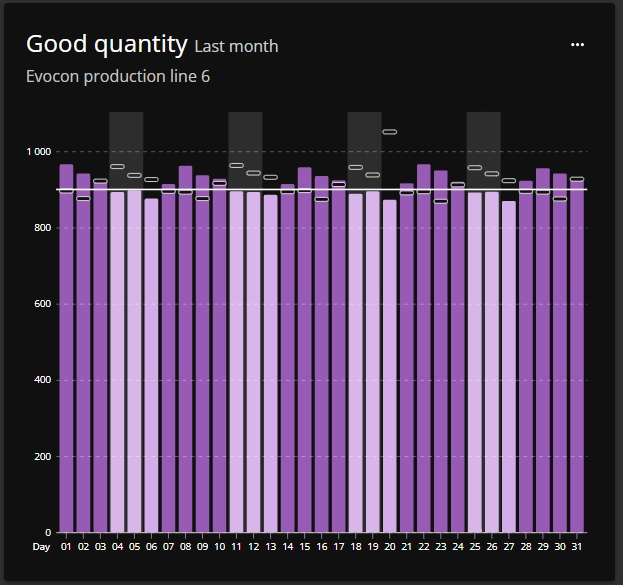
Production data – This widget gives users the opportunity to display information about OEE, availability, technical availability, quality, performance, quantities (total or good) and scrap in a bar chart for the defined time period and production line(s). If enabled from widget settings, you can also see the values from preceding period (first picture with visual indicators) and the trendline (second picture, dotted line):
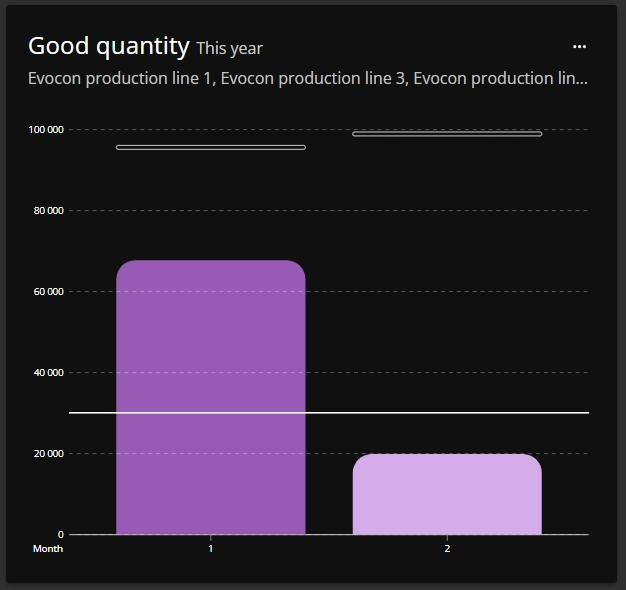

The weekends are marked, so it is easier to follow the days and weeks and the (optional) target is displayed as a solid line on the chart with the results over and under the target differentiated by coloring, using lighter and darker shades of the color used for the specific indicator.
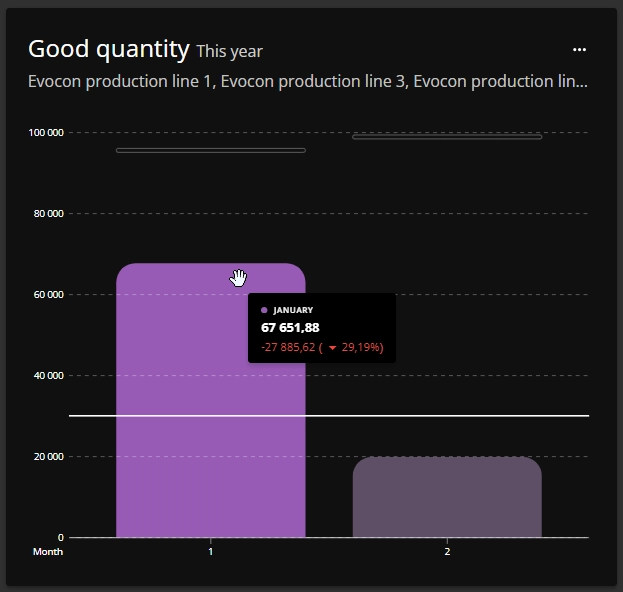
When hovering over a bar on the chart, the exact value of that specific indicator is shown for the selected stations and time period
-
Downtime summary – The downtime widget displays information about the main stop reasons for the selected production line(s) in the selected time period. If enabled from widget settings, you can also see the change compared to the preceding period - arrow indicating increase (red) or decrease (green).
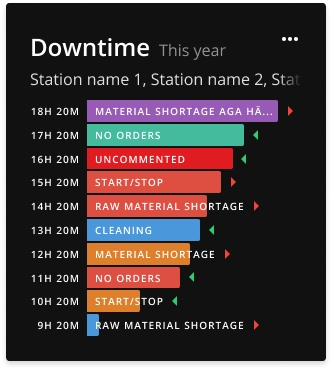
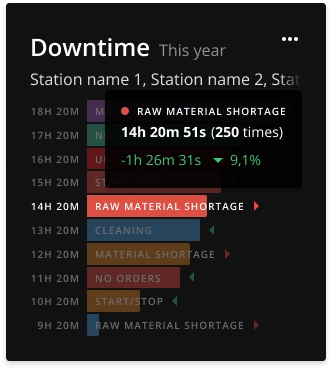
When hovering over a stop reason, the count of occurrences is displayed for that specific stop reason on the selected stations for the selected time period. If enabled from widget settings, you can also see the change compared to the preceding period from the hover (in time and %):
-
Speed loss - This widget has the same logic as downtime summary - it provides