Support and what's new · Guide 13 of 13
Release Notes 2020
Evocon product updates released in 2020, from the Factory View colour changes in January to custom alert e-mail templates in November, including the Lineview to Shift View renaming.
On this page
November
Updated Alerts feature
We have added an option to the Alerts feature to design your own notification e-mail template – it is now possible to choose the information shown both in the subject line and the body of the message. Please find more information about managing alerts here.

October
Speed loss commenting
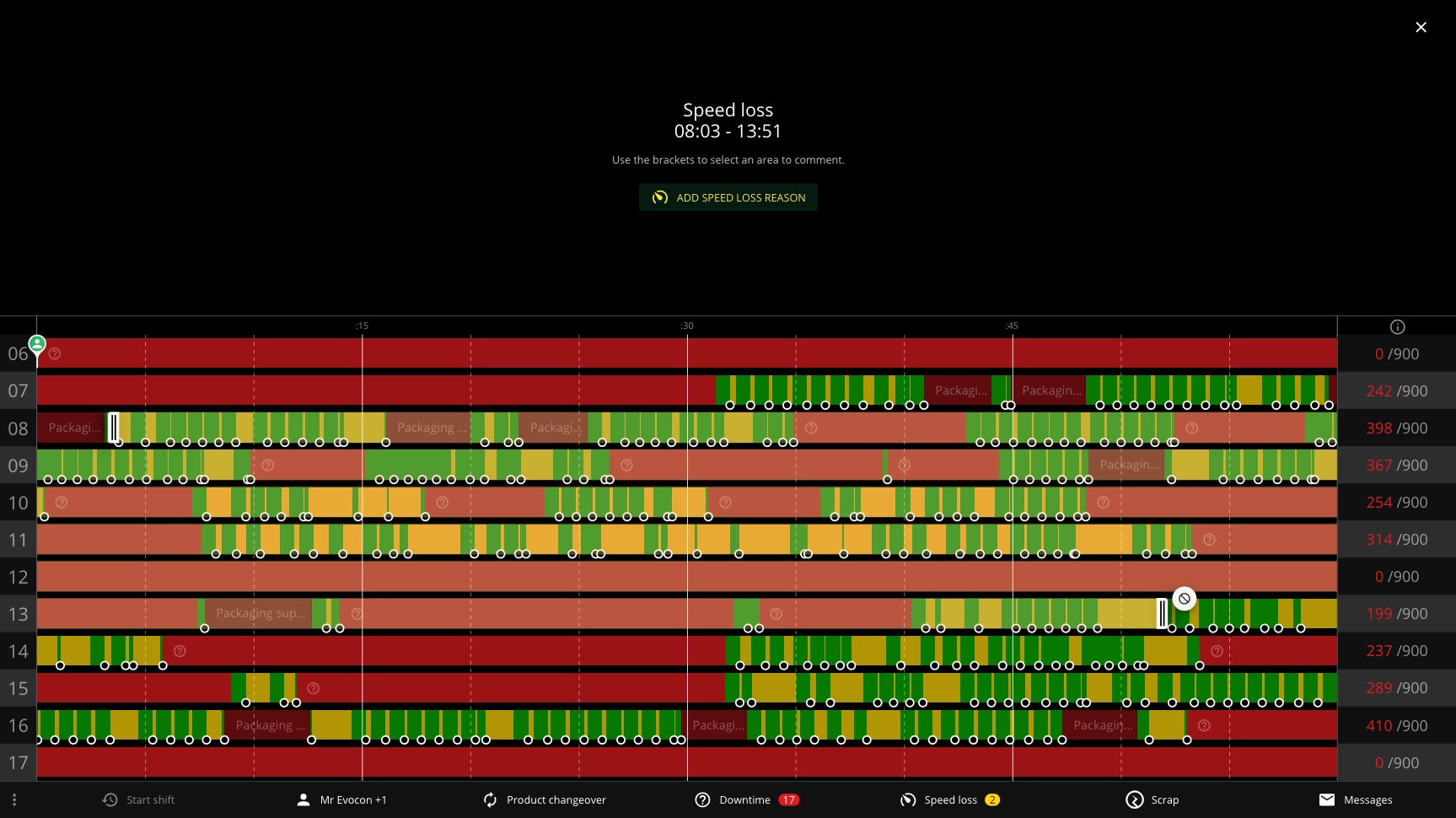
We added a new and much requested feature to Evocon – the possibility to comment speed loss (yellow areas) in Shift View. This will provide even more insight into production issues and possible improvement areas.
Please find more information about managing speed loss reasons here and using the reasons in Shift View here. Added speed loss reasons can be analysed later using Reports.
To learn more about speed loss we recommend reading these articles How to Measure Speed Loss – Micro Stops & Slow Speed and Examples of Speed Loss in Manufacturing.
Improved operator teams feature
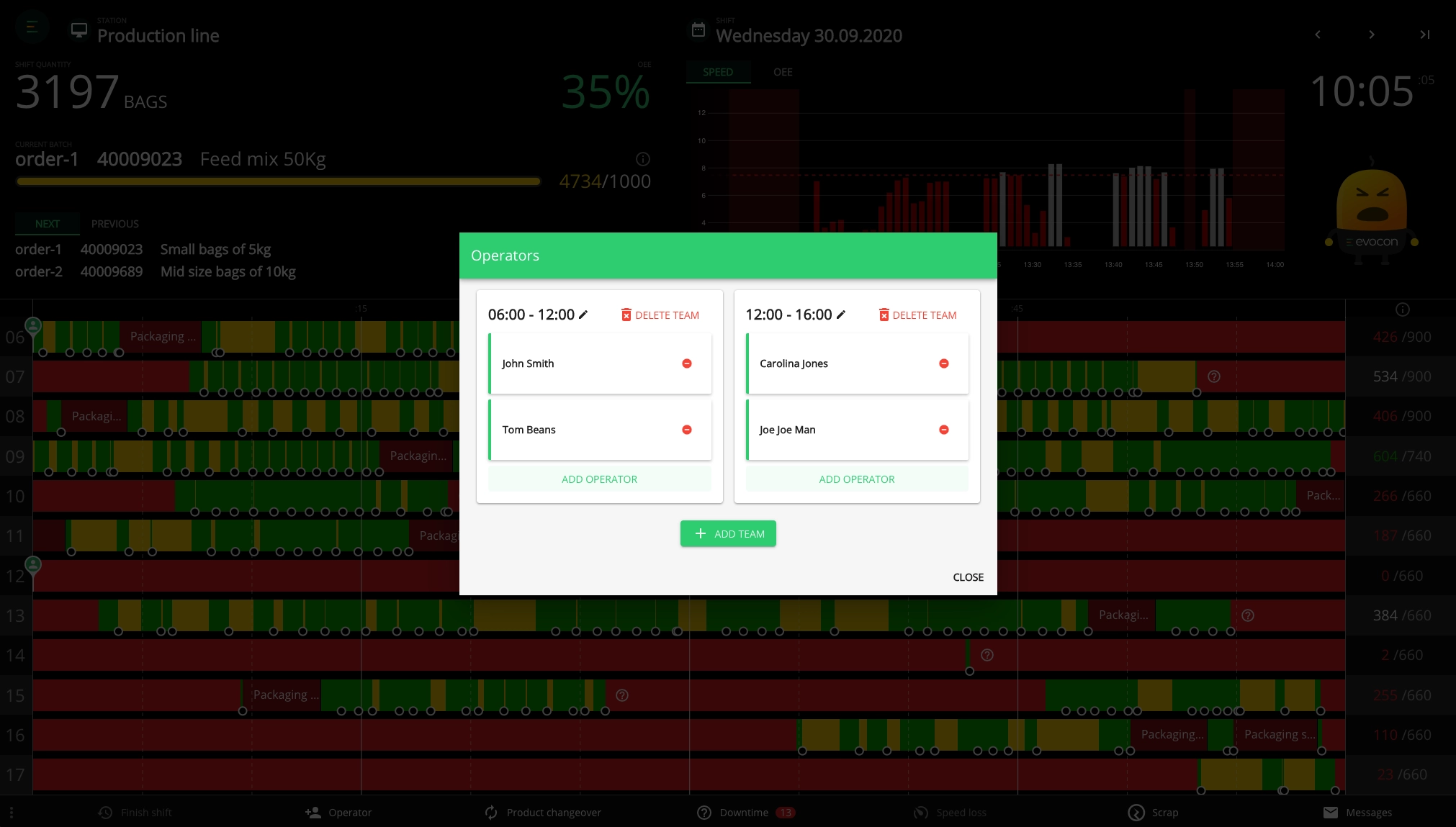
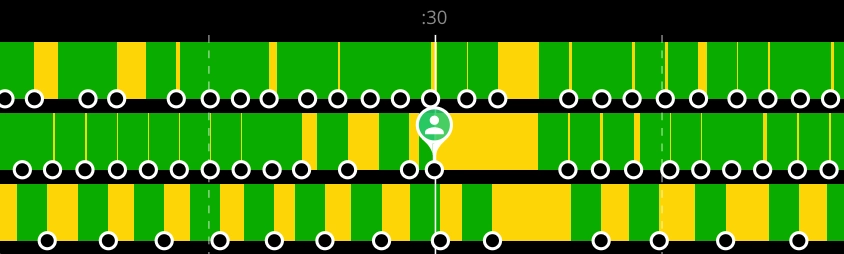
We have made the operator teams feature more flexible, so you can now also rotate operators to work on the same shift on different times. Operator team changes are indicated in Shift View with a separate icon.
Please find more information here.
July
Total Quantity replaced with Good Quantity
Throughout the system, we now show Good Quantity instead of Total Quantity. The change impacts data in the following parts of the system:
Good Quantity = Total Quantity – Scrap
Shift View
- Shift quantity
- Active and previous batch quantities
- Hourly quantities
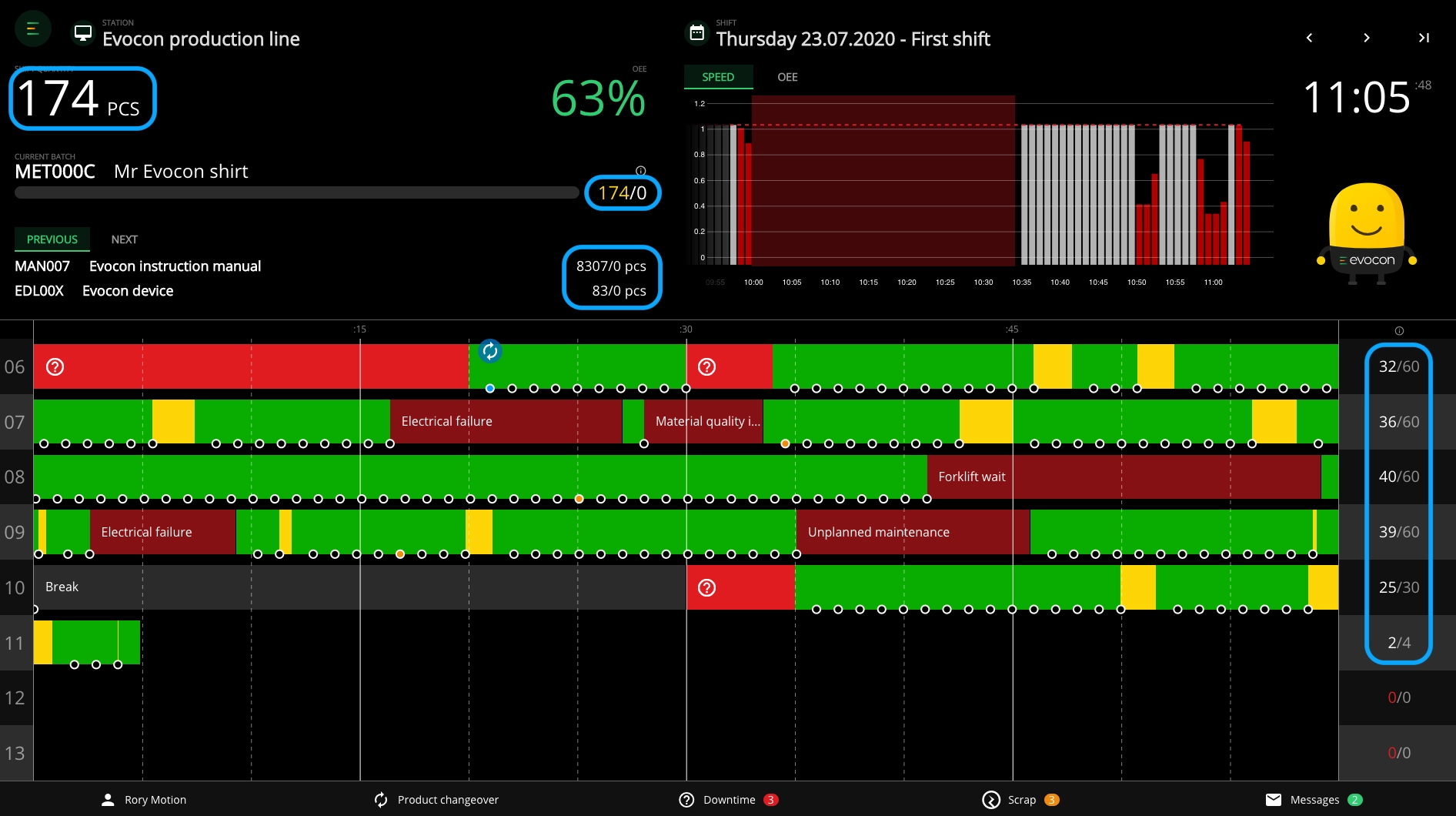
Factory View
- Live: Quantities on the cards
- Timeline: Quantity toggle
Enabling/disabling Shift Templates
Now it is possible to switch shift templates on/off to make it easier to adapt the shift schedule to your changing needs.

Please find more information here.
June
Alerts
Alerts are here! This new feature enables administrative users to define triggers in Evocon and receive e-mail notifications. Thus providing real-time information for quick decision making. Triggers are stop reasons, meaning that whenever a specific stop reason is added to a production stop in Shift View on a defined station, the user is notified via e-mail. Please find more information here.
If you have ideas about other events in Evocon that should trigger an alert, let us know.
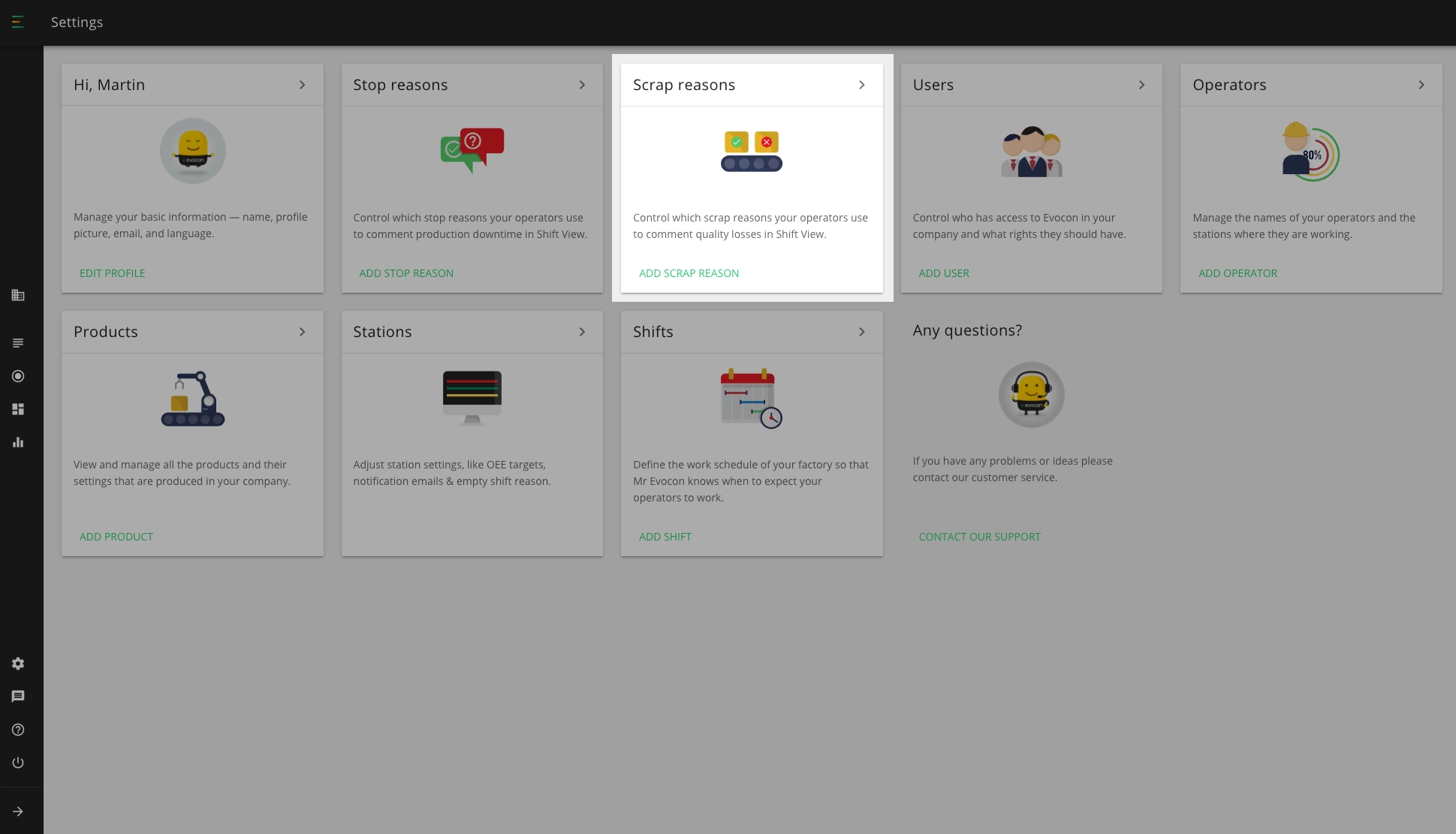
Scrap reason management in Settings
While May brought you the possibility to start adding scrap reasons in Shift View, then after this update you can start to add and manage scrap reasons in Settings. The entered information is still gathered in a downloadable Excel custom report. Please find more information here.
If you need a refresh on how to add scrap in Shift View, follow this link.
May
Lineview is now Shift View
Evocon's most heavily used module now has a new name to better reflect its essence and widened functionality.
Since it's all about shifts and analysing shift performance, Lineview is now called Shift View. This also means that Lineview users are now Shift View users.
In addition to the new name, there are many other, important updates to Shift View. Below you will find an overview of everything you need to know. Also, if you want to get an overview of all the elements in Shift View, follow this link.
New look
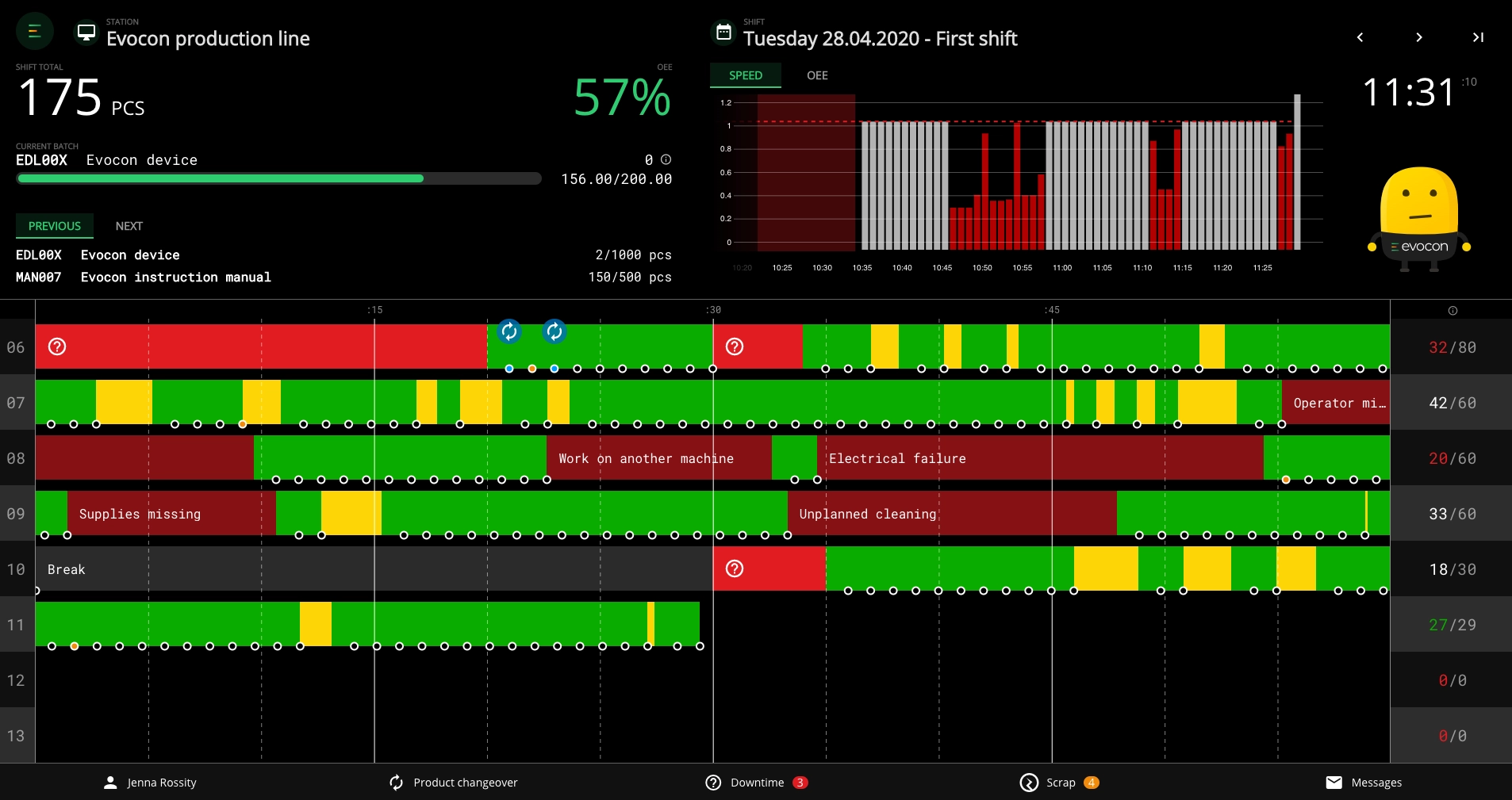
One of the more easily noticeable changes is the new look. Here are only some of the highlights:
- Mr Evocon got a visual makeover
- Production speed widget is now the default widget
- Changes to the navigation menu.
And much more for you to explore.
Improved architecture
Even though it is not visible to you and your team, extensive work has been done on the architecture of Shift View to make it more reliable and faster. The improved architecture was also necessary so that we could develop many of the requested features. Of which some have already been rolled out with the update.
We have also improved the responsiveness of the module, which is especially important to those who are using tablets on the shop floor.
Usability improvements
Since we shifted our development to tablet and mobile first, we also had to make some changes to how some of the functions work in Shift View. The main change is the options menu that opens when you click on a production signal (circle). Previously the options opened as a drop-down list but now it opens as a separate interaction header.

New features in Shift View
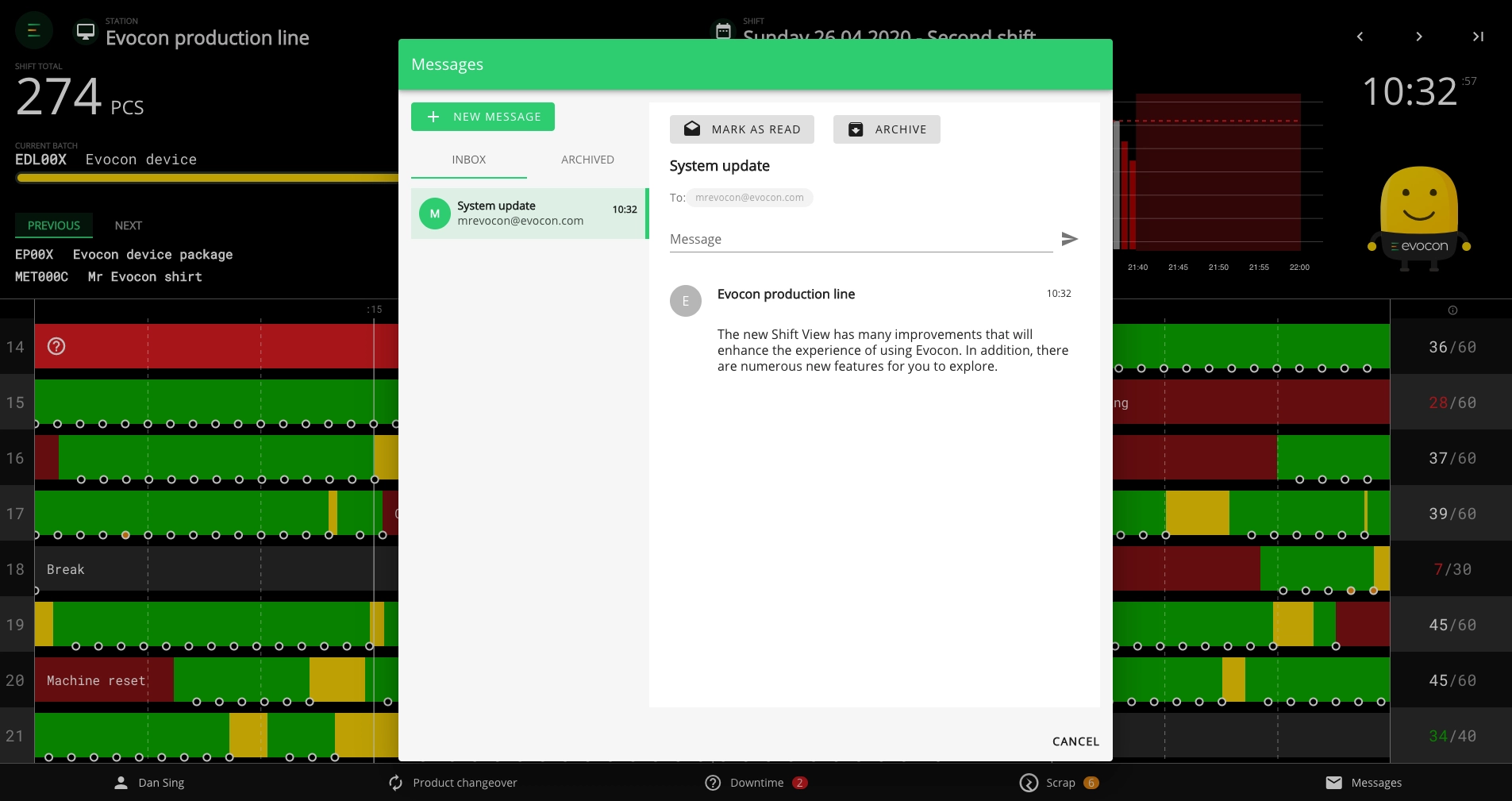
2-Way Messaging
We have added the much-requested feature of 2-way messaging which means that now the predefined contacts who receive e-mails from stations, can also reply via e-mail.
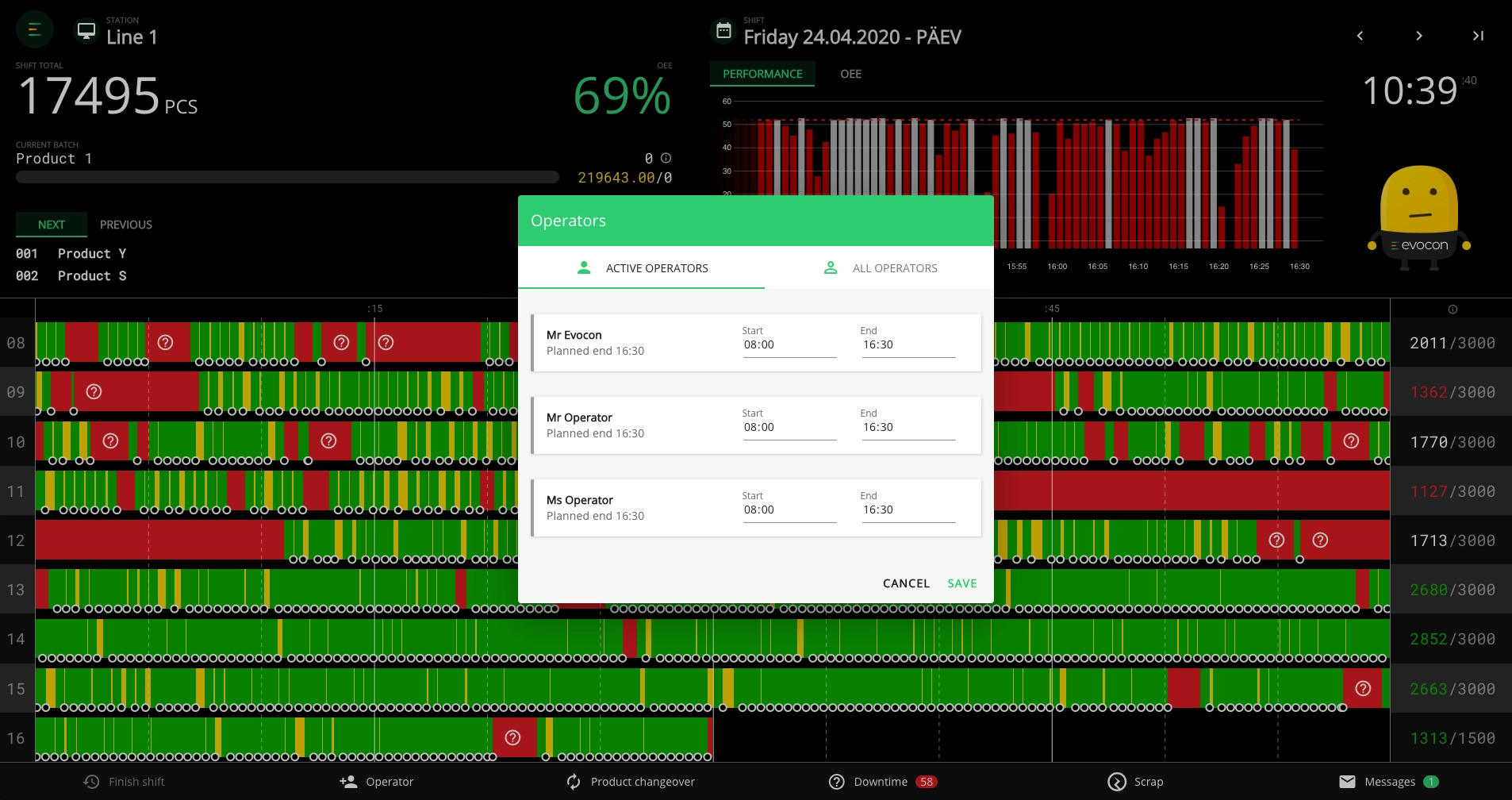
Teams
It is possible to change operators mid-shift or assign multiple operators to work on the same station and shift at the same time. This will provide a better and more precise overview of operator-related data which is displayed in Reports.
Multi-Commenting
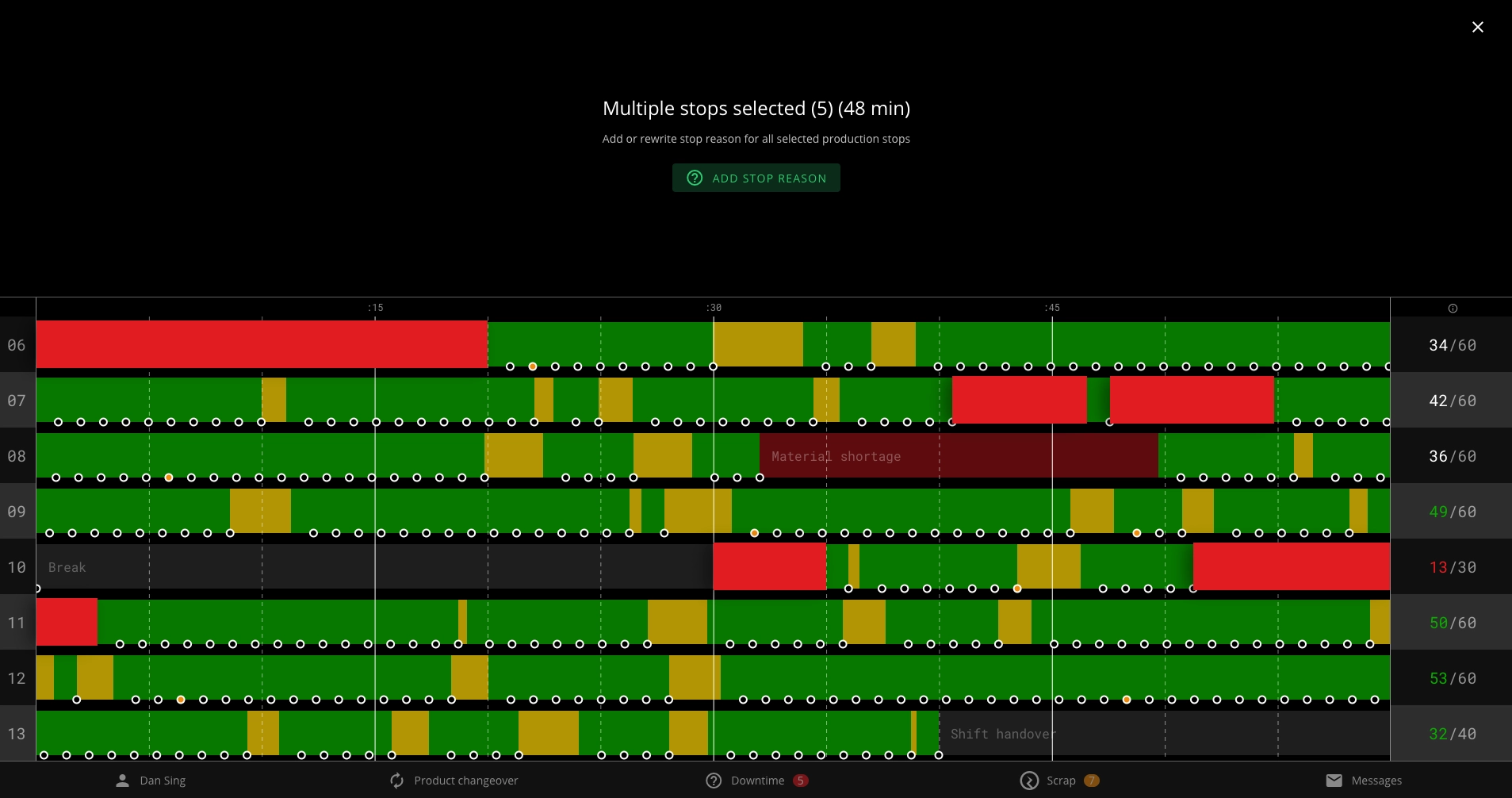
With the multi-commenting feature, operators can add one reason to multiple stops at once by just multi selecting all stops in one go and hitting the add stop reason button.
Estimated Time to Finish
We have improved the batch widget to provide a better overview of the batch production progress – it now includes a time estimation (in case the target is set) and for order-based production, it also shows the upcoming orders.
Change Language
It is now possible to select multiple languages for Shift View users and these users can then change the language in Shift View at any time. This simplifies the working process in case the same Shift View user account is used for several operators who speak different languages.

Current Shift
You can return to the current shift with one click – this eliminates the need to move back through all the intermediate shifts or refresh the browser to get back to the latest shift.

Required Extra Note (for stops)
When this feature is enabled from stop reason settings, an extra note is required every time this stop reason is added to a production stop in Shift View, otherwise the reason cannot be added.
This helps to identify the cause behind each specific stop reason, making it easier to assess the need for maintenance, etc. It can also help with identifying the need for new stop reasons when the same notes keep appearing for stop reasons like "Other".
Adding Scrap Reasons (first version)
This feature helps to identify the causes behind scrap, thus giving a necessary insight on how to improve overall quality. Learn more
If scrap reasons have been entered into the system and connected to specific stations, it is possible to specify the reason for a scrap amount when it is entered from production signals in Shift View.
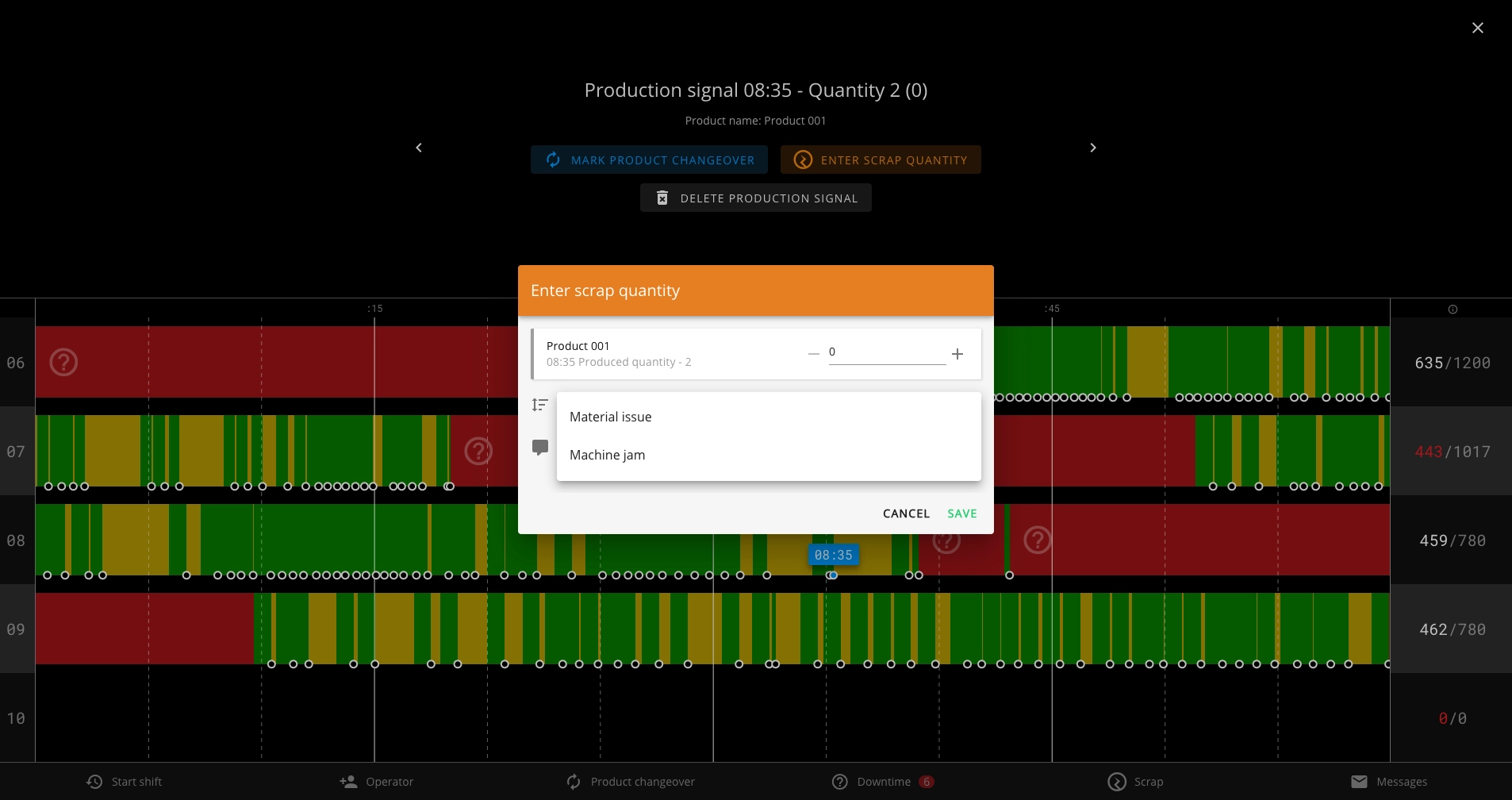
Note: Since this is the first version of the feature, there isn't yet an interface where users could add the reasons to Evocon and the entered information is gathered in a downloadable Excel custom report. In case you would like to use this feature, please contact us and we'll provide more information on how to do that.
Current Shift Timer (update)
This is an automatic timer to take you back to the latest shift or notify you when a new shift started. It ensures that in case users have been viewing older shifts in Shift View, they are notified in case a new shift starts or reminded to move back to the latest shift. Learn more
Note: The timer settings have been updated according to customer feedback, mainly providing more time before the timer is triggered.
Keyboard shortcuts
We have also added some keyboard alternatives to further improve the ease of use for those who prefer using the keyboard:
- When the interaction header is open, you can move between stops and production signals and hour lines using the arrows on the keyboard (left, right, up, down).
- Using ENTER key to confirm (alternative to clicking "Save")
- Using the ESC key to close an open modal or menu.
- Using the SHIFT+arrow combination to move between shifts.
- New hotkey combination "ss" enables the user to enter scrap to the last signal of the shift very quickly.
Please find more information about other available hotkeys here.
January
We updated Factory View so it provides a better overview and is more in compliance with Lineview:
Display yellow to indicate slow production.
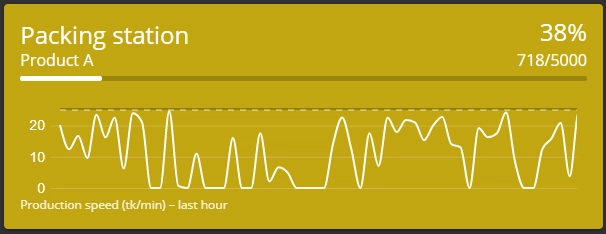
Display dark red in case of running unplanned stops – to differentiate from running uncommented stops.