
Reports and analysis · Guide 22 of 28
Saved reports
How to create, reorder, edit and delete saved reports, and how rolling time ranges work in them.
On this page
How to create a saved report?
-
Create a report by filtering the data you need and setting the display options as you prefer.
-
Click on the "Save" button in the top right corner:

-
In the opened window, give the report a name, and it is also possible to add a description:

-
Click "Save".
-
The report will appear in the "Saved reports" section in the reports menu on the left side (marked with a star).

How to change the order of the saved reports?
Drag and drop using the dotted icon:

How to edit saved reports?
-
Go to the saved report you want to edit.
-
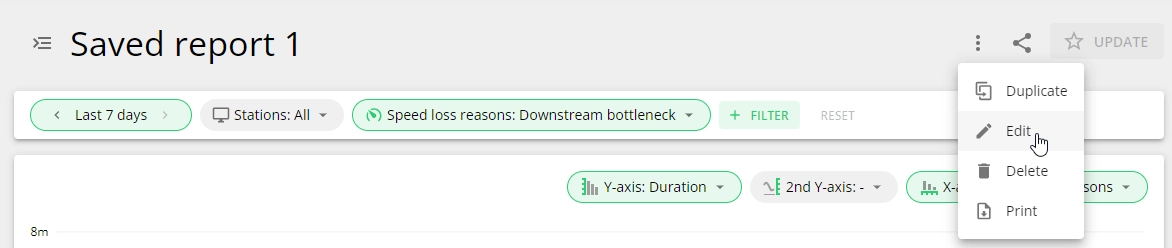
Open the editing modal from the dotted menu:
-
You can edit the name and the description of the report.

-
You can change any filters or display options you need to.
-
After the editing is done, click on "Update" in the top right corner:

-
The edits to this saved report are saved and this is confirmed by the notification:

How to delete saved reports?
-
Go to the saved report you want to delete.
-
Click on the dotted menu icon in the top right corner and click on "Delete":

-
Click "Delete" in the confirmation window: