
Hardware and connectivity · Guide 10 of 15
Hardware - Evocon IIoT device 3 - Interface to configure IP and WiFi settings
How to connect to the Evocon IIoT device 3's own WiFi network and use its web interface at 192.168.4.1 to set WiFi networks and static IP.
On this page
Introduction
With Evocon device 3.0, you can configure its WiFi and network settings just like you would on a router. If the Evocon device fails to find a suitable WiFi network, it creates its personal WiFi network, from which you can manage the device’s network settings.
The Evocon devices 3.0 only share personal WiFi network when OFFLINE.
1. Preparation
Prepare the information required to access the device
-
Find the device using the serial number (on the left side of the device)
-
Open the device information card in the Evocon app
-
Copy or note the WiFi MAC address
-
Copy or note the Command line password
2. Connecting to the device
-
When restarted, the Evocon device tries to connect to known WiFi networks. Once it fails to do so within ~1 minute, it creates a WiFi network with the name Evocon_<device’s MAC address>.
You must connect to this Evocon_<device’s MAC address> WiFi network to set up a different WiFi network.

The password of the device’s WiFi network is evoconsetup.
-
Once connected to the WiFi network, navigate to address 192.168.4.1 with your favourite web browser.
-
A login window will appear in the browser’s alert window.
- Insert username. ← The username is the device’s WiFi MAC address you copied earlier.
- Insert password. ← The password is the device’s CLI (command line interface) password you copied earlier.
3. Setting up WiFi
-
When you are on the device configuration form, enter your WiFi credentials and/or other static IP configurations into the form and click on the Save button.
The opened page will look similar to this
-
After pressing the “Save and restart device”, a confirmation alert window will appear and the device will start a restart. Upon booting up, it will connect to the WiFi network you configured.

How do you know if the connection is successful?
As soon as the device establishes a successful connection with your network, the static green light on the ethernet port will start blinking.
Also, the status will change to online in app.evocon.com → settings → devices overview.
3. How to add an additional WiFi network or Static IP
In case of further changes, locate the Evocon device’s IP address in your local network and repeat step 2. This time, instead of 192.168.4.1, use the Evocon device’s IP address that was assigned to it in your network.
For example, you can issue an arp -a command in your UNIX-like shell and search for the device’s MAC address and its associated IP address.
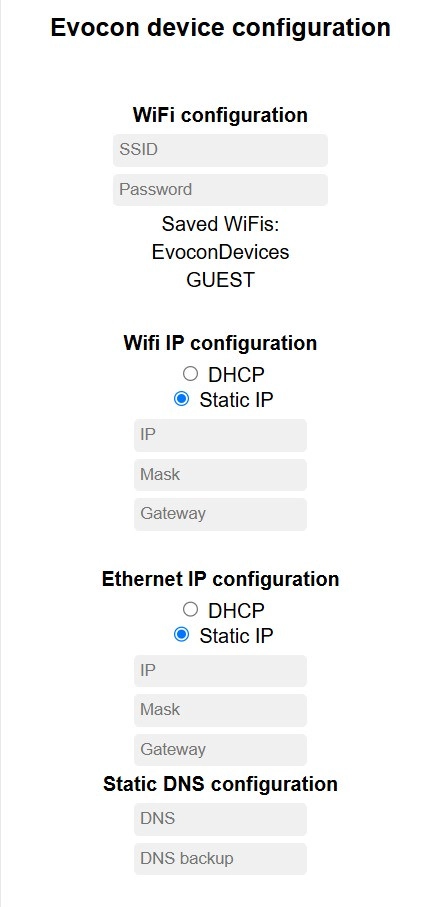
There is one default network called EvoconDevices that you cannot delete or overwrite.
You can have 2 more custom networks, up to 3 in total, on one device (EvoconDevices included). If you add more WiFi networks, the last custom one will