
Support and what's new · Guide 12 of 13
Release Notes 2022
Evocon product updates released in 2022, month by month from March to December, including the new Reports, checklists, the Devices view, display formats and Shift View improvements.
On this page
- December
- New look for the users view
- Extended selection of visible hours in Timeline view
- New filters and tables for faster settings management
- Access to Old Reports removed
- Bug smash & usability improvements
- November
- What's new in Reports?
- Bug smash & usability improvements
- October
- What's new in Reports?
- Bug smash & usability improvements
- September
- New Reporting
- What do you need to know going forward?
- What's new in Reports?
- Localization – Choosing your display formats
- Bug smash & usability improvements
- August
- Improved feedback when measurement is out of range
- Include/exclude planned stops from OEE calculation
- Ad hoc (manual) checklists
- Stacking pins that are clustered together
- Comparison in Dashboard improved
- Bug smash & usability improvements
- July
- NEW: Devices view in Settings
- Updated batch widget – Good (Scrap) / Target
- Bug smash & usability improvements
- June
- Optimized Shift View experience across devices
- Allow user access based on IP addresses
- Marking scrap in alternative units
- Bug smash & usability improvements
- May
- Mouse hover update in Shift View
- 2nd y-axis for custom widgets in Shift View
- Bug smash & usability improvements
- April
- Brackets and popover in Shift View
- Update to scrap dialog and overview
- Possibility to add and change signals (Administrators only)
- Bug smash & usability improvements
- March
- Checklists new BETA version
- Alternative unit for products
- % of planned time in Dashboard
- Locations can now be translated
December
New look for the users view
Users overview now also has filters for better management. The detailed view of a user's settings was not changed.

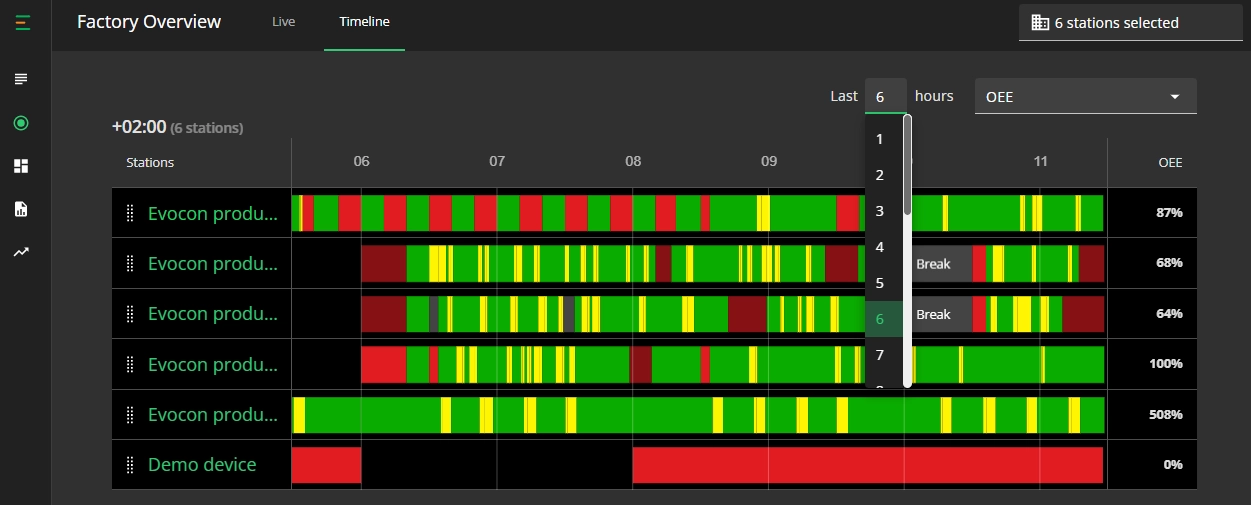
Extended selection of visible hours in Timeline view
Factory Overview's Timeline view now has the option to select between 1-24 hours. More information about Timeline is available here.
New filters and tables for faster settings management
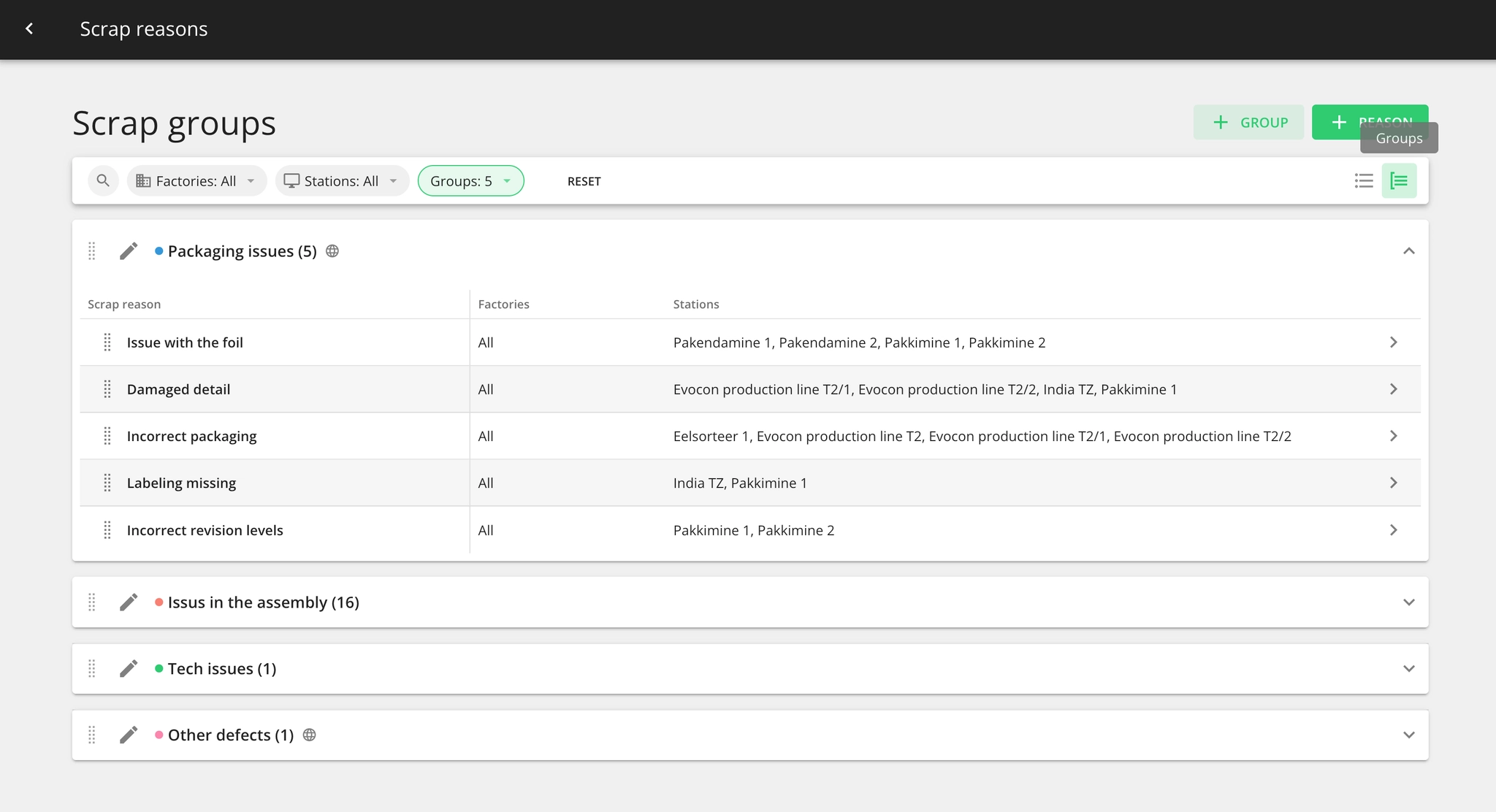
What has changed?
-
Settings views now have filters by which data can be viewed and managed faster.
-
Each settings page has a List view and Groups view (when applicable).
-
The List view allows seeing all created items in a table without switching between separate groups.
-
Items in the table can be sorted by column—an excellent way to compare names, check if a shift is turned ON, or see if your stations require an operator.
-
Groups can be managed easily from the Groups' view icon on the top right corner.

A more flexible and informative view for settings started with the Checklists update, now it continued and we'll finalize the Settings update in 2023.
Those of you who are not familiar with the Checklists can read more here.
Access to Old Reports removed

As communicated in our last newsletter then the access to Old Reports has been removed as of the 8th of December.
If you still need access to the old version, please contact our support and let us know why.
We'll instruct how to achieve everything in the new version and if something is missing, we can grant manual access to the old version.
Bug smash & usability improvements
-
We unified the way OEE trendline is displayed in the Reports and Dashboard - meaning the running period is not taken into account.
-
We added the loss quantity to the hover of stops that are planned, but included in OEE calculation.

November
What's new in Reports?

Important: The old version of reports will be disabled soon.
The possibility of using the old reports will be removed on the 8th of December.
Products on X-axis

One more addition to the list of options that you can put on the X-axis: Products.
This enables you to compare how different products perform – which are best and worst.
If you'd like to understand how to use this information for cost calculation, then we released an article on exactly that topic.
Learn more: OEE as a Financial KPI and Its Use in Product Costing
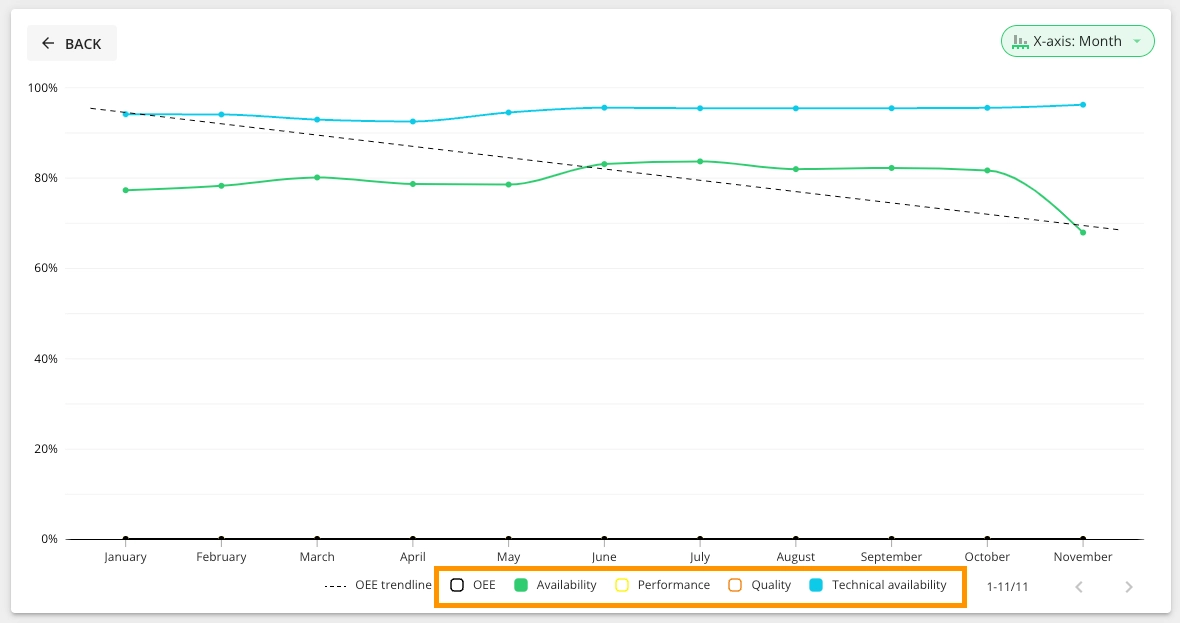
Toggling of chart elements
You can now click on the legend to hide or show parts of the chart.
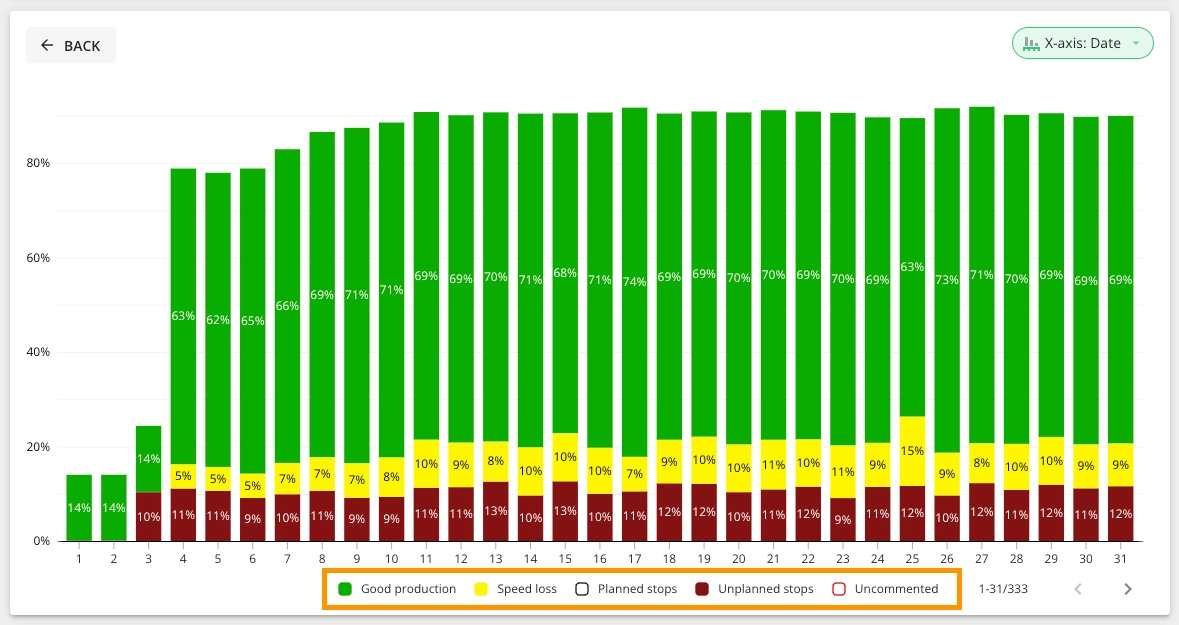
The whole month on one page
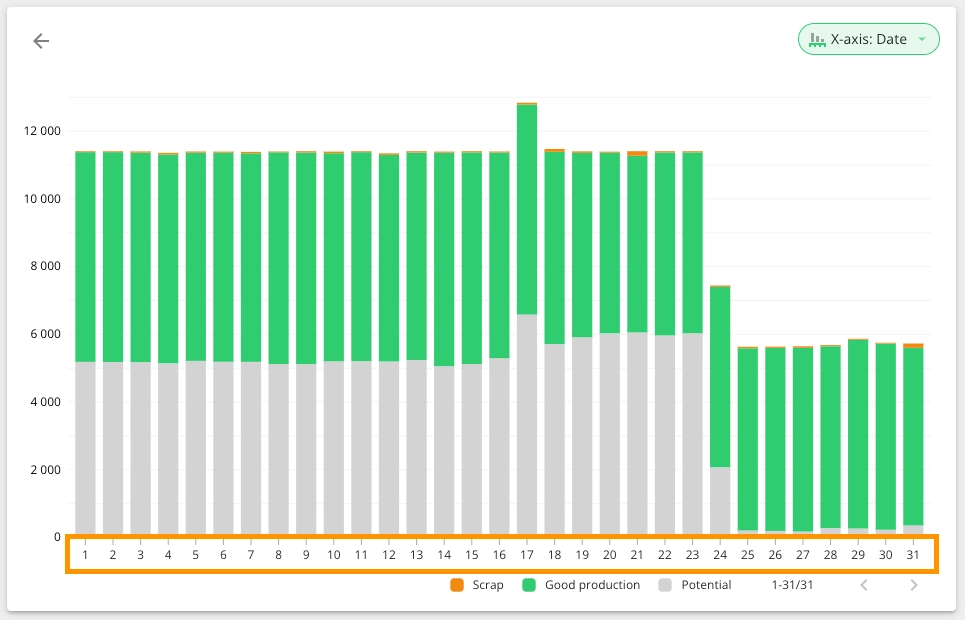
Charts have become more compact, and the whole month fits on one page.
Save reports with a rolling time range of "Today" and "Yesterday"
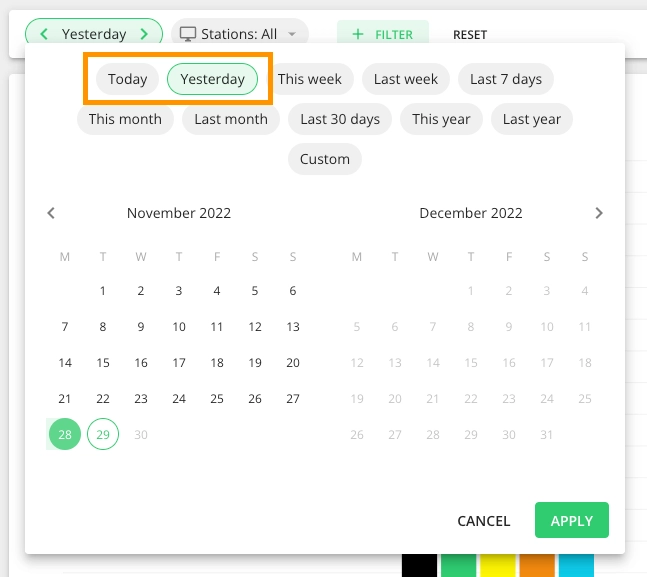
We added two new shortcuts to the calendar.
This means that you can save reports which will automatically update every day to show you the report of today or yesterday.
Improvements to the table

There are a few improvements to how tables work:
- Now you can find definitions for terms used in the table
- You can choose how you prefer to see time values
- This menu was also a much better place to have the option to export the contents of the table
Bug smash & usability improvements
- We changed the logic behind "most used reasons" for stops (downtime), speed loss and scrap. Now these are set based on last 30 days, by occurrence not duration.
- There was an issue with the Devices module (under Settings), where all devices were shown as offline - this is now also fixed.
- Product settings for stations got a new look.
- Support articles for the new Reports have been made available.
October
What's new in Reports?
A new Scrap report
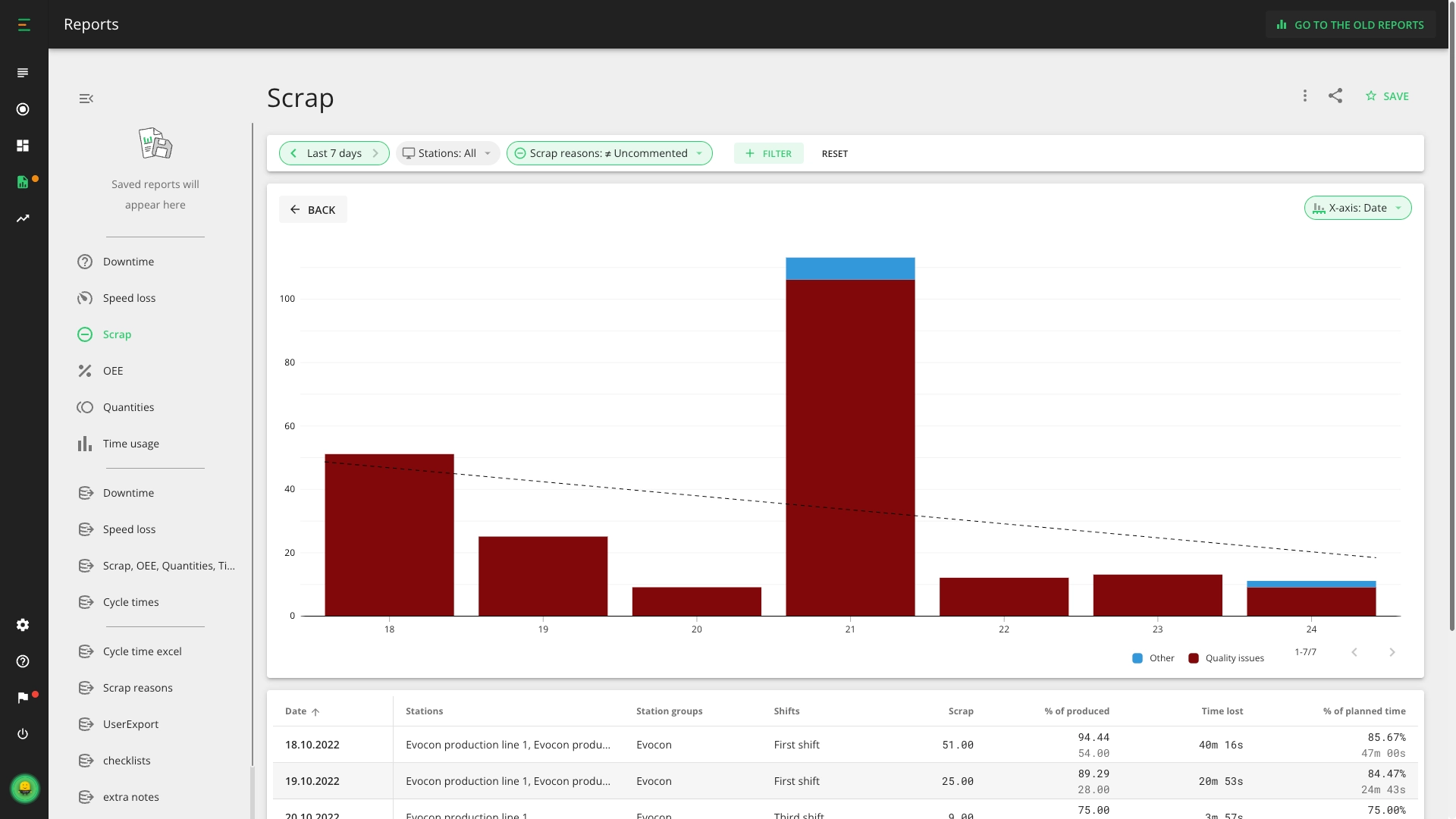
How to access the old reports?


The old Reports is being gradually phased out, that is why you will no longer find it in the menu, but you can still access the old version using a button in the top corner.
Detailed data behind the main reports
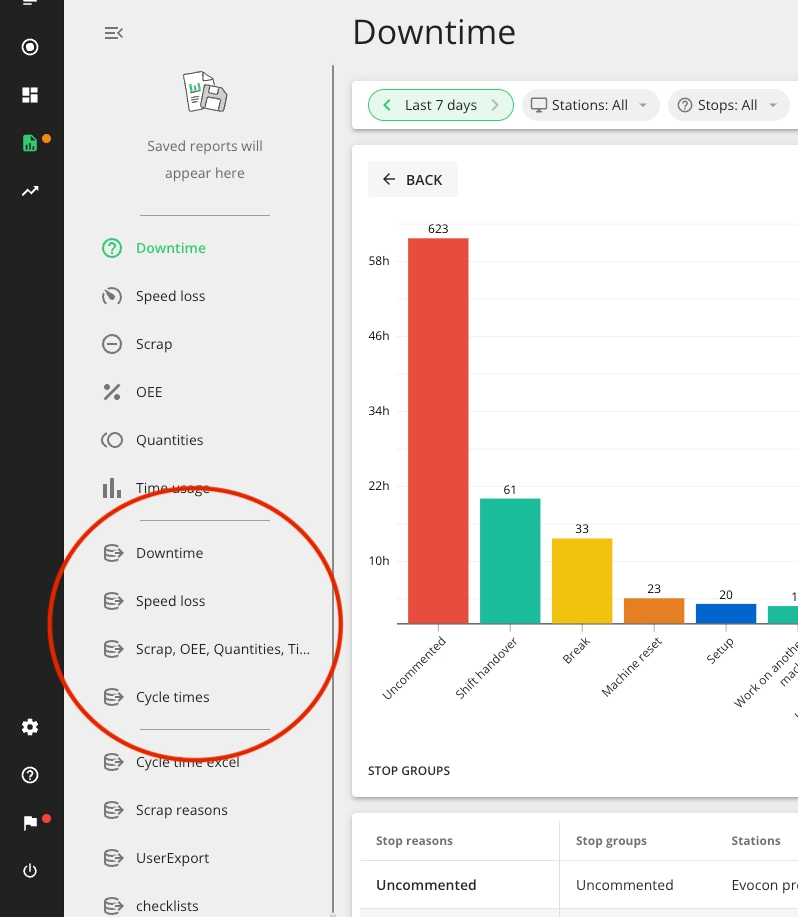
We made it easier to export all data behind the six main reports. Now the links to those reports are in the side-menu of Reports.
Data for Downtime and Speed Loss reports is downloaded in two separate files. Data for the other four reports - Scrap, OEE, Quantities and Time Usage - is downloaded as one file, named accordingly.
The last file in this group of four is Cycle Times report. For now, it is only available as a downloadable file.
More measuring units on Y-axis
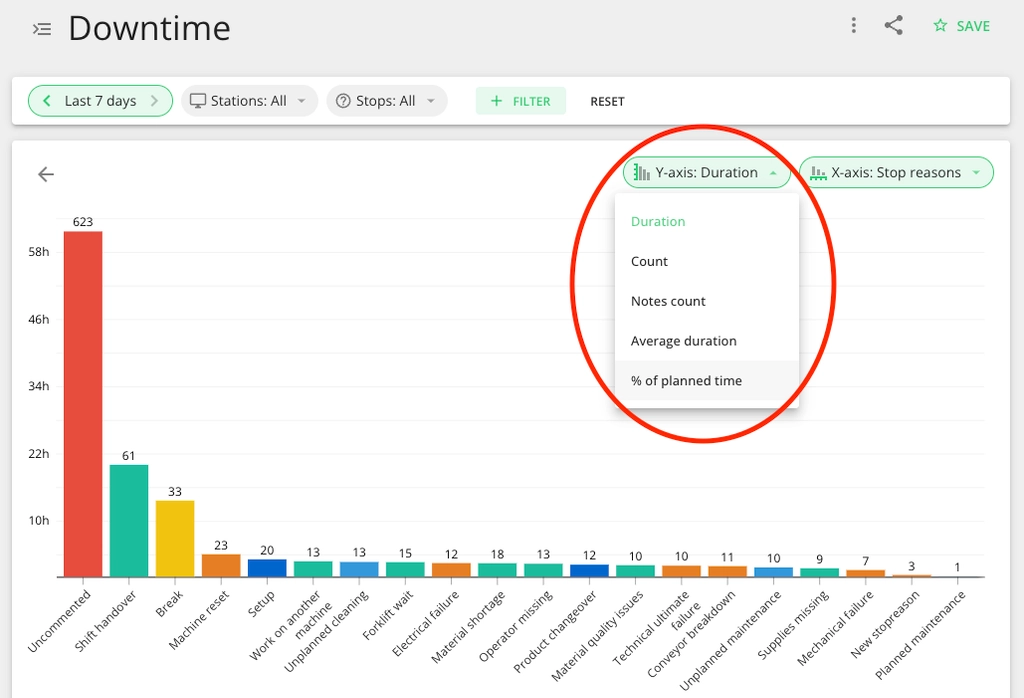
One very requested feature was the possibility to change Y-axis to a different measuring unit.
Now you can display downtime not by duration, but by any other unit, applicable to the report.
Right now this new feature is available on Downtime and Speed Loss reports.
New measuring units
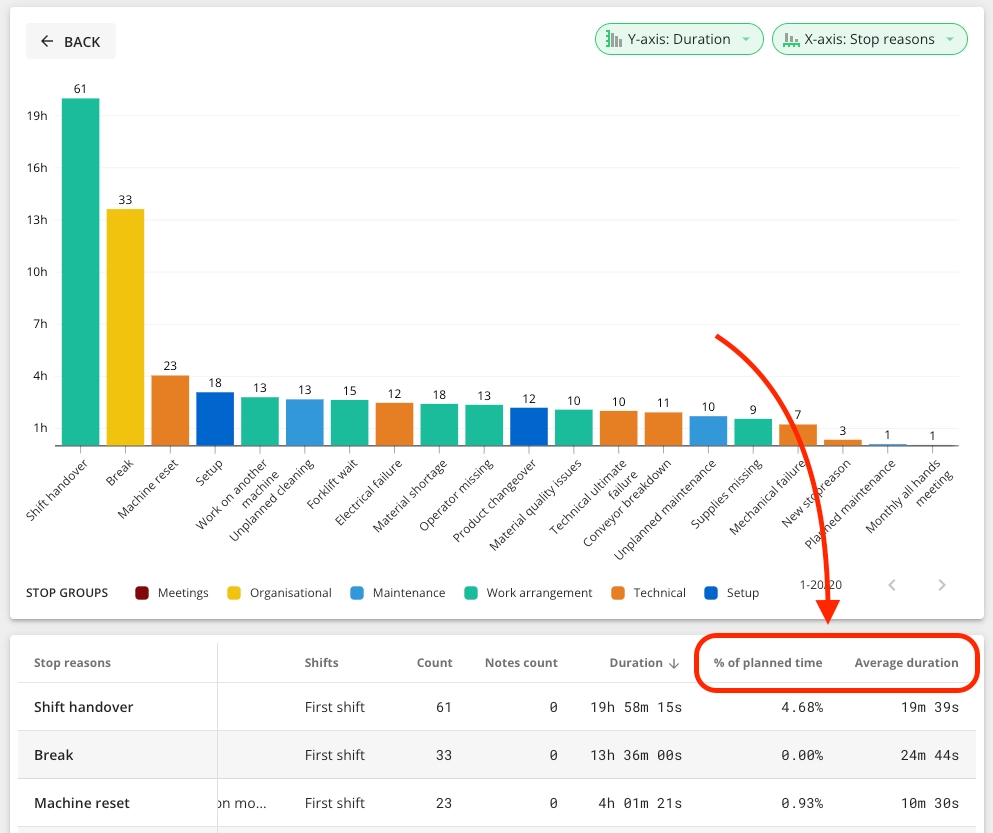
There are two new measuring units added to the downtime report:
- Percentage of planned time (shift time excluding planned stops)
- Average duration of a downtime event
This means that now you can sort the table using these measures.
Bug smash & usability improvements
-
For the customers that are using production orders, we are now also displaying setup time (provided by the customer via production orders integration) in Shift View - in the hover of the Changeover icon and in the production orders information in the Changeover modal.
-
We made a change in messaging from Shift View - until now "Enter" sent the message, but from now on, it adds a new row within the message. Message can be sent by clicking on the Send button.
-
We changed the reason group color red darker to differentiate it from uncommented reason/group color. The group color will be changed for all groups that have red as the set color.

-
We changed the speed loss colors to differentiate uncommented areas from commented areas better.

September
New Reporting
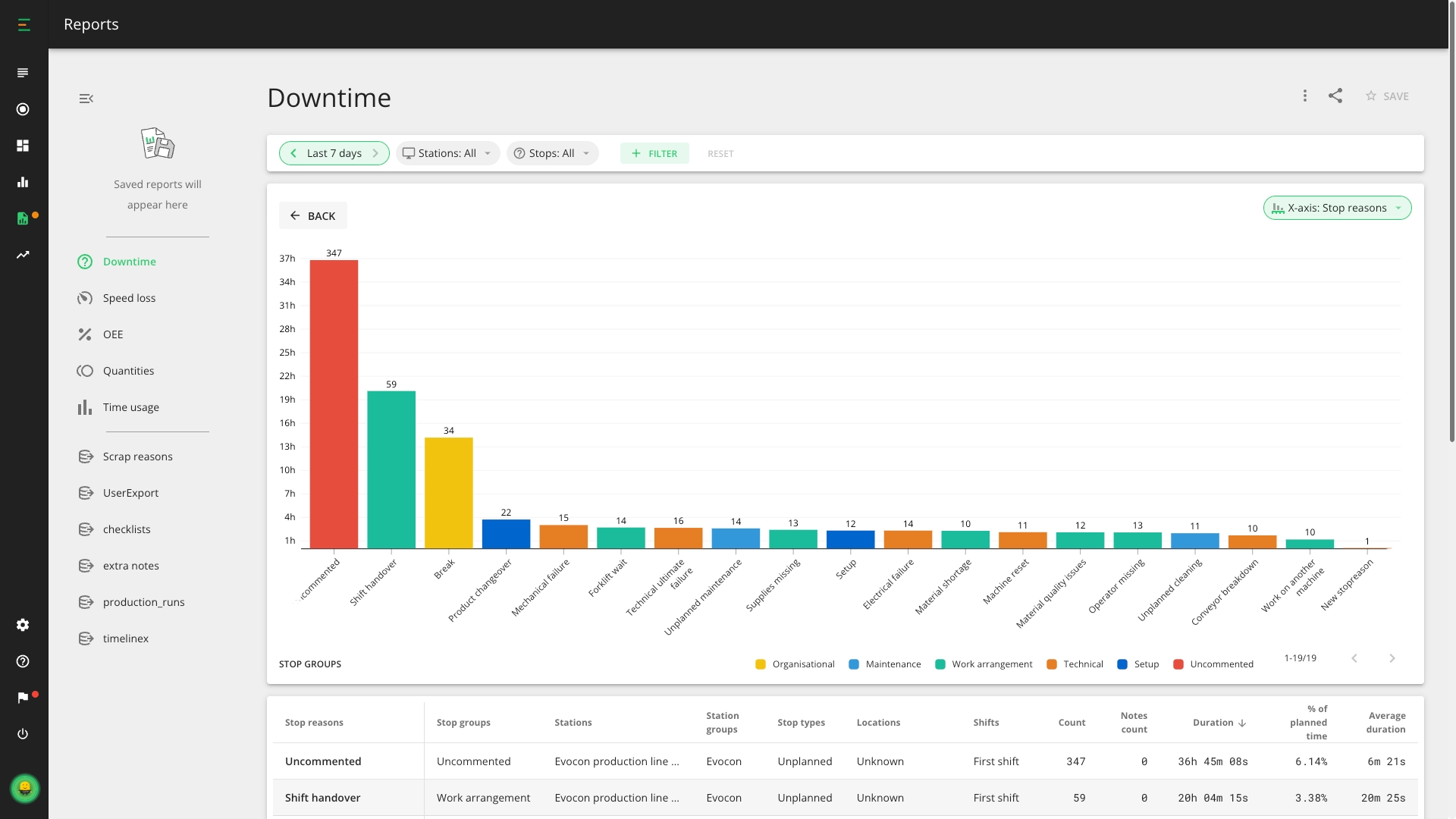
This is an important and long-awaited announcement to all Evocon users. As of today, 27th of September, we've enabled everyone access to the new and updated reporting module.
This is the most significant release we've done in years, and with it, we aim to take the analysis of production data to a whole new level and help our clients fulfil their true potential.
What do you need to know going forward?
Before you read about what's new in Reporting, you must familiarise yourself with the following timeline:
- Until the end of October, everyone can access both the new Reporting and the current one.
- At the end of October, the new Reports will replace the current ones, and access to the current version will be limited.
- From December, the current reporting will not be available anymore.
Over the following months, we'll add many features and improvements to the new Reporting, empowering our clients with more ways to analyze production data.
What's new in Reports?
An overview of the most important changes:
- Powerful filtering
- Saving of favorite reports
- Viewing data by stations, shifts, operators etc.
- Trendlines
- Sharing reports
- and more
Plus there are many new and useful features still to come in 2022.
We hope you enjoy it!
If you have any questions, feedback, or improvement ideas, please send them our way. Either send them directly to the support team or contact our product team.
Localization – Choosing your display formats
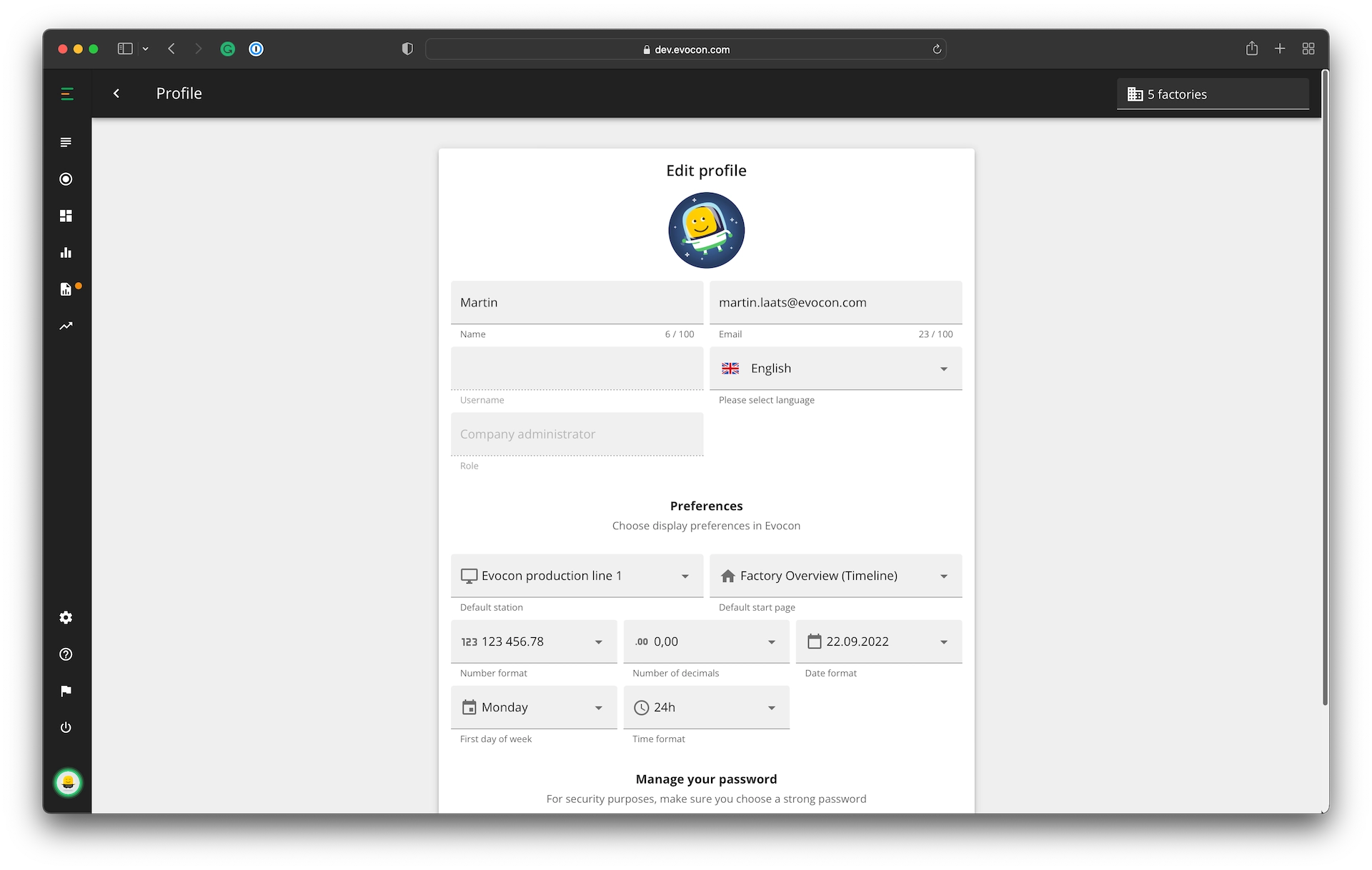
With this update each user can choose how they want to see data in Evocon. In your profile settings, you can define the following display properties:
- Number of decimals
0,00 - Thousand separator
1 000 - Calendar date format
MM.DD.YYYY - Time format
24h/12h(am/pm) - First day of week
Mon/Sun
Learn more: Changing format preferences for an account
Bug smash & usability improvements
- We have made some fixes to Checklist feature (interval check issue).
- Some fixes were applied to the Speed widget in Shift View (axis data correction).
- We made some improvements in the Dashboard (displaying comparison data for "last 12 months" option, etc).
- We have added Romanian and Ukrainian to Shift View languages. More information here.
August
Improved feedback when measurement is out of range
In order to improve the feedback and instructions to operators when a checklist measurement is out of range, it is now possible to add a message that will be shown in Shift View.

Administrators can add a message under Checklist task settings that will be shown to operators in Shift View after they have entered a measurement which is out of the specified range.
The added message is shown to operators in Shift View as seen below.

More information on the Checklists feature is available here.
Include/exclude planned stops from OEE calculation
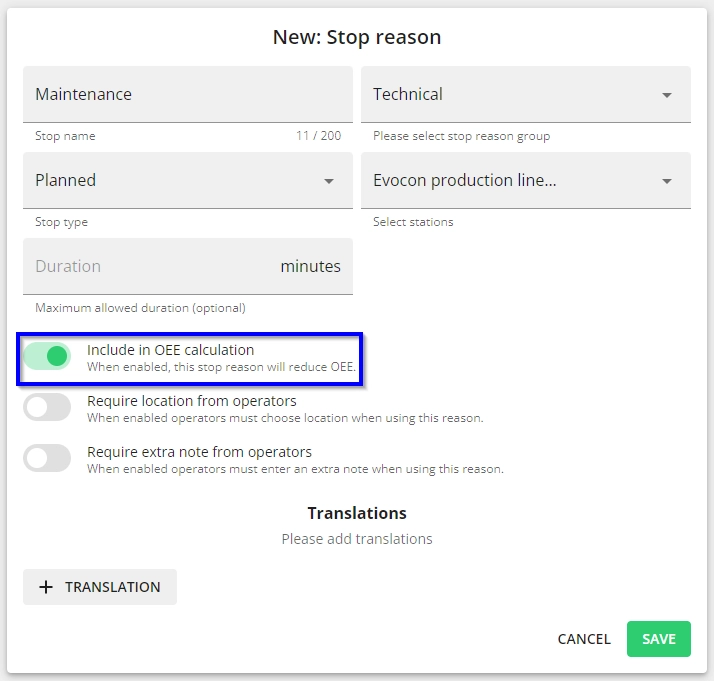
This update takes Evocon closer to the fundamentals of OEE theory which divides availability losses to planned and unplanned stops, whereby all unplanned stops are included in OEE calculation and only some planned stops are excluded from OEE calculation.
So far Evocon has not allowed to manage planned stops so that they reduce OEE.
Starting now, you can choose to include planned stops in the OEE calculation. This gives needed flexibility to ensure that your OEE calculation is correct while visualizing planned stops differently from unplanned stops.
More information about stop reason management can be found here.
Ad hoc (manual) checklists
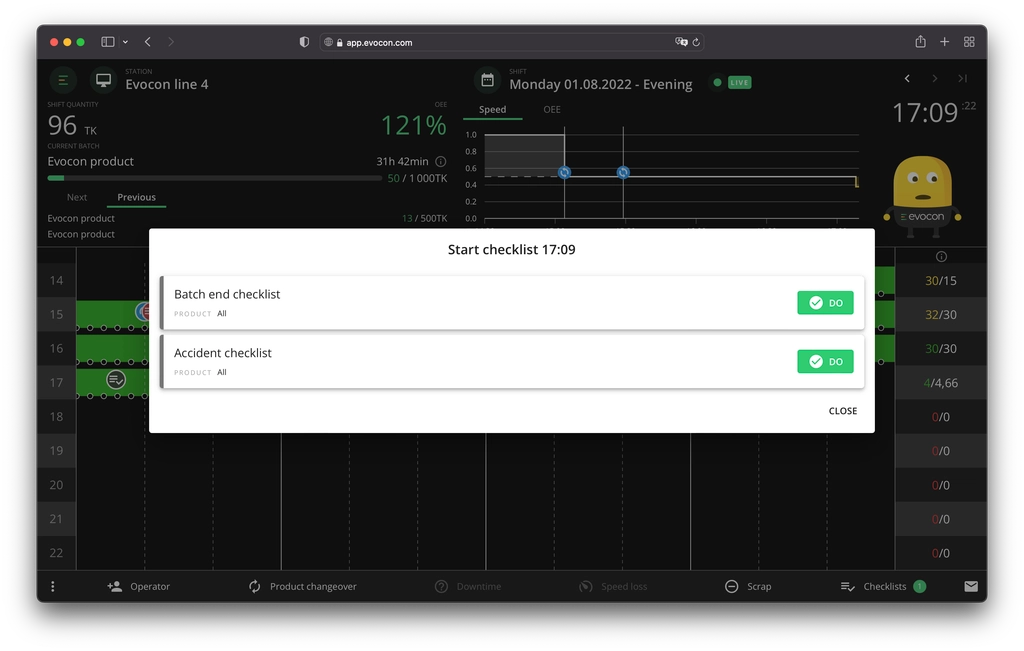
Not all necessary checks can be planned ahead of time. Some need to be performed ad hoc. For that, we have enabled Manual Checklists, which operators can initiate on their own from the Shift View timeline or the Checklist menu.
The list of available Checklists is predefined and responsive to the currently running batch.
Learn more from here.
Stacking pins that are clustered together
Since Shift View can have a lot of different events appearing on the timeline, it would sometimes happen that some pins were hidden behind others. Not anymore.
This visual update is especially helpful for those of you who have small screens and a lot of pins on the Shift View timeline.
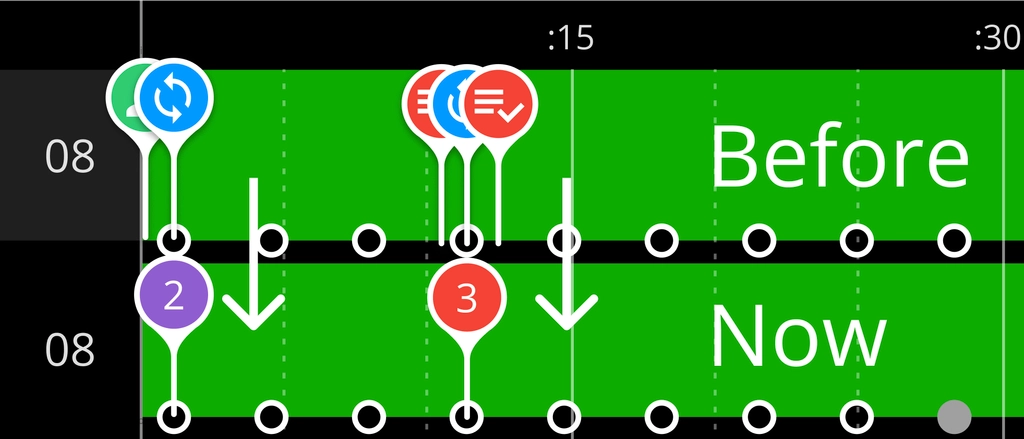
Purple pin - mixed events, Red pin - missed Checklist
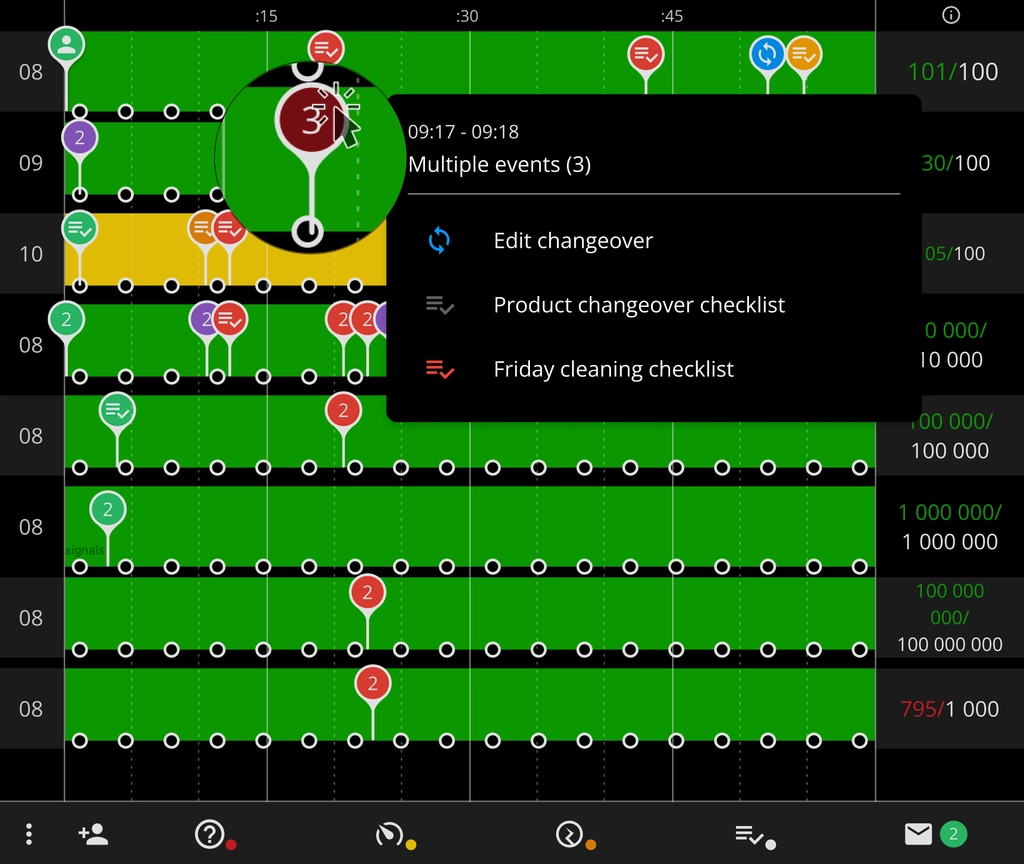
Now, it's much easier to interact with pins that are close to each other. And when pins get stacked, you'll see a numbered pin that indicates the amount of events inside.
Clicking on the pin will display more information and allows you to interact with the different pins.
Comparison in Dashboard improved

We have improved the option to choose between matching or whole period when enabling the comparison with the preceding period. This affects time periods "this week", "this month" and "this year".
For example, when creating a widget for "this year", then the option "matching period" would be Jan 2021 - Aug 2021, but the option "whole period" would be Jan 2021 - Dec 2021:
Bug smash & usability improvements
- Duplicate products – We have added the possibility to duplicate products in order to make the product creation process quicker and easier. More information is available here.
- We fixed the Dashboard issue regarding production data widgets not displaying data. Please accept our apologies for the inconvenience this caused.
- We added the option to set the location selection as a requirement for operators when they are adding a specific stop reason to a production stop. Information about managing stop reasons can be found here.
- In case of multi-factory setup, the factory selection is now saved in Factory Overview and Settings for users after logout.
- We changed the colors of produced quantities a bit - white is now replaced with yellow. More information can be found here.
- Checklist settings had a facelift. More information on Checklists is available here.
- Reduced (mobile) view can now be forced for grid view. Please find more information and examples here.
- The maximum number of tabs in Dashboard was increased from 10 to 20. More information is available here.
July
NEW: Devices view in Settings

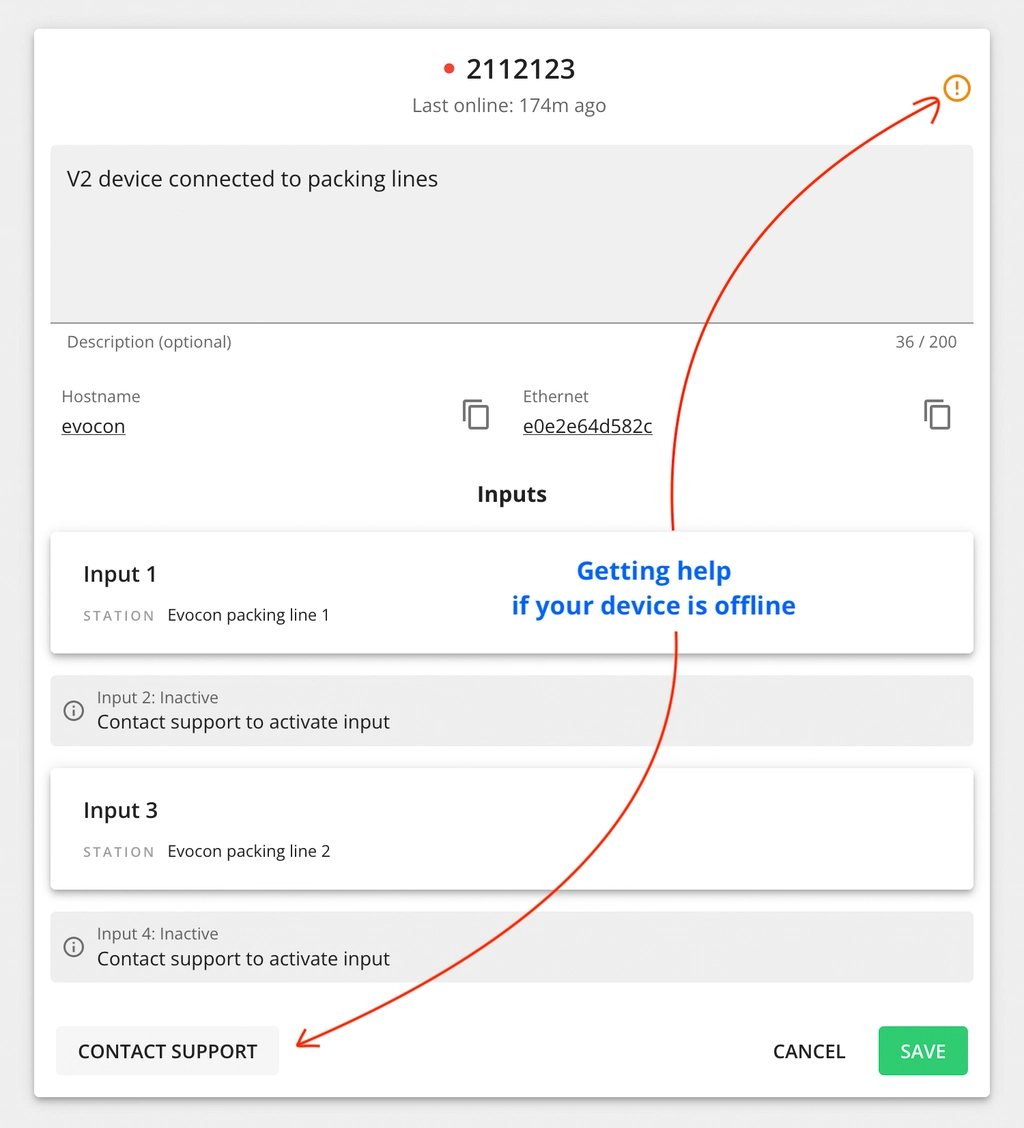
The latest update adds the Devices section to Settings that provides an overview of all the Evocon IIoT devices you are using.
More information is available here.
In the first version, the view focuses on giving information about the status (online/offline) of your devices, which inputs are connected to which stations and also which inputs are still inactive.
Updated batch widget – Good (Scrap) / Target
Another update has been shipped to Shift View that enhances how produced quantities are visualized.
In the batch widget, production is divided into good production, scrap and target (if set). If production (good) exceeds set target, then the whole section turns yellow, indicating overproduction.
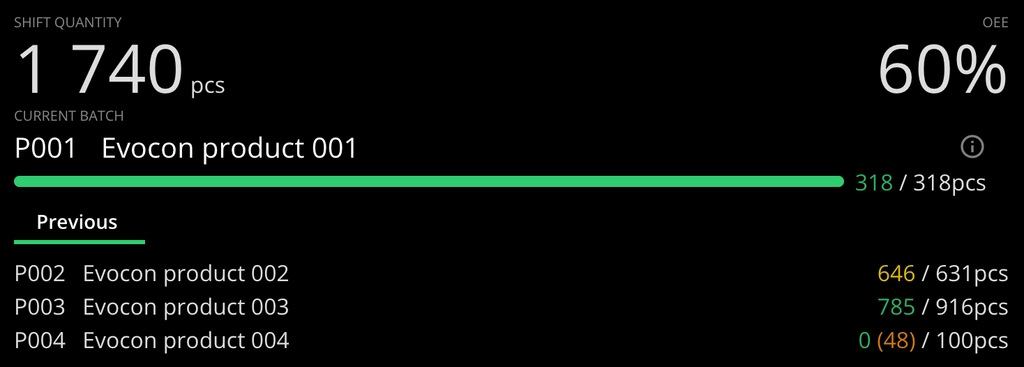
Colors give visuals cues about production output.
Bug smash & usability improvements
- Production signals marked as scrap are now fully orange (without white stroke) so they would be easier to notice. And signals that have comments are fully gray.
- There were problems displaying the Dashboard in mobile but that is now fixed.
- We unfortunately also had multiple bugs with Checklists and the fixes for these problems have been applied.
June
Optimized Shift View experience across devices
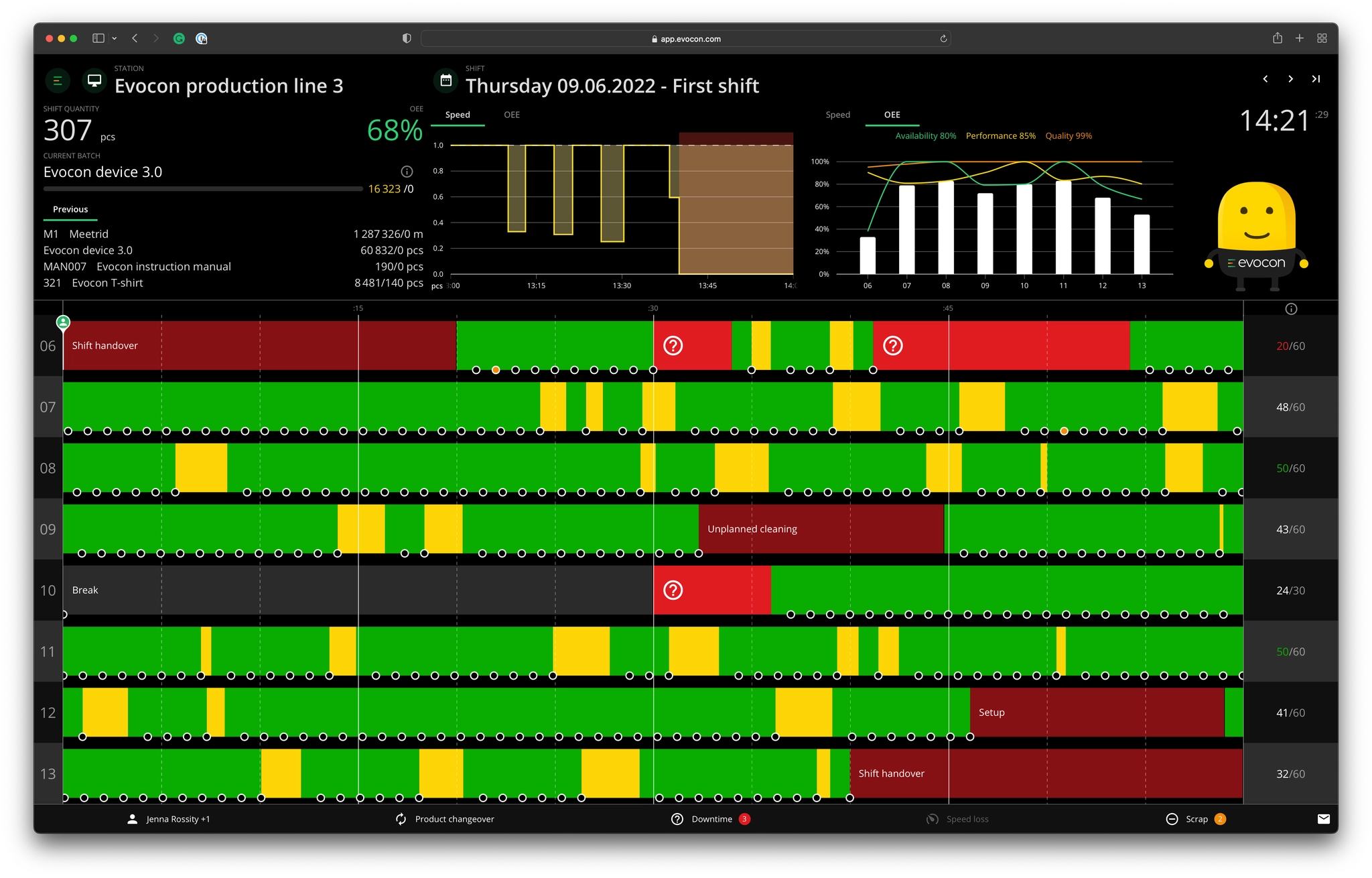
Our latest improvement to Shift View brings an optimized header-to-timeline ratio across different screen resolutions.
Now, different resolutions (from HD to mobile) follow a 30/70 rule, where approximately 30% of screen height is dedicated to the header in Shift View and 70% to hourly lines. These proportions change based on screen height/width.
Multiple widgets on ultra-wide screens
If you are using a monitor that has a very wide screen (more than 1920 pixels), then you are displayed multiple widgets in the header so that more data would be available to you at any time.
Grid view to display multiple Shift Views at once
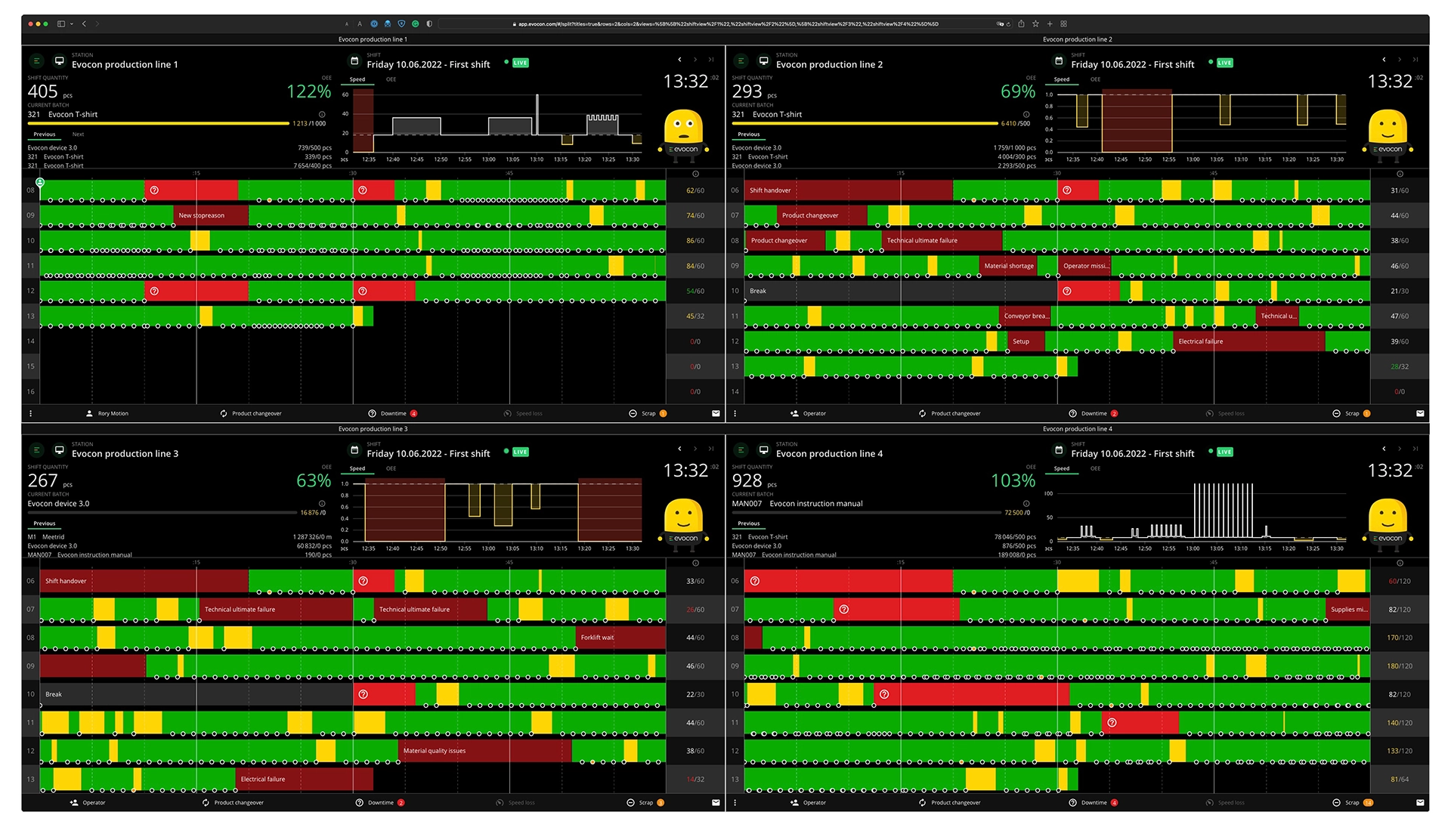
We've also developed a grid view that enables you to have multiple Shift Views (or even Dashboards) visible at any given time on your screen.
To learn more about how to set up a grid view, please read this article. Please also note that this feature is still in the development phase and requires a bit more effort to set up.
Allow user access based on IP addresses
We have built a security feature that makes it possible to allow users to access Evocon only from a certain list of external IP addresses.
The filter can be configured per user type and can be used to ensure that access to Evocon is only available from the office or via VPN connection if the user is on the go.
If you wish to enable IP filter for your Evocon account, please send a list of allowed IP addresses to [email protected]
Marking scrap in alternative units
In case the product has an alternative unit defined in Settings, it is now possible to mark scrap in Shift View in both the main unit and the alternative unit. More information on alternative units can be found here.
- The entered quantity does not change when you change the unit (value not converted between units).
- Maximum quantity is shown based on the selected unit (is converted).
- If user has entered scrap in alternative units, then that becomes a default until another entry is done with the main unit.
Please note that otherwise quantities in Shift view are shown in main units only.

Bug smash & usability improvements
- In case the changeover pin and team change pin have the same time, then we now show the changeover pin instead. Previously, it was the other way around.
- We added changeover pins to Factory Overview (Timeline) to make the analysis of the production process faster and more meaningful.
- We improved the scrap reason adding logic in Shift view:
- If there aren't any scrap reasons defined, the user can adjust the quantity and the extra notes and the reason is shown as "Uncommented" in the scrap overview, Reporting, etc.
- If there is just one reason defined, that reason is already pre-selected as default when operator is adding scrap.
- If there are several scrap reasons, the first group is pre-selected by default, but the operator can search and select the correct reason from the groups/reasons.
- Most used stop reasons in the commenting modal were not translated to user language, this is now fixed.
- We changed the ordering of all extra notes. It used to be from oldest to newest (bottom), now the newest to oldest. Meaning the most recently used ones are on top.
May
Mouse hover update in Shift View
Hovers provide a lot of useful information in Shift View and now the visibility of what is being hovered is improved.
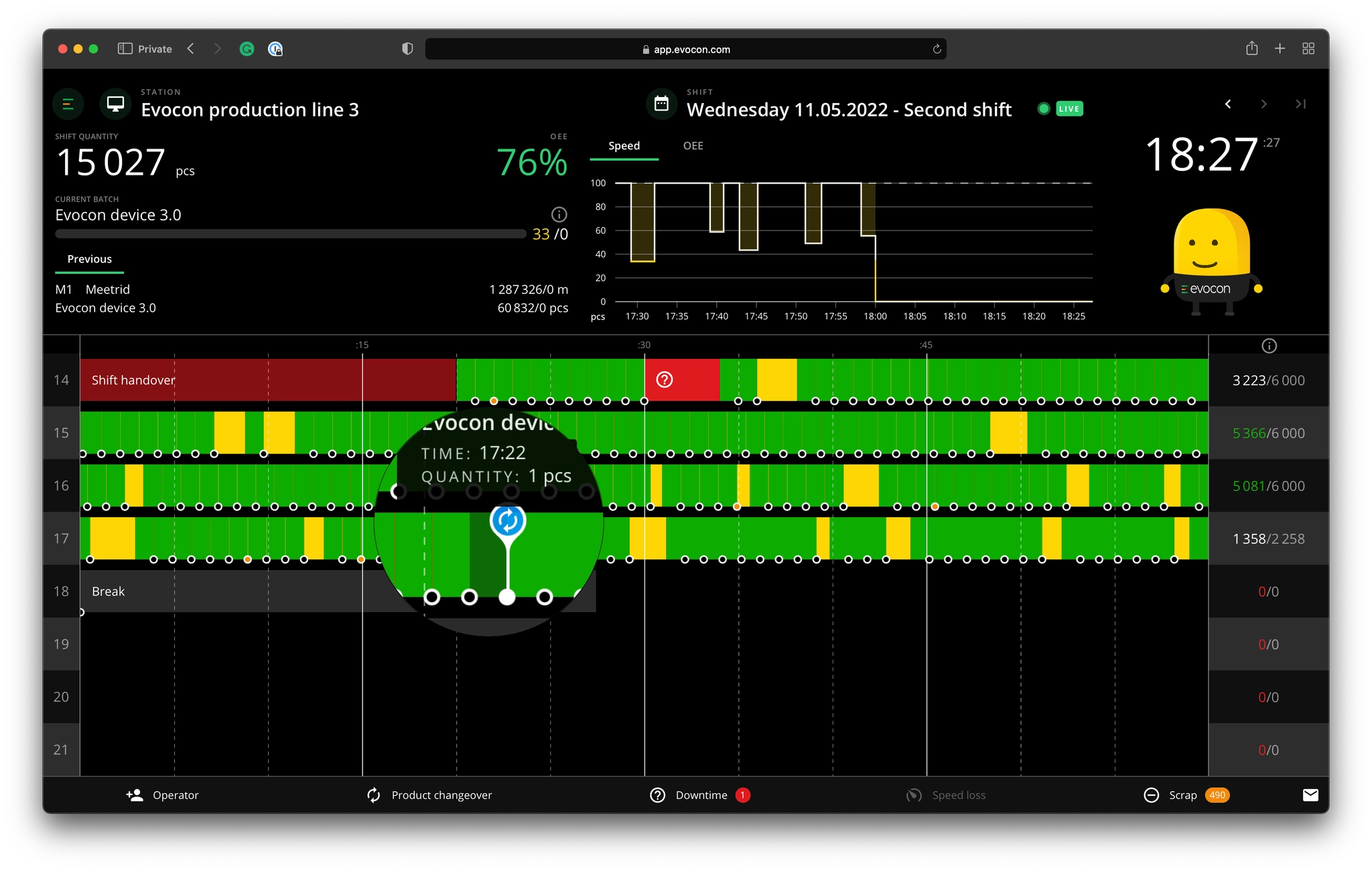
A changeover is marked on a circle and the start time of that circle is the end of the previous circle.
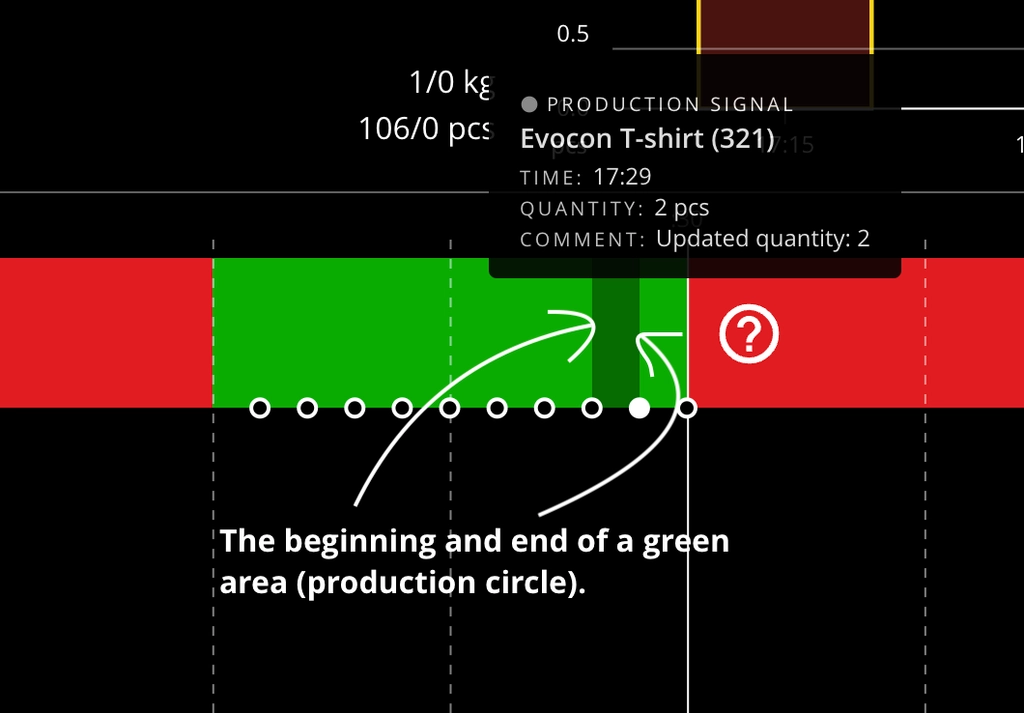
The most important improvement is in regards to green areas, that correspond to production signals (circles).
Now it's clearly visible when a green area started and when it ended or in other words what marks the beginning of a circle and what marks the end.
Selecting production signals (circles)
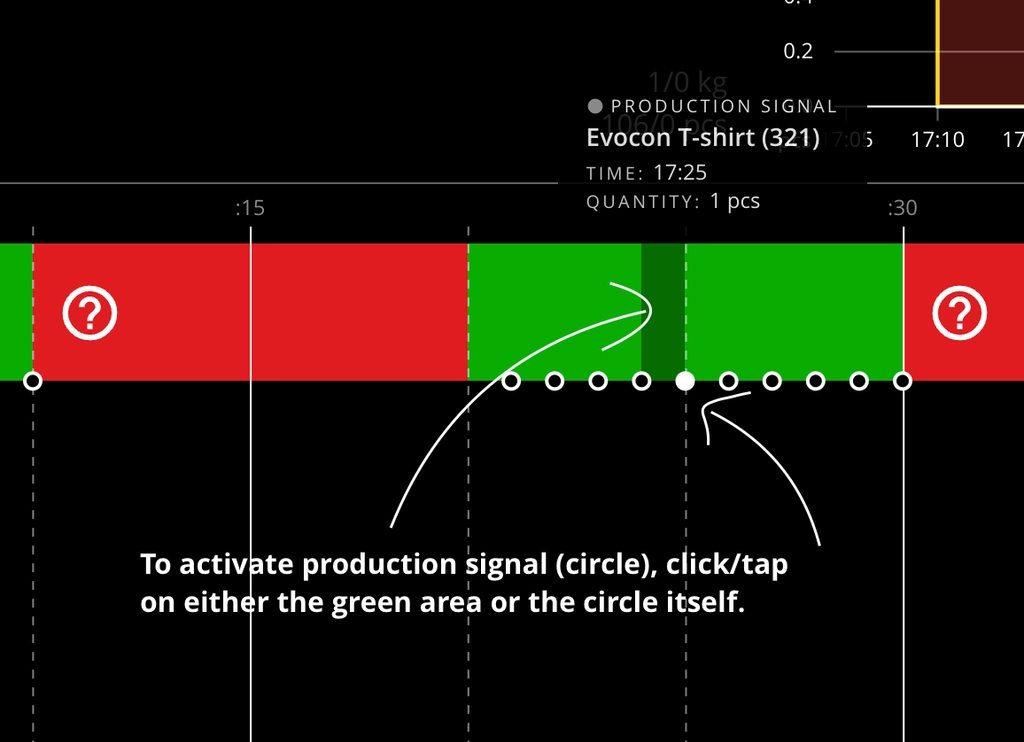
Together with this update we also made it easier to select production signals (circles).
They are small, we know, so now you can simply click/tap on the green area that represents a circle (or the circle itself) and that will activate the production signal you need.
If you miss with your tap/click, just use the arrows in the popover to get to the right circle.
2nd y-axis for custom widgets in Shift View
For those of you using our custom widget feature in Shift View, it's now possible to configure 2 separate y-axes. This is very useful when you are tracking two different datasets with varying scales.
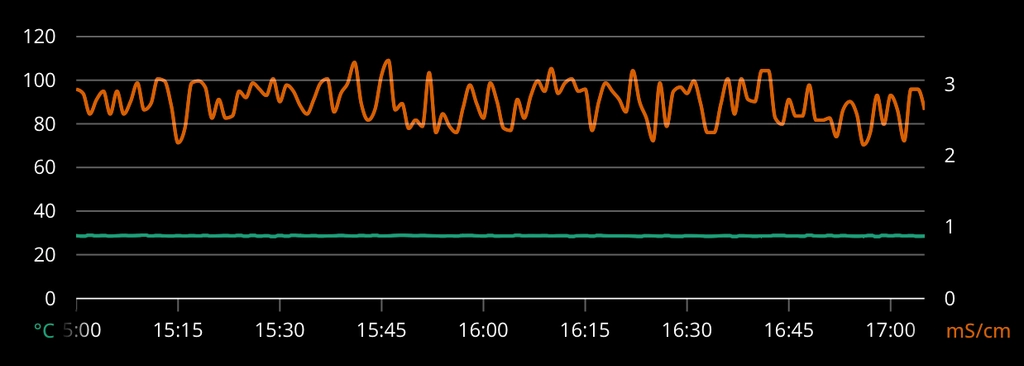
In this example, the temperature is from 0-120C and conductivity is from 0-4mS/cm.
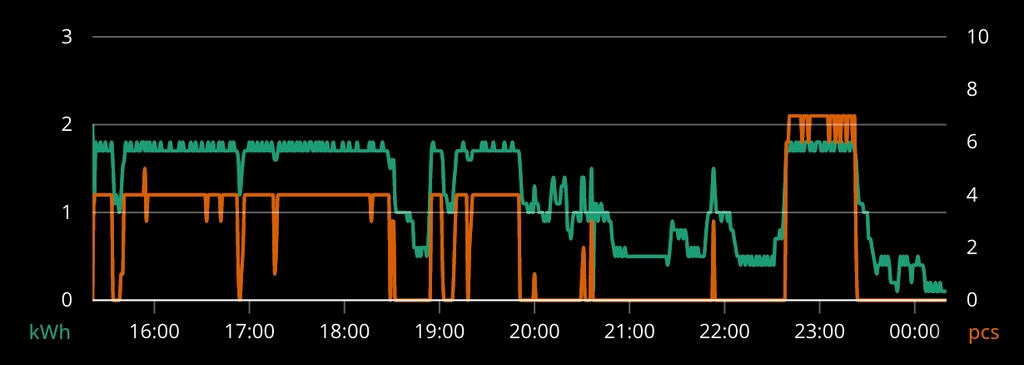
In this case, kWh is tracked together with pieces produced.
Not using the custom widget, but interested?
Today, we have a small selection of use cases for this feature. The main goal of each is to monitor a dataset and compare it to line performance in real-time. A few examples of the data that Evocon clients monitor this way:
- Conveyor speed
- Temperature
- Conductivity
- kWh
In theory, we can add up to 5 different datasets on one widget. If you want to learn more or want to discuss your use case, contact our support.
Bug smash & usability improvements
- We restored the previous functionality regarding choosing multiple stops in Shift View - so now it is possible to select multiple stops by dragging the brackets over several stops and by clicking on each stop individually. More information on commenting production stops can be found here.
- We added Serbian as an additional Shift View language. Please see all available languages here.
- We updated user creation process, so now when creating an office user all stations are set as "read-only" as default.
- For customers who use production orders – you can now send comments (e.g. instructions to operators) together with the orders and those are displayed to operators when adding changeovers.
April
Brackets and popover in Shift View
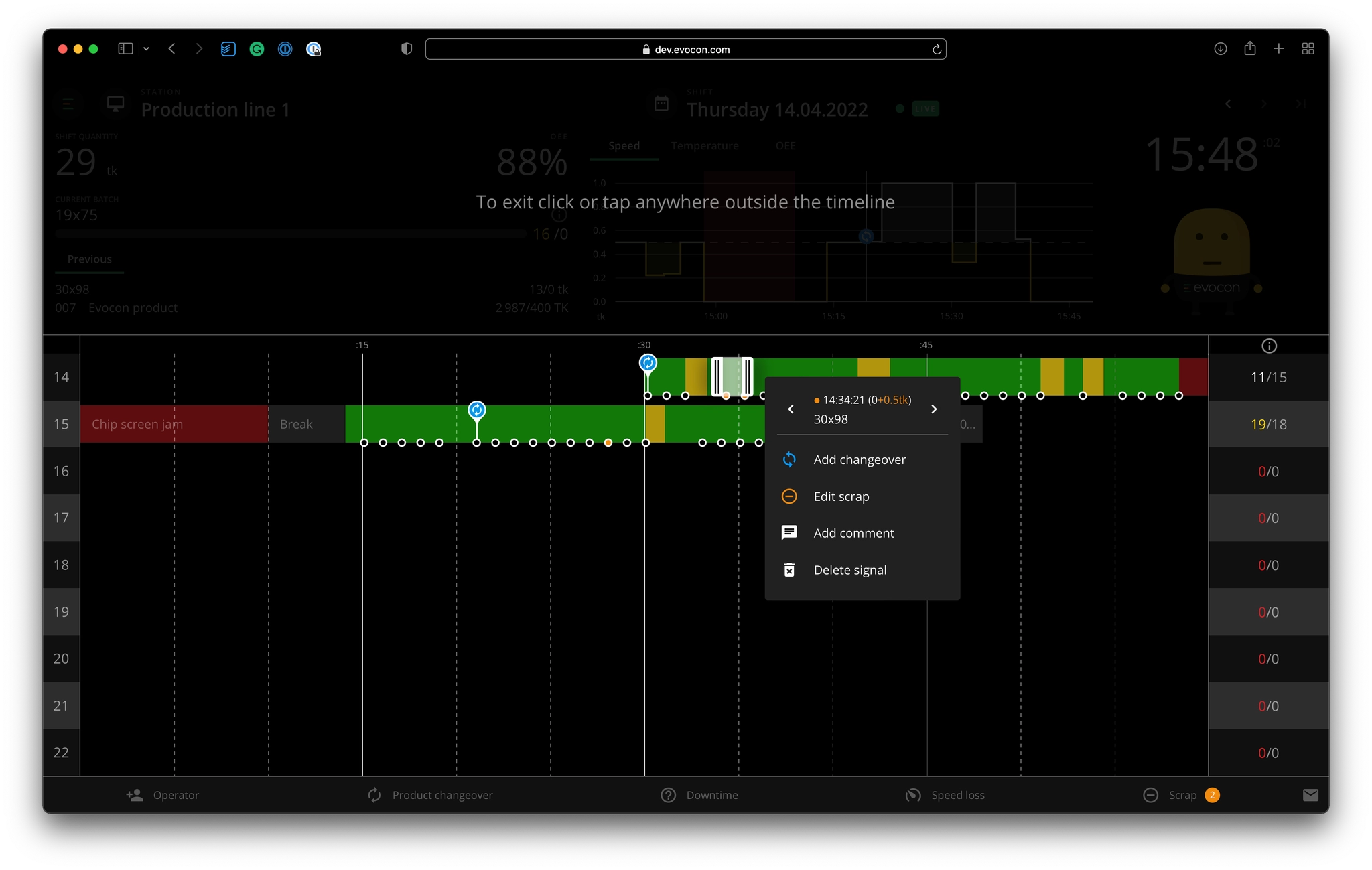
We strive to make the experience of using Evocon as smooth as possible. Nowhere is it more important than in Shift View. That's why we've made some improvements to how the selection of different events on the timeline works.
Header vs Popover
Previously all the actions related to downtime, speed loss, and production signal were in the header area of Shift View. Now they pop up next to where you click. This makes it faster and more convenient to complete your action.
In addition to that, everything (actions + information) in the popover changes dynamically based on what is selected.
Before – Header
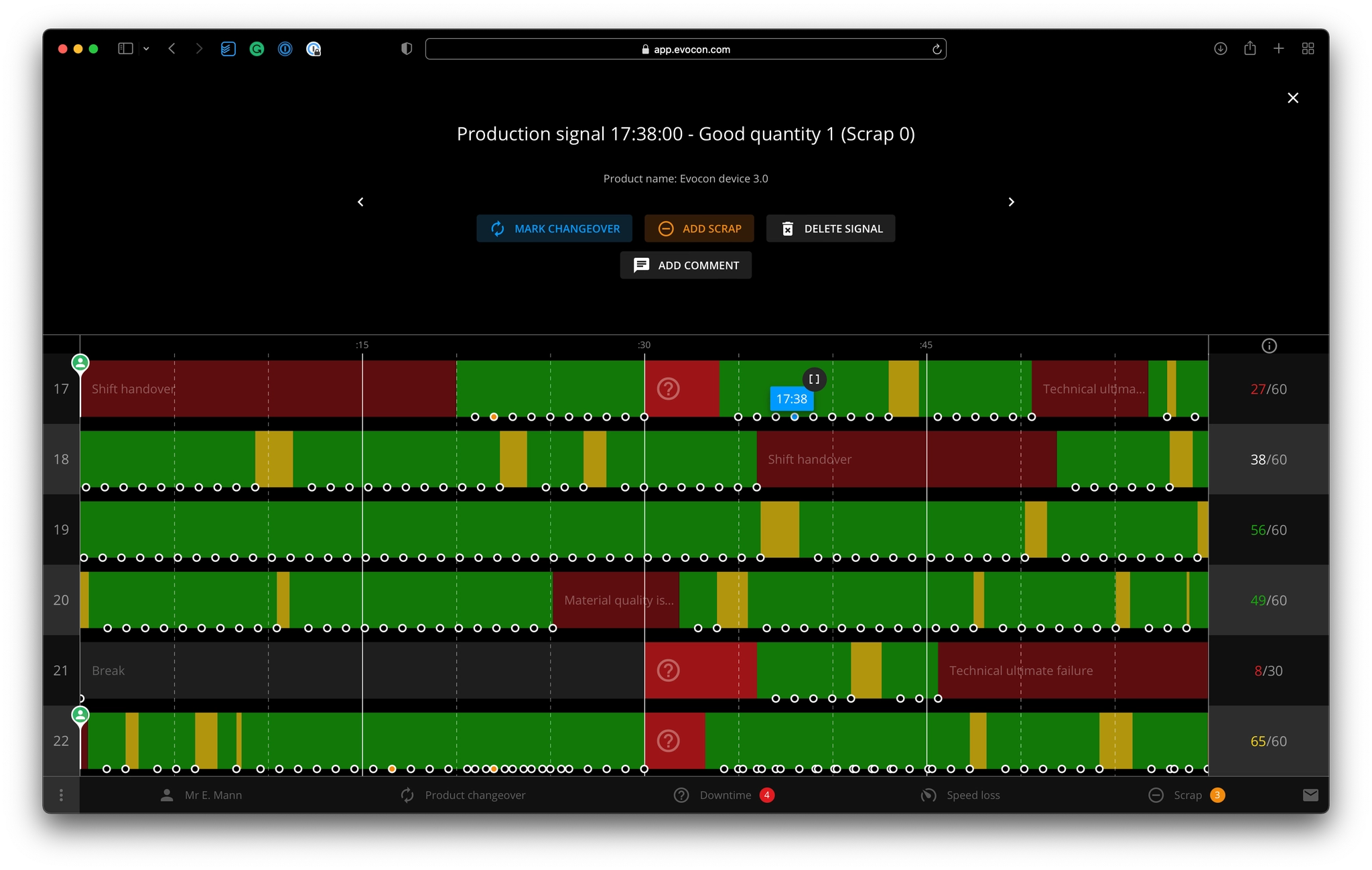
Header area before the update.
After – Popover
Header area and popover after the update.
Brackets
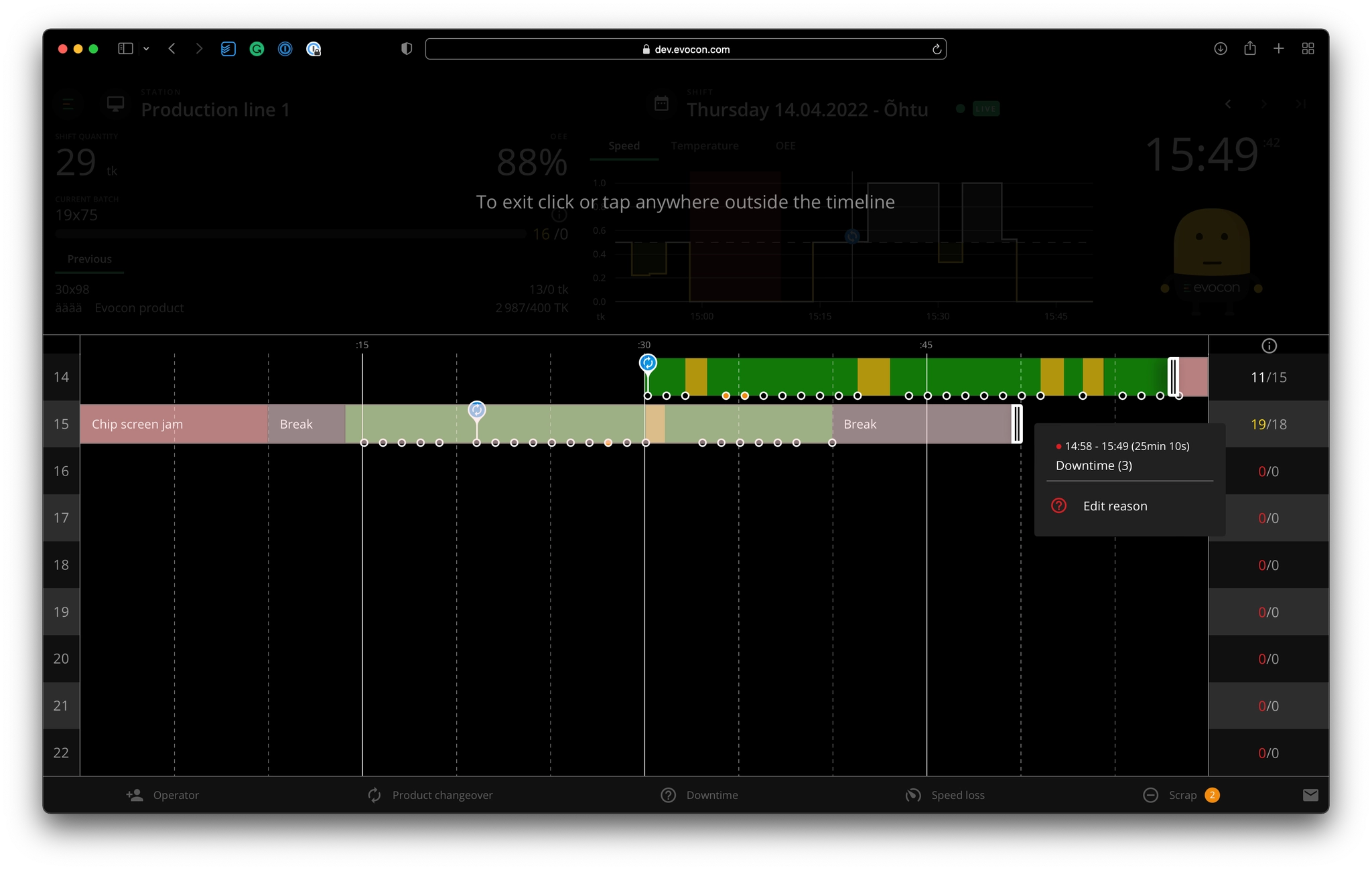
Brackets is the other important function that got an update. Now, brackets are always visible when either downtime, speed loss, or production signal is clicked.
You can use brackets to select items over the entire shift or narrow down to one specific area or element.
Update to scrap dialog and overview
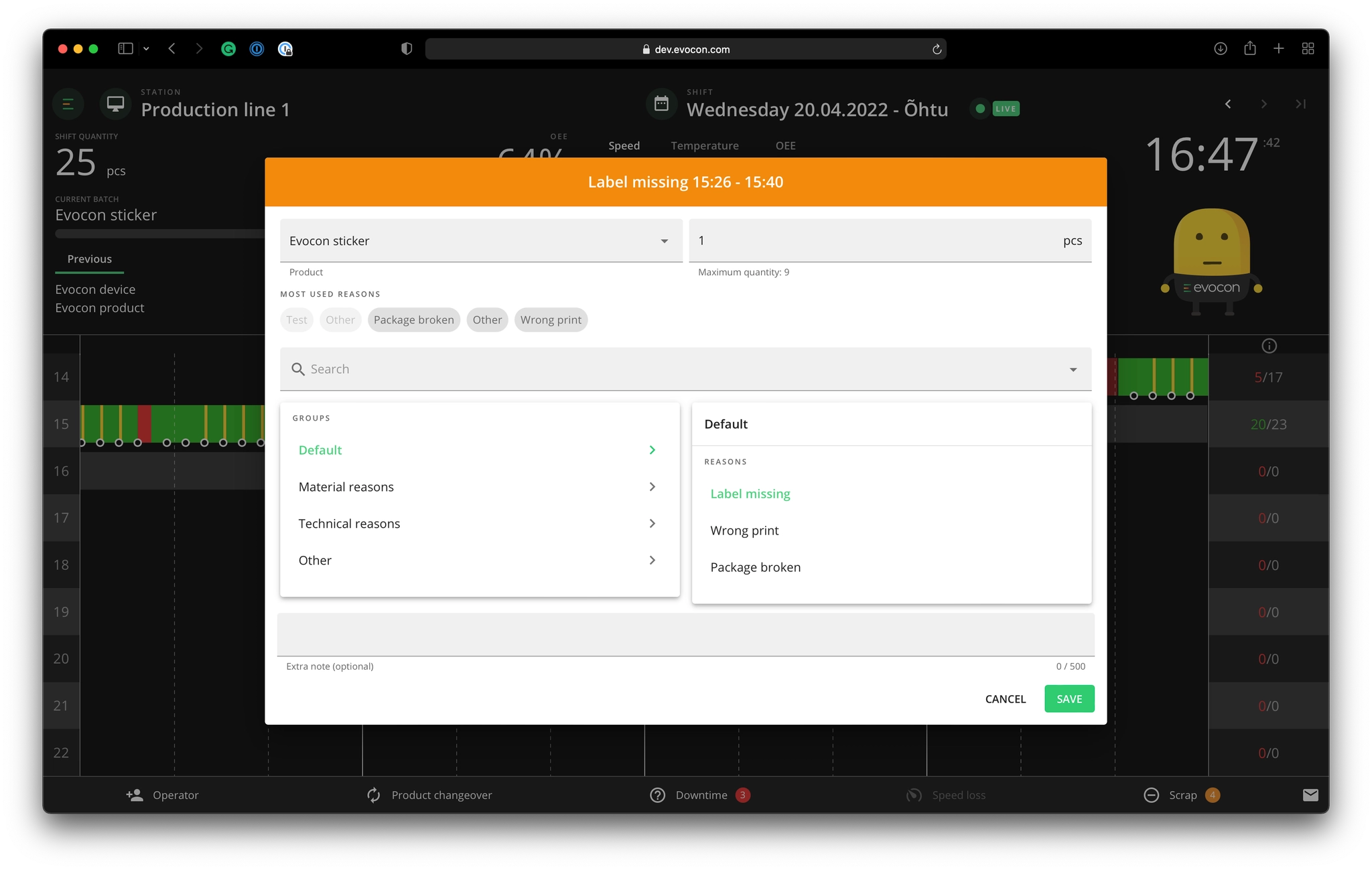
A big portion of this update focuses on fixing the known issues around adding and editing scrap. In addition to making the feature more reliable, we also updated the scrap marking dialog.
Following are some of the visible changes you'll notice:
- If there are 2 or more scrap reason groups defined, then a group-based layout in the scrap modal is shown.
- If there are more than 2 groups and 10 reasons for operators to select from, then search and most used scrap reasons become visible.
- In scrap overview, the cards (scrap batches) are open by default to make analysis easier. Also, cards are arranged based on the flow of production and are in the same order as in the batch widget.
- Finally, for those who have integration with ERP, order information is visible in the scrap overview.
All of the outlined updates make the experience of using Evocon more consistent throughout the different features and functions. If you have any feedback about the update, don't hesitate to contact our support.
Possibility to add and change signals (Administrators only)
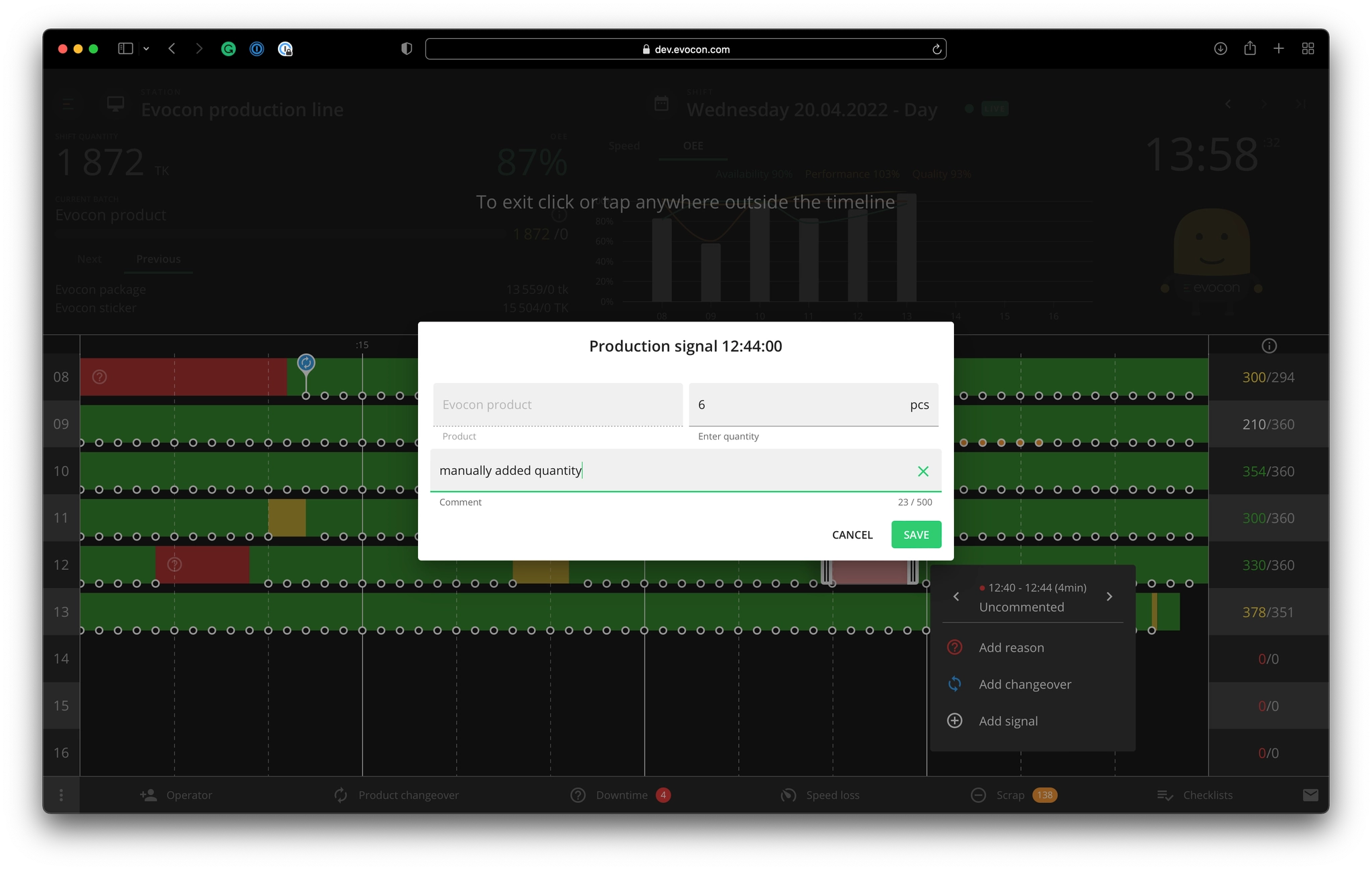
With this update comes the possibility for all administrators to add or change signals, and their quantities. The main use case for this functionality is to fix missing quantities due to different problems:
- Device power issues
- Connectivity problems
- Sensor misalignment
Other use cases include the adding of test run quantities and manual production tracking.
With this iteration, the functionality will only be available to administrators, whereas new signals can be added only to a single stop reason or speed loss area. Having this right for operators will come in the future.
Bug smash & usability improvements
- We updated the Shift View so that 10 previously entered extra notes and comments are shown instead of 5. For example stop, speed loss, and scrap reason extra notes.
- We have added the Hungarian language to Evocon.
- We have fixed the issue that the product list was not changed according to the selected group in the product changeover modal.
March
Checklists new BETA version
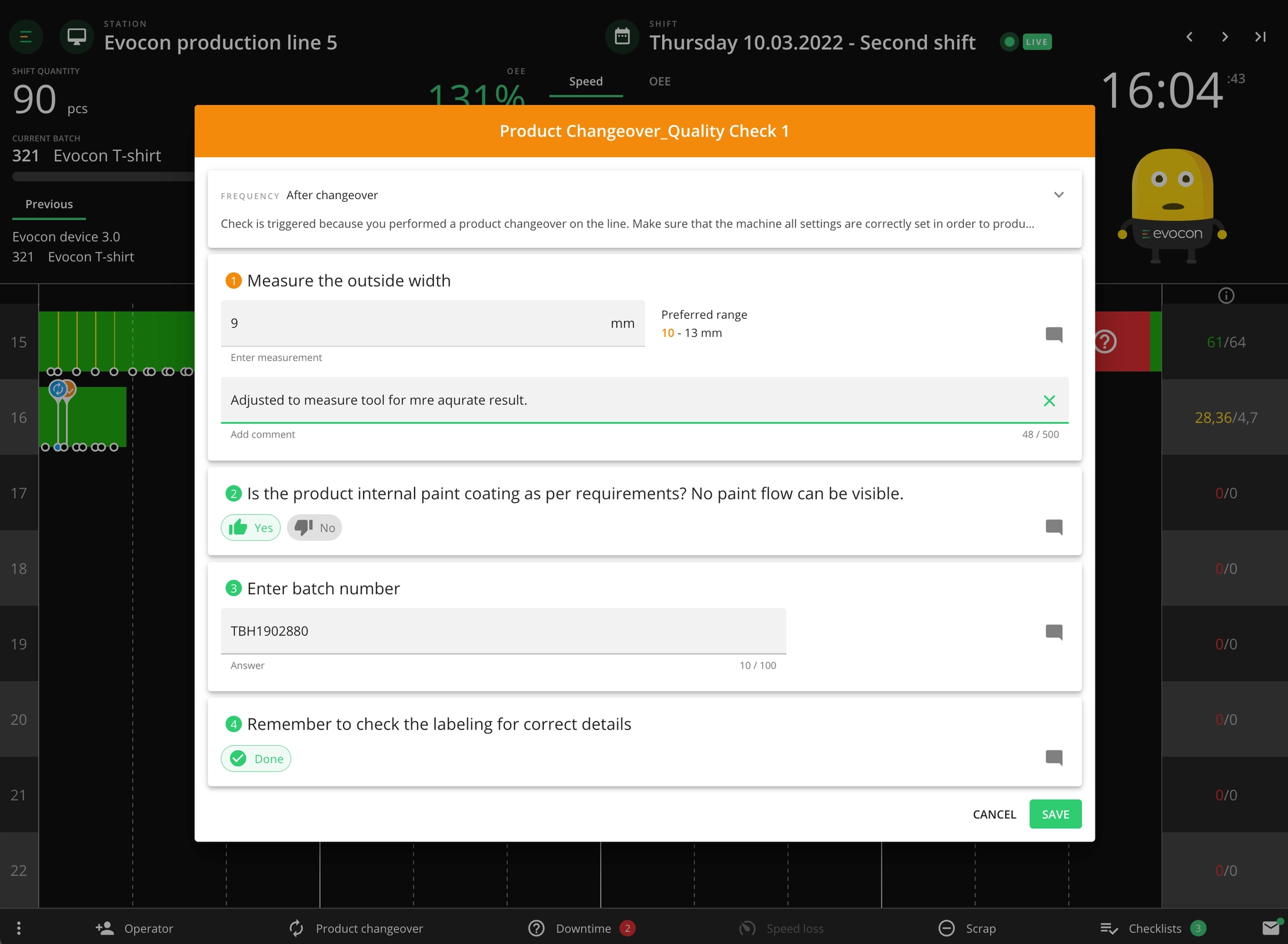
Evocon's new quality control module is now in open BETA. This means we are rolling it out to all clients who want to try it out for free.
Here is a short overview of everything that changed with the new version:
- Update to the Changeover trigger with more options
- A new type of trigger – Daily
- Possibility to duplicate checklists in Settings.
- Visual check is now called a "Yes/No" check
- Two new type of tasks that add flexibility when creating checklists:
- "Mark as done" task
- "Enter text" task
- Update to the Checklists modal in Shift View
For a full overview with all details about the update, please visit the link below.
Checklists BETA update full overview
Alternative unit for products
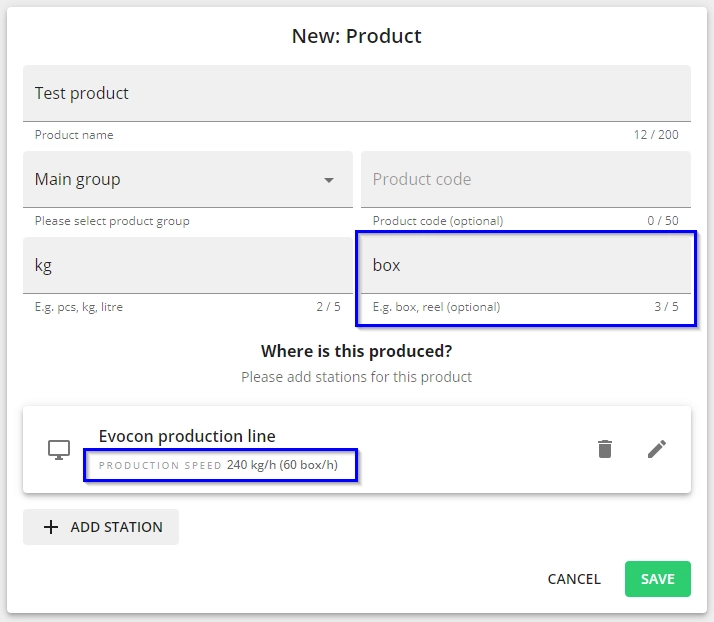
This new feature adds the possibility to define a secondary unit for products. For example, one product can be tracked in kilos and also in boxes – one makes sense for the office, the other for the shop floor.
The next step is to make this available in Shift view, so scrap could be registered in alternative units and production could be displayed in either unit.
For now, it is available just under product settings and not enabled by default.
Please find more information here and in case you are interested in the feature, please contact us at [email protected]
% of planned time in Dashboard
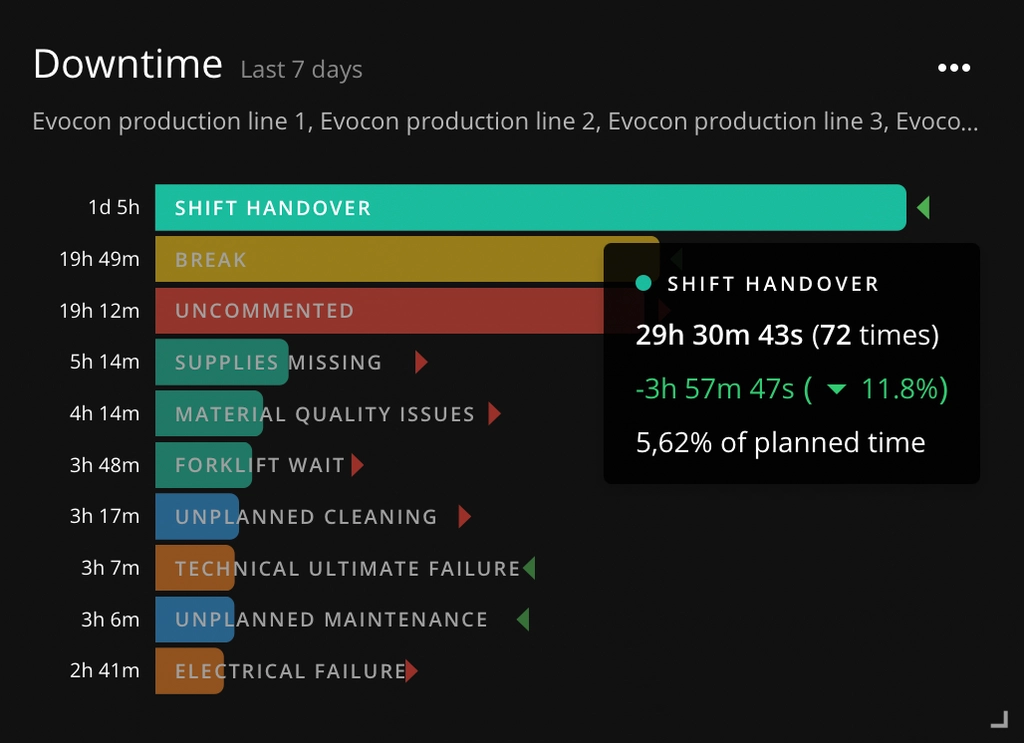
In order to give more context about downtime losses, we added the percentage that an unplanned stop reason or unplanned stops within a stop group have contributed to the loss in planned time.
It is now possible to see the percentage of an unplanned stop compared to the planned production time for the concerned time period by hovering on the stop reason in the downtime widget. Please find more information here.
Locations can now be translated

Now it is possible to add translations to locations similarly to stop reasons and stop groups.
Please find more information and instructions here.