
Reports and analysis · Guide 26 of 28
Exporting data from the data table
How to export a report's data table, or the stop reason and speed loss extra notes, to Excel.
You can export all the reports in the Evocon system to Excel for further analysis. This is useful when you have a specific data point that you want to analyze or there are custom reports that you want to create in order to track production progress.
To export more data than just one report's data table, please see the production data download options described here.
How to export data from a report?
-
Open the report.
-
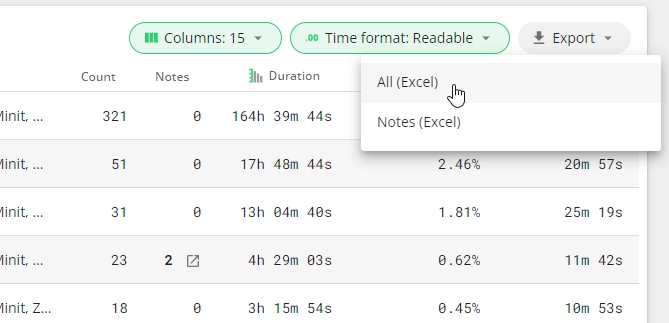
Click on the "Export" button in the top right corner of the data table and select "All (Excel)"
-
The file is downloaded and ready to be used for analysis.
How to export stop reason or speed loss extra notes?
-
Open Downtime or Speed loss report
-
Apply the filters you need, click on the "Export" button in the top right corner of the data table and select "Notes (Excel)"

-
The file is downloaded and ready to be used for analysis.