
Reports and analysis · Guide 8 of 28
Reports: Downtime
What the Downtime report chart and data table show, how % of planned time is calculated, and how to drill down into single stop reasons.
On this page
Our Downtime report is the favorite among all our users and for one big reason: total transparency. At a glance, the Downtime report shows clearly why your machines are not working, as well as the top downtime reasons for the whole factory. The report gives all the information you need to clearly understand your availability.
Availability is the proportion of planned running time that is actually available for production. The losses related to availability include unplanned and planned stops.
What does the Downtime chart show?
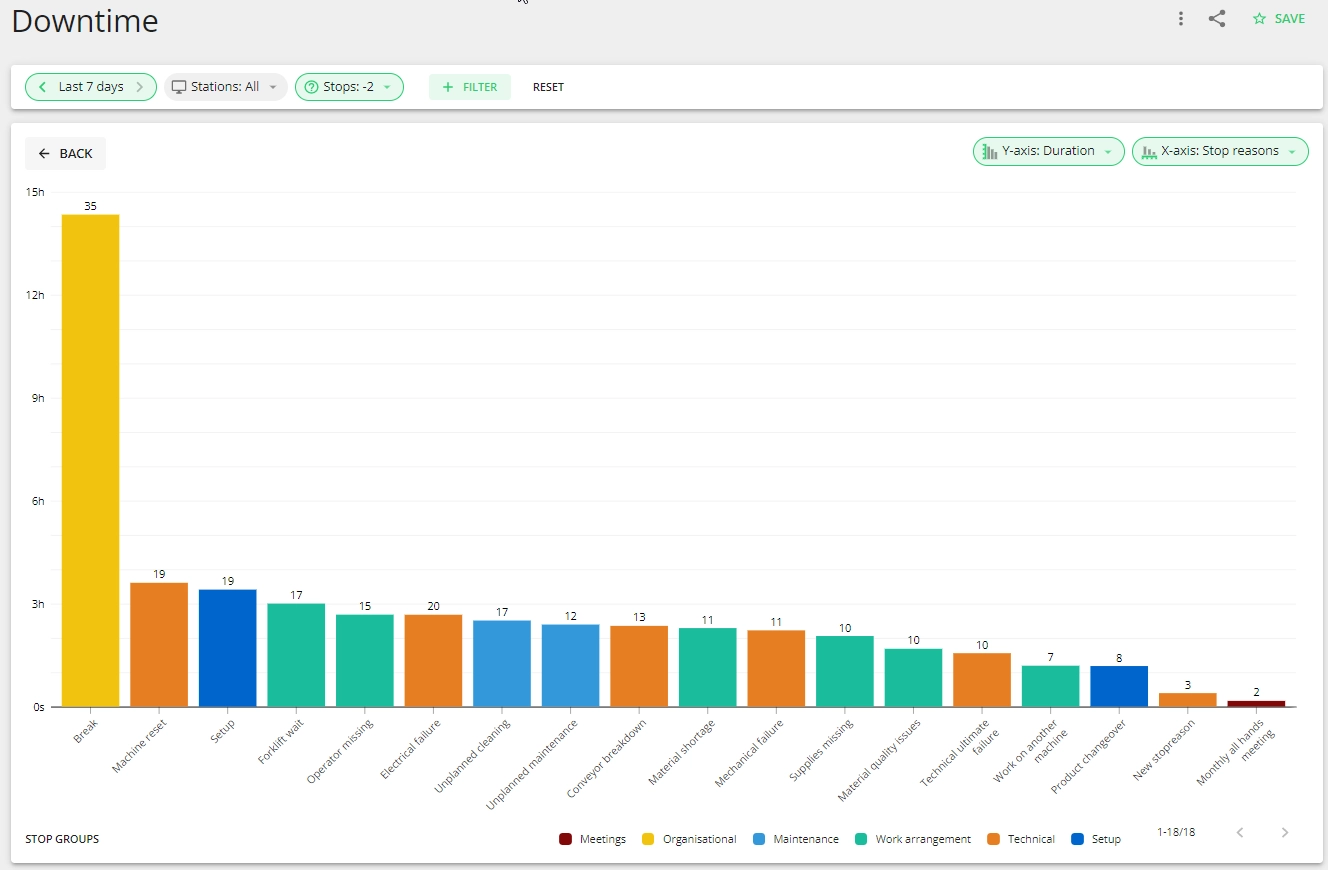
The Downtime chart visualizes your production downtime reasons, whereas the color of each breakdown depends on the stop group it belongs to.
Using different colors to differentiate groups gives your team the possibility to immediately understand what issues contribute most to losses in availability. The numbers on top of the bars give an overview of how many times these stops have occurred in the selected timeframe.
Please find more information on how to use the x- and y-axis options here.
What production data is displayed in the data table?
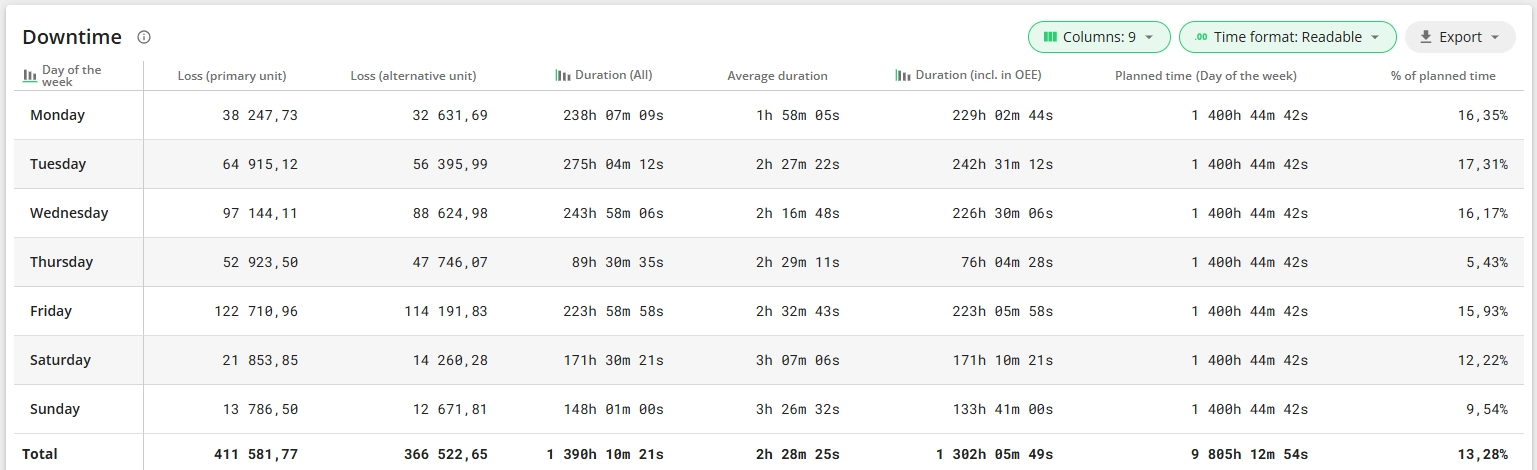
Everything you see on the chart is also shown in the data table, and some more. The table gives an overview of all downtime reasons during the selected time period, including the stop group they belong to, location, shift and their type.
In the data table:
- Count - the exact number of occurrences.
- Notes - how many extra notes have been added to stop reasons. Also, the notes are accessible by clicking on the notes icon.
- Loss (primary and alternative unit) - units lost due to downtime (availability loss).
- Duration (All) - the total time lost due to the specific stops.
- Average duration - the average duration of one stop with that specific reason.
- Duration (incl. in OEE) - the duration of stops included in the OEE calculation.
- Planned time (Total) - total planned time.
- % of planned time - the proportion from planned time (unplanned stops and planned stops that are included in OEE calculation).
- For the following x-axis values we calculate the individual row value (% of planned time) based on the aggregated planned time of all rows in the data table. We then sum the values of all rows in the total row.
- Stop reasons
- Stop groups
- Locations
- For the rest of the x-axis values we calculate the % of planned time value based on the planned time of that row (e.g. station).
- For the following x-axis values we calculate the individual row value (% of planned time) based on the aggregated planned time of all rows in the data table. We then sum the values of all rows in the total row.
How to analyze single stop reasons?
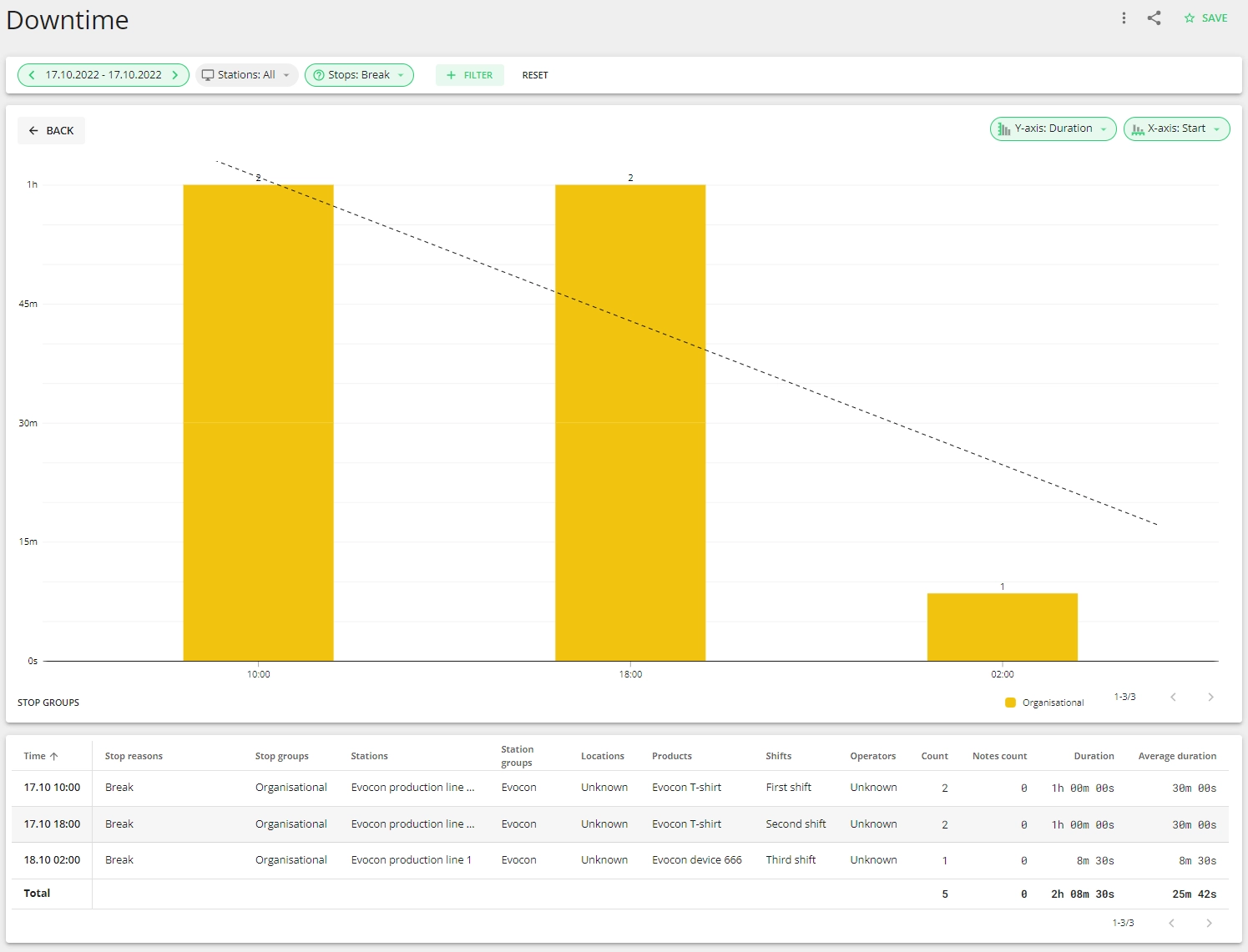
By using the drill-down feature you can narrow down your analysis to single stops where the dynamics of the stop reason are visualized in more detail.
The chart shows how the stop reason has changed in time and displays the number of occurrences for each day (or station or any other option) with the total time lost shown on the y-axis. While the data table shows you the specifics of each occurrence – the operator who registered the stop, the duration, date and also if any notes were added. There is also a trendline on the chart to indicate the overall trend of the stop during the chosen timeline.
Note: Please find the description of the general reports features here.