
Reports and analysis · Guide 14 of 28
Reports: Production speed
On this page
- How to use the report to analyze production speed?
- Histogram
- Filters
- Unit selection
- How does the x-axis work?
- What production data is displayed in the table?
- Interpreting the “Mode” value
- What if my performance is above 100%?
- Technical overview of the report
- Difference between cycle time and production speed
- What data is used in the report?
- Handling outliers
The production speed report helps you optimize your manufacturing process by identifying optimal production speeds for each product. By maintaining these targets, you can reduce quality variations, minimize equipment downtime, and enable accurate capacity planning - all leading to lower operational costs.
In this article:
How to use the report to analyze production speed?
Histogram
Production speed data is represented in a histogram that visualizes the frequency of production speed for a specific product, allowing you to identify common operating speeds. The observed production speeds are segmented into ranges/bins and then grouped into bars to highlight the most frequent speeds.
Each vertical bar represents a specific speed range and its height shows how many times the product ran at those speeds. Taller bars mean that speed range occurred more frequently.
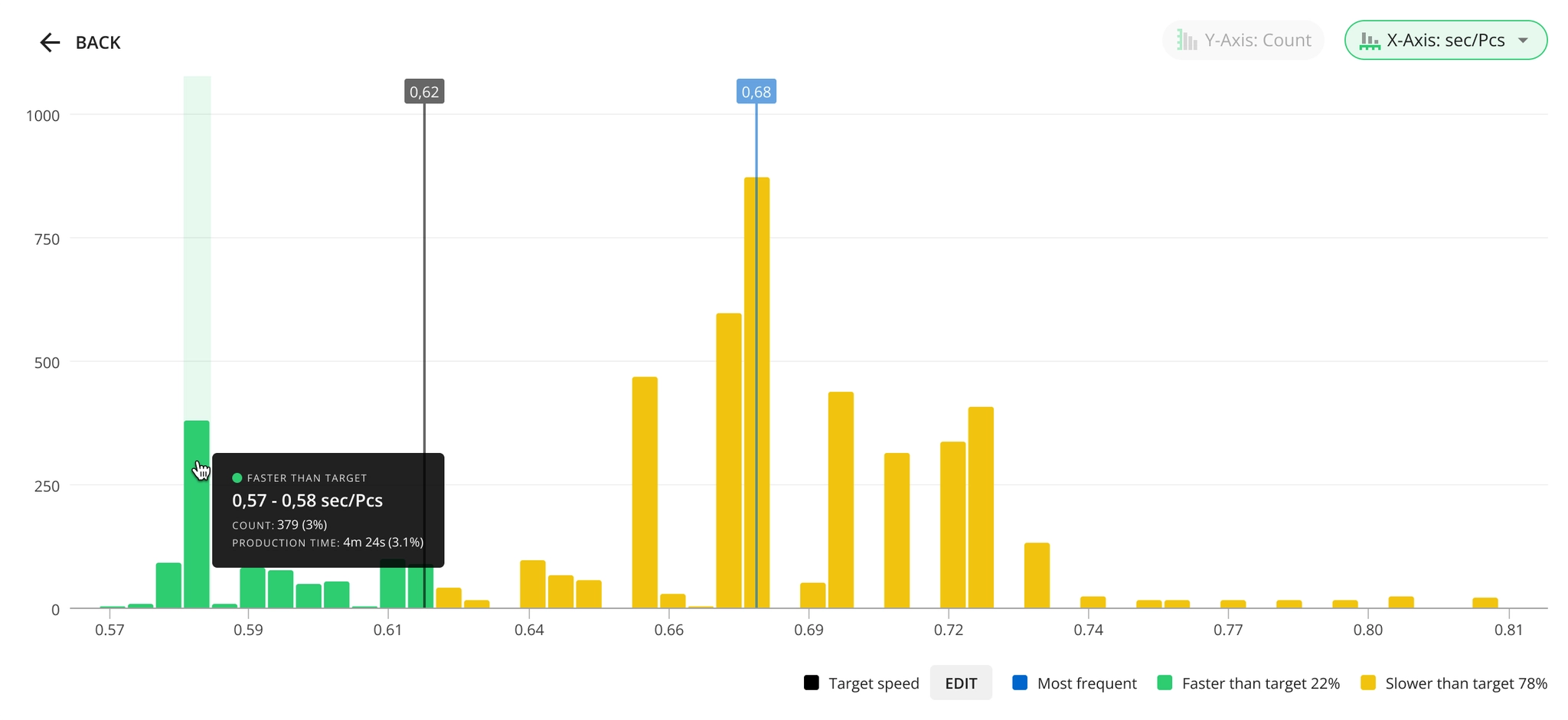
Target speed The target speed defined in the product's station-specific details.
Green bars Speeds that are faster than or equal to set target – the green areas of the Shift View.
Yellow bars Speeds that are lower than set target – the yellow occurrences of the Shift View. Most frequent (Mode) The production speed that occurred most often in the dataset.
- If there are multiple most frequent values in the dataset, then we show all of them on the histogram.
This visual pattern helps you:
-
See your most common production speeds at a glance.
-
Spot if your product runs slower or faster than set target.
-
Identify potential problems, such as when many readings show slower or faster speeds.
Filters
To start the production speed analysis, use the filters located above the histogram. These filters allow you to select the specific product you want to analyze and view the number of batches produced during a chosen time period. The number of batches (production runs) is crucial because it ensures that the dataset being analyzed accurately represents the typical behavior and variability of your production process.
Unit selection

The production speed can be displayed in different units by adjusting the x-axis selection. This flexibility in data visualization allows you to choose the unit that best suits your production setup.
How does the x-axis work?
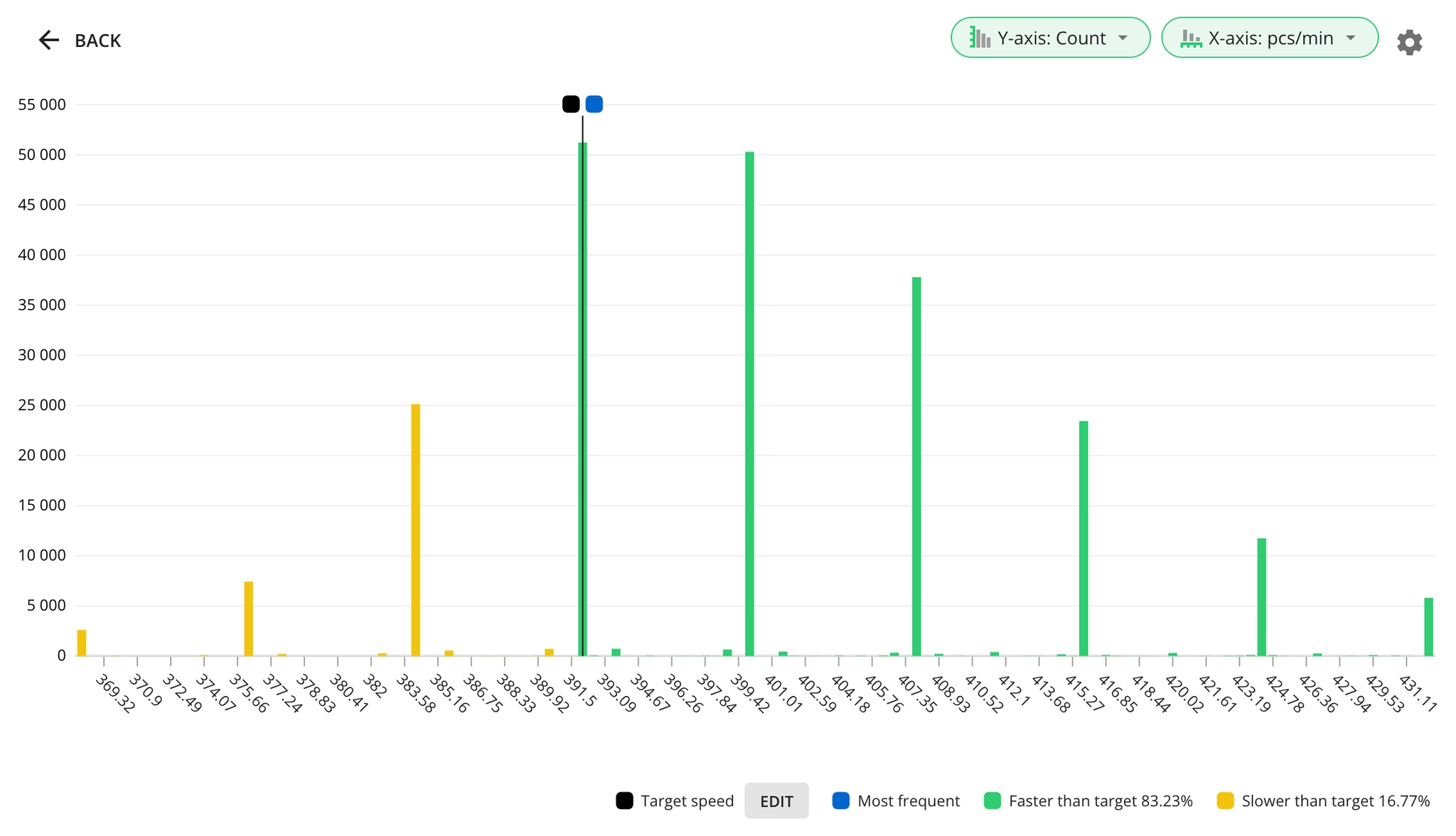
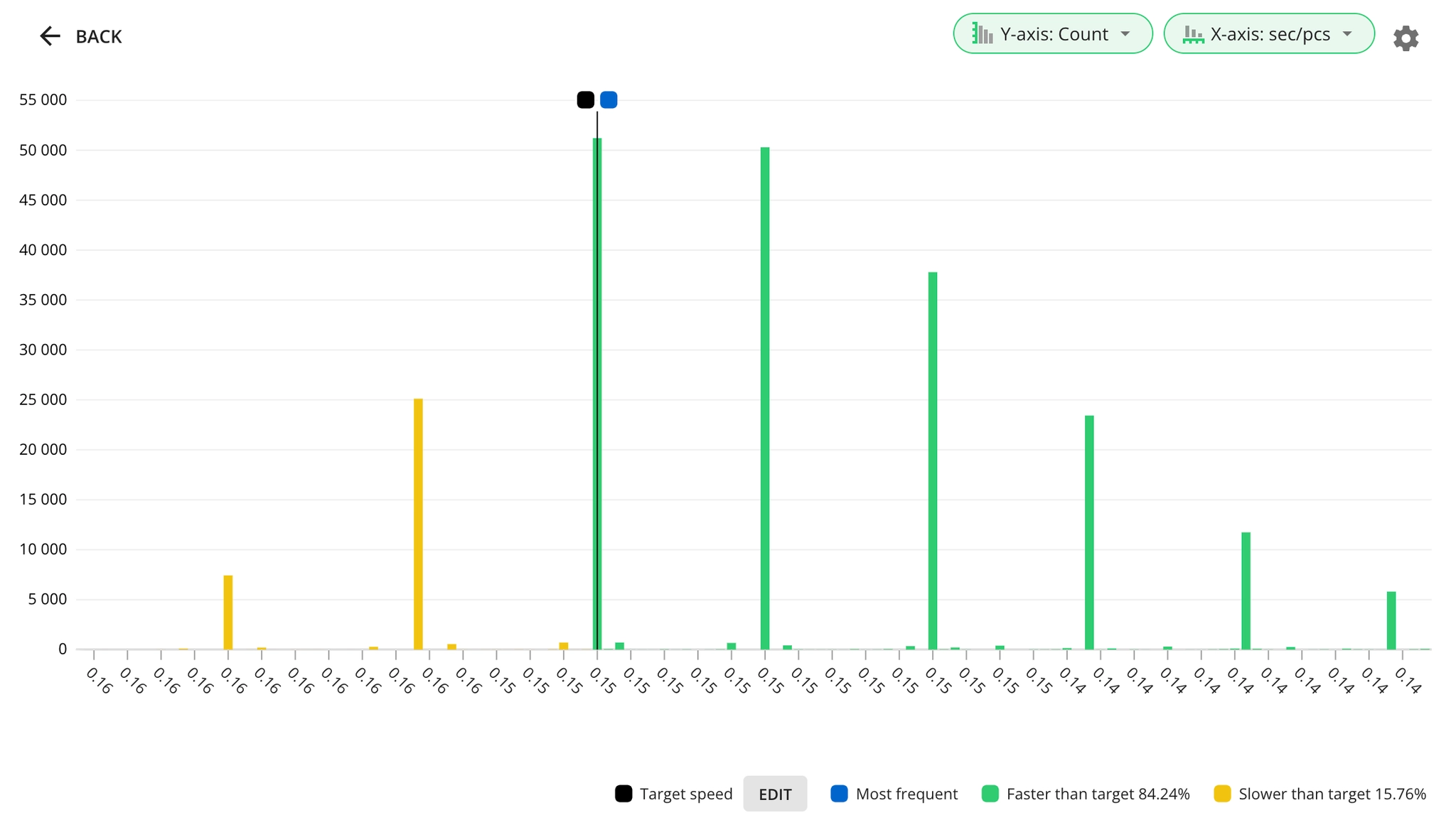
The histogram always follows a consistent pattern: faster production speeds appear on the right side, and slower speeds on the left side. This remains true regardless of your selected units, but affects how the numbers are displayed.
When measuring in units per time (units/second, units/minute, units/hour):
-
Higher numbers appear on the right (indicating faster production)
-
Lower numbers appear on the left (indicating slower production)
When measuring in time per unit (seconds/unit):
-
Lower numbers appear on the right (indicating faster production, as less time is needed per unit)
-
Higher numbers appear on the left (indicating slower production, as more time is needed per unit)
What production data is displayed in the table?
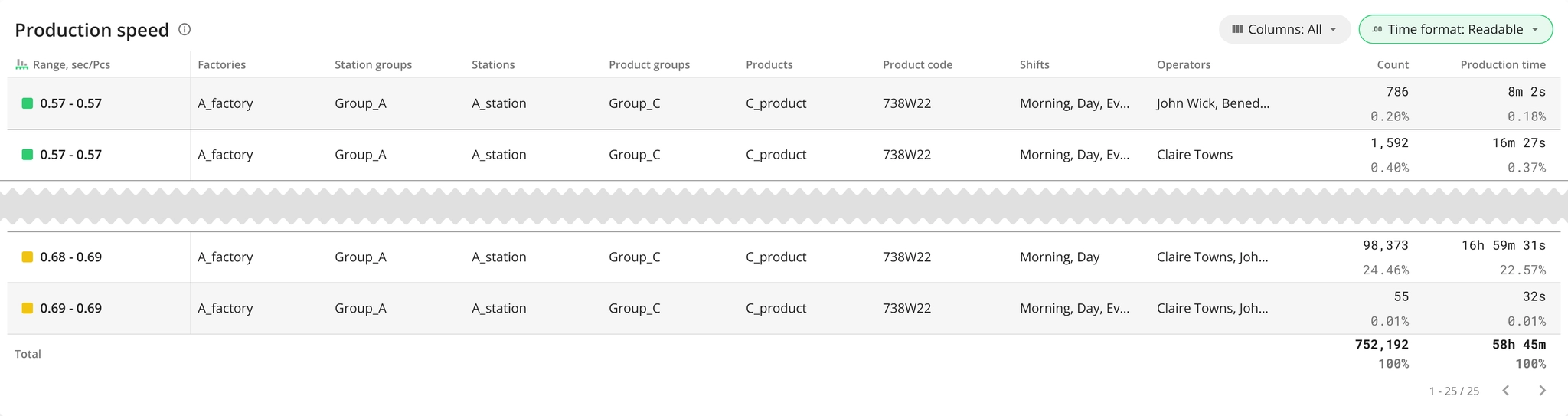
The data table provides a overview of production speed ranges during the selected time period, including details about location, product groups, product codes, shifts, and operators.
Range Interval between first and last values of the production speed that form a column (bin) on the histogram.
Count The number of occurrences of production speeds falling within a specific range (bin).
Production time The sum time of all production speed occurrences within each range.
Interpreting the “Mode” value
Understanding the most frequent production speed (Mode) helps you set realistic targets and identify opportunities for process optimization, as it reflects your demonstrated sustainable production rate.
Below are some examples on how to interpret the mode value.
Target < Mode → Set a higher target
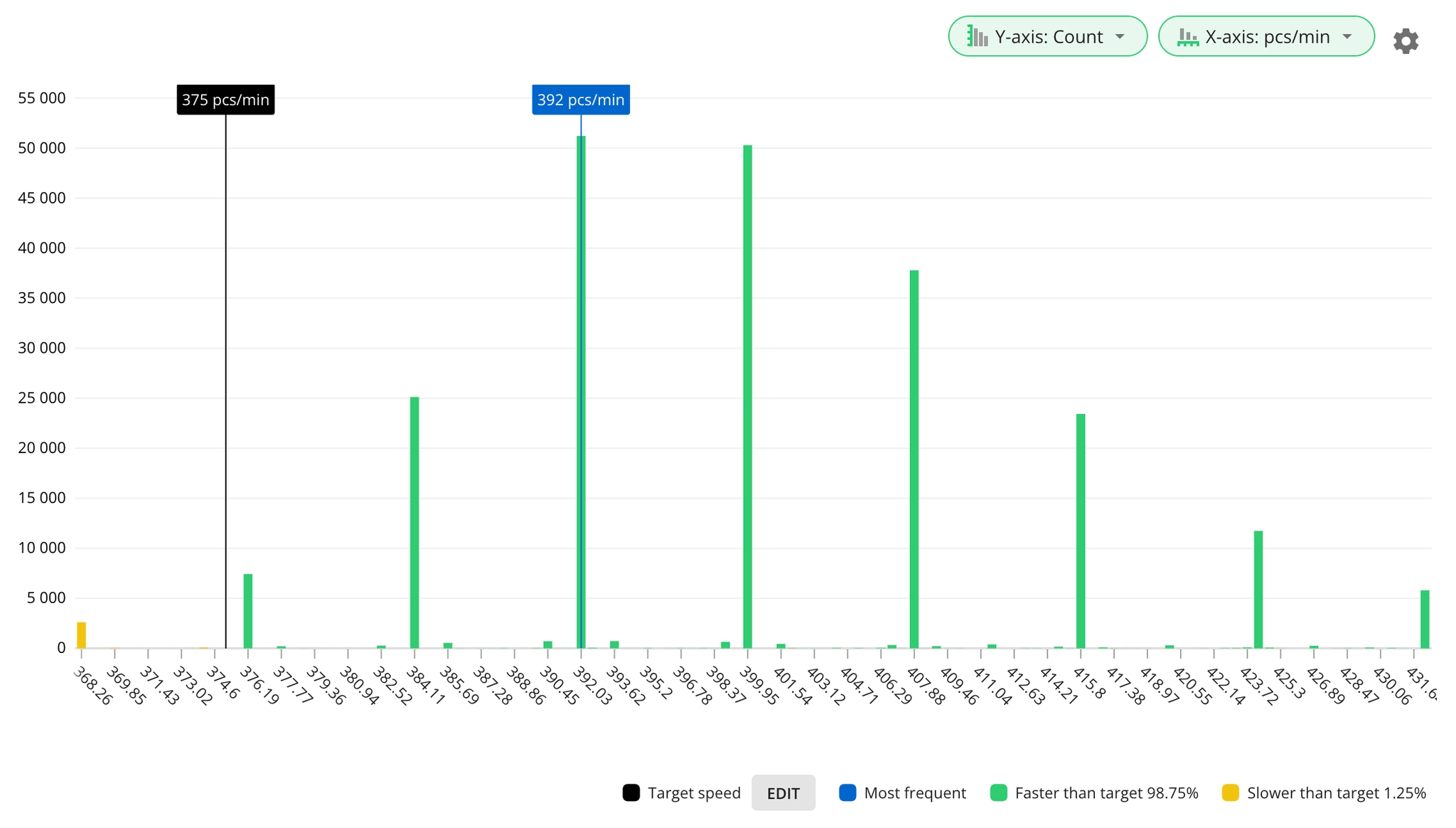
When your product is consistently produced faster than the target speed (mode is higher), this indicates your team and equipment are capable of maintaining higher speeds safely and reliably.
Why consider raising the target:
-
Your current target may be unnecessarily conservative.
-
You're leaving potential production capacity unused.
-
Your processes and operators have naturally found a more efficient operating speed.
-
Equipment upgrades or process improvements may have made faster speeds possible.
-
You could increase output without additional investment.
Mode < Target → Set a lower target
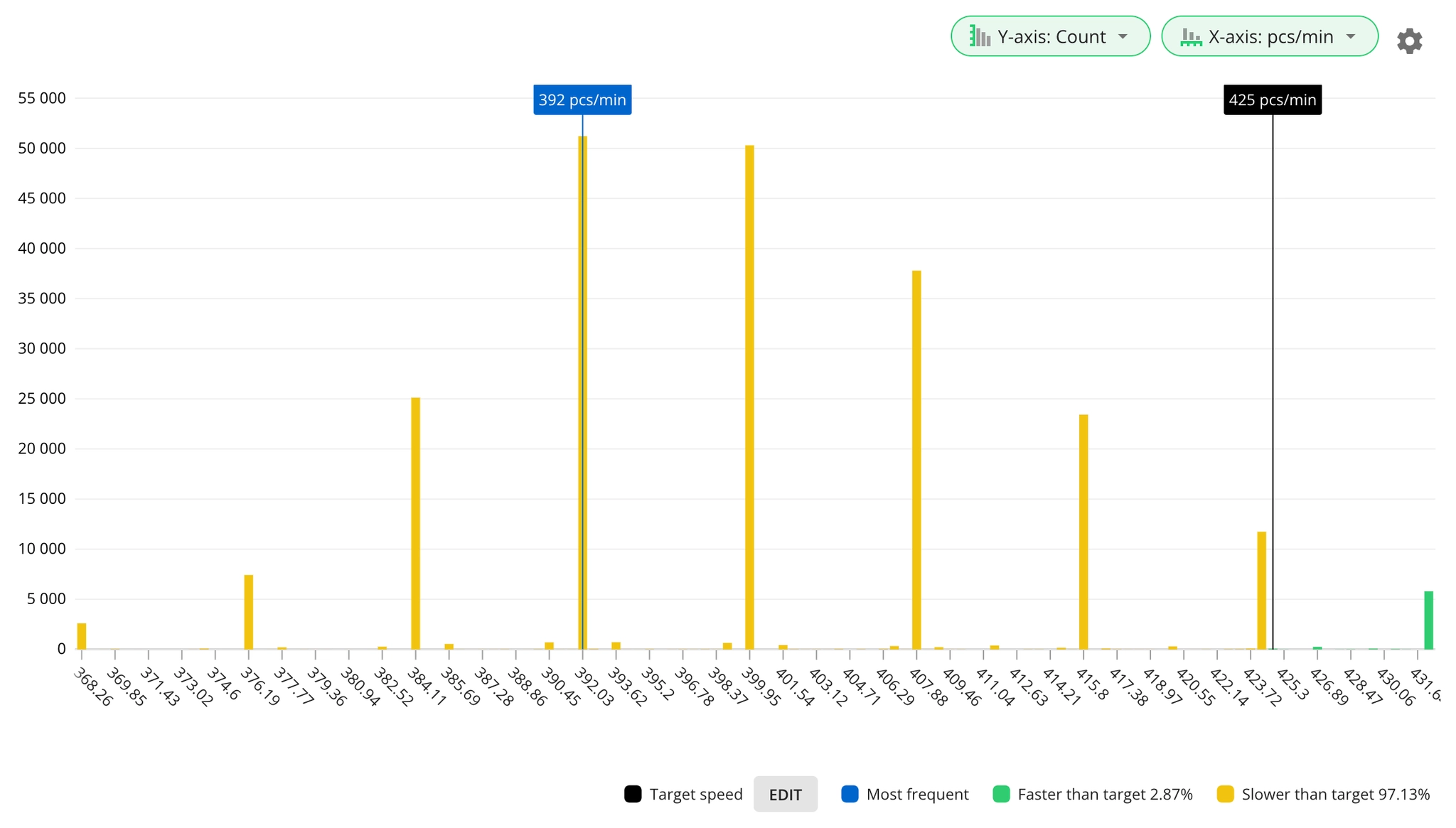
When your product is consistently produced slower than the target speed (mode is lower), this suggests the current target might be unrealistic for your actual operating conditions.
Why consider lowering the target:
-
Unrealistic targets can demotivate operators and cause unnecessary stress.
-
Running consistently below target might indicate equipment limitations.
-
Forcing higher speeds could lead to quality issues or increased maintenance.
-
Your current process may require more time than originally estimated.
-
A more realistic target helps in accurate capacity planning and scheduling.
Setting targets above Mode speed
While mode speed typically provides the best foundation for target setting, certain production patterns may justify setting higher targets. When your histogram shows (as seen below) consistent clusters of higher speeds beyond the most frequent value (mode), it often indicates untapped production potential.
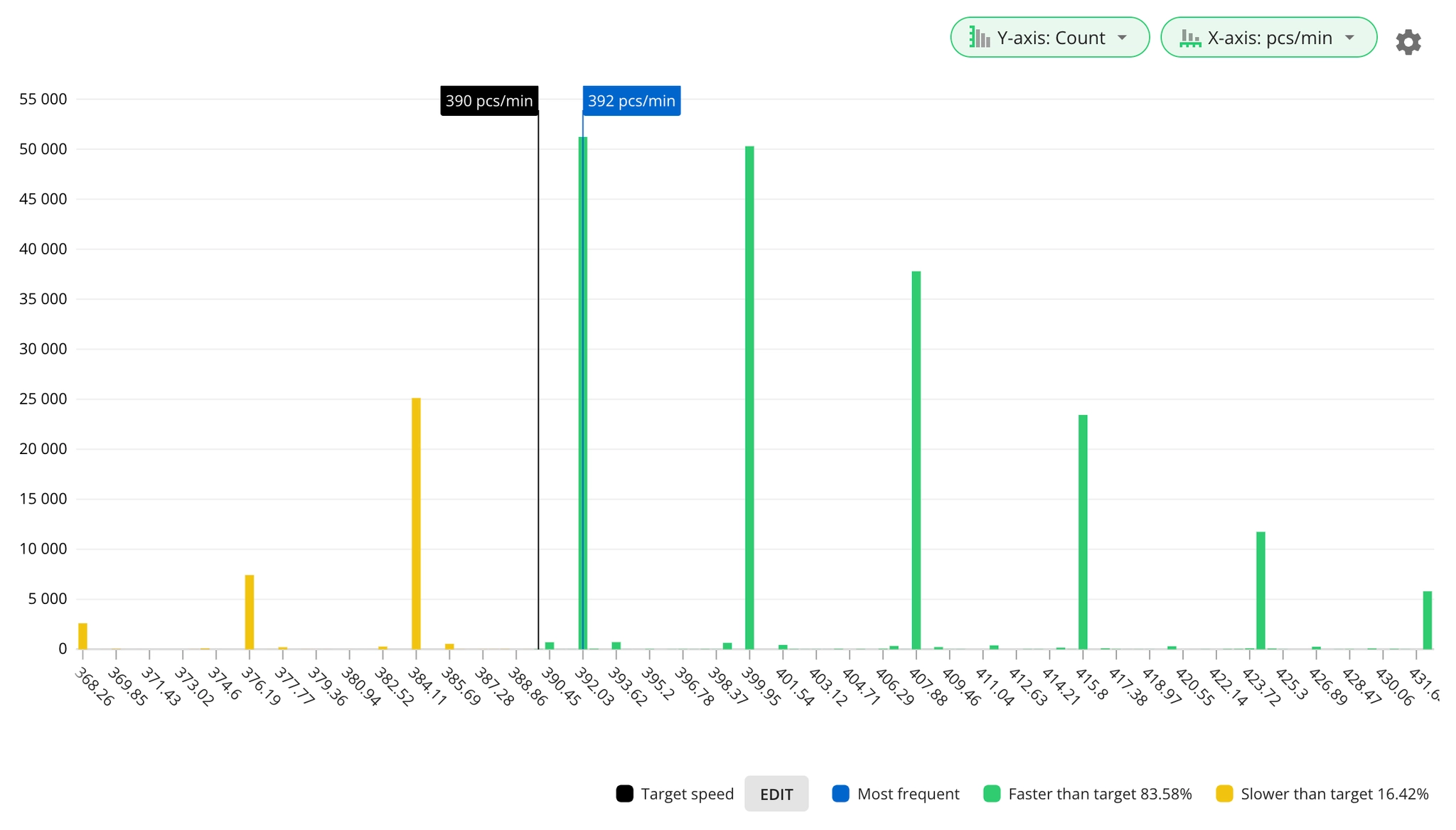
In the picture above, a target closer to 400 pcs/min would be justified even if the mode value is 392 ps/min.
This scenario commonly occurs when different shifts or teams achieve varying performance levels. Some production periods may consistently operate at higher speeds while maintaining quality standards, suggesting that these improved speeds are both sustainable and achievable across all operations.
Why a reliable dataset is important
Before adjusting your target speeds, ensure your dataset provides a complete picture of your production performance. Below are a some considerations to take into account:
-
Short time periods might not capture typical production variations.
-
Seasonal factors could skew your speed patterns.
-
Different shifts or operators might show varying performance levels.
-
Equipment maintenance cycles can affect speed patterns.
-
Recent process changes need time to stabilize.
For example, analyzing just a few weeks of production might miss important patterns that only become visible over months or quarters.
What if my performance is above 100%?
When your OEE performance consistently exceeds 100%, it signals that your current target speed doesn't reflect your actual production capabilities and the production speed report can help you solve this. This is an important aspect to address for several reasons:
-
Inaccurate performance calculations make OEE tracking unreliable.
-
Production planning may underestimate your true capacity.
-
Resource allocation might not be optimized.
-
Improvement opportunities could be masked by artificially high performance scores.
How to identify the “above 100%” situation on your histogram
-
The most frequent speed (Mode) appears higher than your target.
-
A large portion of your speed readings (green) cluster above the target.
-
The data shows consistent operation at speeds higher than target (more green than yellow).
The legend shows that this product is running faster than target 98.75% of the time.
Using the mode value from your histogram provides a way to set a more realistic target speed. This new target will be based on your demonstrated production capabilities rather than theoretical or outdated assumptions.
When is above 100% performance acceptable?
However, exceeding 100% OEE performance can be a normal and valuable part of process optimization, particularly during testing phases. When you deliberately run production above target speeds, you can evaluate how increased speeds impact machine reliability and product quality.
While this testing helps identify the optimal balance between speed and operational stability, performance should still remain below 105%. Consistently exceeding this threshold suggests your target speed needs adjustment, even in testing scenarios.
Technical overview of the report
Difference between cycle time and production speed
Let’s first clarify the difference between cycle time and production speed/rate that are both used in the context of speed analysis.
Cycle time measures the time it takes to produce one item (seconds/unit) or complete one cycle of work.
Production speed refers to the rate at which a product or component is manufactured over a specific period (units per second, minute or hour). In other words, it reflects how quickly a production line operates.
What data is used in the report?
To perform the analysis, we use data from production signals, which are timestamped and generated by sensors during the production process. These signals indicate when products were completed and the time between consecutive signals.
Most times one signal represents the production of multiple products, so in this case we calculate the time per unit by dividing the time between consecutive signals by the number of products produced.
Below is an example of how different speeds are calculated when the time between two signals is 1 minute and quantity per signal is 500.
Handling outliers
To make analysis easier and focused, we apply two methods to remove outliers from the dataset.
-
First, we remove all signals that are registered after production stops as mentioned above because these are artificially marked with set target speed whereas in reality Evocon does not know what was the actual time between the ending of the stop and the next signal. We can only safely rely on data that is from consecutive signals.
-
Next we remove other outliers that fall outside the “normal range” of production speed using the Interquartile Range (IQR) method