Dashboards and Factory Overview · Guide 3 of 14
Factory Overview: Timeline
What the Timeline view of Factory Overview shows, how to switch indicators and time ranges, and what its colors and icons mean.
The Timeline view gives you the status of the selected timeframe of all your stations (or the stations you have selected).
The selection of stations applies to both Timeline and Live view, more information can be found here. All station name titles act like clickable buttons that take you to the Shift View of that station (opened in a new tab).
In case of multi-factory setup: stations are listed by the factory and station groups. And under the factory name, you can see the time difference from UTC time and the count of stations for that factory.
In case there is just one factory, it is the default - but the time difference from UTC time and the count of stations is still shown:

You can switch between indicators - meaning that in addition to general production overview you can check the OEE, availability, performance, quality, and good quantity on each station.

-
In case you have alternative units defined, you can also choose in which unit the good quantity is shown in:

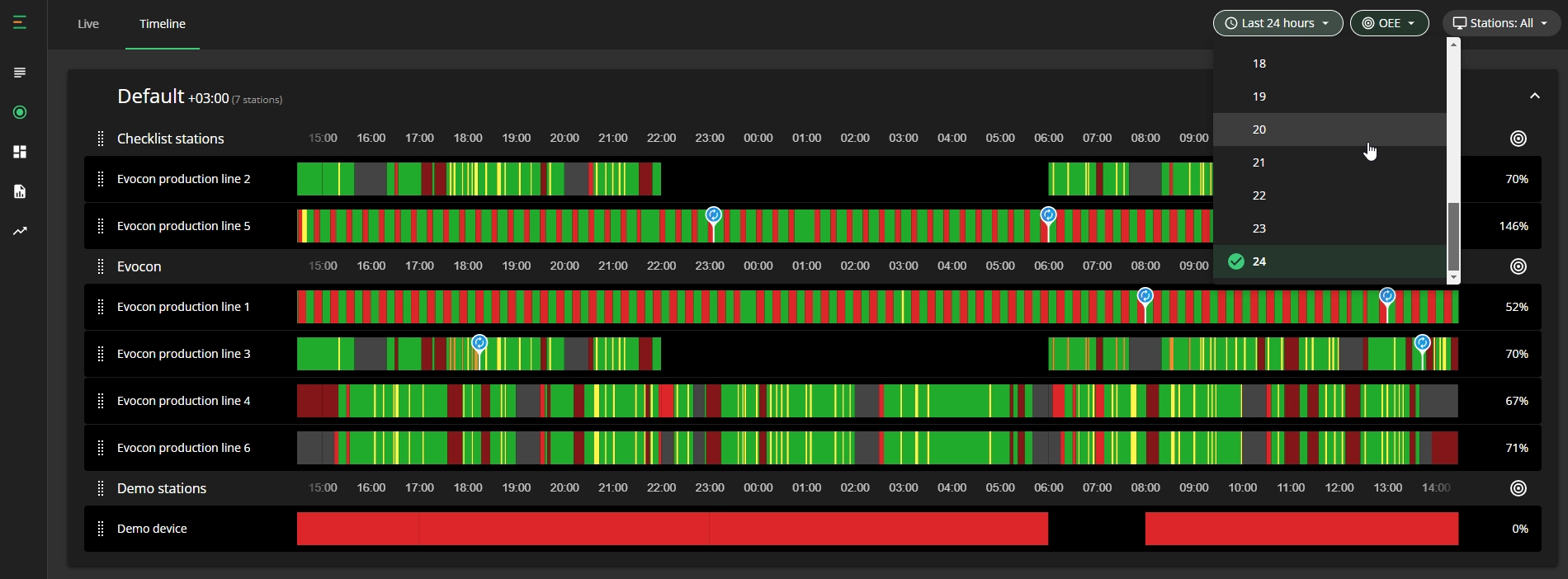
You can select the number of hours you want to see in Timeline view (between 1 and 24) and then move back and forth the same amount of hours (previous x hours and next x hours) using the arrows:
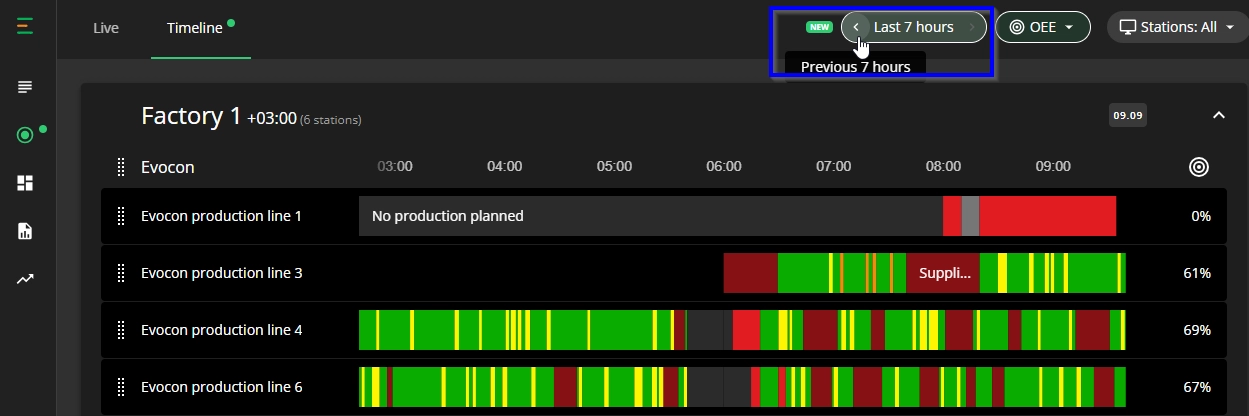
You can also return to the current time using this button:
This feature enables you to monitor recent events and quickly gain an overview of activities across the entire factory with more flexibility.
-
The maximum amount of time that can be moved back is 7 x 24h.
-
User is redirected to current time after 30 minutes.
-
After refreshing or returning to the page, the timeline will show the default - the current time.
-
Mobile/tablet views do not have this functionality.
-
Clicking on any event in the timeline will open the corresponding shift in a new tab, eliminating manual searches for past events.
-
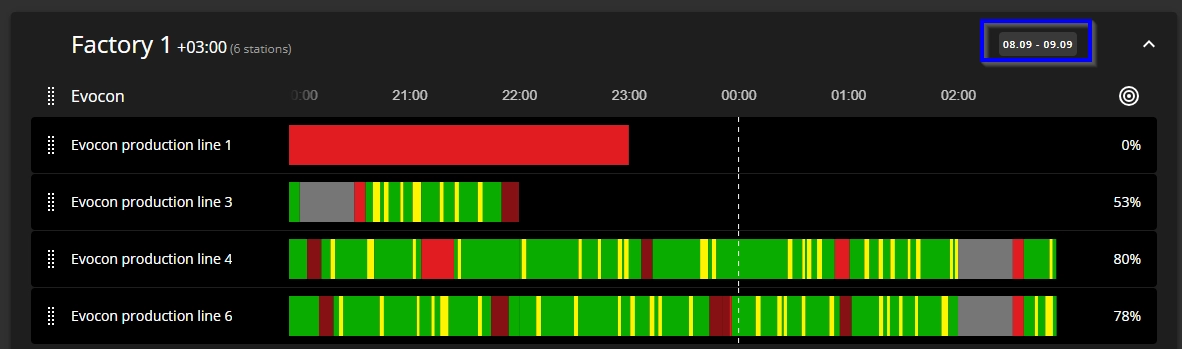
For better time tracking purpose, there is a date indication as well:
Colors in Timeline view:
- Green and yellow represent the operating time which is also represented by green and yellow in Shift View. Product information is visible when hovering over green and yellow areas.
- Commented speed loss is displayed in darker yellow, just as in Shift View. Speed loss reason is visible by hover.
- Stops are also displayed in the same colors as in Shift View and all relevant information is visible when hovering on the stop.
- Lighter red indicates uncommented production stops
- Lighter grey indicates planned and included in OEE stops
- Darker grey indicates planned and excluded from OEE stops
- Darker red indicates unplanned commented stops
- Black marks the time when there was no shift running.
- Product changeovers are indicated with the same blue icon that is used in Shift view.
You can see the total quantities (good quantity + scrap) produced for every yellow and green area when hovering on it:

Shift change indication
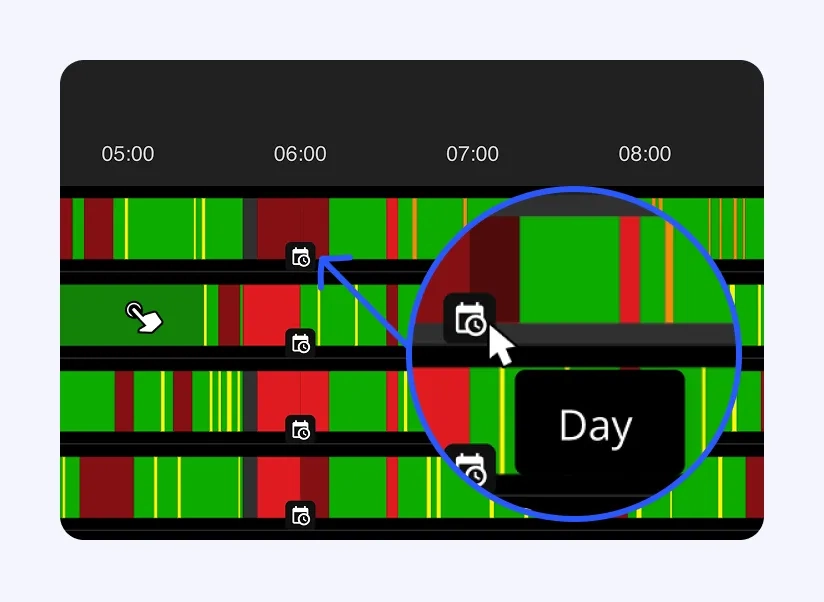
Shift transitions are marked with a small icon for instant visibility: