API and integrations · Guide 4 of 8
Evocon Advanced Analytics & reporting API access
How to create and use API keys, build reporting API requests, and connect Evocon report data to Excel and Power BI.
On this page
- 1. Authentication
- 1.1 Generating an API Key
- 1.2 Using Your API Key
- 1.3 API Key Management
- 2. Reporting API Structure & Endpoints
- 2.1 Request Structure
- 2.2 Available Endpoints
- 3. Use Cases: Connecting to BI Tools
- 3.1 Connecting to Microsoft Excel
- 3.2 Connecting to Microsoft Power BI
- 4. Troubleshooting & Data Management
- 4.1 Authentication Errors
1. Authentication
Access to the Evocon API is controlled by API keys using Basic Authentication.
1.1 Generating an API Key
Only Company and Factory administrator users in Evocon can generate API keys.
-
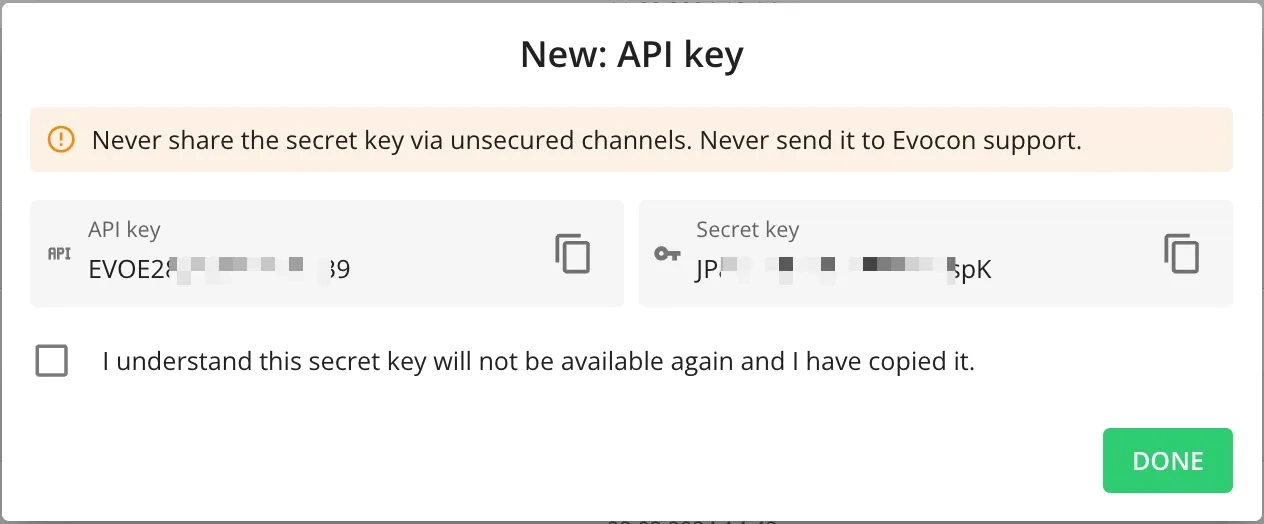
Navigate to Settings in your Evocon account and click on the API keys card.

-
Click the + API KEY button in the top right corner.
-
Assign a descriptive name to the key that explains where it will be used.
-
Choose the key's rights:
- Custom reports: This option grants read-only access to the
api.evocon.com/api/reports/...URL. It is used for connecting Evocon reporting data to tools like Excel or Power BI and provides access to all stations' data. - User rights: This option copies the access rights of an existing user, which can include read-write access for specific stations. It is intended for more complex integrations, such as sending production orders to Evocon or building API-based automations.

- Custom reports: This option grants read-only access to the
-
Click Create to generate the key.
1.2 Using Your API Key
The API uses Basic Authentication. How you provide the credentials depends on your application.
-
Method 1: For Tools (Excel, Power BI, etc.)
These applications provide built-in fields for Basic Authentication.
- Username: Enter your API Key (e.g.,
EVO123456789). - Password: Enter your Secret Key (e.g.,
SeCrEtKeY123).
- Username: Enter your API Key (e.g.,
-
Method 2: For Custom Applications (Authorization Header)
You must manually create a Base64-encoded
Authorizationheader using a service like https://www.base64encode.org/-
Concatenate the API Key and Secret Key with a colon (
:):API key:Secret key(Example:
EVO123456789:SeCrEtKeY123). -
Base64 encode this entire string.
(Example:
RVZPMTIzNDU2Nzg5OlNlQ3JFdEtlWTEyMw==). -
Include this in your request header:
Authorization: Basic RVZPMTIzNDU2Nzg5OlNlQ3JFdEtlWTEyMw==
-
1.3 API Key Management
- API keys cannot be edited once created.
- You can disable, enable, or delete keys from the "API keys" page in Settings.
- Deleting a key is permanent and cannot be undone. Any system using that key must be reconfigured with a new one.
- Evocon strongly urges administrators to rotate API keys at regular intervals to maintain data security.
2. Reporting API Structure & Endpoints
2.1 Request Structure
All reporting API requests follow a standard structure:
- Method:
GET - Data Type:
application/json - Base URL:
https://api.evocon.com/api/reports/
A complete request URL is formed by appending the report name and query parameters to the base URL.
- The report name follows the base URL (e.g.,
.../oee_json). - A question mark (
?) separates the report name from the first parameter. - An ampersand (
&) is used to separate subsequent parameters. - Defining the
startTimeandendTimeparameters is mandatory, otherwise the query doesn't work!
Request Examples:
- Single Station:
https://api.evocon.com/api/reports/oee_json?startTime=2020-06-01&endTime=2020-06-10&stationId=1 - Multiple Stations:
https://api.evocon.com/api/reports/oee_json?startTime=2025-06-01&endTime=2025-06-10&stationId=1&stationId=2
2.2 Available Endpoints
- OEE (
oee_json) - Losses (
losses_json) - Process Metrics (
clientmetrics_json)
3. Use Cases: Connecting to BI Tools
Both Power BI and Excel use Power Query to connect to and transform the data. The authentication and data transformation steps are very similar.
3.1 Connecting to Microsoft Excel
-
In Excel, go to the Data tab > Get Data > From Other Sources > From Web.
-
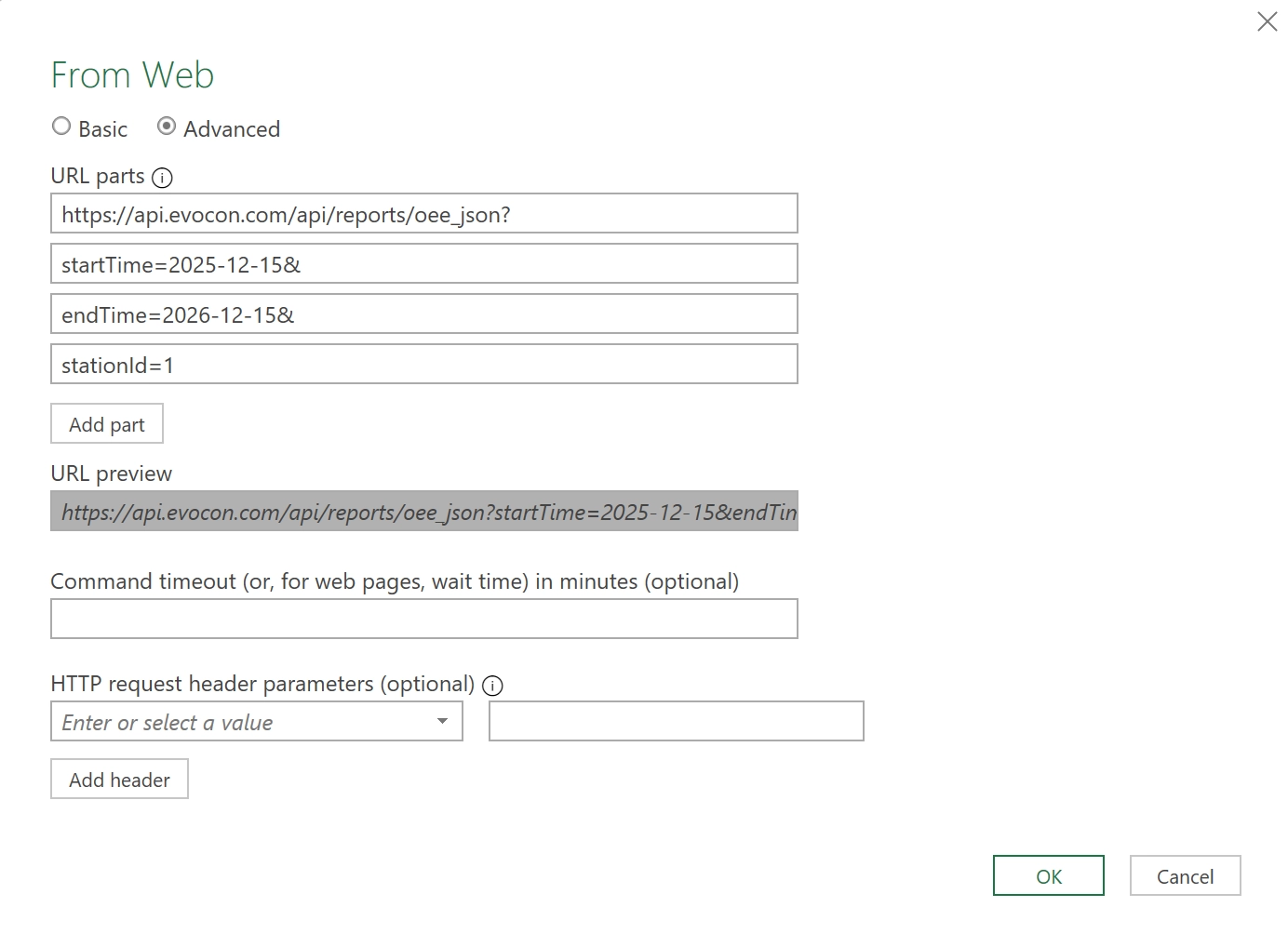
Select the Advanced option.
-
Fill in the URL parts as described in the available endpoints section. You must use actual dates and station IDs at this stage.
-
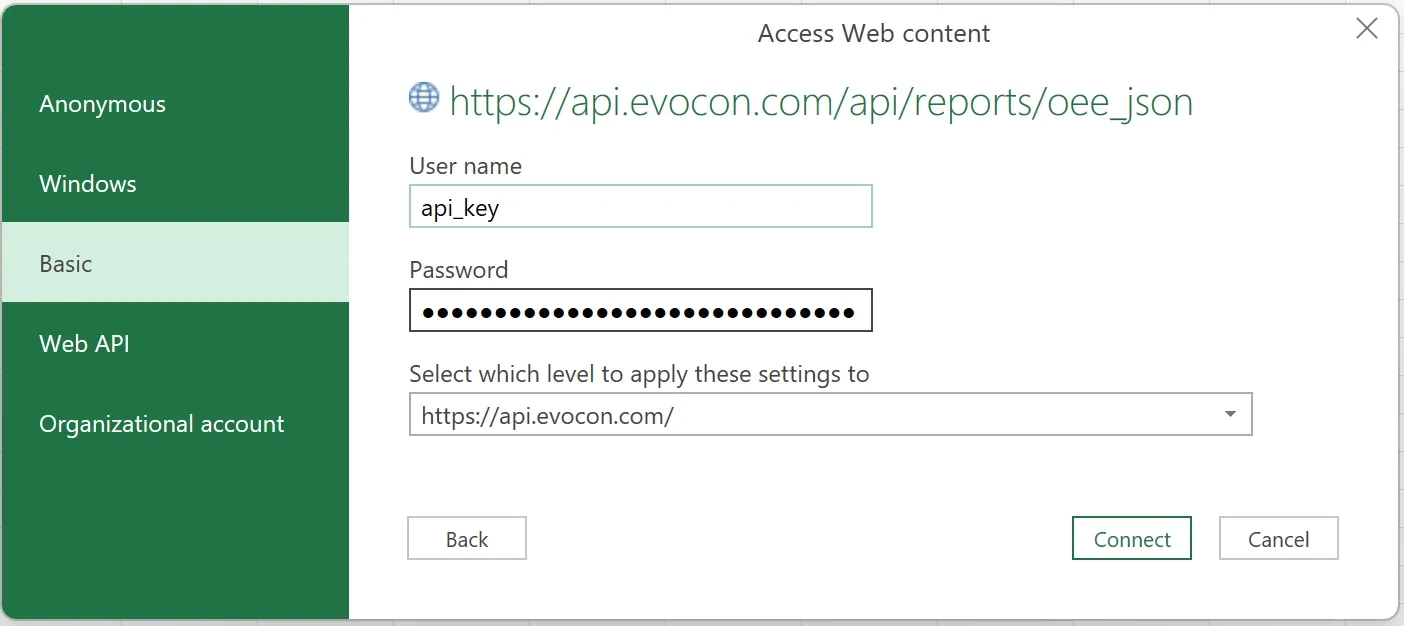
Click OK. You will be prompted for credentials.
-
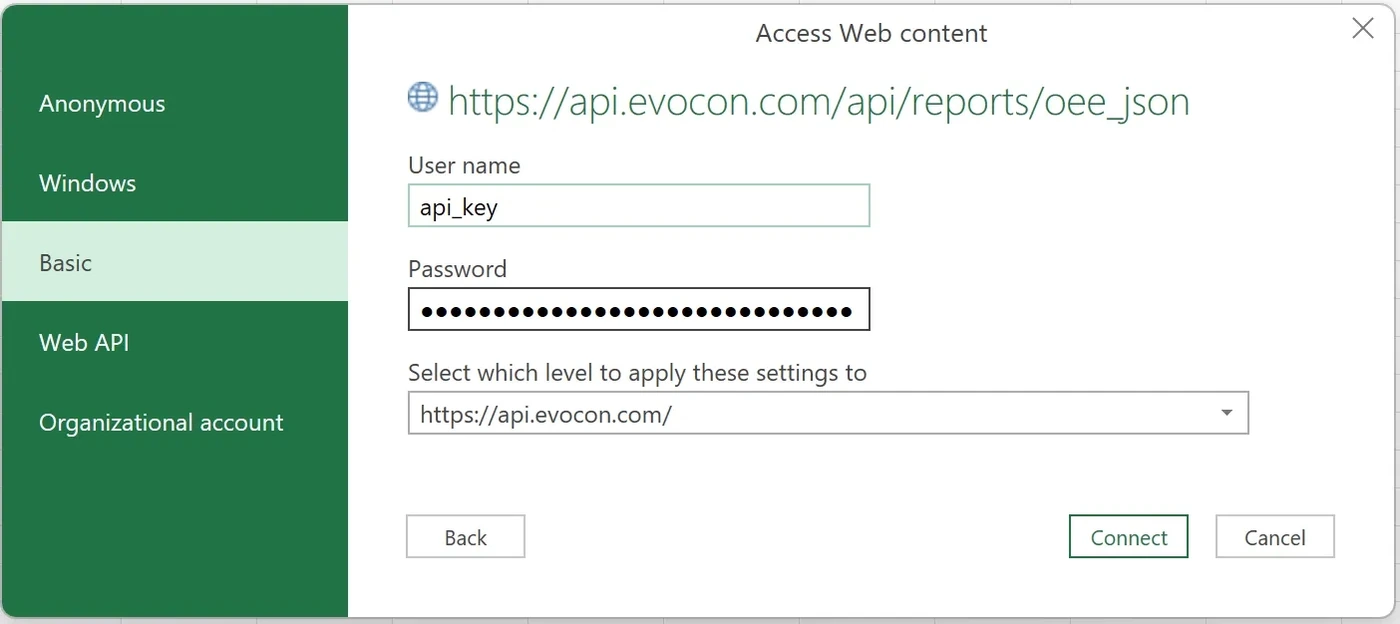
Select Basic.
- User name: Enter your Evocon API Key.
- Password: Enter your Evocon Secret Key.
-
Click Connect. The Power Query Editor will open.
-
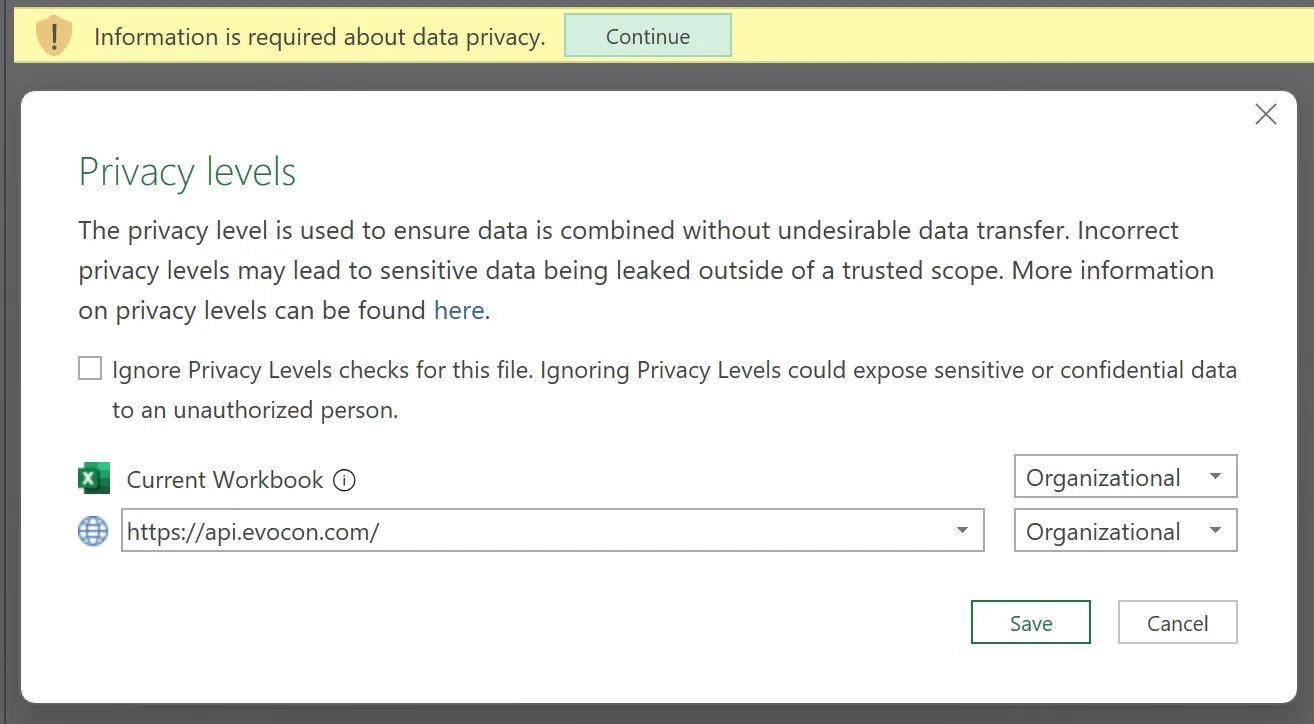
(Optional) If you see a "data privacy" message, choose Organizational for the data source and click Save.
-
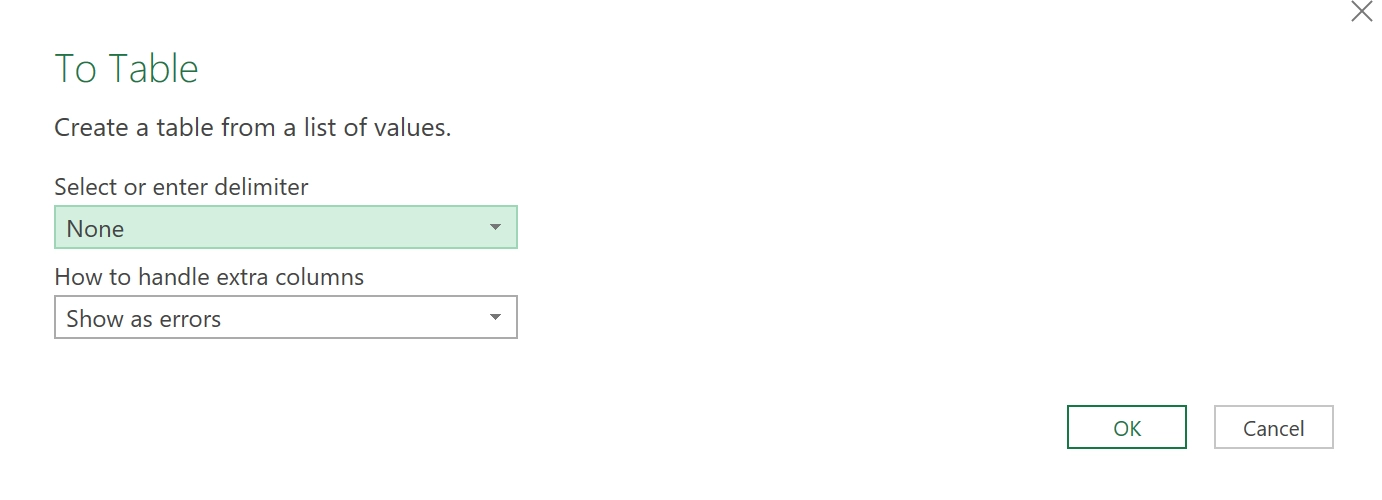
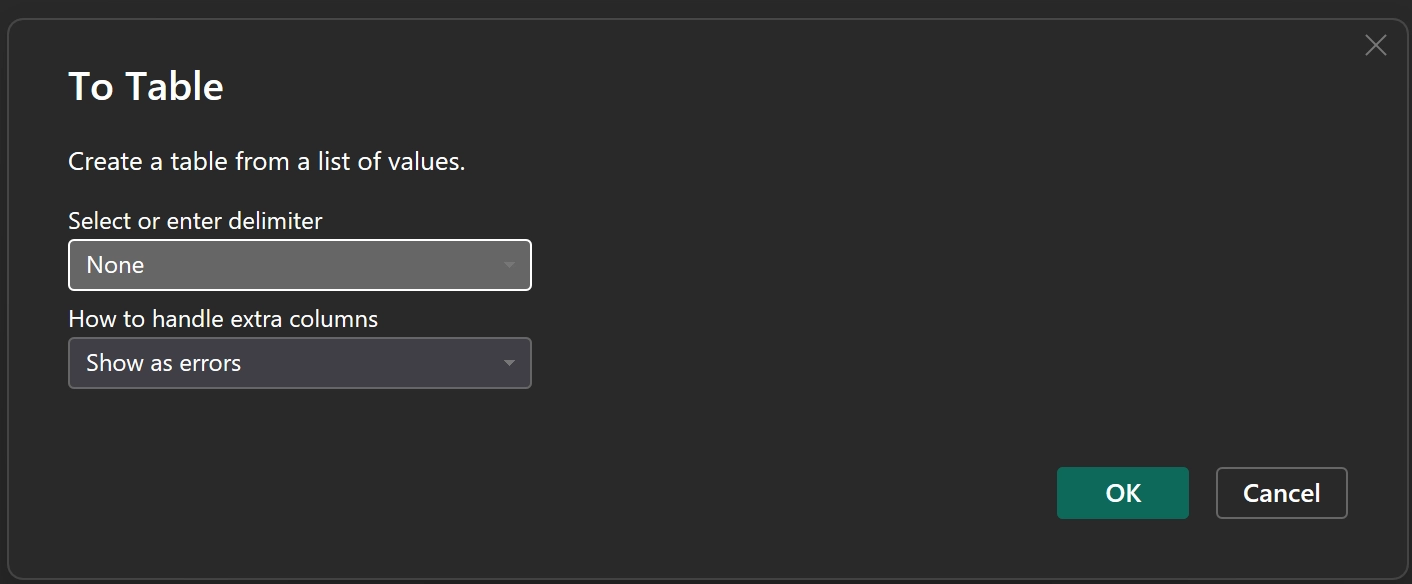
Select the List Tools > Transform tab and click To Table. Click OK in the dialog.
-
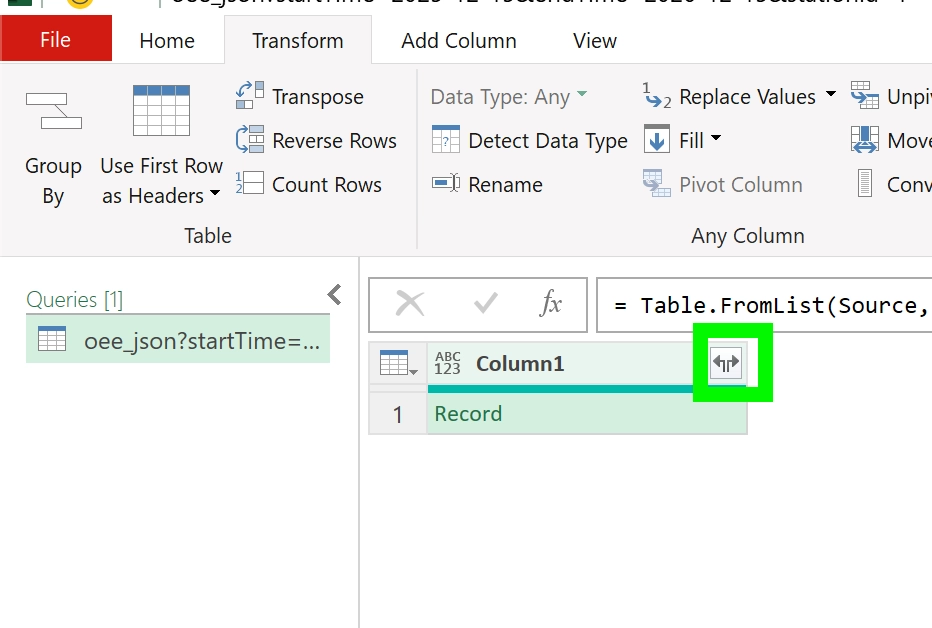
Select the Transform tab and click the Expand icon in the column header.
-
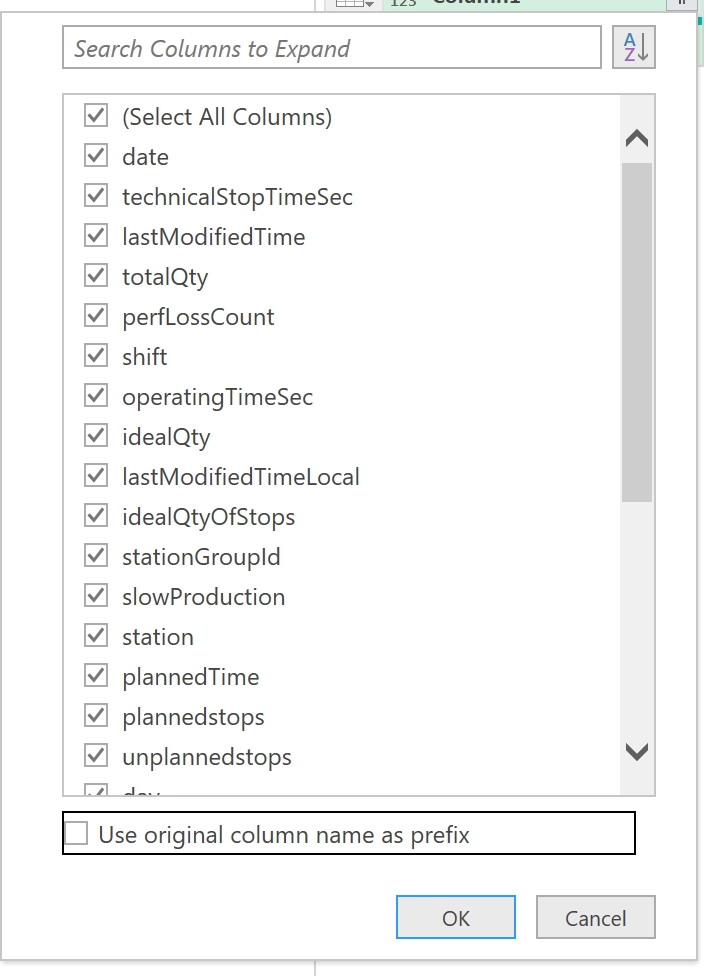
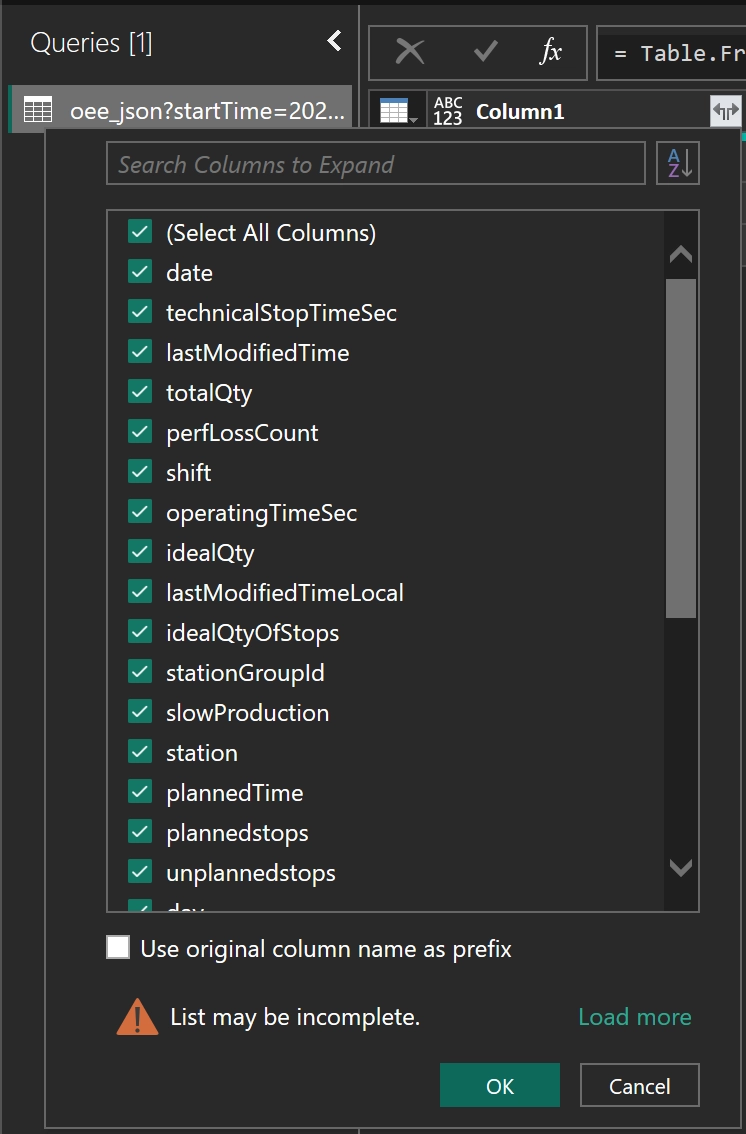
Ensure all fields are checked, uncheck the "Use original column name as a prefix" and click OK.
Optional: Using Dynamic Parameters in Excel
Final Steps (Excel)
- Click the Home tab in the Power Query Editor and select Close & Load.
- Your data will populate a new sheet. To get new data (e.g., after changing your named cells), go to the Data tab and click Refresh All.
3.2 Connecting to Microsoft Power BI
-
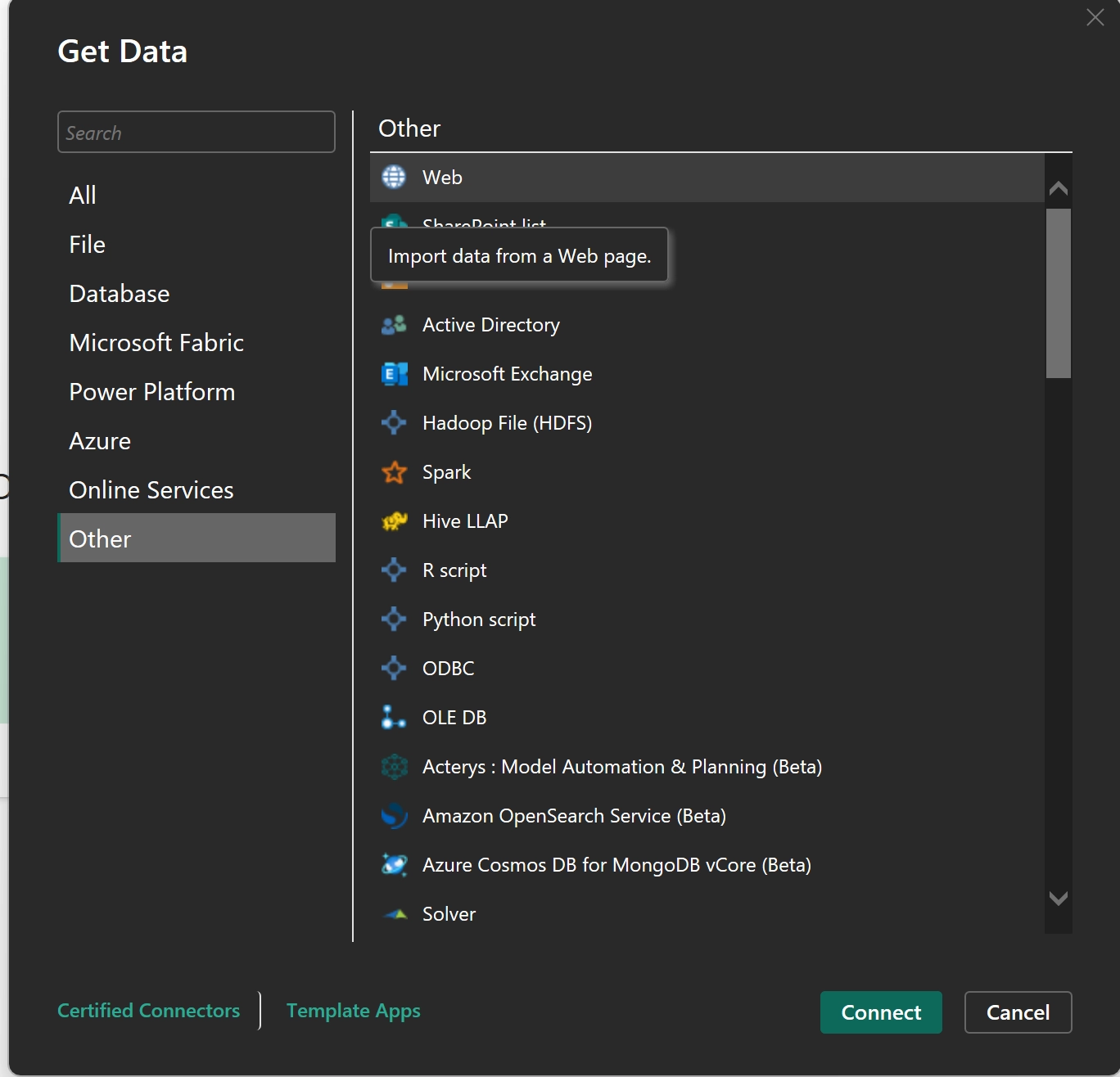
In Power BI, select Get Data > From Other Sources > From Web.
-
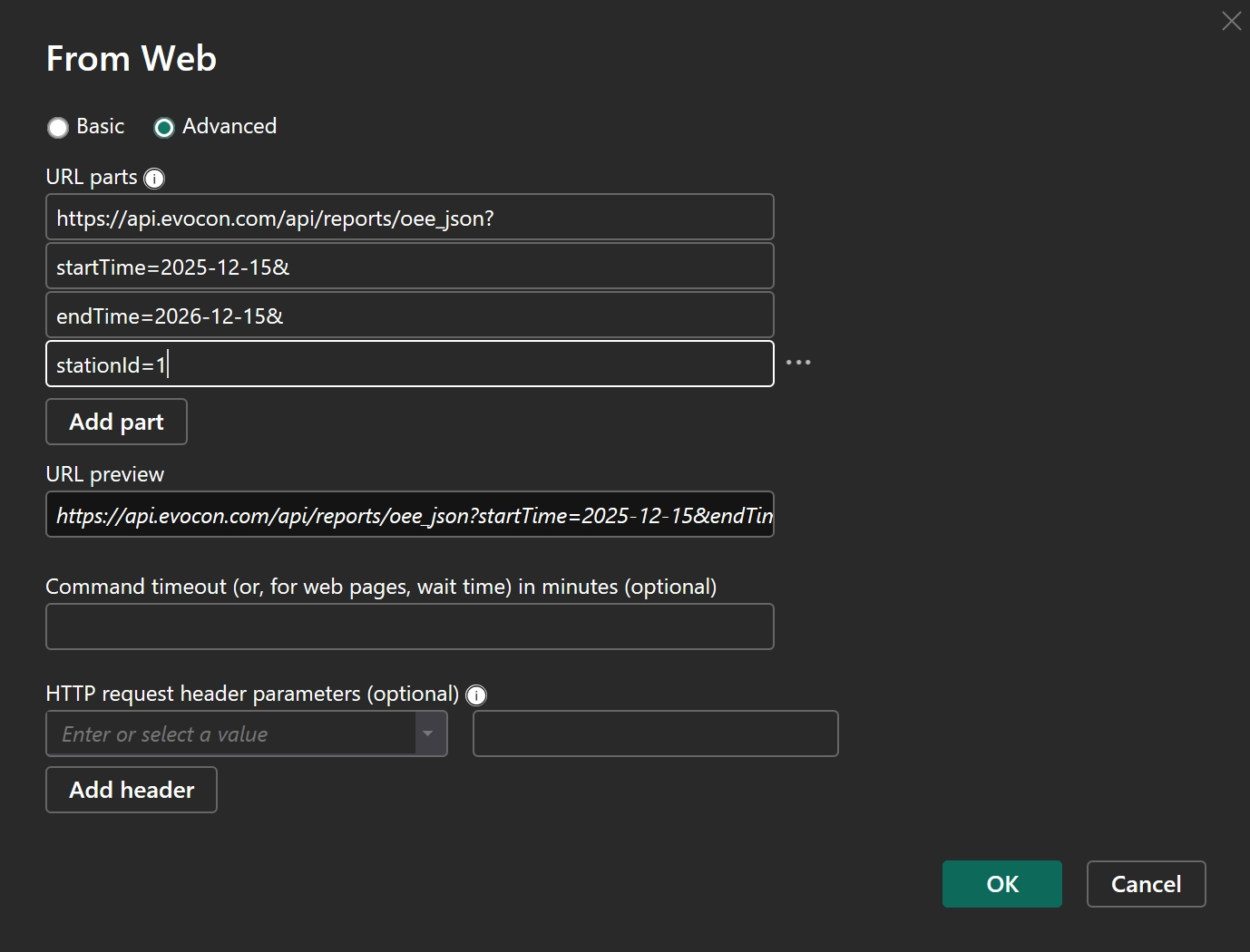
In the "From Web" dialog, you can select Advanced to split your URL into parts. This is useful for parameterizing your query.
- URL parts: Enter the base URL and parameters in the boxes (e.g.,
https://api.evocon.com/api/reports/oee_json,stationId=1,startTime=2023-01-01).
- URL parts: Enter the base URL and parameters in the boxes (e.g.,
-
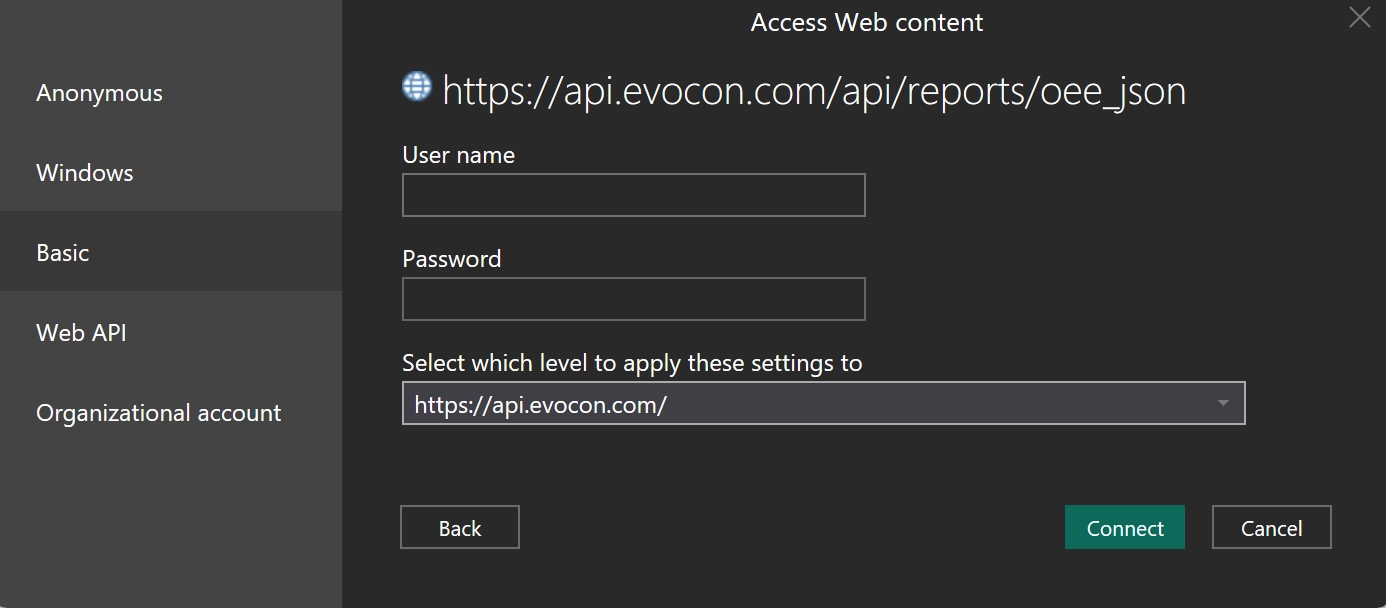
Click OK. You will be prompted for authentication.
-
Select the Basic tab.
- User name: Enter your Evocon API Key.
- Password: Enter your Evocon Secret Key.
-
Click Connect. The Power Query Editor will open with the loaded data (it may appear as a list).
-
In the top-left corner, click To Table. Click OK in the dialog.

-
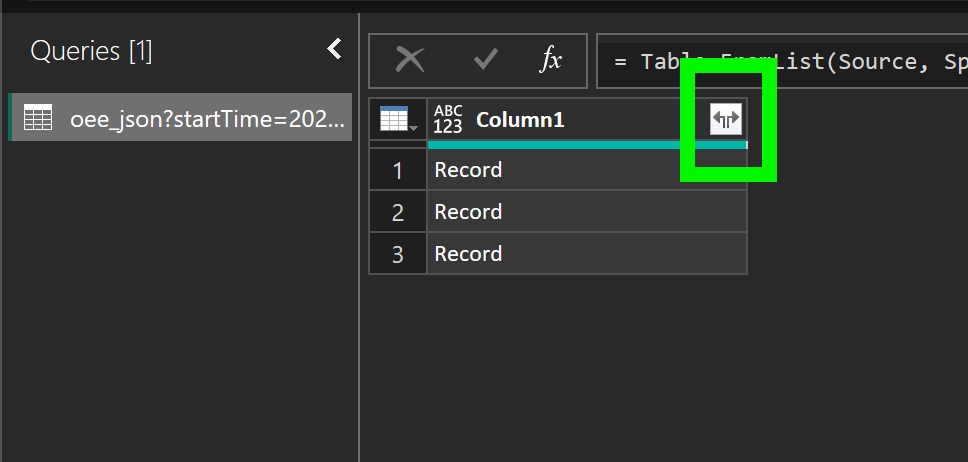
Click the Expand icon (two arrows) on the header of the first column. Make sure all fields are checked and click OK.
-
You can now transform the data (e.g., set data types, rename columns).
-
Click Close & Apply to load the data into your dashboard.
4. Troubleshooting & Data Management
4.1 Authentication Errors
If your credentials stop working in Power BI or Excel, or if you are not prompted for them, you may need to clear the saved permissions.
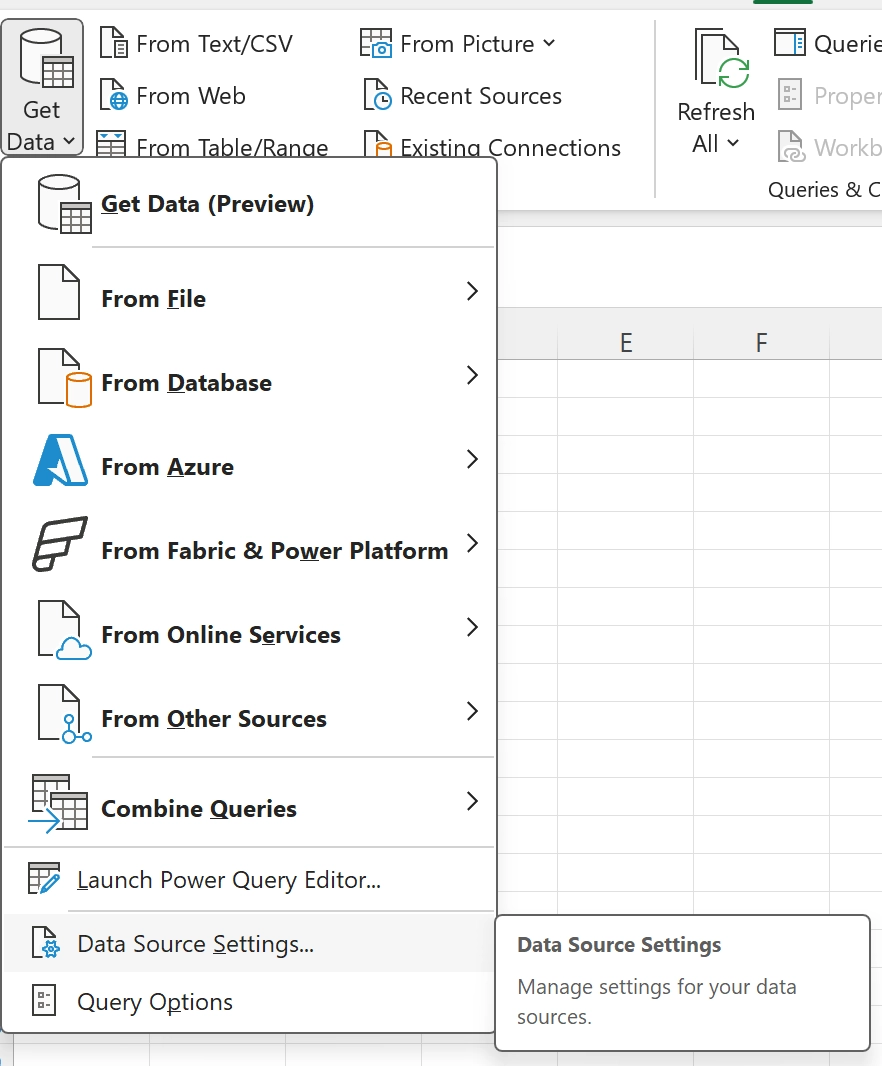
-
In Excel or Power BI, go to Data > Get Data > Data Source Settings.