
Dashboards and Factory Overview · Guide 4 of 14
Grid View
How to create a Grid View that shows 2 to 12 Shift View, Factory Overview, Dashboard or Report cards on one screen, and get its short URL.

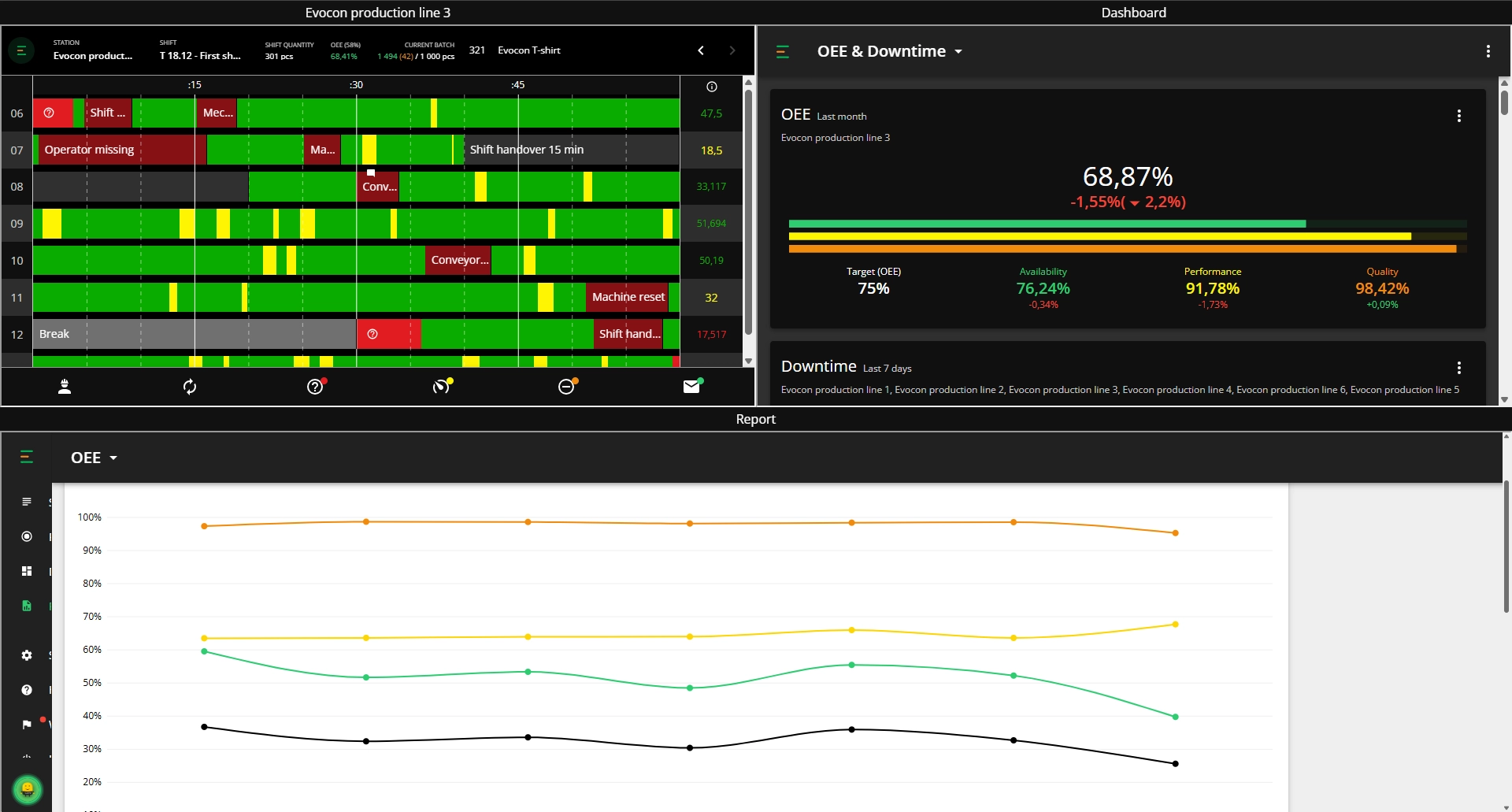
You can use this view to get a more detailed overview of your factory or quickly compare multiple stations in the same view. You can create from 2 up to 12 views on one screen, and a shortened URL (that you can copy while creating a grid) will make it easier to open it on other screens (such as a TV).
How to create a grid view?
-
Open "Grid view" from the main menu

-
Add or remove cards from the grid view to create the grid that best works for you
- Add cards by clicking on the "+" buttons on the edge of the grid.
- Remove cards by clicking on the "X" button on the specific card.

-
Specify the view for each card in the grid:
- Shift View - select the station, which Shift View you would like to see in this card.
- Factory Overview - select whether to display the Live or the Timeline view in this card.
- If both/all cards have the same view (e.g. Live view) and different filters are applied, refresh will cancel that difference and all filters will be the same.
- Dashboard - select the tab which should be shown in this card.
- Report - select which report should be shown in this card.
- Please note that as reports have the chart and the data table, then it might present in the grid with a scrollbar.
- In addition to standard reports, you can also select from your saved reports.
- Custom reports are not available for the grid view.

-
Click "Open"
- This opens the grid view in a new tab. You can use the scrollbars for each view spot if needed (for longer shifts or to select a specific widget or see the data table of a report).
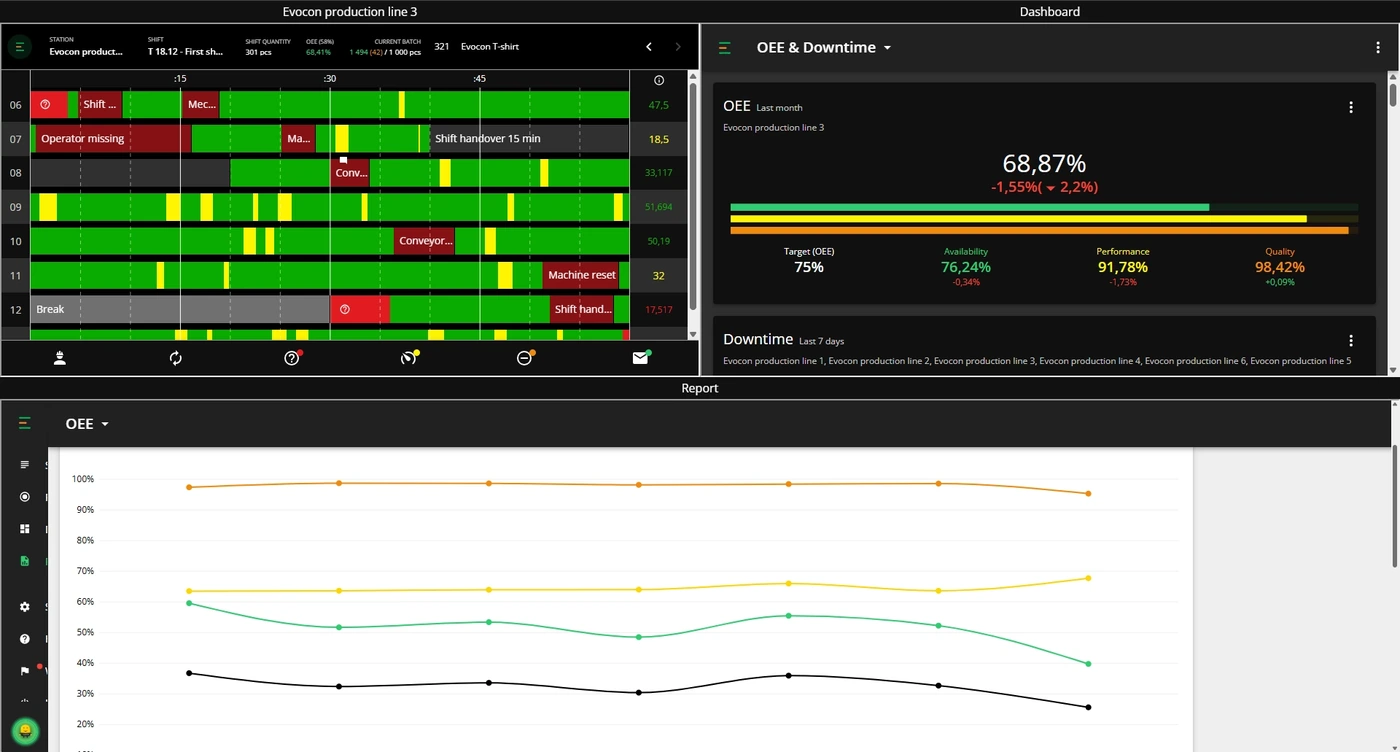
- Now you are also given the short URL (see in the image below) in the tab where you started creating the grid view. You can use this to show the same view in other devices and share it to operators. Copy it if needed and save the grid view as a bookmark on your browser, so you can access it anytime without needing to create a new one.
-
To close the grid creation modal, click "Cancel".

How to share the grid view to another user or device?
For example, some TV browsers do not allow opening new tabs, so the grid view can not be created on the TV itself. Another example is that Shift View users would need to use the grid view, but they can not create it themselves.
In these cases there is a workaround by using the URL: