
Support and what's new · Guide 10 of 13
Release Notes 2025
Evocon release notes for 2025: shift scheduling, stops export/import, calendar checklist triggers, Activity Logs, batch process monitoring, alternative units, Split by, Tags and more.
On this page
- December
- Mr Evocon is here to bring a warm holiday mood
- More flexible Grid View
- Usability improvements
- November
- Introducing flexible Shift Scheduling with a new Timeline view
- October
- Stops export/import for faster setup & edits
- Checklists weekly and monthly triggers
- Mr Evocon demonstrates his pumpkin carving skills this Halloween
- Usability improvements
- September
- Activity Logs: Audit trail for your operations
- Batch process monitoring
- Multi-station changeovers
- Merging shift templates (guide)
- Usability improvements
- August
- Usability improvements
- July
- Add 📸 images to Checklists’ tasks
- Alternative units available in Reports & Dashboards
- New X-axis option in Reports: Day of the Week
- Additional columns for deeper analysis in Reports
- “Status” filter in Factory Overview
- Usability improvements
- June
- Alert visibility to all admin users
- Settings: Autosuggest units in product details
- Usability improvements
- May
- Deeper data analysis with "Split by" in Reports
- Clearer changeover indicators
- Usability improvements
- April
- Tags: Label, analyze, and report with flexibility
- Alternative units in Factory Overview
- Timeline: Track shifts and events at a glance
- Usability improvements
- March
- A smoother mobile experience – All over
- Usability improvements
- February
- Dashboard sharing for enhanced data accessibility
- Usability improvements
- January
December
Mr Evocon is here to bring a warm holiday mood
The Festive Mr Evocon will be running live until the early days of January. Happy Advent, everybody!

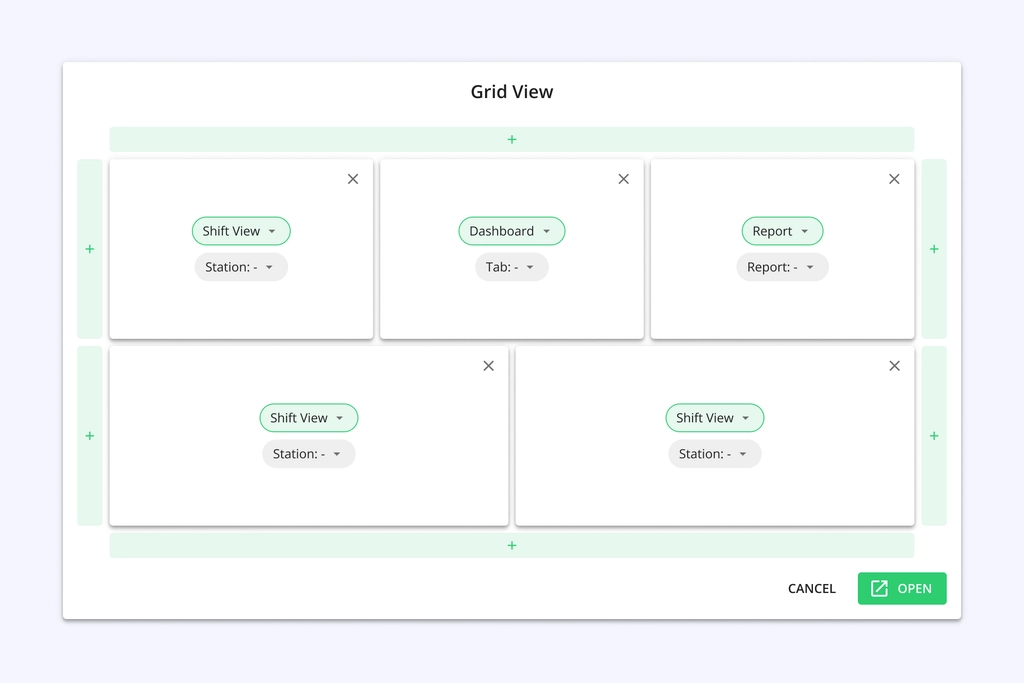
More flexible Grid View
The new modular grid lets users create custom layouts — including unequal screen setups.
In addition, you now have Reports as a grid option.
Usability improvements
SettingsLOT/Batch and Extra Note fields can now be set as required during changeover — simply enable them in the station settings.
November
Introducing flexible Shift Scheduling with a new Timeline view
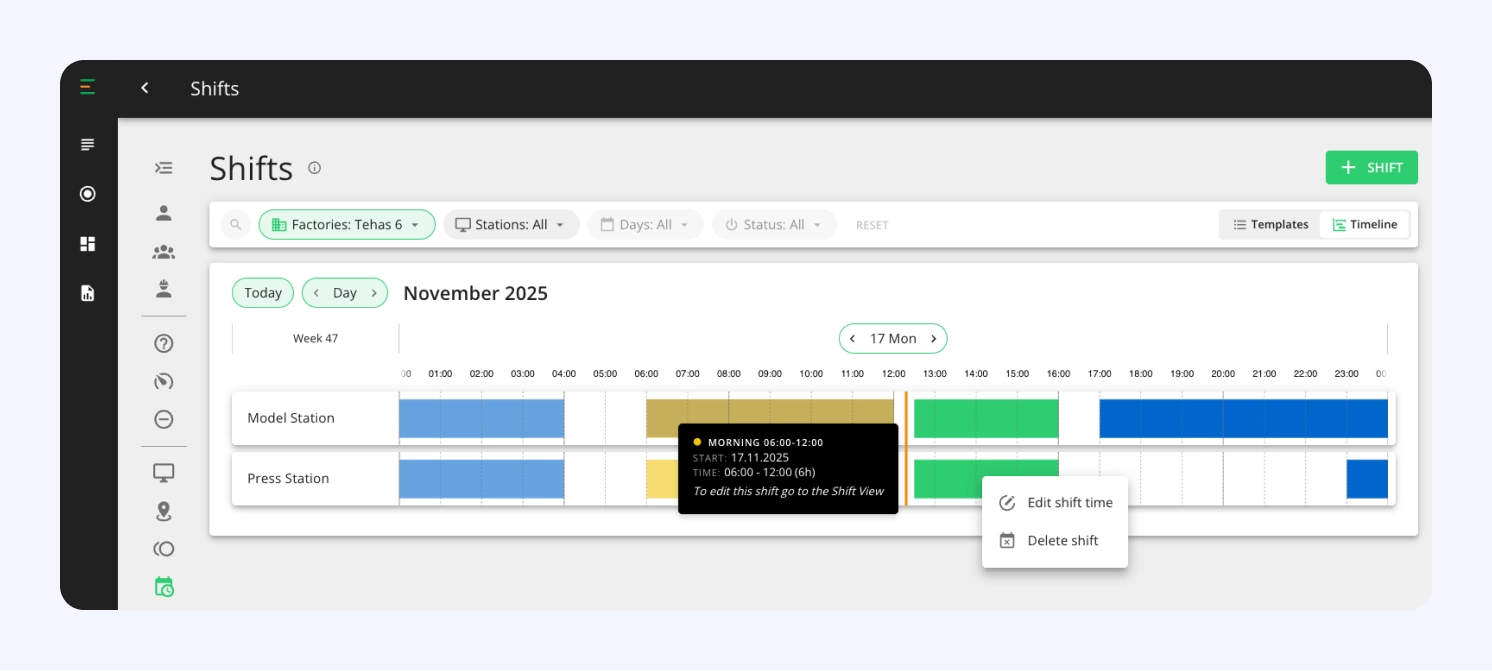
With our improved scheduling solution, users can now:
❶ Handle exceptions
Plan days off in advance—across an entire shift or for specific stations.
Example: Close the factory for the Christmas holiday. All shifts will be canceled from December 22–28.
❷ Make one-off adjustments without disrupting the full schedule
Modify individual shift occurrences, including start and end times, without affecting the entire template.
Example: This Friday, at station X the shift is planned to stop 3 hours earlier.
❸ Gain clearer visual oversight with a colour-coded Timeline view
To support all this, we’ve introduced a brand-new Shift Timeline view: a highly visual way to see exactly which shift templates are active and how they interact across stations and days.
Identify gaps, ensure completeness, and avoid mistakes with an at-a-glance visual representation of your shifts.
❹ Get more accurate reporting data
Empty shifts will be fully excluded from availability calculations, resulting in cleaner data.
October
Stops export/import for faster setup & edits
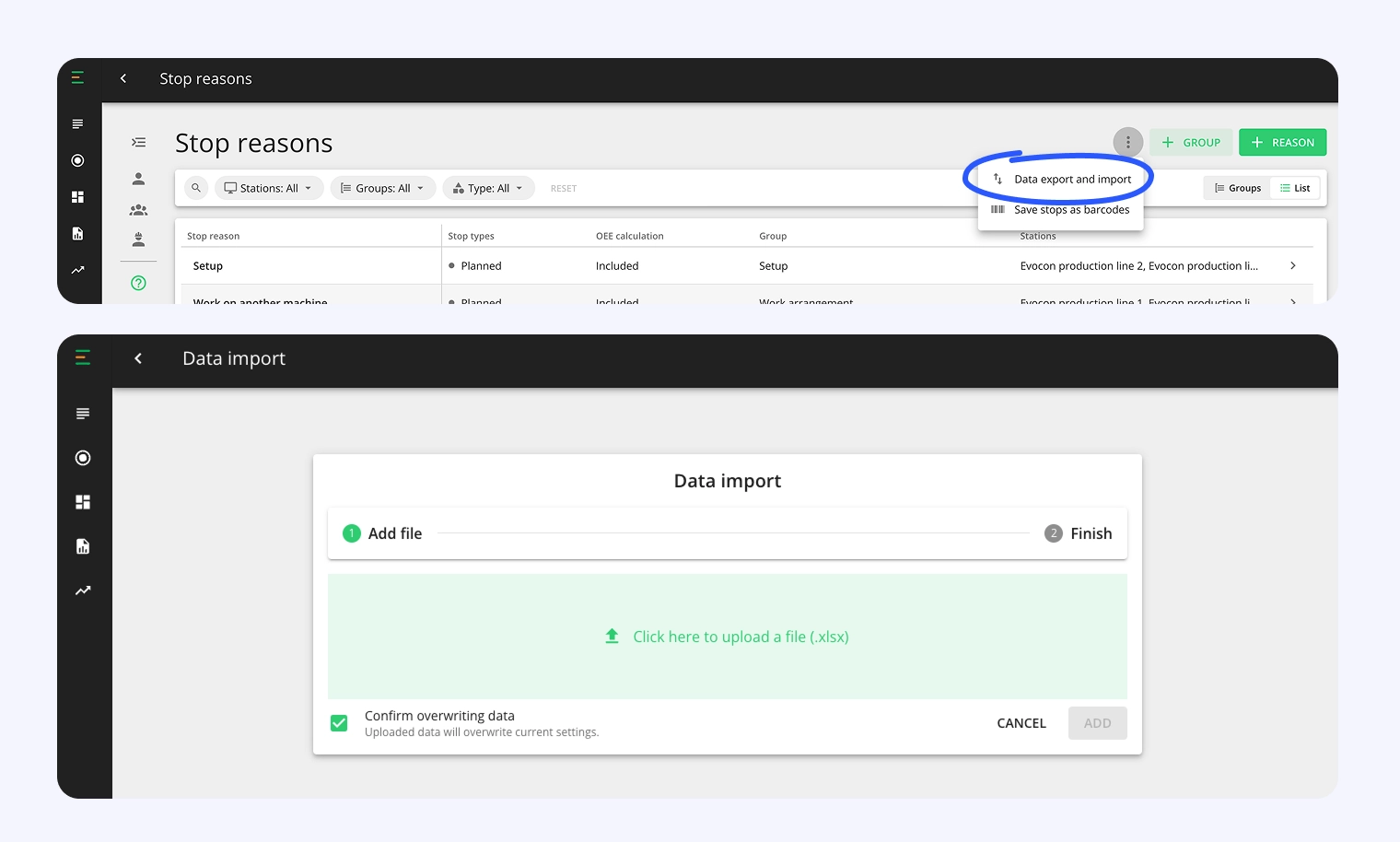
We’ve released the export/import feature for Stop reasons, enabling company administrators to make bulk edits quickly and efficiently. No more contacting support or manually updating stops data one-by-one.
With this feature, you can:
- Export stops data to a designated Excel file.
- Edit multiple stops and groups at once in the spreadsheet.
- Import the updated file back into Evocon.
To learn more, visit our Stops Export & Import Guide.
Checklists weekly and monthly triggers
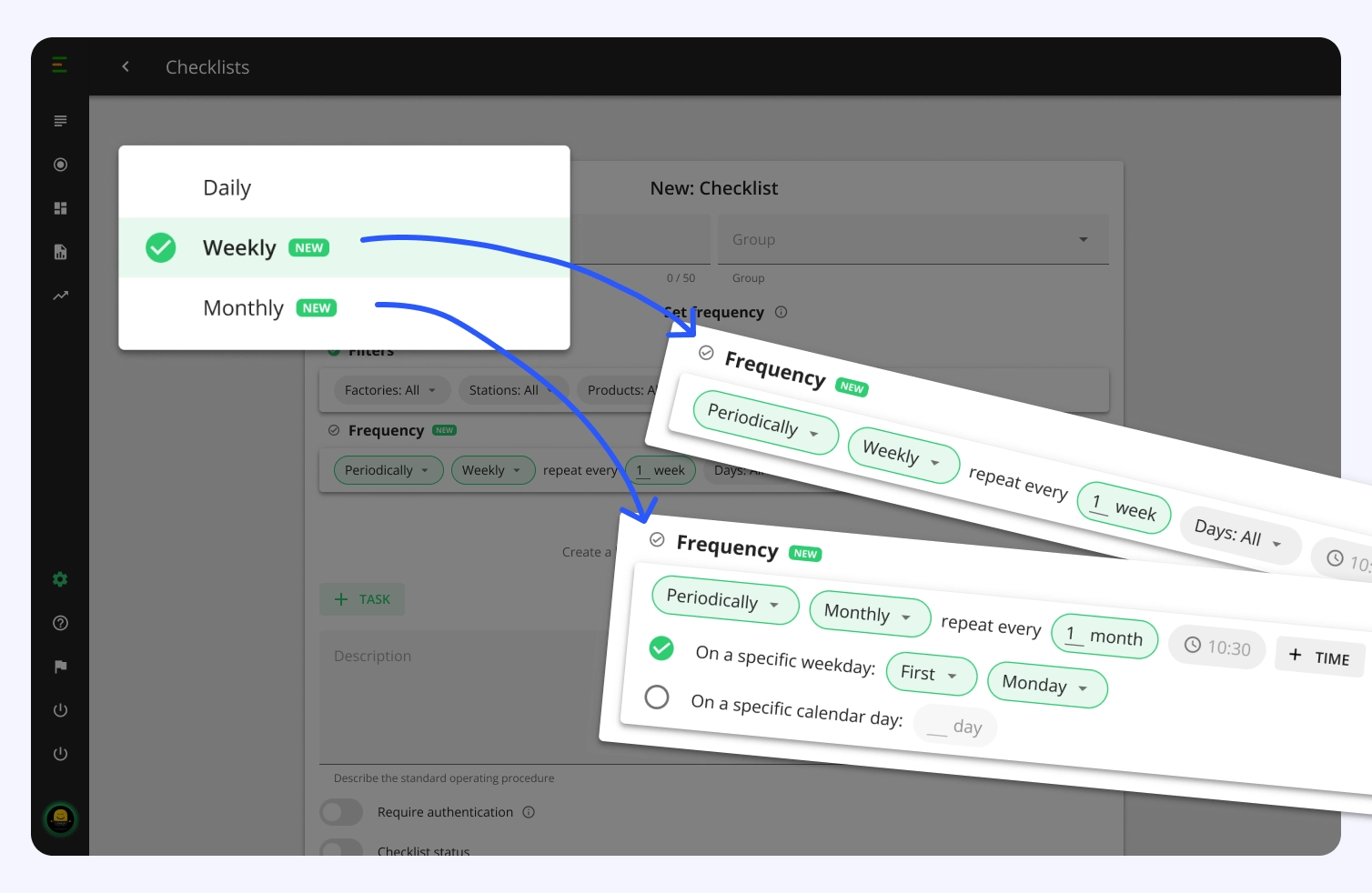
New triggers make it easier to manage recurring tasks that follow a calendar pattern, in addition to specific Shift View events. They help ensure important checks happen consistently.
Key benefits
- Flexible recurrence: Repeat checklists every X weeks or months to match your workflow.
- Day-specific scheduling: Trigger checklists on a specific weekday, like the first Monday of the month, for better alignment with team routines.
| Trigger pattern | Example check | Context |
|---|---|---|
| Repeat every 3 weeks on Monday at 11:00 | “Machine lubrication check” — verify oil levels and inspect wear on bearings. | Industrial machines often requi… lubrication every few weeks to prevent breakdowns; setting it f… Monday morning ensures it happens at the start of the work week. |
| Repeat every 1 month at 07:00, on Monday | “Monthly safety walk inspection” — inspect fire extinguishers, exits, PPE storage. | Early Monday ensures the site starts the month compliant and safe before full operations begi… |
| Repeat every 3 months, on the last Friday of the month | “Quarterly facility hygiene audit” — inspect cleaning logs, check restrooms, verify janitorial compliance. | End-of-quarter checks help me… cleanliness and compliance KPI… before quarterly reporting. |
| Repeat on the 28th calendar day | “Inventory accuracy check” — verify physical stock vs system records. | Happens on a consistent date every month (e.g., 28th), regard… of weekday — good for accoun… cycles. |
Mr Evocon demonstrates his pumpkin carving skills this Halloween

The Halloween Mr Evocon will be running live until the early days of November. Happy Halloween, everybody!
Usability improvements
ChecklistsThe new pin indicator lets you quickly identify checklists with images.
September
Activity Logs: Audit trail for your operations
Enterprise
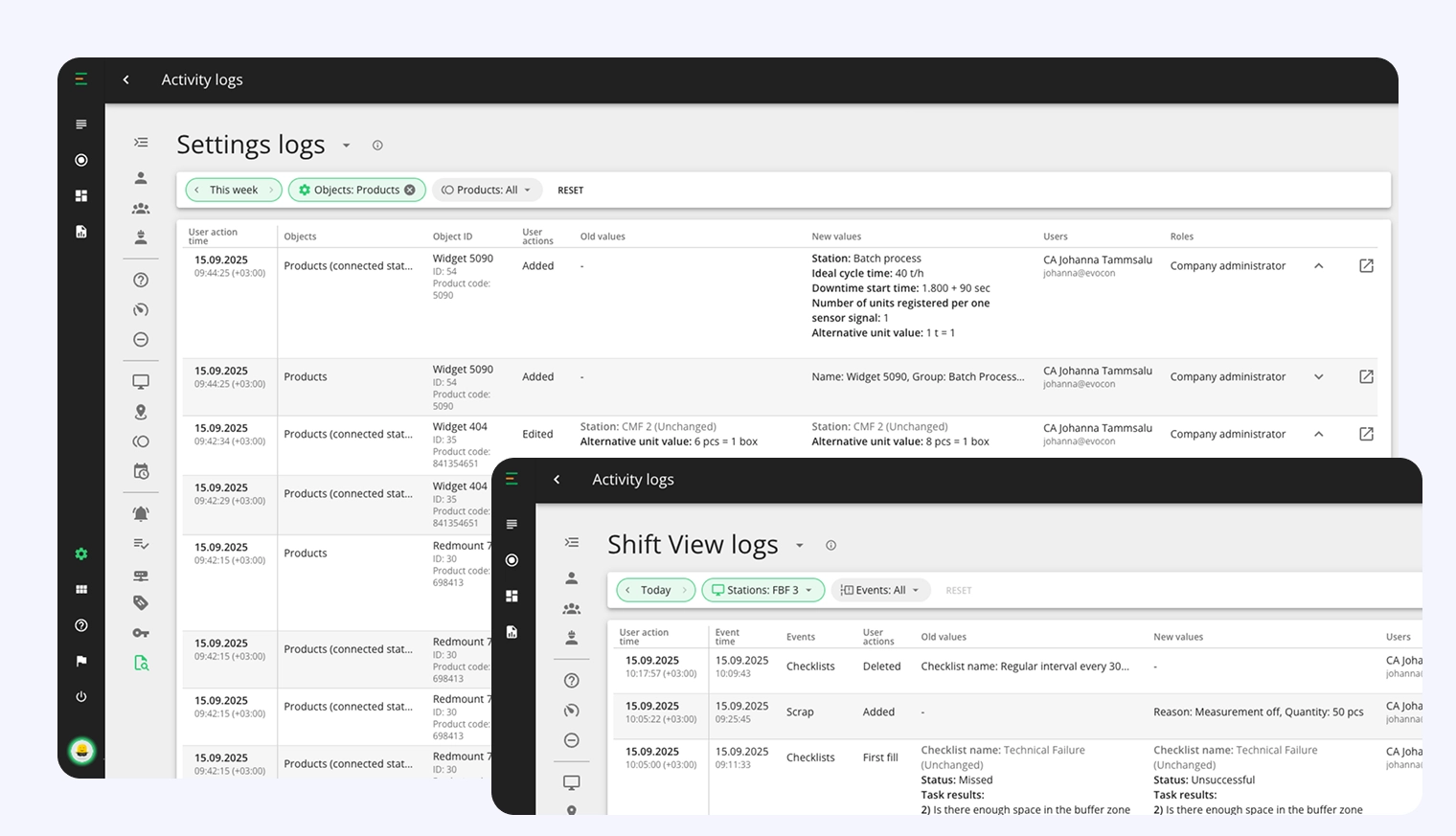
Manufacturing environments require accountability and traceability, especially in regulated industries where every action must be documented (e.g. pharmaceuticals).
Our new Activity Logs feature, part of our Enterprise package, provides detailed audit trails that track every user action across your Evocon system, delivering the visibility needed for compliance, troubleshooting, and security management.
Why this matters
Activity Logs is essential for regulatory compliance (ISO, FDA, GMP), quality management systems, operational troubleshooting, and preventing unauthorized system changes.
Key capabilities
- Complete tracking: Records all Shift View operator actions and Settings changes with full context.
- Immutable records: Once logged, entries cannot be altered, ensuring data integrity.
- Role-based access: Company and factory administrators get appropriate visibility levels.
- Detailed context: Captures before/after values, timestamps, and users.
Batch process monitoring
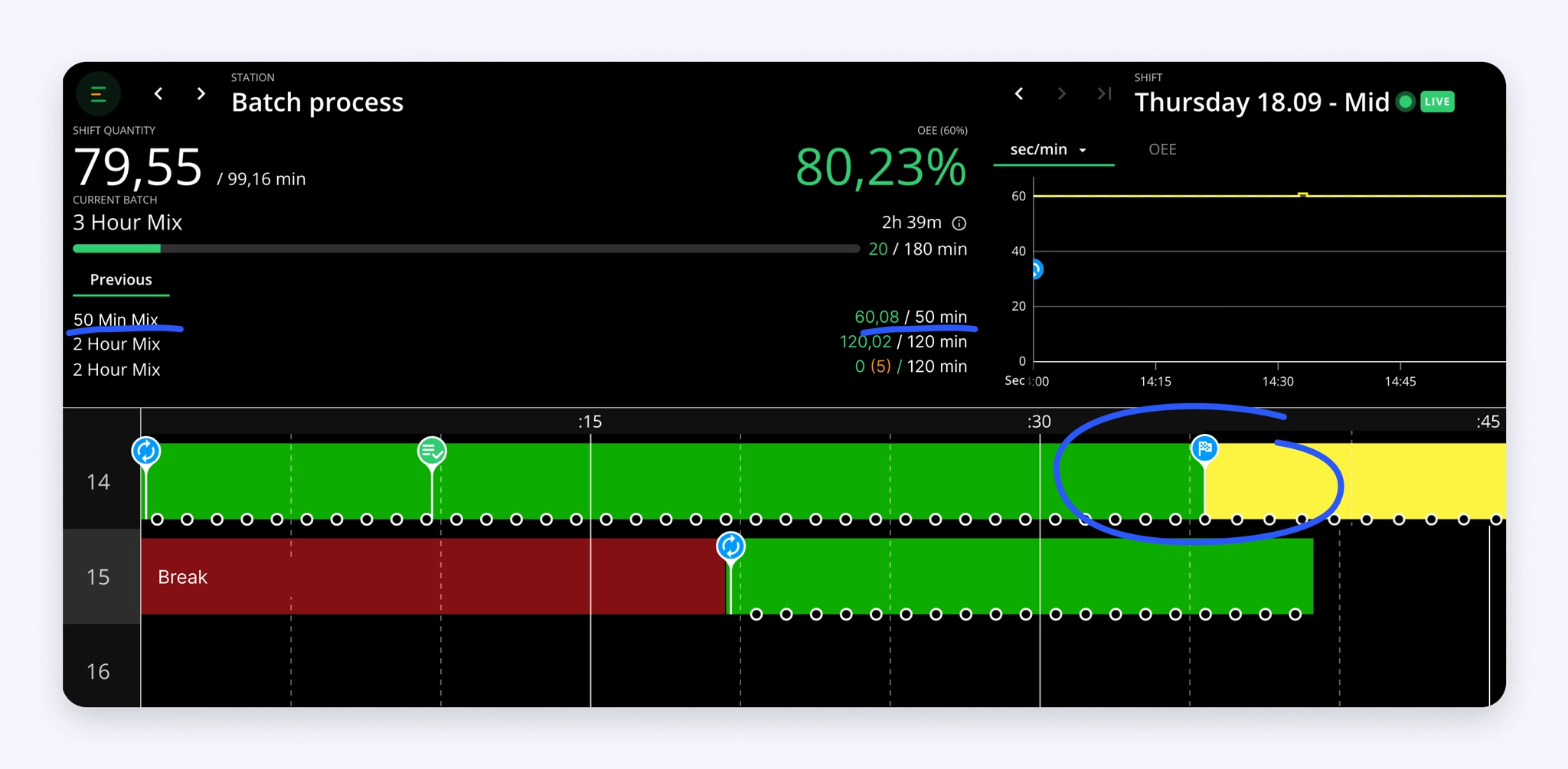
Evocon now supports Batch process monitoring for manufacturing operations that produce in batches rather than piece counts.
This extends OEE tracking to processes don't produce countable units but instead create batches through timed operations like mixing, heating, or chemical reactions. This is common, for example, in chemical, pharmaceutical, food production environments.
Batch monitoring tracks the time efficiency of each process step against planned targets, providing accurate OEE calculations for time-driven production.
The key benefits of this features are:
- Process step visibility: Monitor individual phases of your batch production cycle.
- Target management: Set time targets for each process step.
- Complete accuracy: Track and manage manual steps to maintain accurate time tracking.
- Time-based OEE: Calculate efficiency based on planned versus actual process duration.
Multi-station changeovers
The Multi-Station Changeover feature allows you to manage changeovers across multiple stations simultaneously, eliminating manual duplication and ensuring consistency across your shop floor.
The feature has two modes of setup:
- Full sync: Changes on one station automatically update all connected stations.
- Source-to-Target Sync: Designate a master station that pushes changeovers to selected target stations.
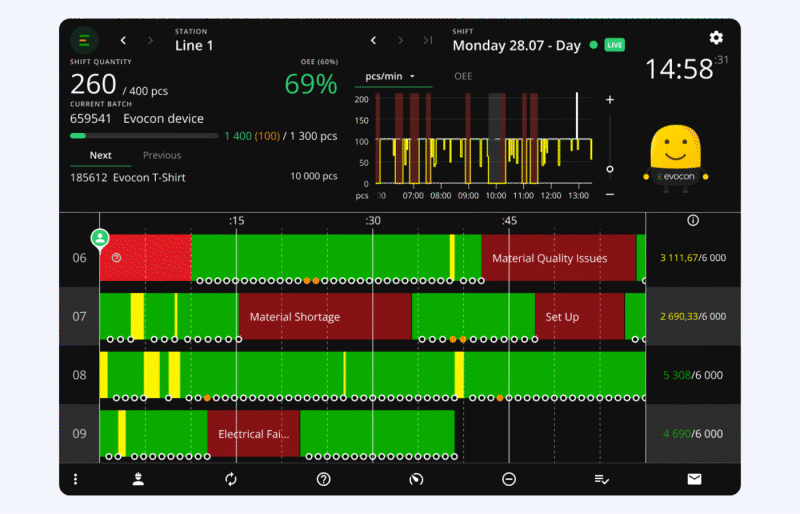
Merging shift templates (guide)
A while ago we introduced the option to add multiple stations under one shift template. Now, we encourage administrators to merge their shift templates if not done already.
This ensures a smooth transition once we launch shift scheduling as a new feature at the end of 2025.
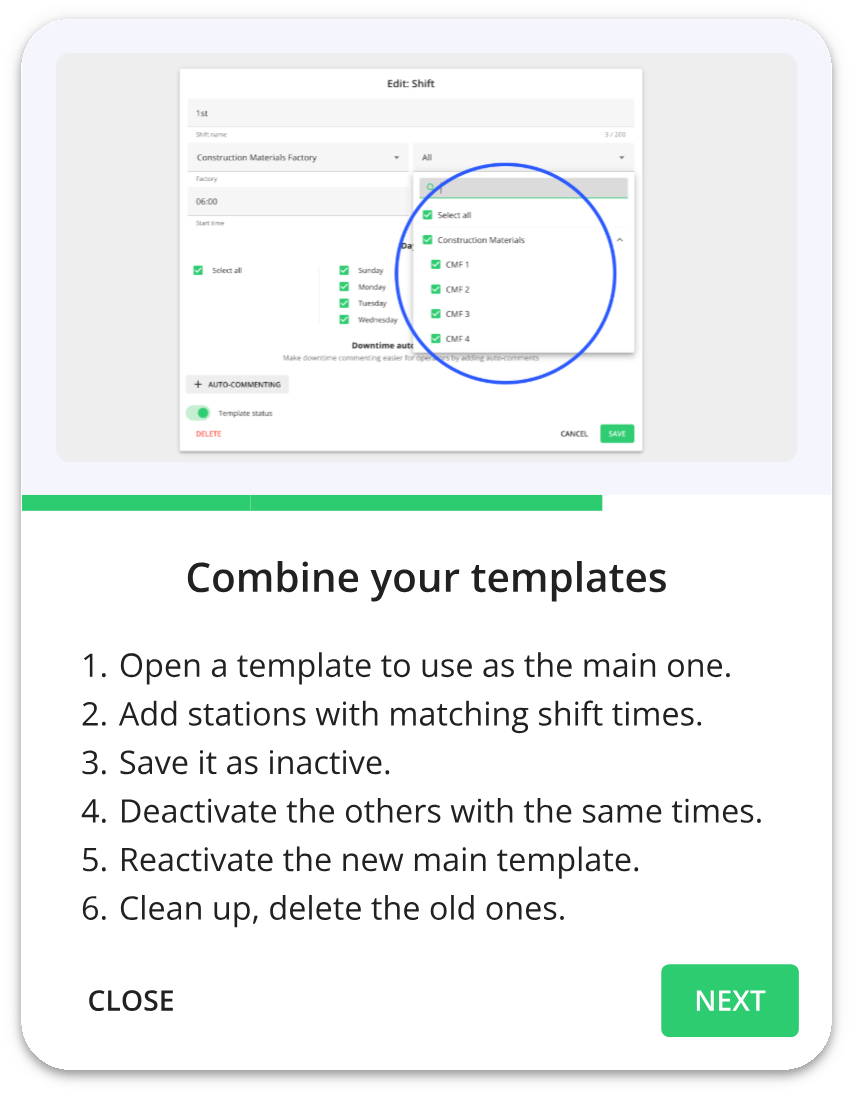
To help, we’ve added a short in-system teaching flow.
Find the guide on how to merge shifts or contact support if you need help.
Usability improvements
-
ChecklistsAn option to set an interval start time lets the user choose when the timer begins counting down to the first checklist—for example, right on the hour. -
DashboardTabs can now be duplicated. -
DashboardWidgets now have a custom date range option.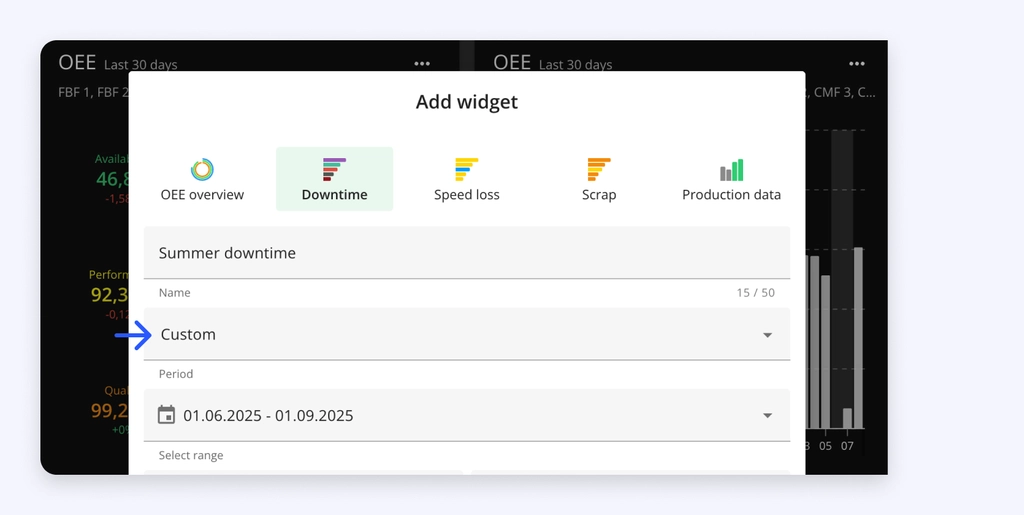
August
Usability improvements
-
Factory overviewReportsNavigate easily to the current time by clicking>|(Go to now) button in hours chip, and calendar. -
ReportsThe Downtime extra note report modal and downloadable Excel report now include additional production context: Product produced. -
ReportsSettingsQuickly reset any single filter with one click, without affecting your other selections. This makes refining your reports and settings faster. -
Shift ViewLOT numbers from production orders can now be received and displayed when sent via an ERP integration. -
Shift ViewProduction order notes from an ERP integration now appear in the changeover tooltip for quick reference. -
Shift ViewYou can now zoom in and out of the speed widget more easily by using+and-buttons on the right.
July
Add 📸 images to Checklists’ tasks
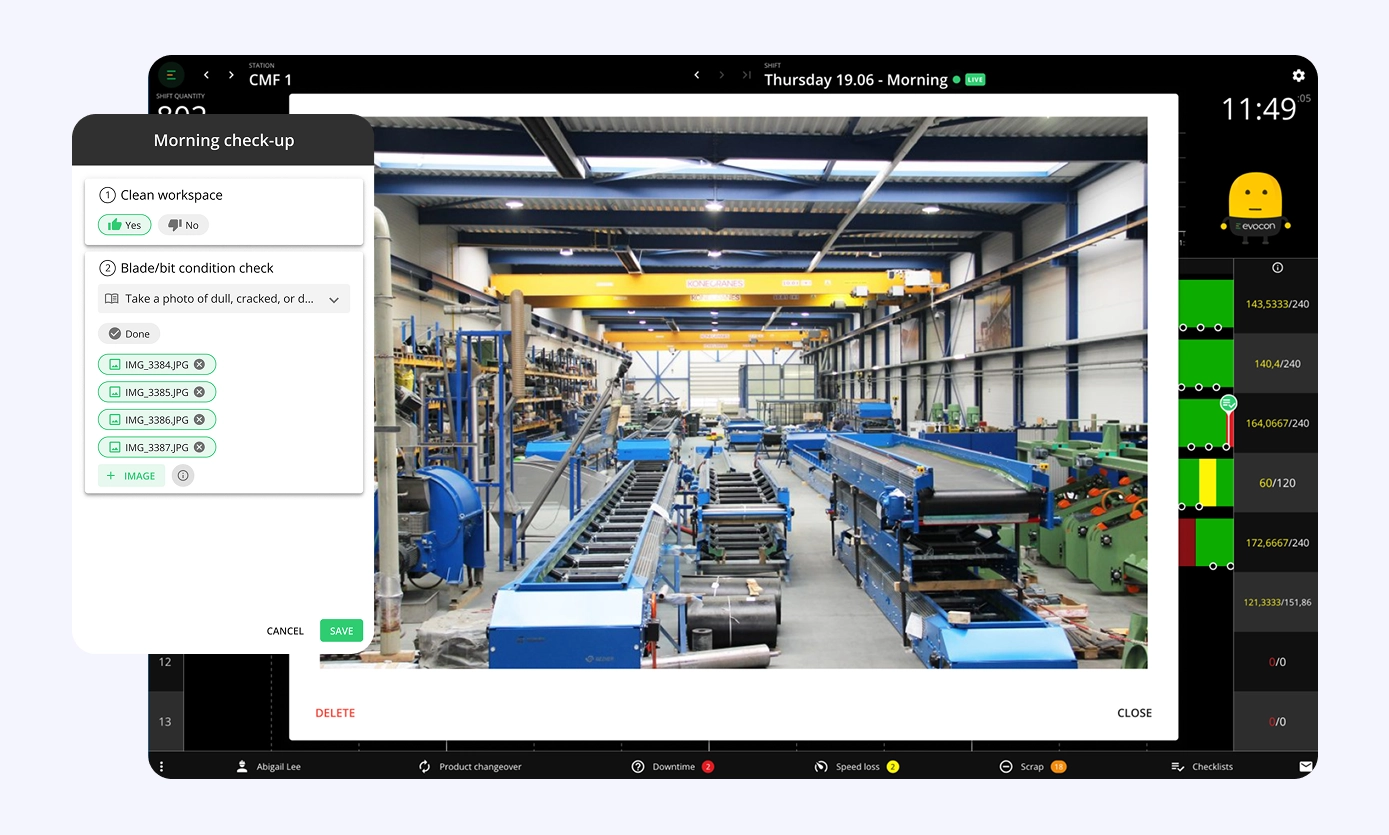
Operators and supervisors can now attach photos as part of task completion, from both mobile and desktop devices—adding visual confirmation and context to checklist items.
Why this matters:
Photos provide visual proof that a task was completed correctly and help clarify what exactly was checked or done. This not only supports accountability but also strengthens audit trails and helps supervisors understand what actually happened, visually, on the shop floor.
Examples of use:
- Snap a photo of a machine jam before clearing it
- Document a label misalignment or sealing issue
- Capture a batch number or measurement as proof
- Verify that LOT numbers and expiry dates are printed correctly
This feature helps capture problems before they’re resolved—and keeps a clear record of what happened, when, and why.
Learn more about this feature from the help articles - how to set it up and how to use it in Shift View.
Alternative units available in Reports & Dashboards
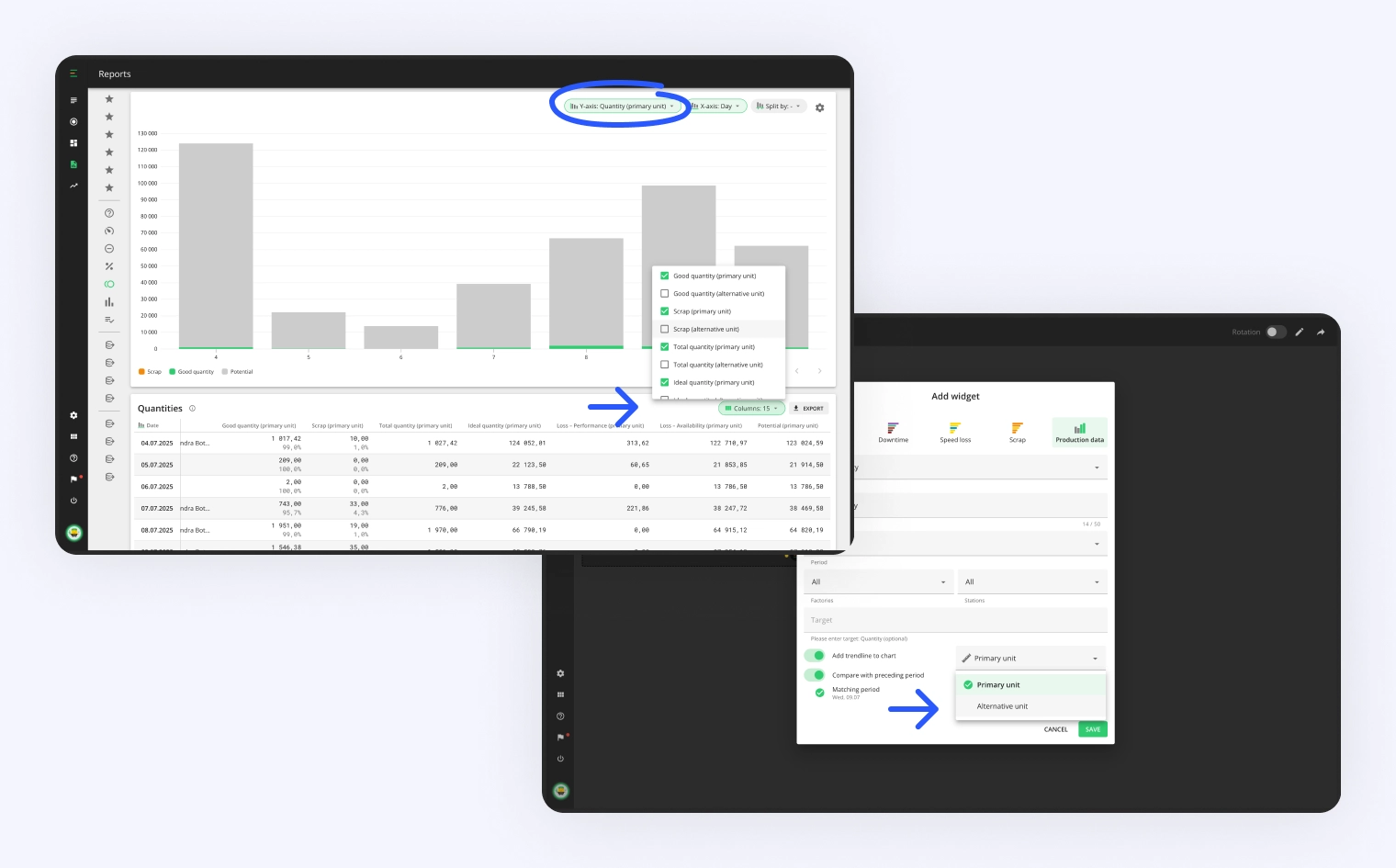
In addition to primary units, you can now analyze production data using alternative units, providing greater flexibility and alignment with how different teams track output.
Previously, alternative units were only visible in Shift View. With this update, they are now available across Reports and the Dashboard, giving a more complete and consistent view of production, especially for clients who track multiple units per product.
- In Reports, alternative units are available anywhere where the system shows quantities and can be made visible by using the add/remove columns feature.
- In Dashboard, when creating a widget that has quantities, you can choose your preferred unit format.
This improvement helps ensure that Evocon reporting reflects the full range of how your production is measured.
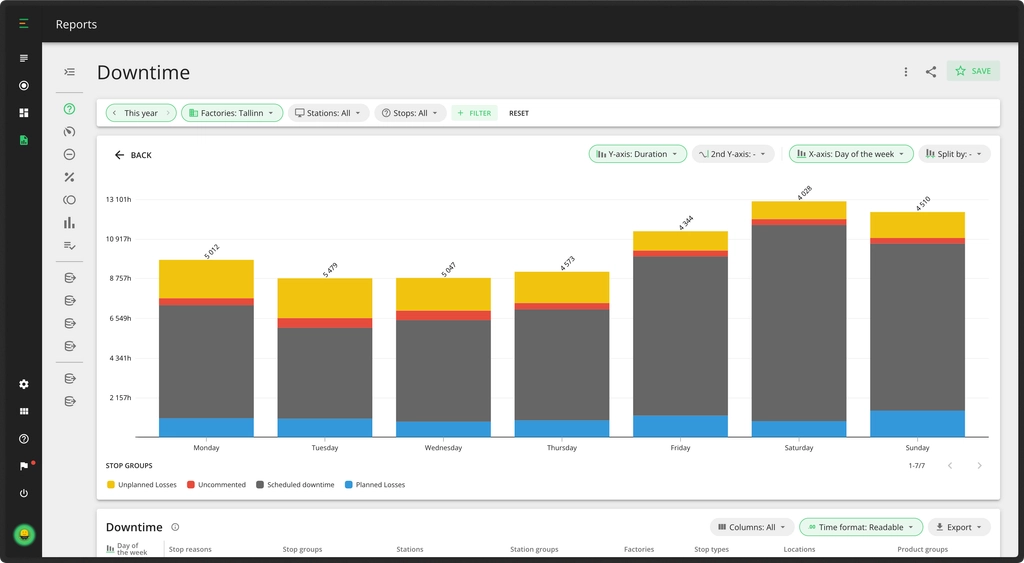
New X-axis option in Reports: Day of the Week
You can now view report data by Day of the Week by choosing it from the X-axis list, making it easier to spot patterns tied to specific weekdays.
Whether you're looking to understand recurring issues, track performance dips, or compare weekdays vs. weekends, this new option helps uncover hidden trends.
Additional columns for deeper analysis in Reports
We’ve expanded key reports with new columns to give you deeper insights into production performance and losses.
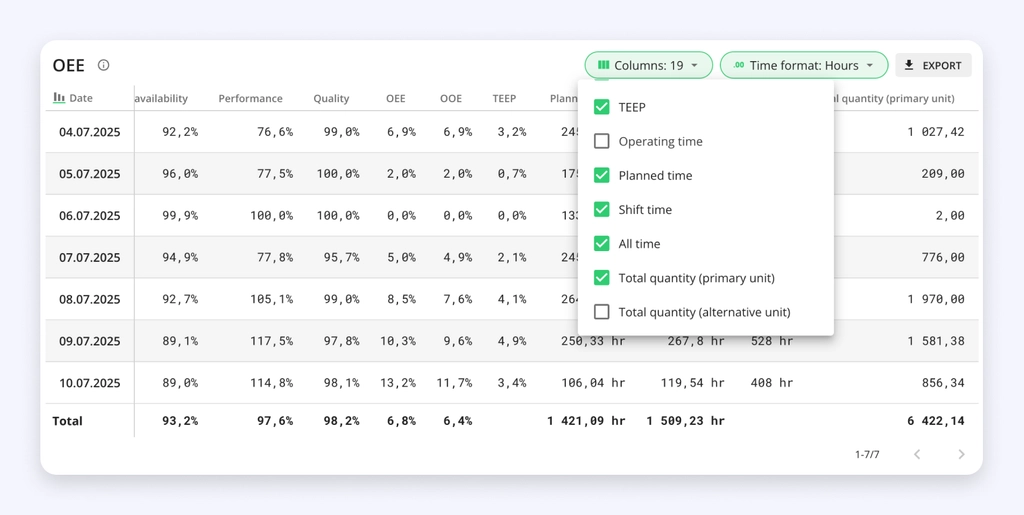
OEENow includes OOE, TEEP, total quantities, and time-based metrics like Operating Time, Shift Time, and All Time.Time UsageAdded Operating Time (good production + speed loss) and improved column layout for clarity.QuantitiesNew loss metrics show units lost due to Performance and Availability issues.DowntimeAdded Loss column (in units), reflecting availability-related losses.Speed lossAdded Loss column (in units), reflecting performance-related losses.
All additions are also available in exports. These updates bring you closer to full visibility on how your equipment and time are used.
“Status” filter in Factory Overview
In Factory Overview, you can now filter stations by status, helping you instantly focus on what matters.
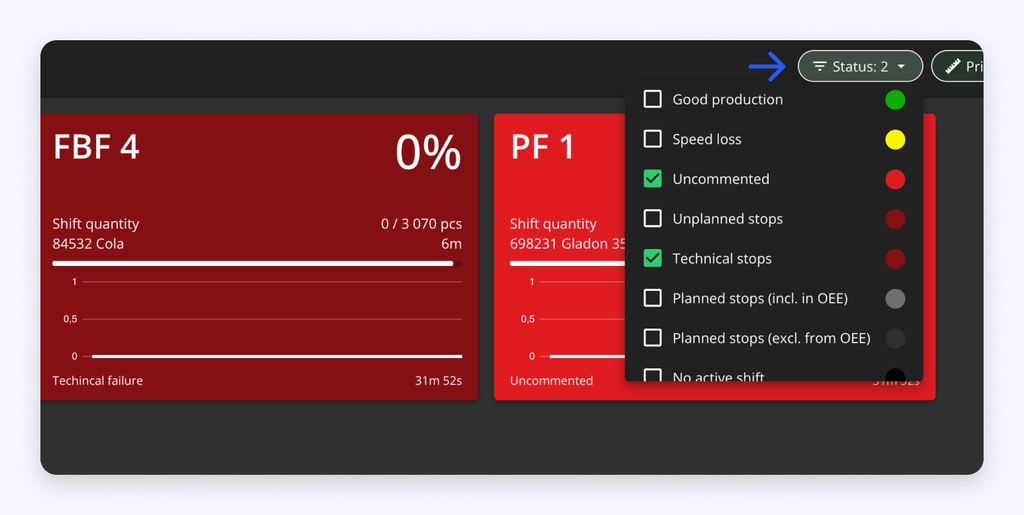
- Managers or operators on the floor can identify actionable issues faster, such as stations stopped without comments or running at lower speeds.
- Gives maintenance teams a more focused view of technical stops.
- Makes it easier to track which stations are producing and which are not, even in complex or large setups.
Usability improvements
Reports”Last 12 months” available as a quick-select in your time filter.SettingsSelected filter persist when you navigate between different settings pages.
June
Alert visibility to all admin users
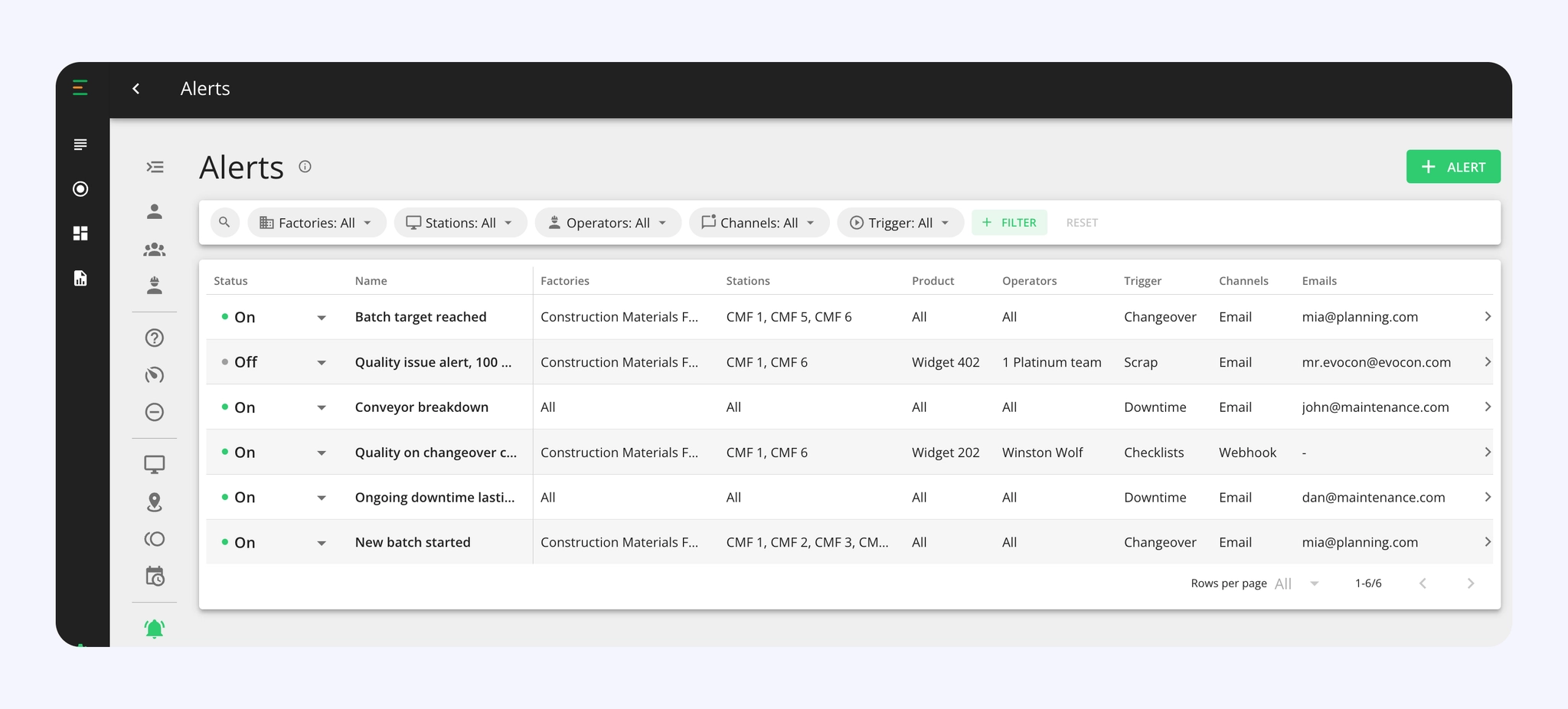
We’ve improved how alerts are managed. Based on their permissions, Company and Factory administrators can now view, edit, and delete alerts created by others. Alerts remain active even if the creator leaves, ensuring continuity and easy reassignment.
Additions to the Alerts view:
- Emails column: Displays recipients (hover for the full list).
- Trigger filter: Sort by Downtime, Scrap, Changeover, or Checklists alerts.
These changes enhance alert organization, providing clearer insight and simpler oversight.
Settings: Autosuggest units in product details
To improve unit consistency across views like Shift View and Timeline, unit fields in product details now support autosuggest. This helps avoid duplicates such as “PCS” and “pcs” by encouraging reuse of standardized units.
Auto suggestions: When editing primary or alternative units, a dropdown shows existing units with their usage count.
Flexible entry: If no match is found, users can still enter a new unit, which will be saved as typed.

Usability improvements
DashboardSelections set to “All” (except for factory selections) now automatically include any new items added in the future—ensuring the list stays complete without manual updates. This applies only to newly created widgets. Existing widgets must be resaved for the updated behaviour to take effect.
May
Deeper data analysis with "Split by" in Reports
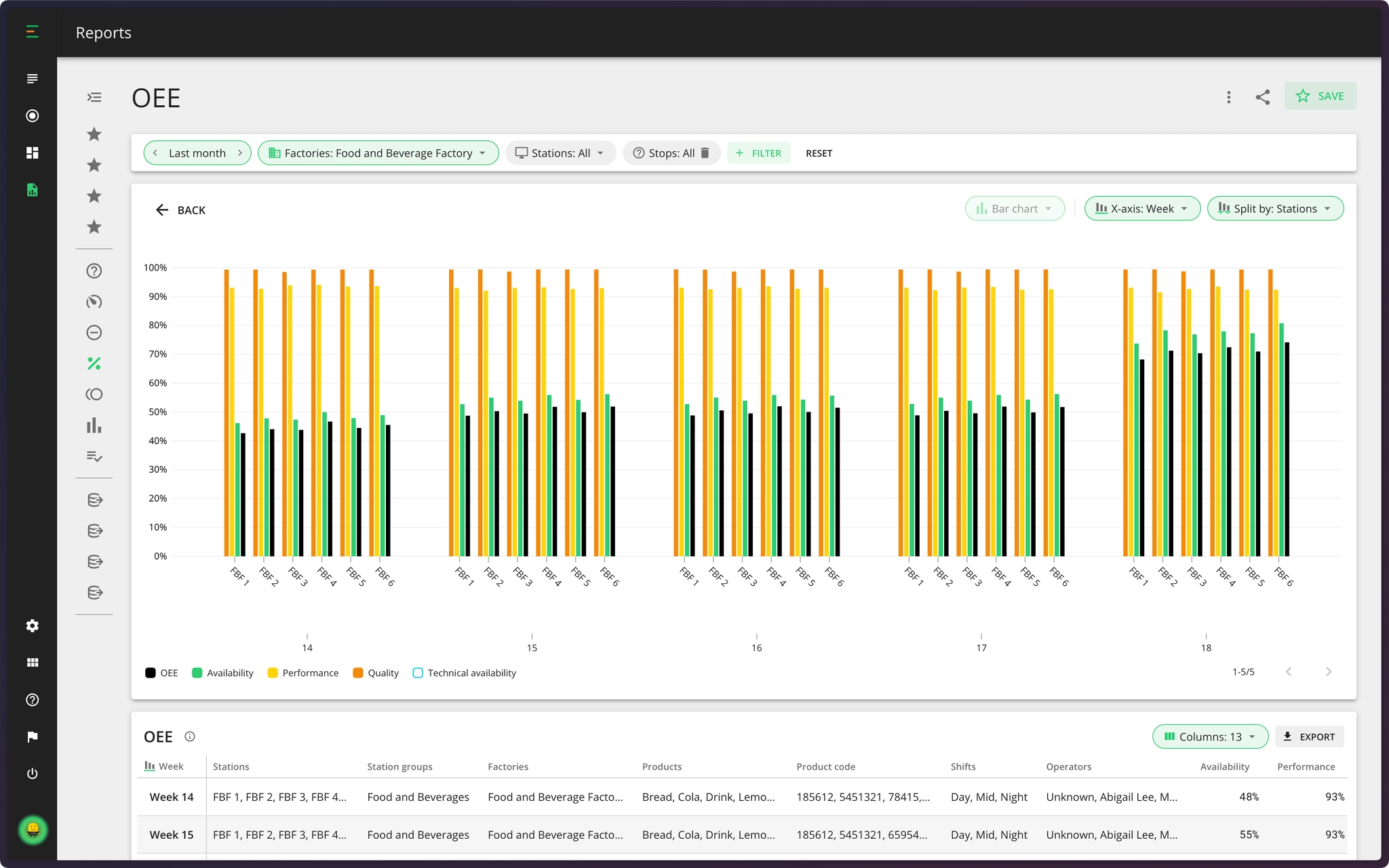
We've launched "Split by," a powerful new feature in your reports that unlocks more insights into your production data. With Split by, you can add a third dimension to your charts, making it easier to compare data and understand complex production dynamics.
Key Benefits:
- Granular Insights: Drill deeper into your data to uncover detailed patterns.
- Enhanced Comparisons: Easily compare performance across an additional layer (e.g., OEE of stations over weeks).
- Informed Decisions: Pinpoint areas for improvement with greater precision.
How it works:
- Choose the main x-axis (e.g., Factories, Week).
- Select an additional dimension (e.g., Stations, Operators) to "Split” the main x-axis by.
Clearer changeover indicators
Since changeovers typically begin with downtime for cleaning and batch preparation, they’re usually added during a stop.
Previously, it was hard to tell whether a changeover was marked on a stop or a signal when both occurred close together. Now, the blue changeover pin appears precisely at the start of the selected slice, making its placement clear at a glance.
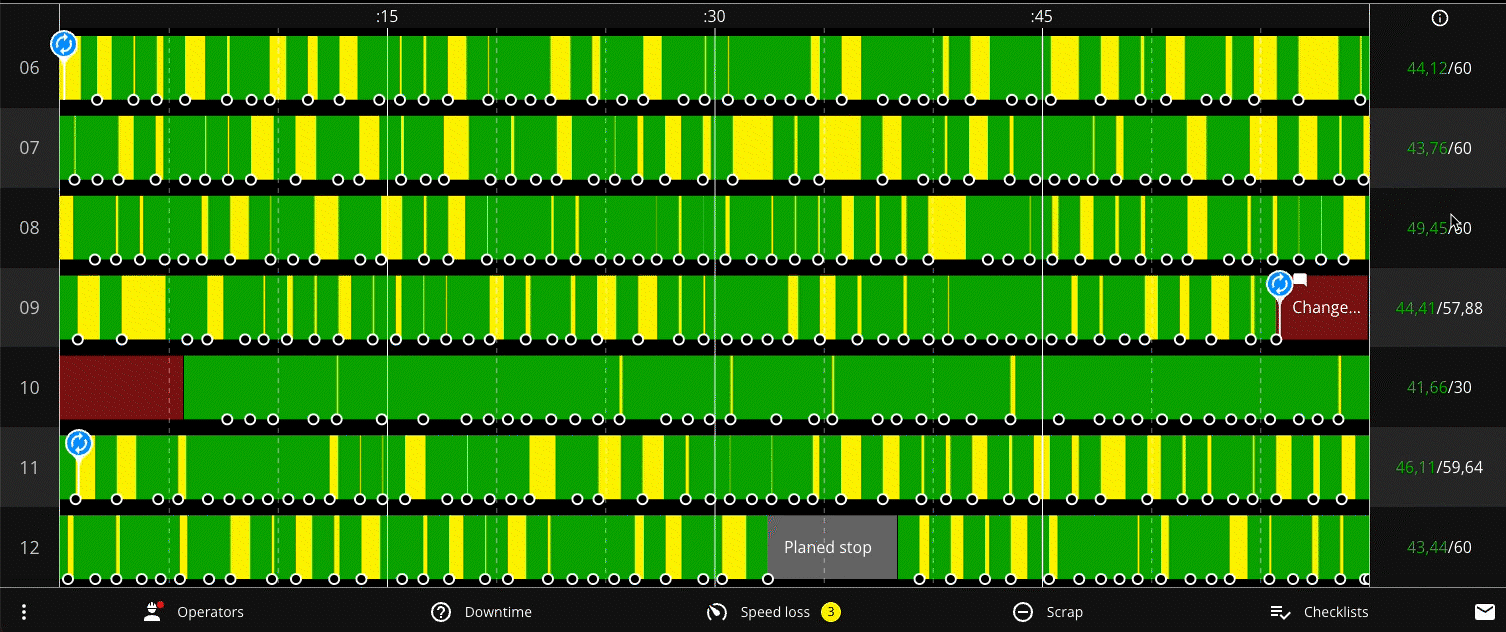
Additionally, hovering over the changeover pin highlights the entire related batch.
Usability improvements
DashboardScrap widget tooltips show the percentage of scrap relative to total production (% of produced), for better context.Factory OverviewThe system will automatically open to either the Live or Timeline view based on your most recent selection.ReportsYou can hover over stacked bar segments to view detailed information for each stack—making it easier to quickly analyze and understand your data.
April
Tags: Label, analyze, and report with flexibility
Enterprise

We’ve launched Tags, a new feature that lets you label key elements in Evocon—like stops, speed loss, or scrap—and simplify cross-factory analysis and custom reporting. Each tag combines a Name (e.g., “Cleaning”) and a Alias (e.g., “CLN”).
Tags are ideal if you need to:
- Build advanced reports using tools like PowerBI via Evocon’s API (tag data is only accessible through the API).
- Allow local teams to define factory-specific categories while aligning with company-wide reporting.
- Centralize loss monitoring across multiple factories.
Learn more about tags and how to use them from here.
Alternative units in Factory Overview
Viewing production data in both main and alternative units is now available in Factory Overview and helps users across departments get the type of information that fits their needs.
The option is available both in Timeline and Live.
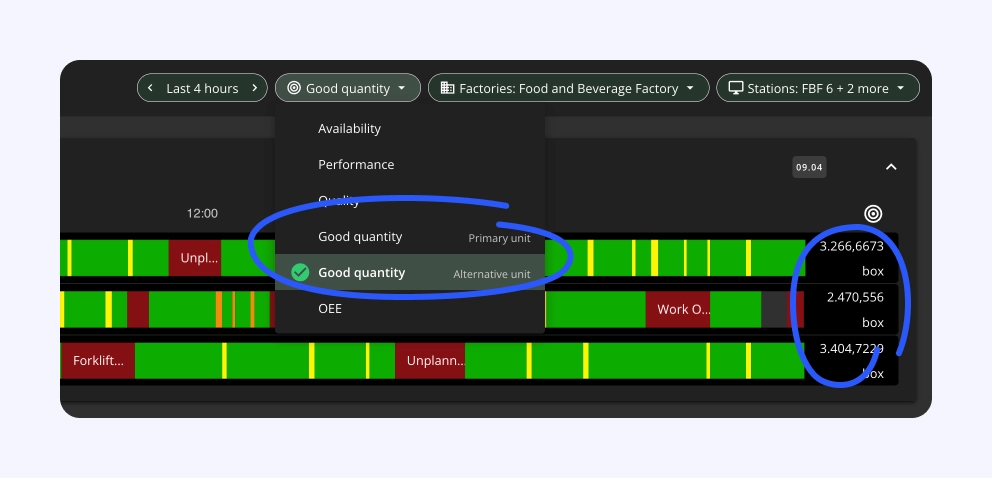
For example, operators may prefer alternative units that match the physical boxes they handle, while planning relies on main unit data for accurate raw material forecasting.
Timeline: Track shifts and events at a glance
We released two key improvements to the Timeline view to streamline your workflow:
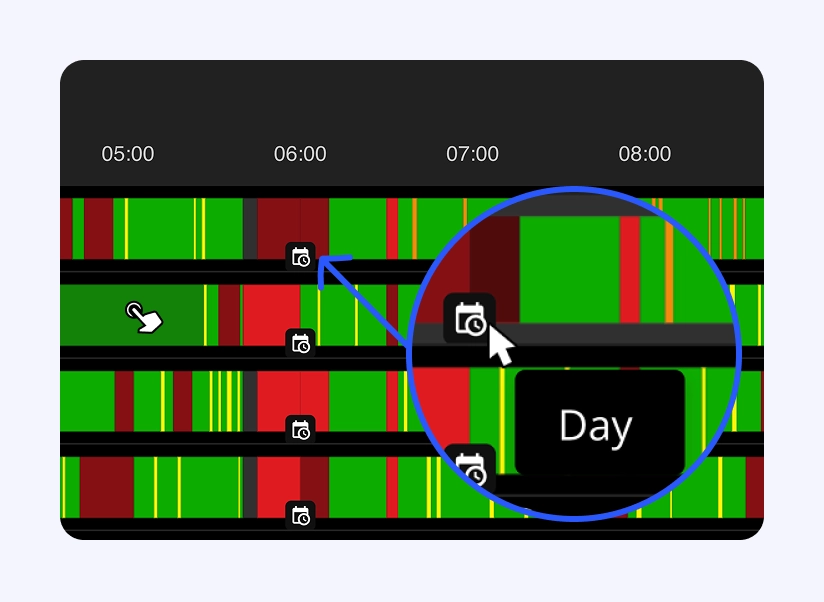
- Shift changes are marked with a small icon for instant visibility.
- Clicking on any event in the timeline will open the corresponding shift in a new tab, eliminating manual searches for past events.
These updates make it easier to review historical data in context.
Usability improvements
Shift ViewYou can now favorite your station in Shift View with a single click from the station list menu.DashboardDashboard widgets now have “Last year” as timeframe option.Shift ViewIf you are a user of the Process Metrics widget, then hovering on the timeline in the widget, will indicate the point in time on the main Shift View timeline, helping put events into context.
March
A smoother mobile experience – All over
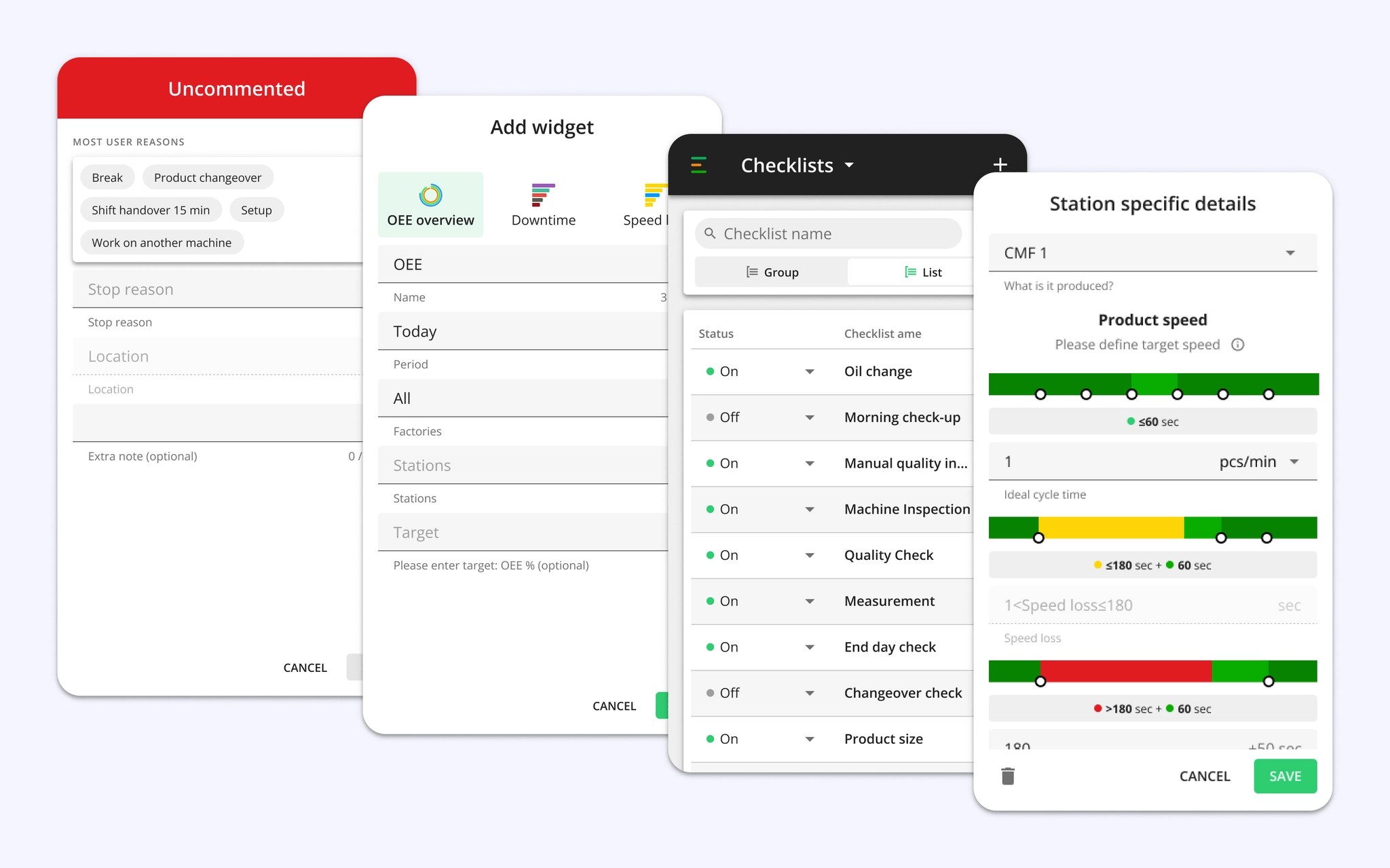
We know how crucial it is to monitor and manage production effortlessly, even when you're away from your desk. That’s why we’ve enhanced Evocon’s mobile experience, making it more intuitive and user-friendly for on-the-go access to your OEE data.
We've improved filters, selects, scaling, clarity, and readability while also removing clutter—ensuring a smoother, more efficient experience on mobile.
Here’s what’s improved on mobile:
SettingsAll settings can now be easily adjusted while on the move.Shift ViewA smoother experience for adding actions during a shift.DashboardCreate and edit widgets with ease.Factory OverviewImproved filters help quickly select factories and stations.
Identify and address bottlenecks—anytime, anywhere
In addition, we’ve enhanced reports to be functional, intuitive, and user-friendly on mobile, making it easier to identify and address bottlenecks —anytime, anywhere.
Here’s where you’ll notice the improvements:
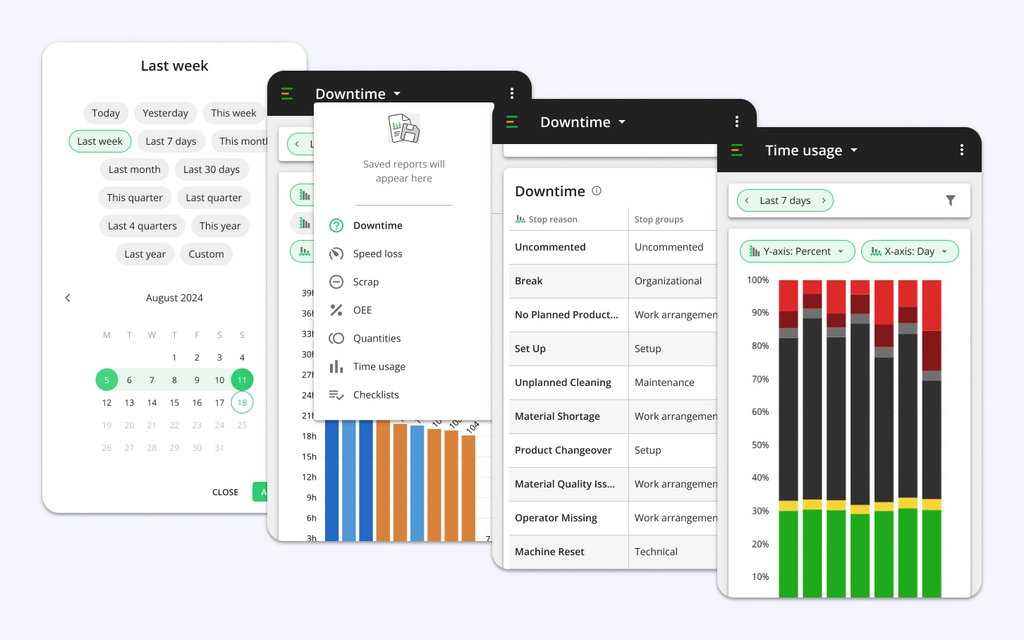
ChartsCompact and optimized for a clearer view so you can access your saved reports whenever needed.TablesBetter visibility, helping you see more data at a glance.FiltersEasier to adjust, ensuring a seamless selection process.
Usability improvements
ChecklistsWith just a few clicks, operators can quickly mark all non-relevant tasks as Not Applicable (N/A) while keeping completed tasks untouched. This update saves time by reducing the number of clicks.Shift ViewShift View’s shift time editing window now displays shift duration, helping the operators prevent time entry errors.- Dutch is now available as a system language. Learn more about available languages in Evocon.
February
Dashboard sharing for enhanced data accessibility
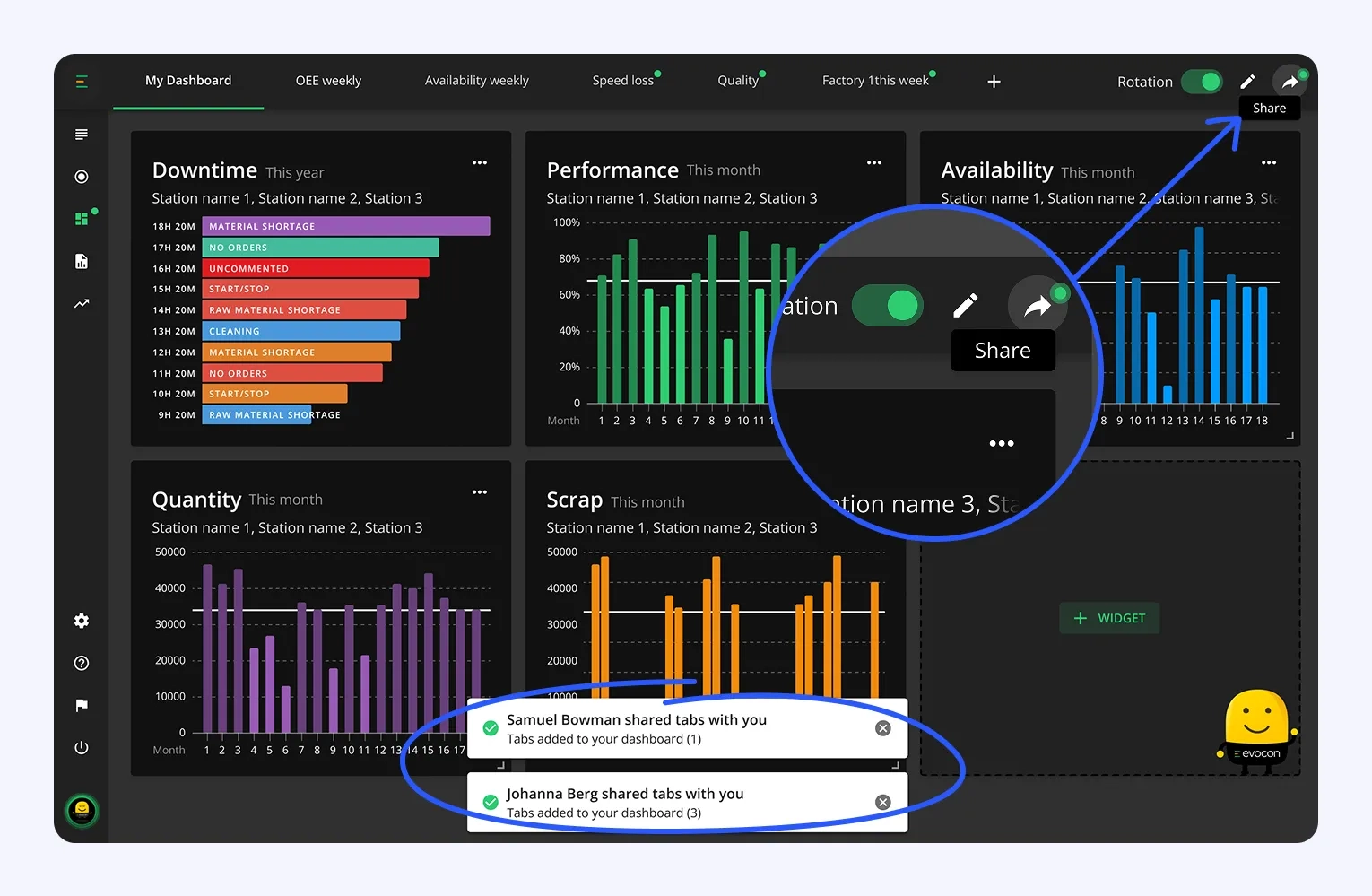
We've introduced a feature that allows administrators (Company and Factory only) to copy and share dashboard tabs with other users within Evocon. This enhancement is designed to increase the overall usage of dashboards and promote a data-driven culture across your organization.
With this feature, you can:
- Easily copy and share dashboard tabs directly with colleagues.
- Enable different roles to access vital data quickly and efficiently.
- Foster informed decision-making by ensuring data visibility across the company.
Learn more about how to use this feature from our guide.
Usability improvements
DashboardWe’ve updated the Production Data widget type with some minor visual enhancements to simplify data monitoring at a glance.Factory OverviewThe Timeline view now shows data more granularly, making the identification of potential issues easier.Shift ViewThe OEE percentage now follows the selected % decimal preference to ensure accurate shift metrics, which is crucial for operator bonus calculations.