
Support and what's new · Guide 11 of 13
Release Notes 2024
Month-by-month overview of the new features and usability improvements released in Evocon during 2024, from February to December.
On this page
- December
- Introducing Grid View: A smarter way to monitor factory status
- Usability improvements
- November
- Holiday release: Icy Mr. Evocon is here!
- Custom multi-select option for Checklists
- Checklists task descriptions
- Add multiple stations to one shift template
- Usability improvements
- October
- Enhanced speed widget: Now supporting multiple unit formats in Shift View
- Mr Evocon unleashes his spidey senses for Halloween
- Start a planned shift early
- Usability improvements
- September
- New Alert types – Scrap & Changeover
- Device offline notification in Shift View
- Editing shift times in Shift View
- Review previous time periods with more flexibility
- August
- Shift View bottom menu update
- Usability improvements
- July
- Joining production stops for data accuracy
- Customize your saved reports list
- Enhanced speed loss visibility in Shift View
- Olympic-themed feedback
- Usability improvements
- June
- Adding scrap and increasing total quantity
- LOT/Batch identification number to production runs
- Checklist status and downtime Repeats triggers for Alerts
- Compare and benchmark factories
- Mr Evocon's new emotions
- Usability improvements
- May
- Compact views for better user experience
- Planning the end time of extra shifts
- Batch/order filled indication
- Usability improvements
- April
- Color update for planned stops
- Exporting large reports
- Checklists authentication
- Mr Evocon's mood change
- Usability improvements
- March
- Standard Checklist report
- Deleting finished shifts
- Alternative units for products
- Usability improvements
- February
- API keys management
- Upgrading from Vue 2 to Vue 3 for Enhanced Efficiency and Features
December
Introducing Grid View: A smarter way to monitor factory status
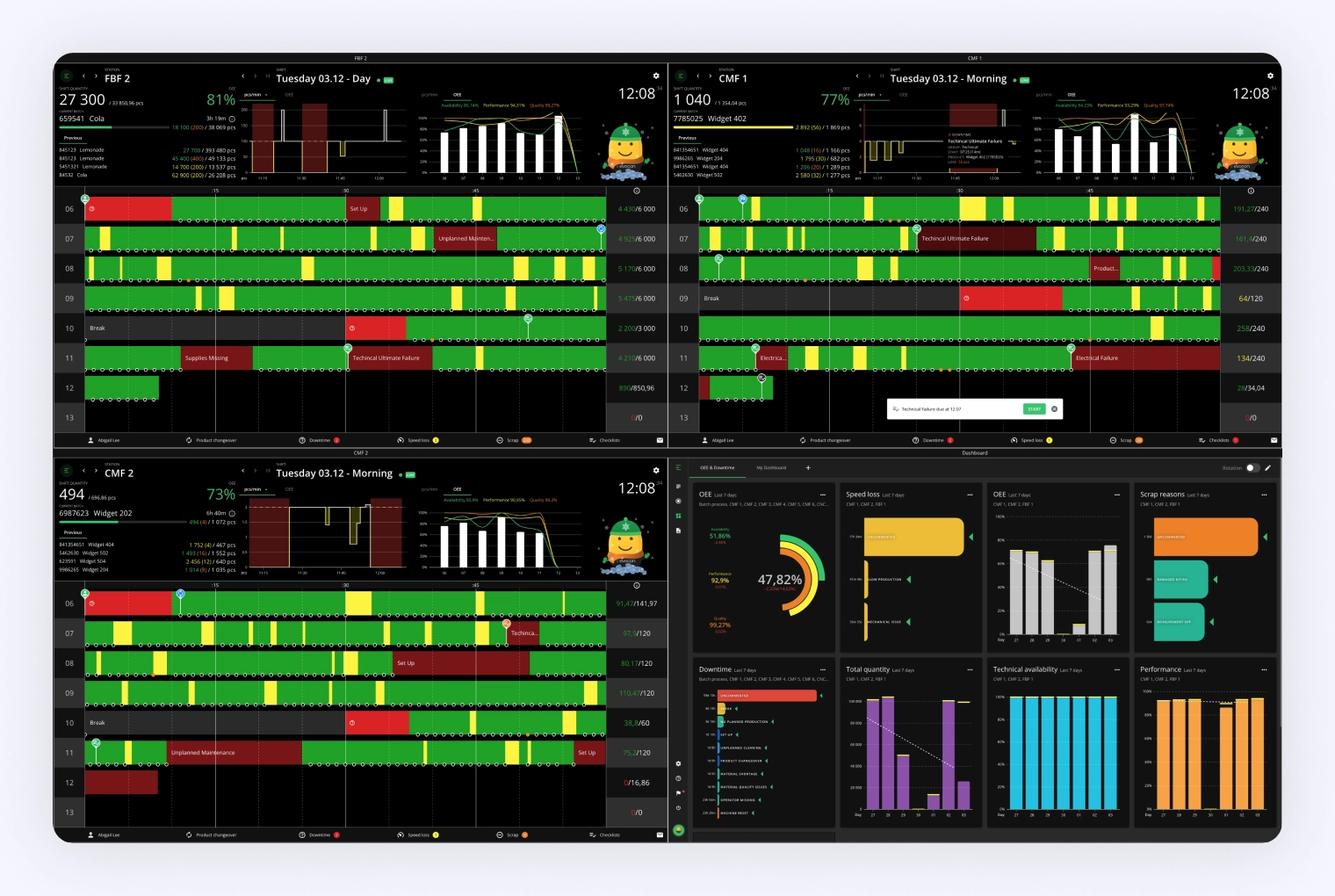
Grid View has been around for some time but now all administrators and office users can access it straight from the main menu. Use the view it to get a more detailed overview of your factory or quickly compare multiple stations.
With it you can create from 2 up to 8 views on one screen, and a shortened URL (that you can copy while creating a grid) will make it easier to open it on TV screens.
Learn more about Grid View from here.
Usability improvements
-
Shift View: Speed widgetQuickly identify performance peaks and lows in the Speed Widget and pinpoint their corresponding areas on the timeline with dynamic highlights.
November
Holiday release: Icy Mr. Evocon is here!

The holiday season is upon us, and Mr. Evocon has embraced the magic of winter. Wrapped in shimmering ice and adorned with snowflakes, his cheerful demeanor now sparkles with holiday cheer.
As snowflakes gently fall and OEE improves, Mr. Evocon glides gracefully through the frosty landscape, hacking through ice and bringing warmth and joy to the Shift View experience.
Custom multi-select option for Checklists
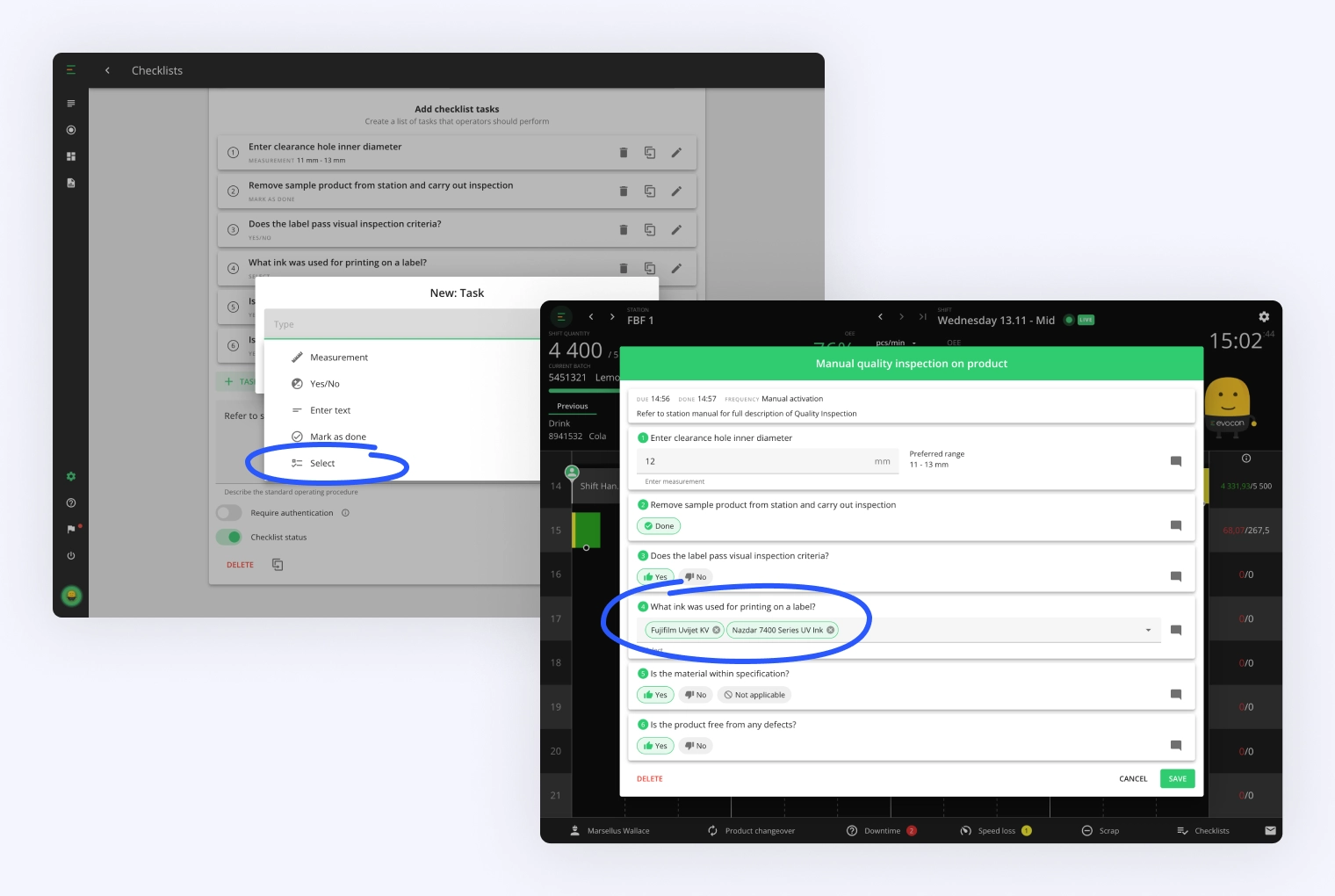
Checklists has a new task type—Select. Admins can now create a Checklist task that requires operators in Shift View to choose the result from a predefined list. The "Select" task can be set up as single- or multi-select based on requirements.
More information is available here for Settings and here for Shift View.
Checklists task descriptions
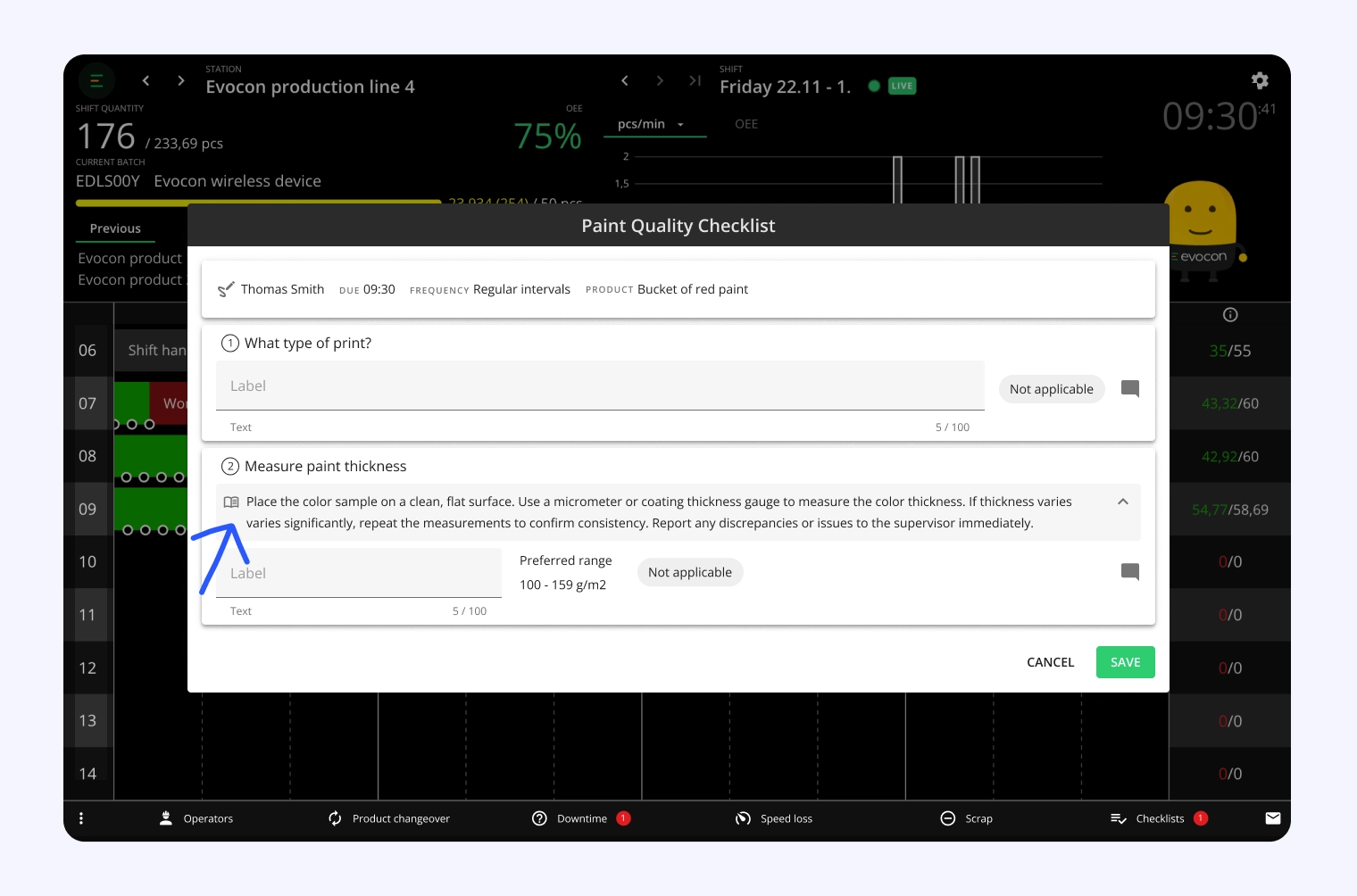
Administrators can now add detailed descriptions to individual tasks in the Checklists settings. The task descriptions allow operators to receive clear, specific instructions on how to perform each task.
The description block can be expanded to review the guidelines and refresh understanding as needed.
Add multiple stations to one shift template
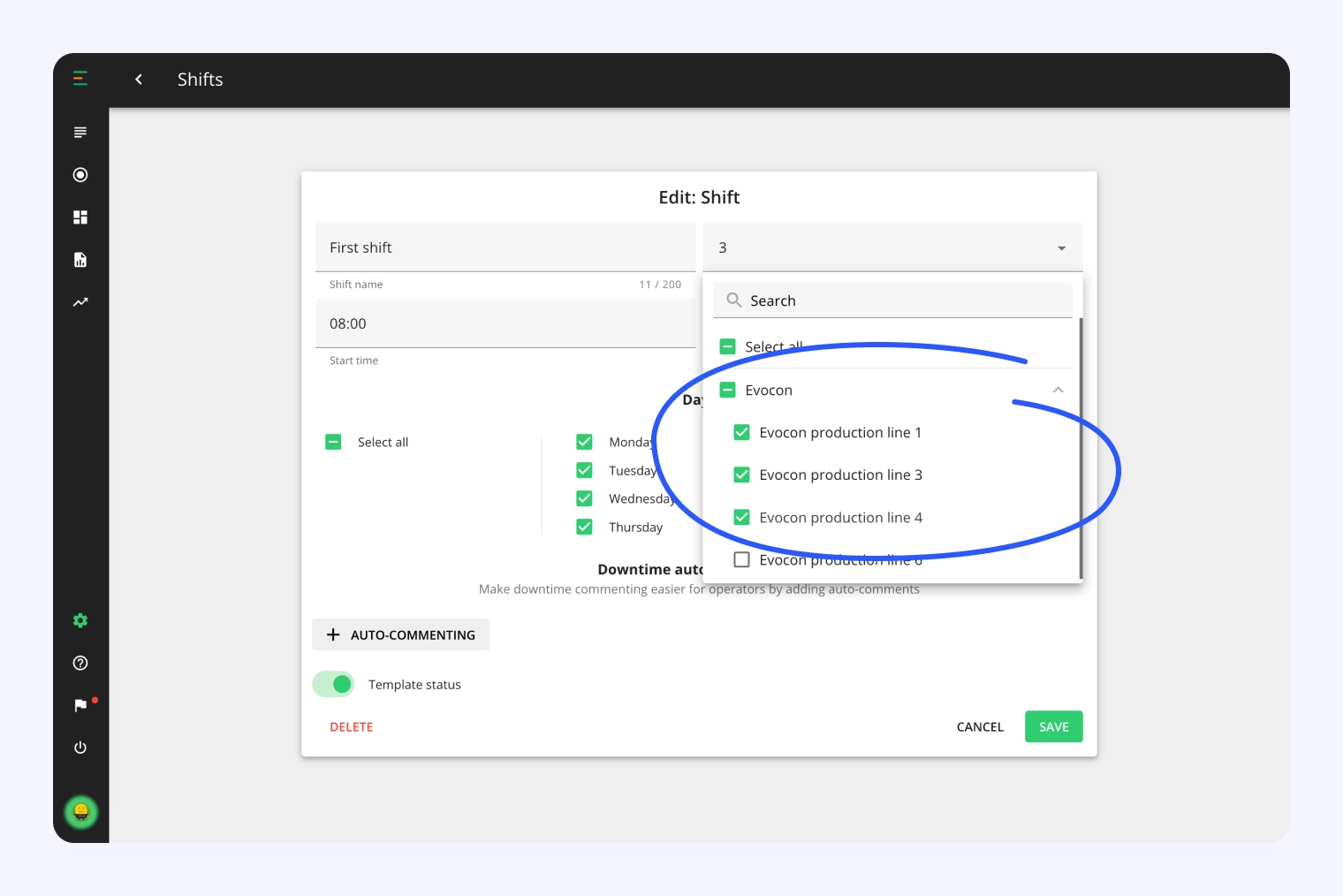
We've launched an update that improves the way shift templates are set up.
Previously, shift templates had to be created separately for each station, even with uniform shift times across stations. This update allows multiple stations to be added to a single shift template, making shift management more efficient:
-
Simplified setup, especially when expanding machine coverage. Add stations to new or existing templates.
-
Easily adapt to changing shift times due to seasonality or workload adjustments, with fewer templates to manage and update.
Two more smaller improvements were completed during this mission:
-
A "Select all" option to choose all weekdays at once when setting shift days.
-
A shift status toggle to easily control whether a template is saved as active or inactive.
More details can be found here.
Usability improvements
-
ReportsWe have updated the stop type filter to include the option to specify planned stops that are either included in or excluded from OEE calculation and for unplanned stops to filter stop reasons that are included in or excluded from technical availability.
-
ChecklistsThe checklist downtime frequency was updated to include the possibility of triggering a checklist if a stop reason lasts longer than the specified time. -
ChecklistsThe list of manual checklists in Shift View is now arranged alphabetically for clarity. -
AlertsThe new variable, {TaskResults}, adds all checklist task results to the alert, providing detailed insights into checklist outcomes and allowing for fast and effective assessment.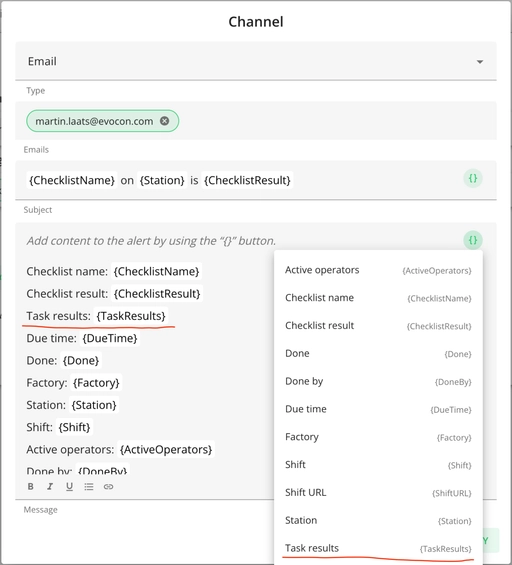
-
AlertsYou can now set up alerts in case there are too many uncommented stops in a shift. This helps identify and address issues quickly, minimizing uncommented downtime and its impact on operations. -
Shift ViewStation selection in Shift View now has the station group level, to make navigation between different stations easier. This is especially useful in environments with multiple factories and numerous stations which are categorized into groups.
October
Enhanced speed widget: Now supporting multiple unit formats in Shift View
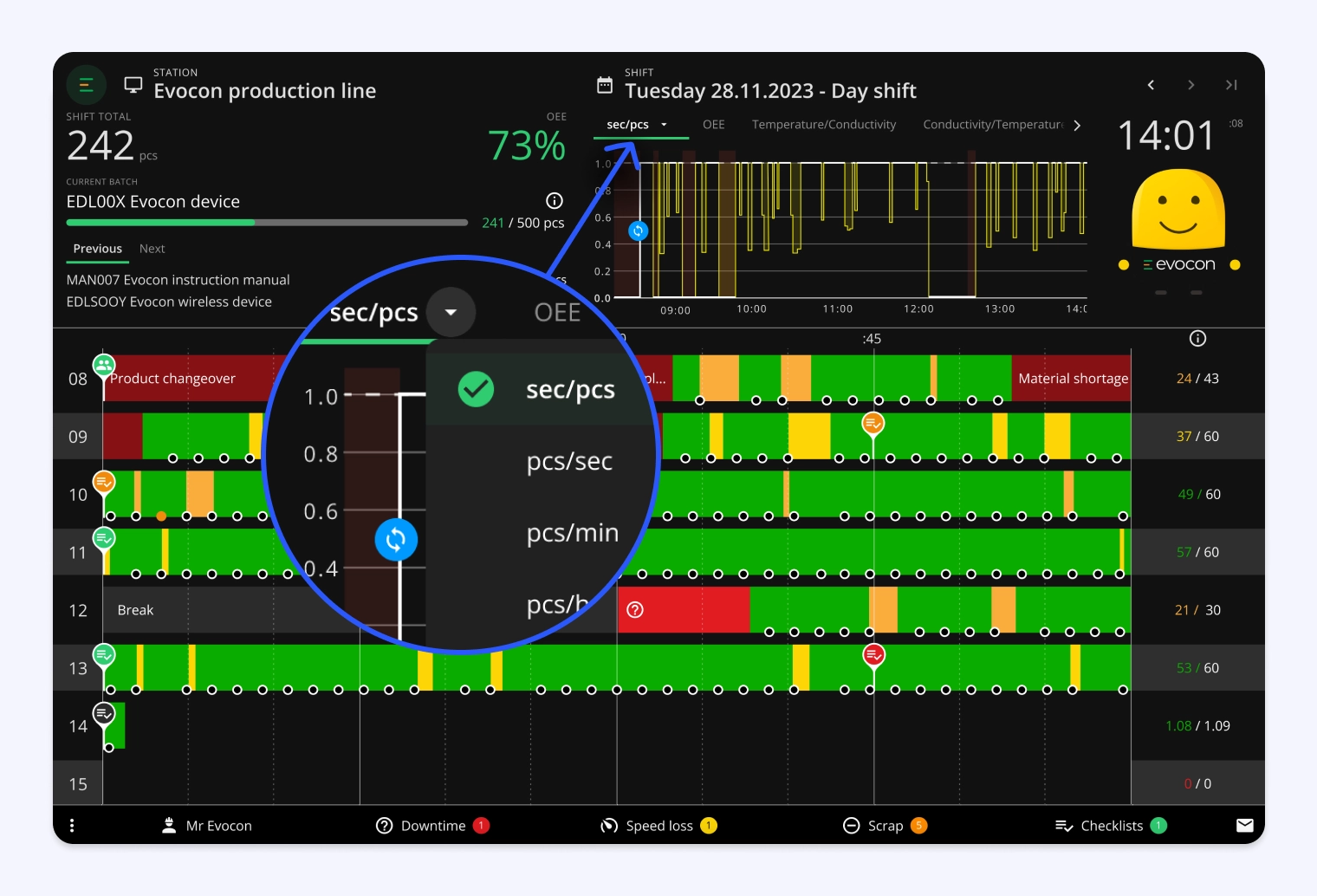
We have enhanced the speed widget in Shift View to support multiple unit formats, offering greater flexibility in monitoring your production speed.
- New formats: View speed data in units/hour, units/minute, units/second, seconds/unit, and seconds/signal. Select the format that best suits your operational needs.
- Automatic unit selection based on product configuration: By default, the widget displays data in the unit format defined in your product's route settings. For example, if Product A is set to kg/min, the speed will display in kg/min when producing that product, if Product B is set to kg/h, the speed will display in kg/h when producing that product.
- Global format override: Prefer a different unit format? You can override the default by selecting your preferred option from the dropdown menu next to the speed widget tab. This selected format will then be applied to all products, ensuring consistency across your Shift View.
- Alternative unit conversion: Easily switch (from view settings) between primary and alternative units defined in your route settings while keeping the preferred format active. This allows for quick conversion of units while maintaining your selected speed format.
For more information on how to utilize the new Speed widget formats, please click here.
Mr Evocon unleashes his spidey senses for Halloween

This year, Mr. Evocon will be wrapped in spiderwebs. His happy emotions move from the powerful Spiderman figure to being stuck on the web and struggling to get out due to an undesired shift performance. And when the night comes, he will be transformed into a bat, hanging peacefully in the dark Shift View cave.
The Halloween phantom will be running live for one week at the end of the month.
Start a planned shift early
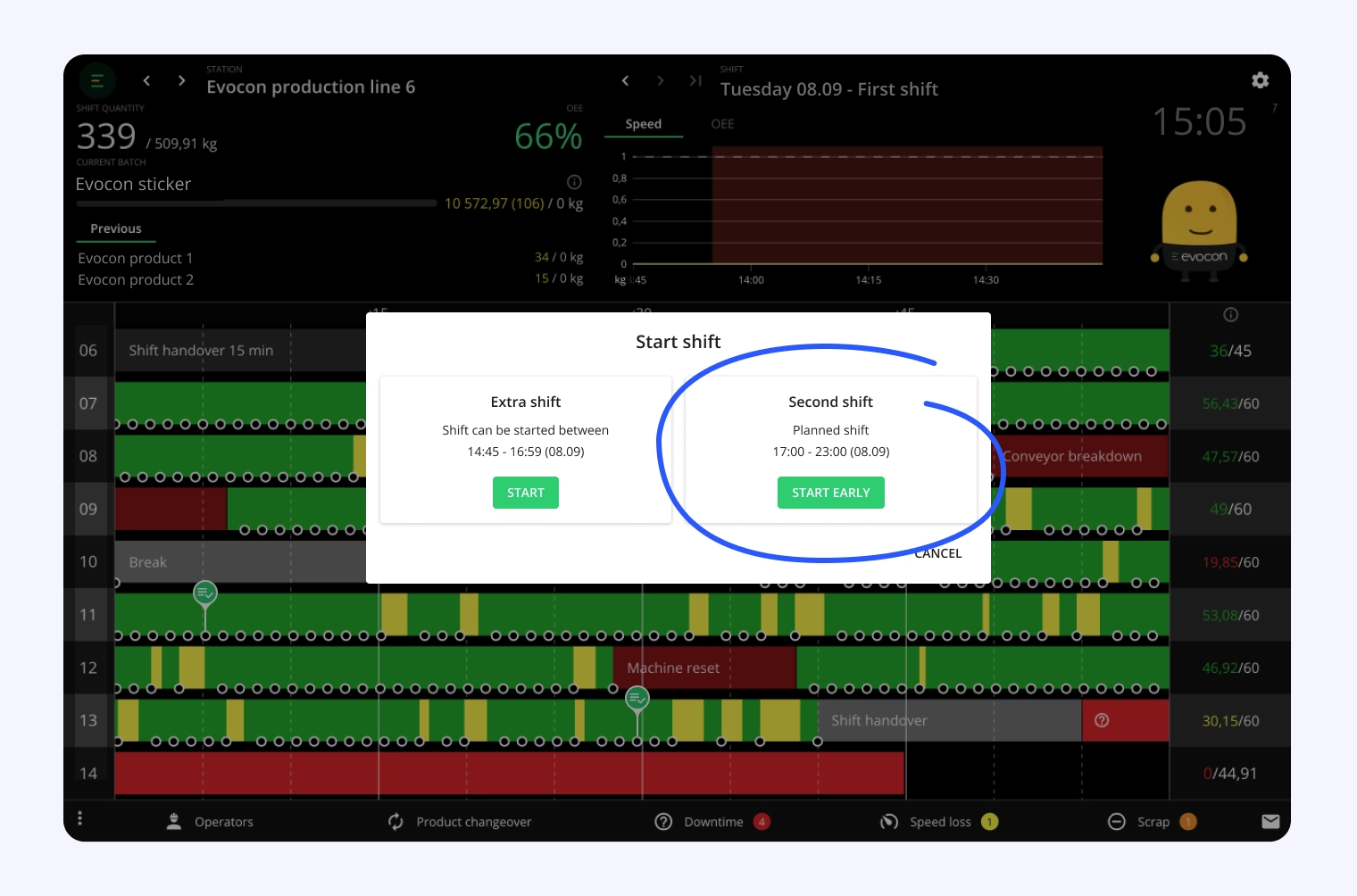
We understand that production doesn't always stick to the schedule, and operators sometimes begin their workday earlier. To improve this, we've added a new feature that lets operators to start planned shifts early without the need to create an extra shift.
Now, starting a planned shift early ensures that all work is captured within the main shift, providing more accurate data and smoother operations.
More details can be found here.
Usability improvements
- To make analyzing data in Reports easier for those who prefer to view results based on quarters, we have added the "Quarter" to the x-axis options.
September
New Alert types – Scrap & Changeover
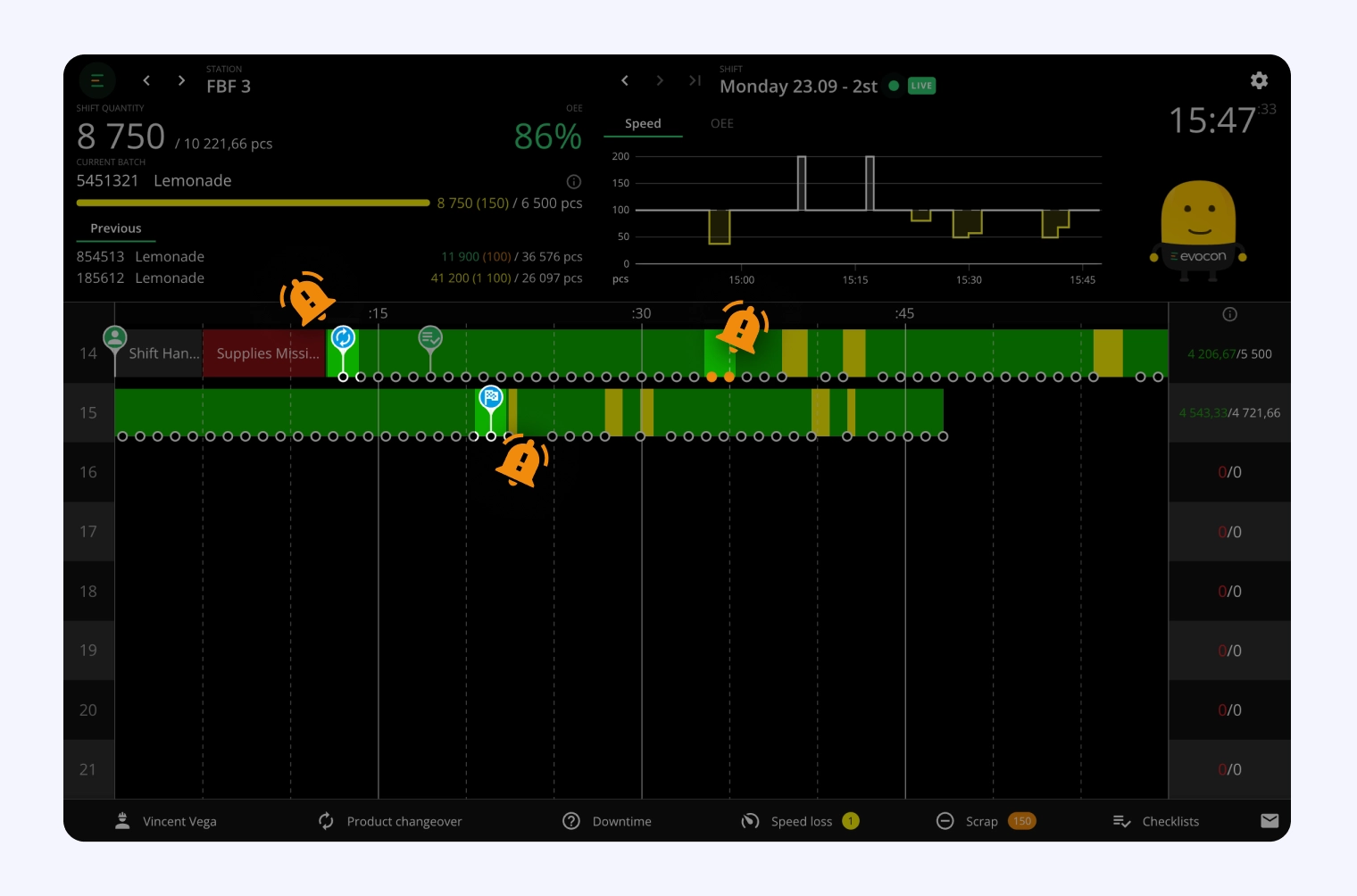
We have released two new alert types, designed to offer deeper insights into product changes and provide real-time notifications when scrap occurs.
Scrap alert: Receive an email or webhook notification when scrap reaches the set threshold. This helps identify quality issues early and enables prompt action.Changeover alert: You will now receive notifications when a product changeover is added in Shift View or when the target is reached. This update helps you track product changes, anticipate upcoming events, and plan the next steps effectively.
More information on available alert types can be found here.
Device offline notification in Shift View
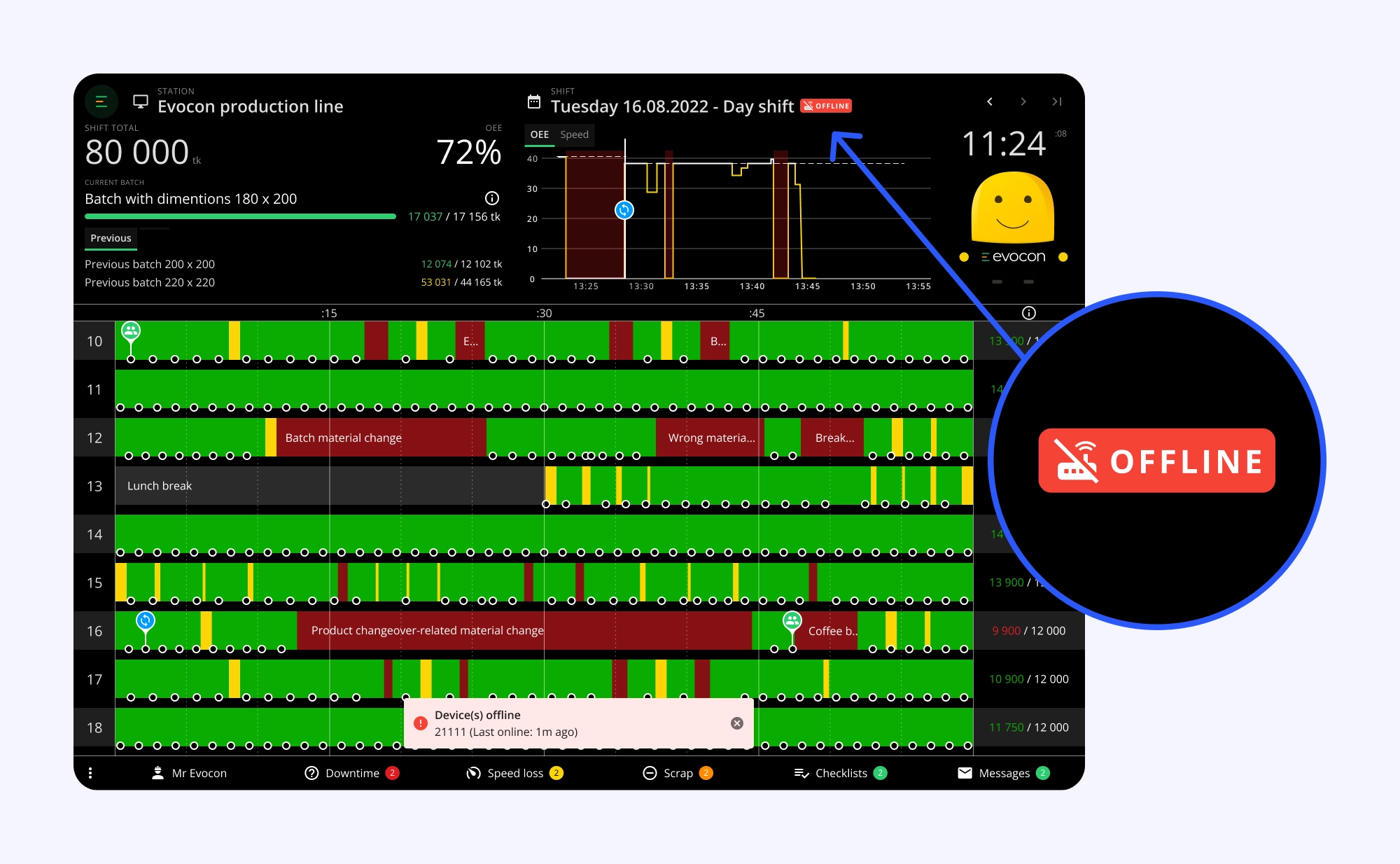
Device issues were previously only accessible from Settings, but now it's possible to discover Evocon's IIoT device connectivity issues faster thanks to a notifications visible in Shift View, minimizing potential disruption time.
This prompt visibility speeds up the response time, leading to quicker action and resolution.
More information can be found here.
Editing shift times in Shift View
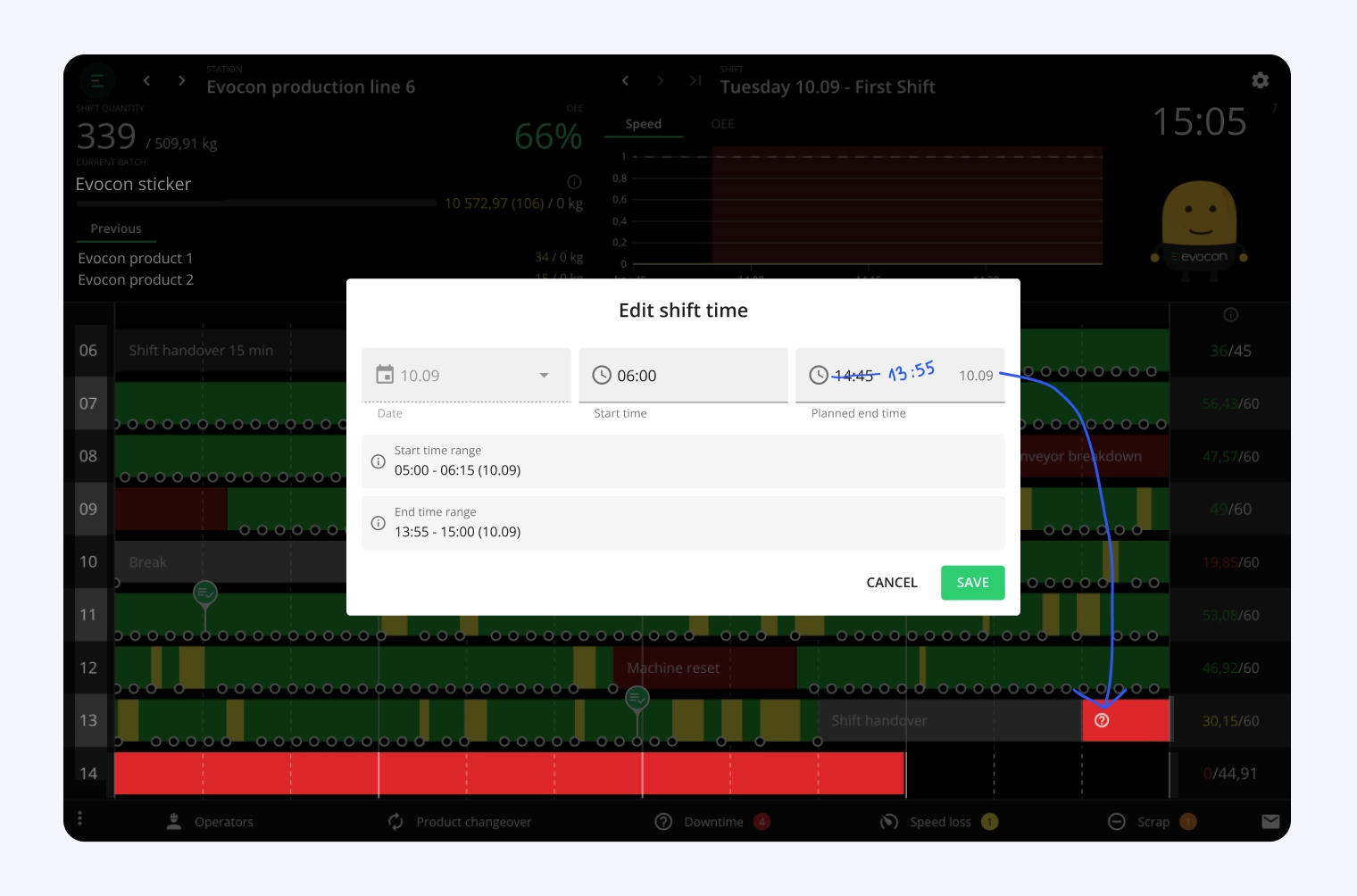
We have learned that shift times can be quite fluid, and there is need for more flexibility in managing shift times from the Shift View.
For example, work in the factory can begin before the shift has been scheduled to start in Evocon, meaning machines would be activated before the shift started, and this would result in production signals not being counted.
Or, a shift might still be running in Evocon while operators have already finished their day, leaving a time of uncommented downtime during which no work actually happened.
To ensure that shift data reflects the actual work times we've made updates that give users more control over shift times:
- Admin users can now modify the start and end times of ongoing or finished shifts.
- Shift View users and Office users can adjust shift start and end times when editing an ongoing shift, depending on their permissions.
To avoid any data being lost, we've implemented safeguards that prevent users from cropping any production signals or changeovers when editing shift times. Read more about the update from this help article.
Review previous time periods with more flexibility
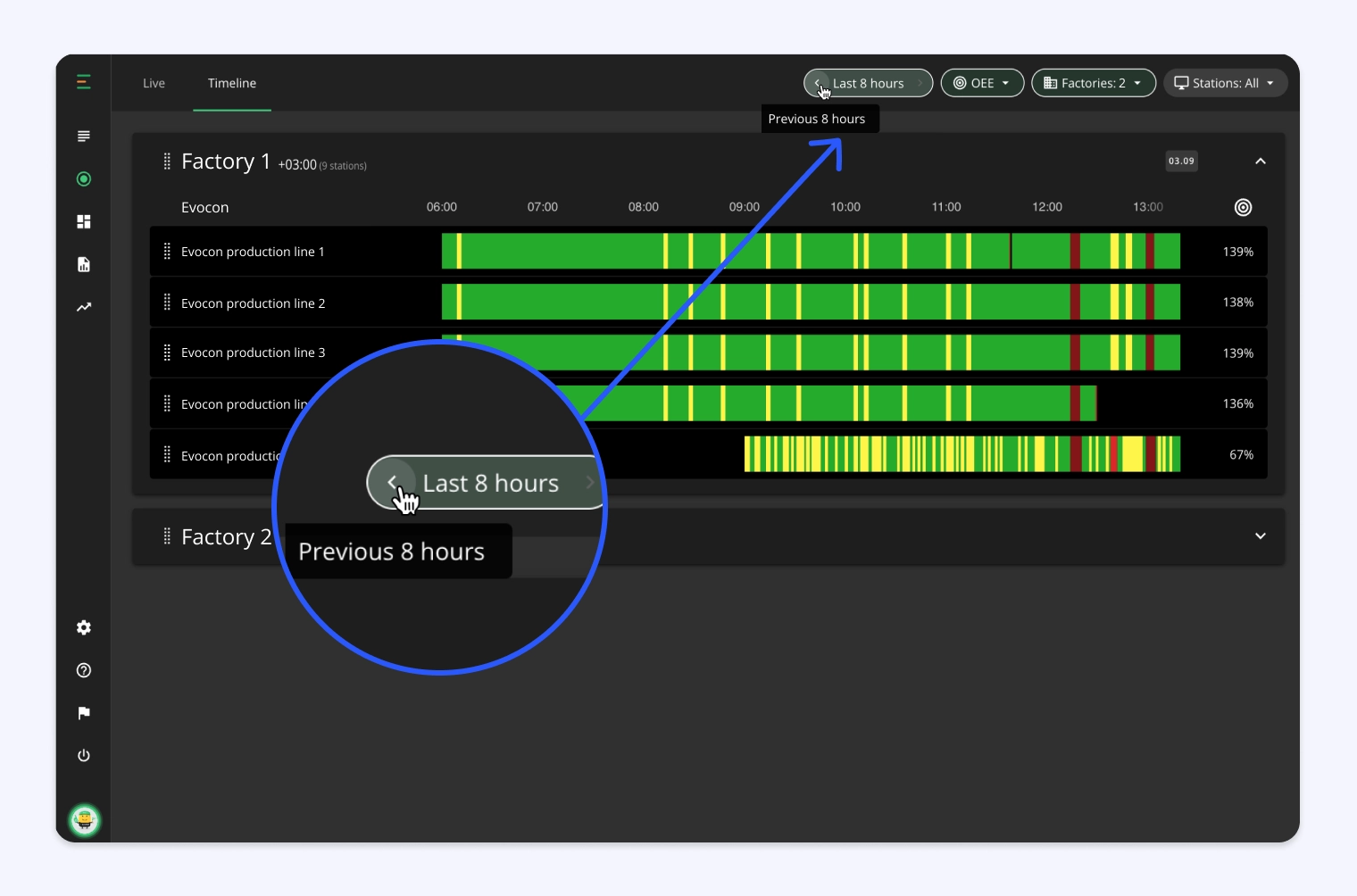
The Factory Overview Timeline view now allows you to move backward up to 7 days from the current moment. This feature enables you to monitor recent events and quickly gain an overview of activities across the entire factory with more flexibility. Please find more information here.
August
Shift View bottom menu update
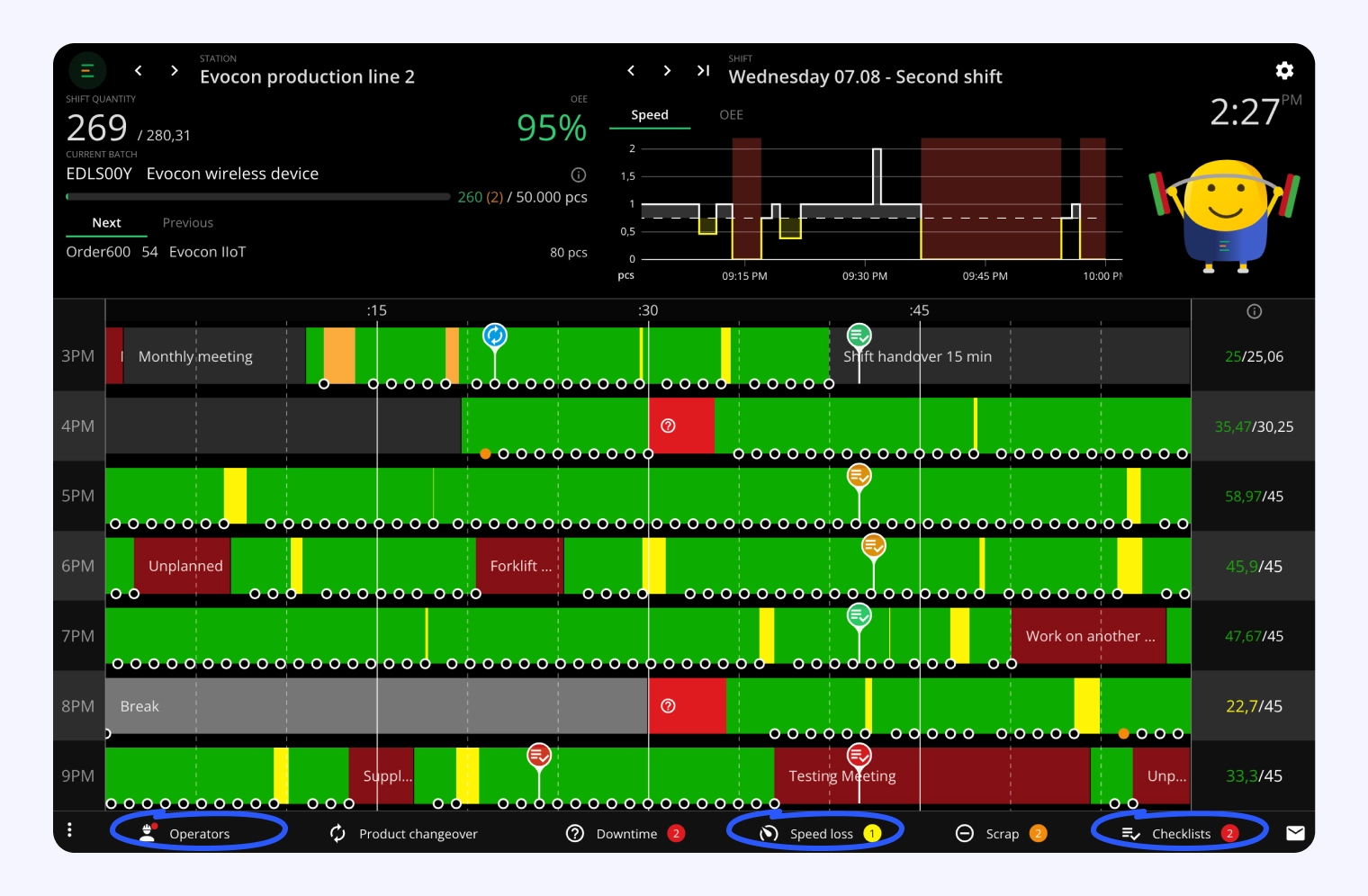
The Shift View bottom menu has been updated for consistency with new logic to enhance usability.
Colored circles behind Downtime, Speed Loss, and Checklists now display the number of outstanding actions to help users easily identify tasks that require attention. Scrap will continue to show the amount added. Additionally, a red dot will appear on the operator tab when the operator has not yet assigned themselves to the line (applicable only to lines requiring operator selection).
These updates are designed to draw attention to actions that need to be addressed, promoting increased commenting and checklist completion.
Usability improvements
- To enhance security of the application, we updated the initial login flow. When an account is created the password is no longer sent to Office and admin users via e-mail, but they need to create it themselves. Please find more information here.
- Downloadable data files in Reports now have the translated stop, speed loss and scrap reasons (if translations have been applied).
- If you have an active ERP integration, then in Shift View, when marking a new changeover, you can search for orders using SKU in addition to order number.
July
Joining production stops for data accuracy
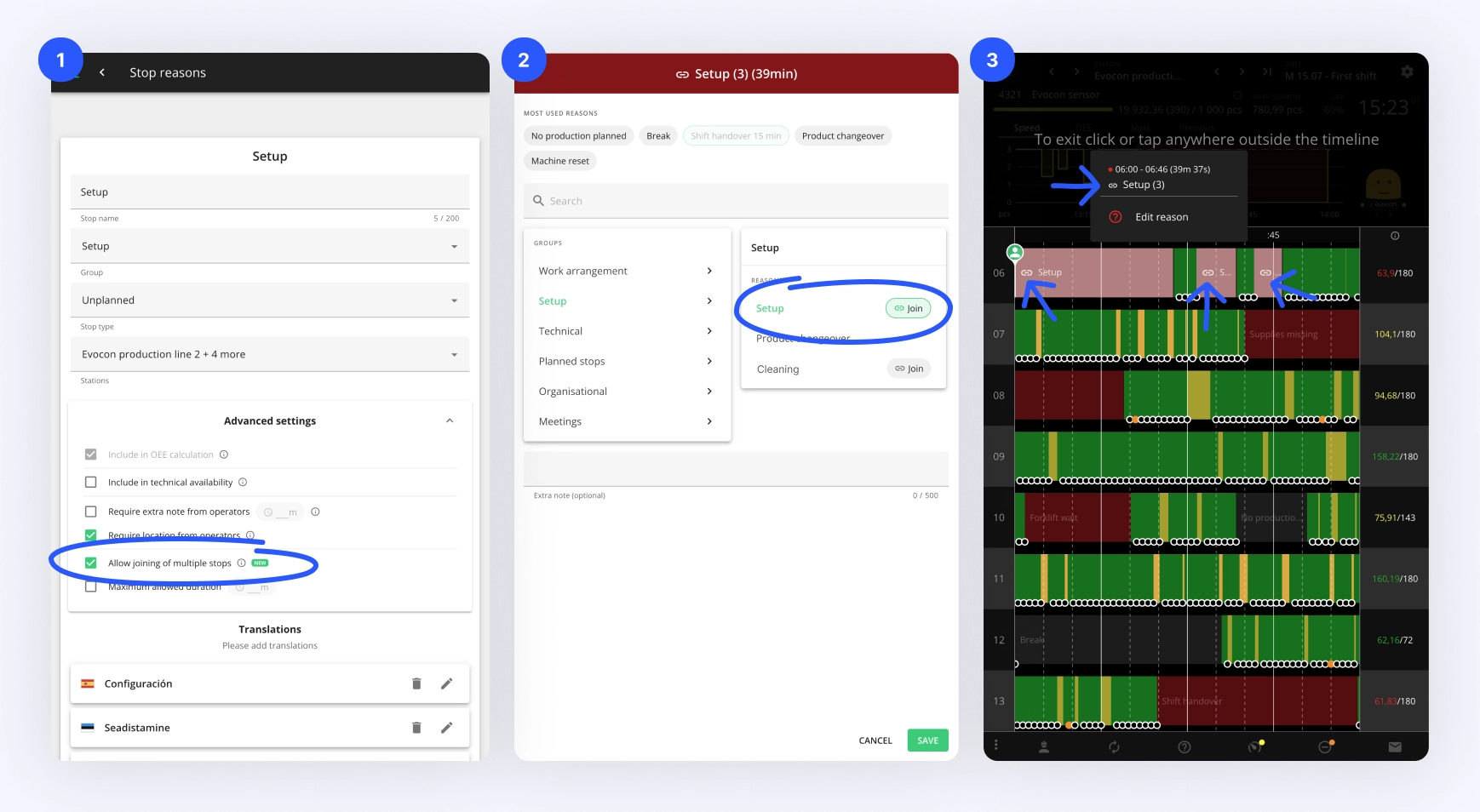
The new "joining the production stops" feature allows operators to join stops that should be counted as one, providing data accuracy in statistics.
For example, downtime occurring after a product changeover is frequently fragmented due to the signals generated by the product setup process, which includes either test products or scrap pieces resulting from machine calibration.
To address this issue, now you can enable the "Allow joining of stops" option in stop reason settings. This feature allows multiple stops that belong to the same reason to be combined in Shift View and statistically handled as a single stop. This provides a more accurate representation of setup times, enabling more effective action based on accurate data.
The joining of stops is beneficial for various other stop types in addition to changeovers. For example, in maintenance stoppages, where multiple stops can be merged into a single stop for better analysis and management.
More information is available here.
Customize your saved reports list
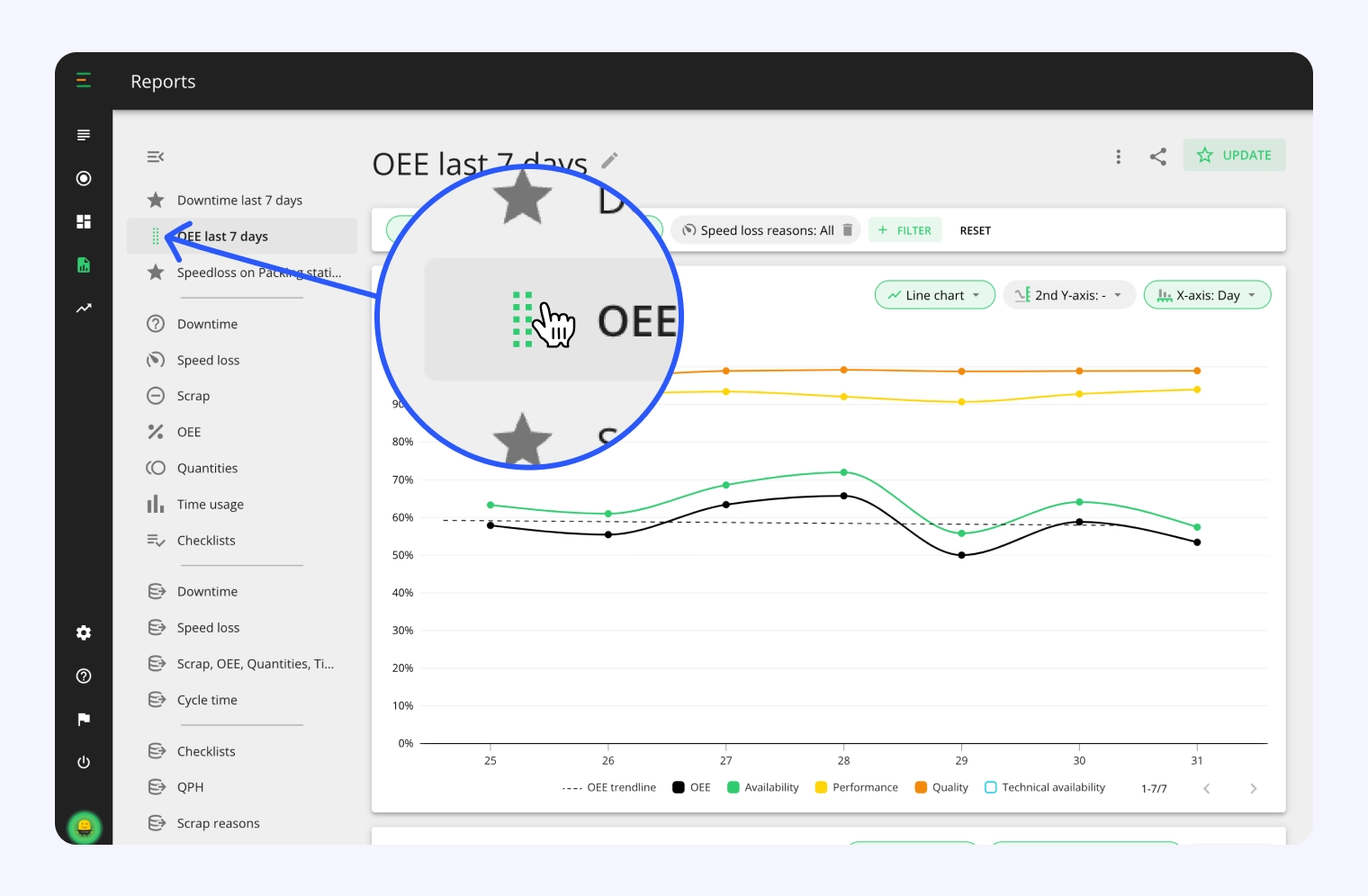
You can now rearrange your saved reports for better organization. This feature allows you to prioritize and order your reports based on your specific needs, streamlining access to your most important production data.
Enhanced speed loss visibility in Shift View
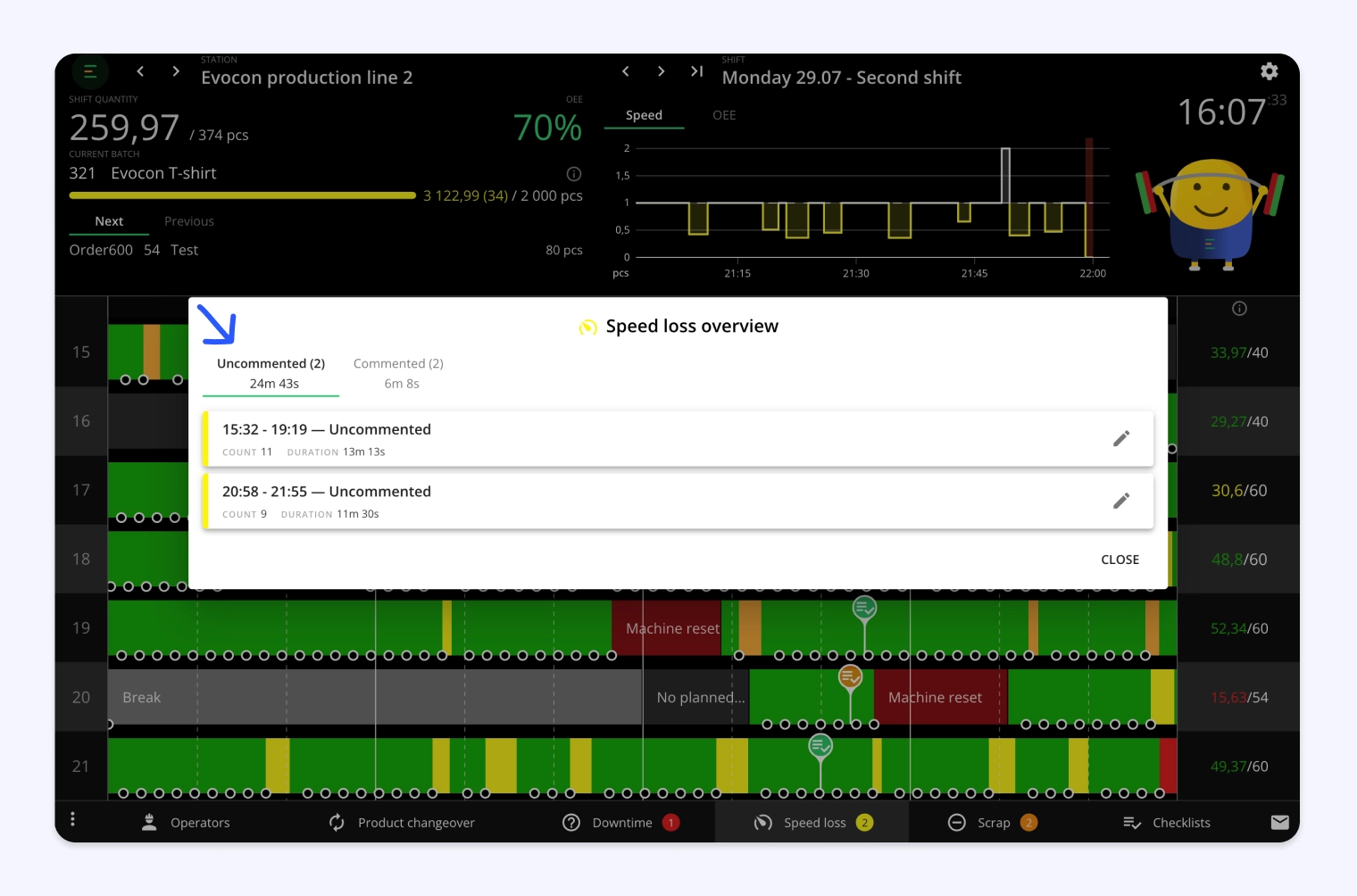
We're excited to introduce improvements to Shift View that will help you better understand and manage speed loss in your operations. Here are the key changes we've implemented:
- Smarter grouping: We've refined how speed loss is grouped within the Shift View timeline:
- Insights from our clients show that running batch in most cases has the same speed loss reason, meaning the same issue is causing the machine to run slower than ideal speed. Speed loss is now grouped between changeovers, providing a more logical view of your production flow.
- If there are no changeovers or commented speed loss, you'll see a single group for the entire shift.
- You can still adjust the grouping size using the bracket tool, giving you flexibility in how you view your data.
- Improved bottom menu: The number in the bottom menu now indicates groups of uncommented speed loss, allowing for quicker identification of potential issues that were left uncommented.
- New uncommented speed loss overview modal: Access information about uncommented speed loss directly from the speed loss overview modal, enabling faster identification of all issues related to speed loss.
These updates are designed to bring more attention to speed loss, helping you identify and address inefficiencies more effectively.
Olympic-themed feedback

In celebration of the Paris 2024 Olympics, we've added a special feature to our Shift View. Our mascot, Mr. Evocon, will provide feedback in the spirit of the games, focusing on weightlifting.
Help Mr. Evocon train and compete for the gold medal as you review your shift performance!
Usability improvements
- We added the option to set separate decimal preferences for numbers (123) and percentages (%). You can change your current preferences, from your profile settings.
- "% of planned time" is now available as a Y-axis option in the Downtime report.
- Reporting got three new period options: "This quarter", "Last quarter", and "Last 4 quarters."
- Factory Overview now includes new hovers to help users better understand the details of production quantities.
June
Adding scrap and increasing total quantity
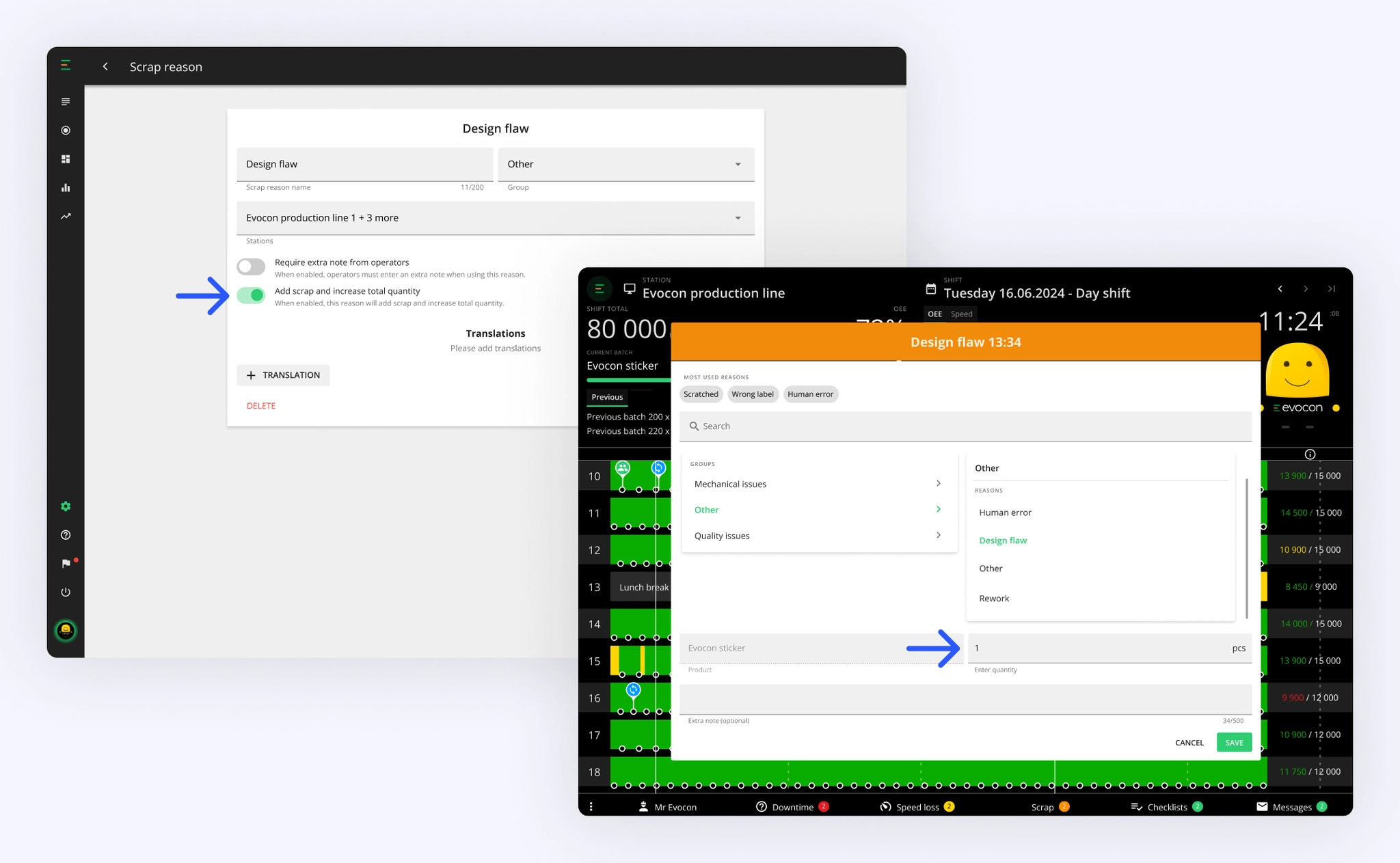
The aim of this feature is to enable clients to accurately capture quality data even when our sensor solution cannot, due to defective items being removed from the line before reaching the registration point.
Why is it needed?
With this update, when specific scrap (set up under scrap settings) is recorded in Evocon, it will also be included in the total quantity count. This ensures that all items produced on the line are accounted for, improving waste tracking and raw material management.
More information is available here.
LOT/Batch identification number to production runs
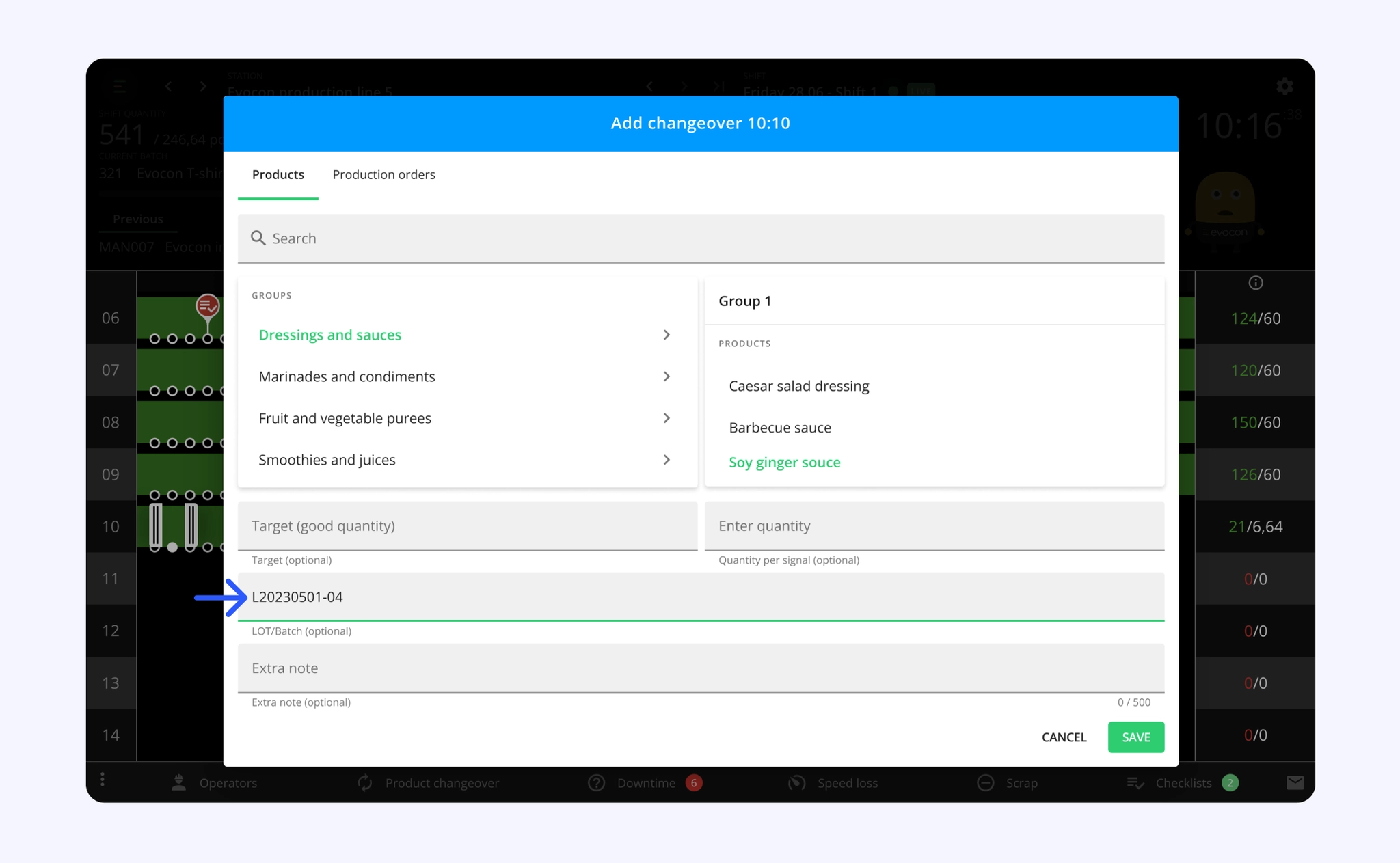
The changeover modal now allows you to capture the LOT/Batch identification number in a standardized way. So far, it has been entered into the extra note field and extracted in the later stages of data analysis.
As a first step, we have also added the LOT/Batch number to the custom reports. In the future, this data will be integrated into the rest of the system.
Why is tracking LOT/Batch important? The primary significance of LOT and batch tracking lies in quality control. If a batch has issues or defects, all items with the corresponding lot number can be isolated or inspected. This not only safeguards product quality but also enhances customer satisfaction and safety.
More information is available here.
Checklist status and downtime Repeats triggers for Alerts
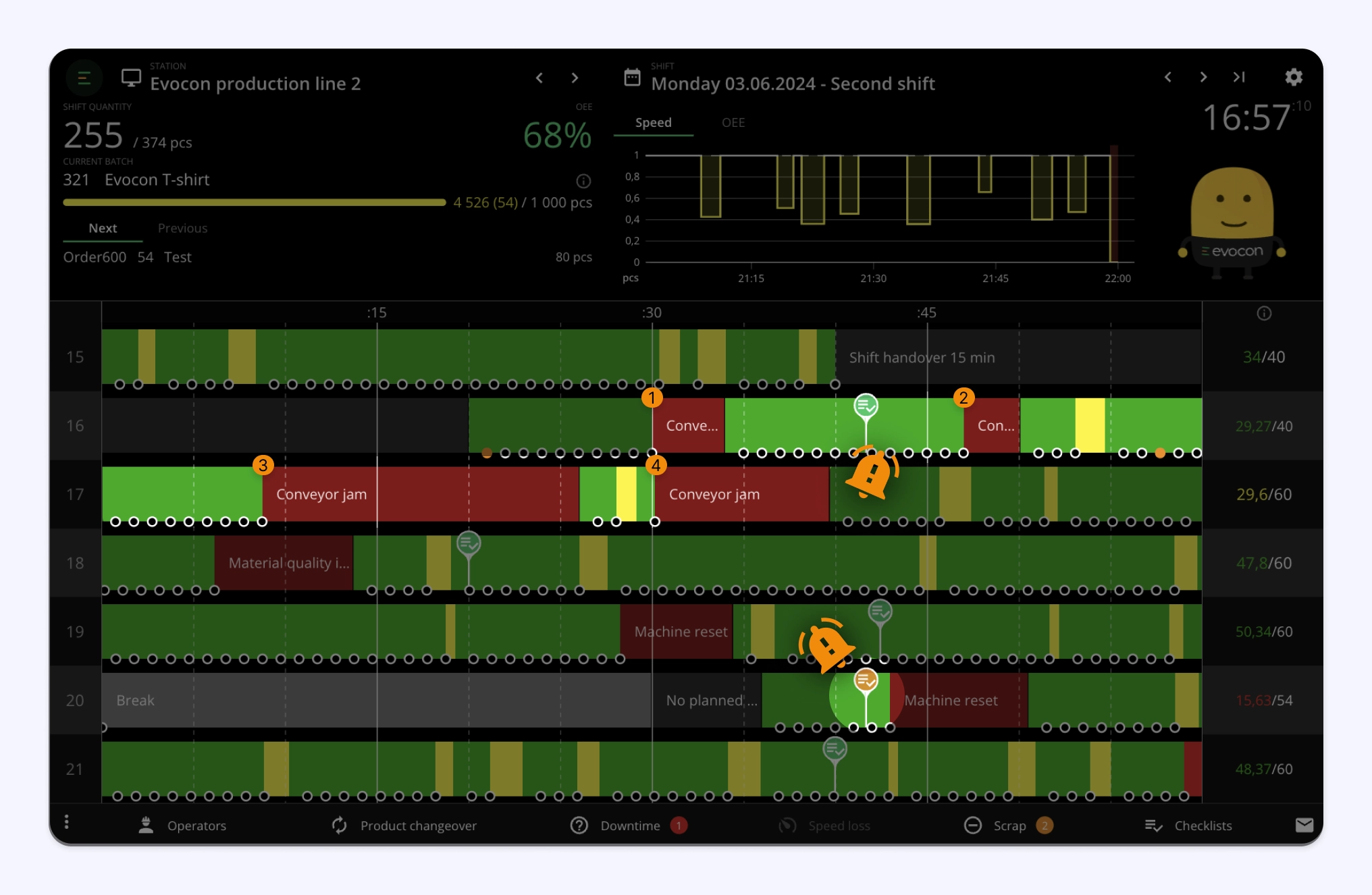
We are excited to announce the release of two new trigger types for Alerts, designed to enhance the monitoring of shop floor events and facilitate faster response times by notifying the appropriate personnel.
- Entirely new Checklists Alert. You can now configure alerts based on specific Checklists and their results (e.g., unsuccessful checklists), ensuring that critical information is promptly communicated to the right individuals.
- Addition to Downtime Alert —> "Repeats" trigger. You can now easily track recurring issues with the new downtime repeats feature in Alerts. It will notify you every time the same problem happens, ensuring you're aware of repeated machine stops.
Compare and benchmark factories
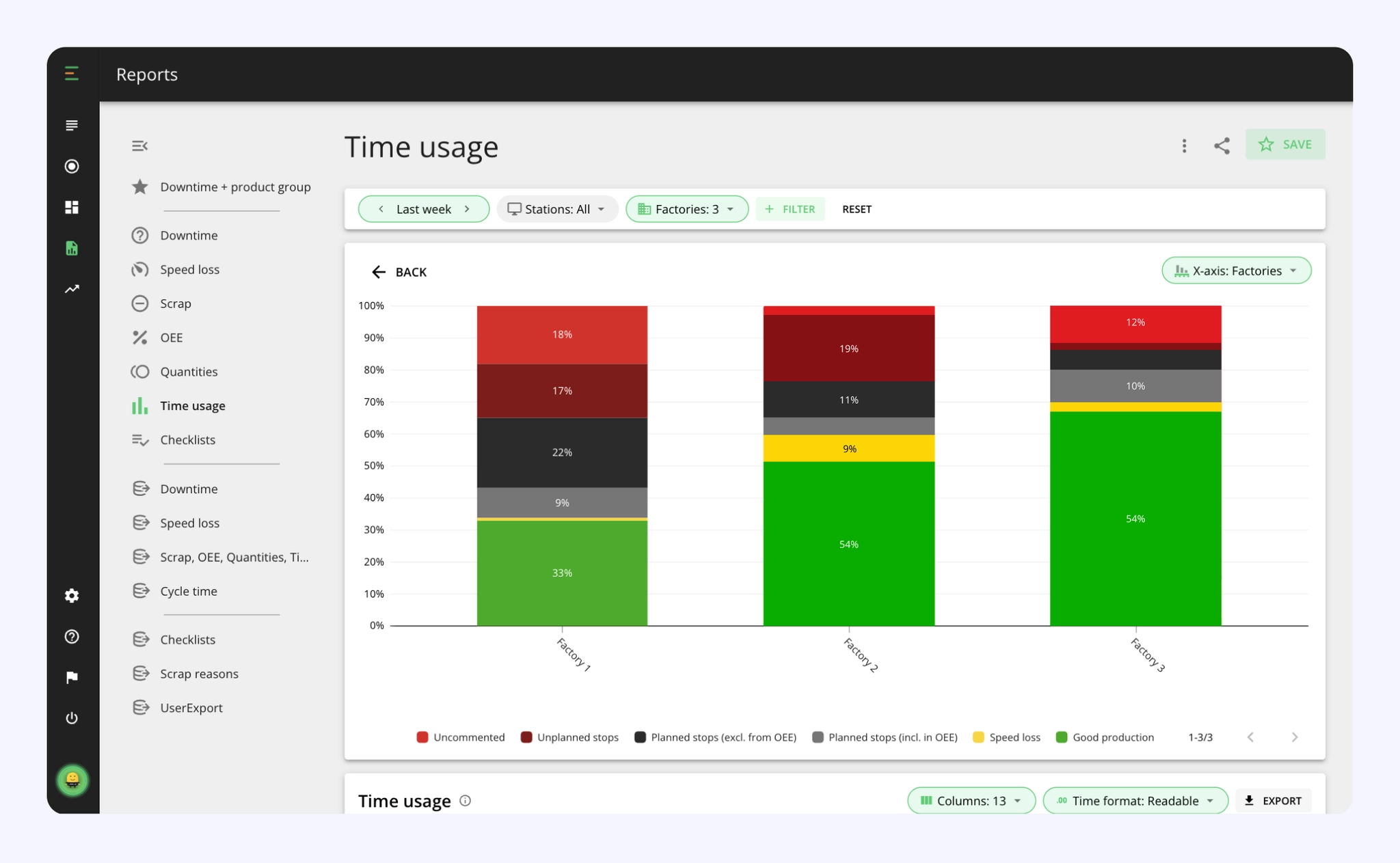
We added factory as an X-axis option in Reports. This means that in case you have multiple factories in Evocon, you can now analyze, compare and visualize data in Reports per factory.
This allows you to identify best practices, optimize efficiency, and enhance overall productivity, leading to cost savings and competitive advantage.
Mr Evocon's new emotions

To enhance the engagement of operators with Evocon, we've introduced new animations to Mr Evocon in Shift View:
- Thumbs Up: Operators are rewarded for completing checklists and meeting their production targets with a classic thumbs up.
- World-Class OEE: All manufacturers strive for world-class Overall Equipment Effectiveness (OEE) of 85%. Mr. Evocon will wave with a glove when the shift OEE is 'just right' and hourly performance stays below 105%.
Usability improvements
- We have introduced a new view option for the Time Usage Report: Duration. Now, you can see time usage not only as percentages but also in hours. This update provides a clearer understanding of the actual time the production lines were operating and the performance achieved. By viewing the data in the context of actual time, you can gain deeper insights into your operational efficiency.
- The Scrap report has a secondary Y-axis option available and you can choose between "% of planned time" and "% of produced".
- Reports now have the "Product code" as an X-axis option.
- We have added the % of change to the "% of planned time" value in Dashboard Downtime widget hover.
- Based on feedback, we have moved the navigating arrows for stations and shifts in the Shift View in front of each of them for a more intuitive selection process.
- Each Checklist task now has a number and you can hover over them to reorder the task list. The number will then be reflected with the new numerical ordering.
- We updated the API Key Management feature, so that in addition to Company Administrators, now Factory administrators can also generate, manage, and revoke API keys within their access permissions.
- We added Vietnamese as a system language (it was just for Shift View before). Please find more information about available languages here.
May
Compact views for better user experience
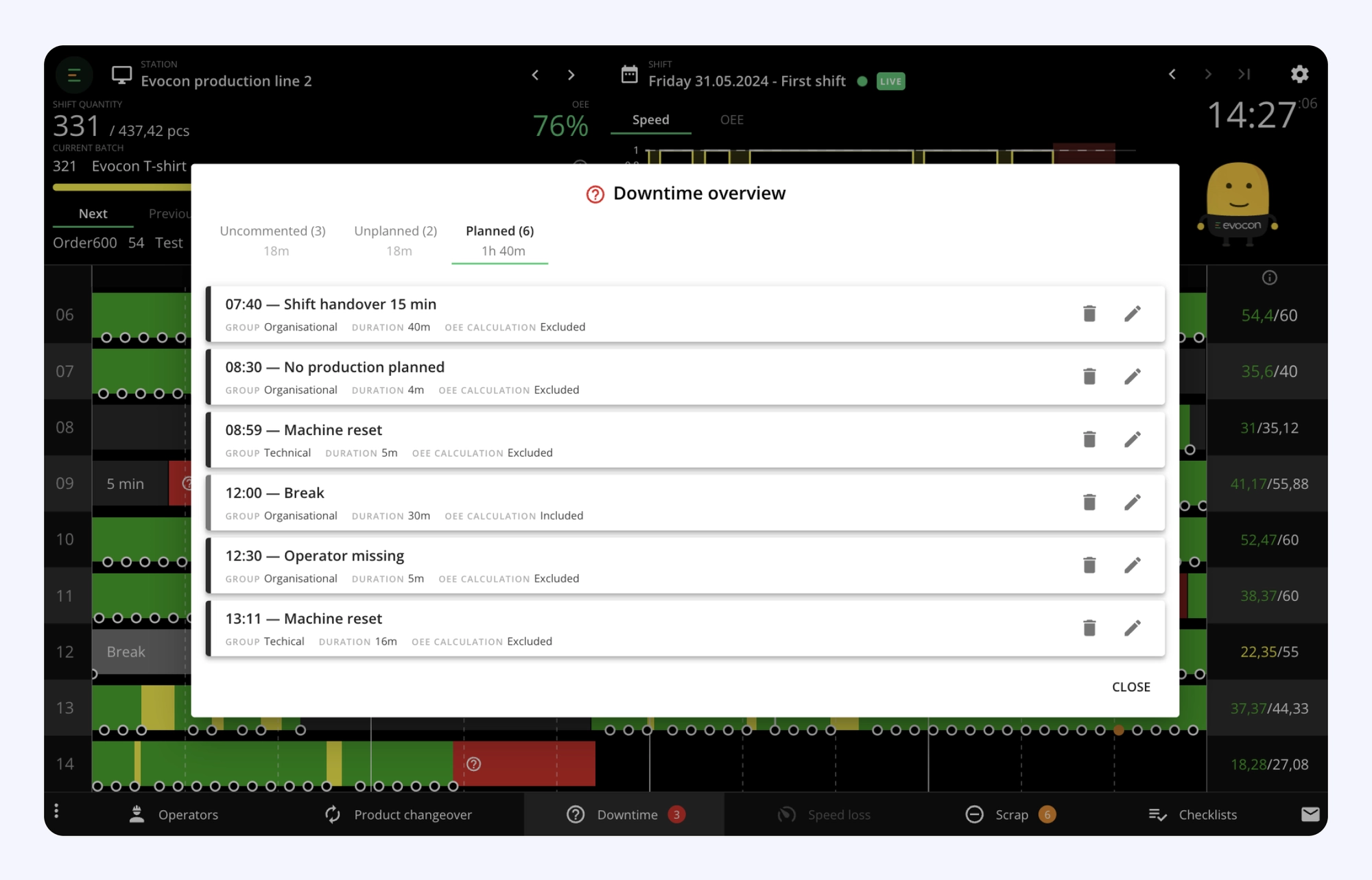
We've improved the card elements within the pop-up modals to take up less space, allowing more information to be displayed at one glance. This updated layout is featured across Settings, and Shift View overview screens. Checklists' specific compact design will follow.
Planning the end time of extra shifts
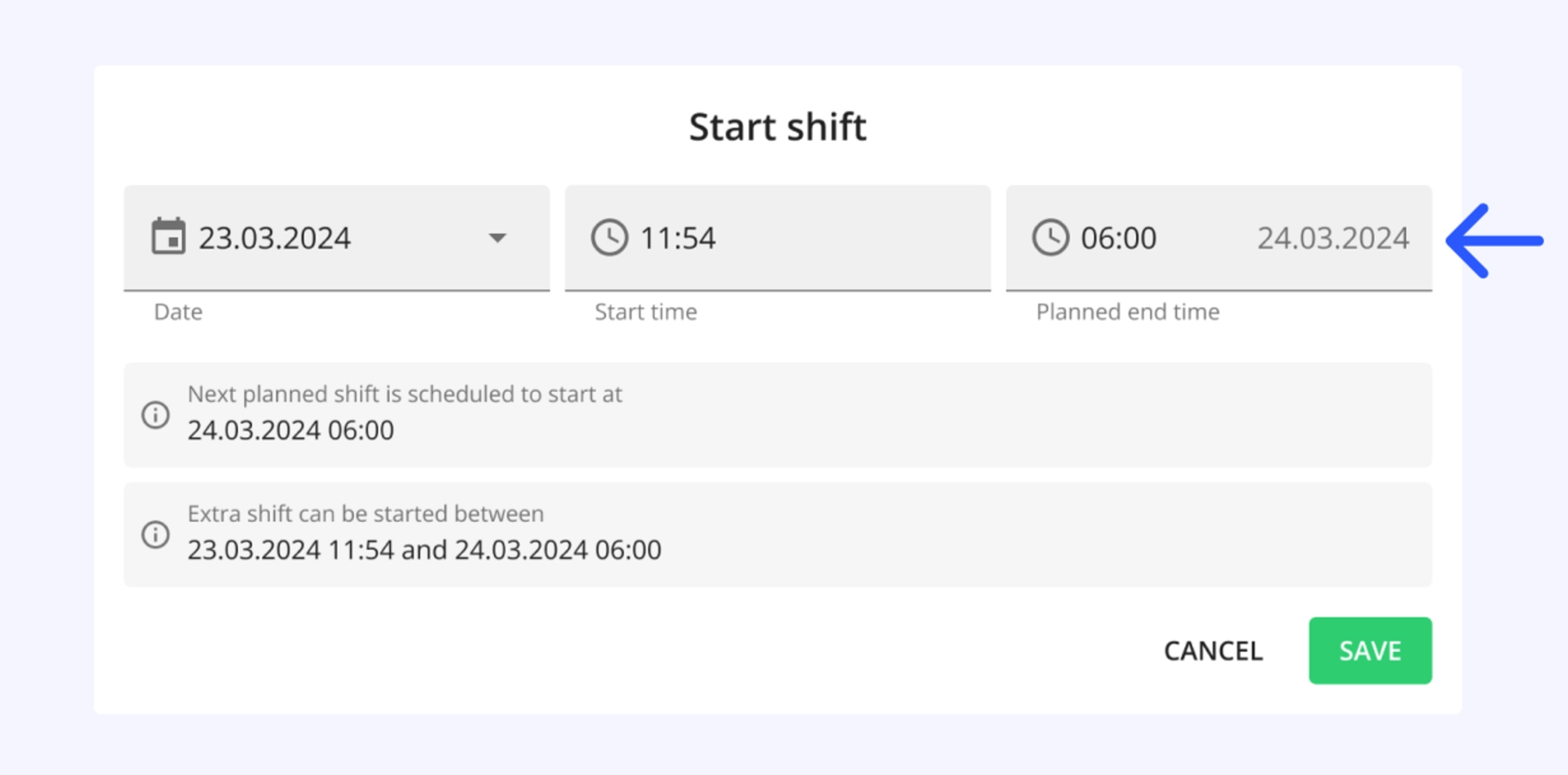
We have simplified the process of adding the end time to extra shifts - this can now be done from the same modal as starting the shift. More information is available here.
Batch/order filled indication
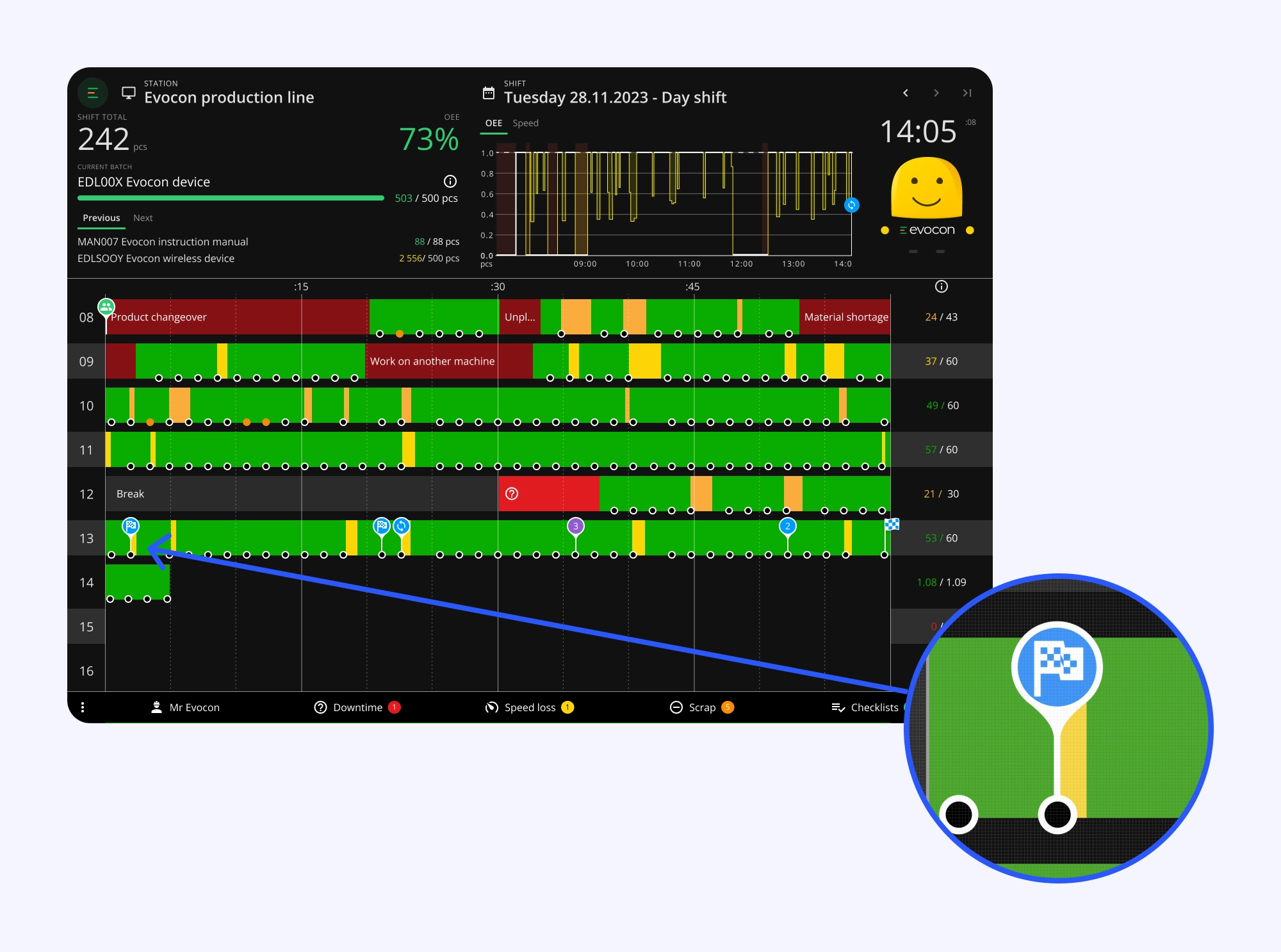
An icon is added to Shift View when an order (in case of production order setup) or batch is filled to limit overproduction. This icon will indicate when the good quantity matching the order/batch target was reached, so operators have this information as soon as it happens.
Usability improvements
-
"Locations" is now available as a Speed loss report x-axis option and a column in the data table.
-
We also added the option to use the "require location from operators" for speed loss reasons the same way it has been available for stop reasons. More information is available here.
-
The Reports filter queries were optimized to take into account user rights and thus eliminate some inconveniences/limitations for administrative users.
-
We have added the number of units since the last product changeover to the production signal tooltip.

April
Color update for planned stops
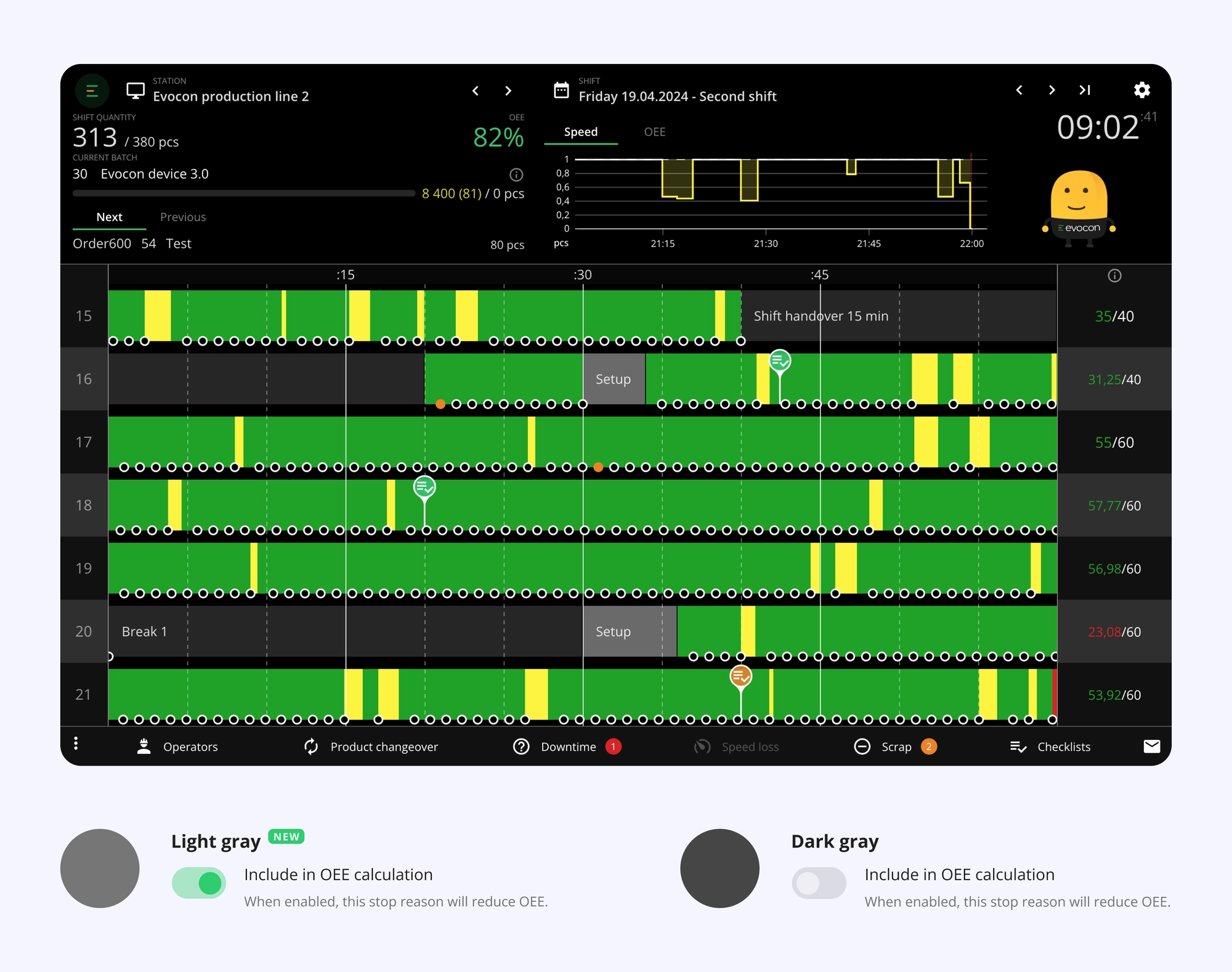
We have created a visual distinction that helps to quickly identify which planned stops increase OEE and which reduce it. This change is reflected in Shift View, Reports (Time Usage), and Factory Overview.
When the "Include OEE Calculation" option is enabled in the stop reasons settings for a planned stop, it will be displayed in a lighter shade of gray. If this option is not activated, the stop will appear darker gray.
Exporting large reports
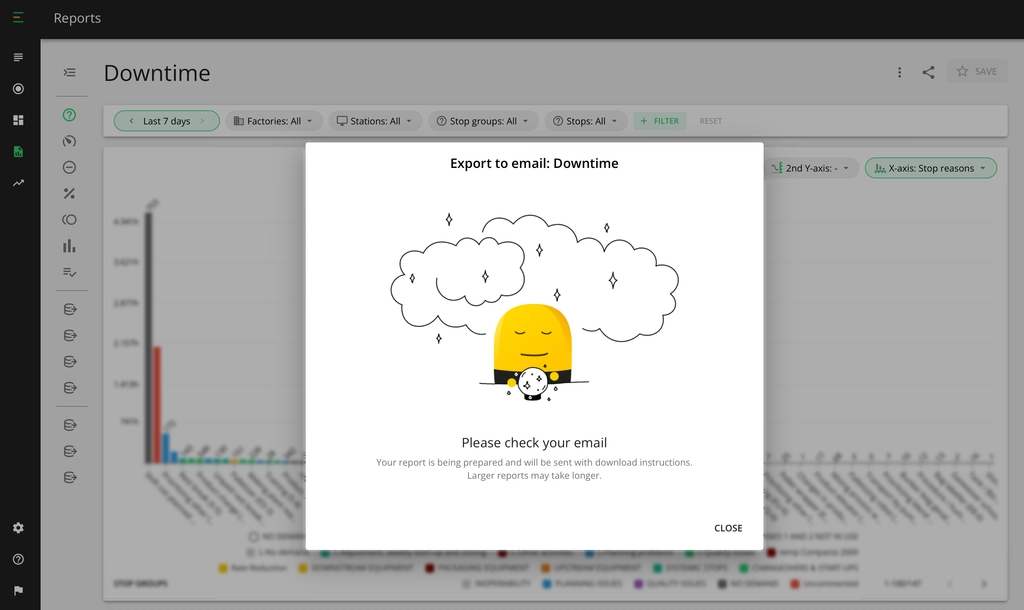
Exporting large datasets that used to sometimes fail is now working in a new way. For large, data-heavy reports, we will send a download link directly to your email. Smaller data sets will still be downloaded directly to your computer.
This new feature makes accessing your data more convenient, whether looking at a few months or several years of information.
Please find more information here.
Checklists authentication
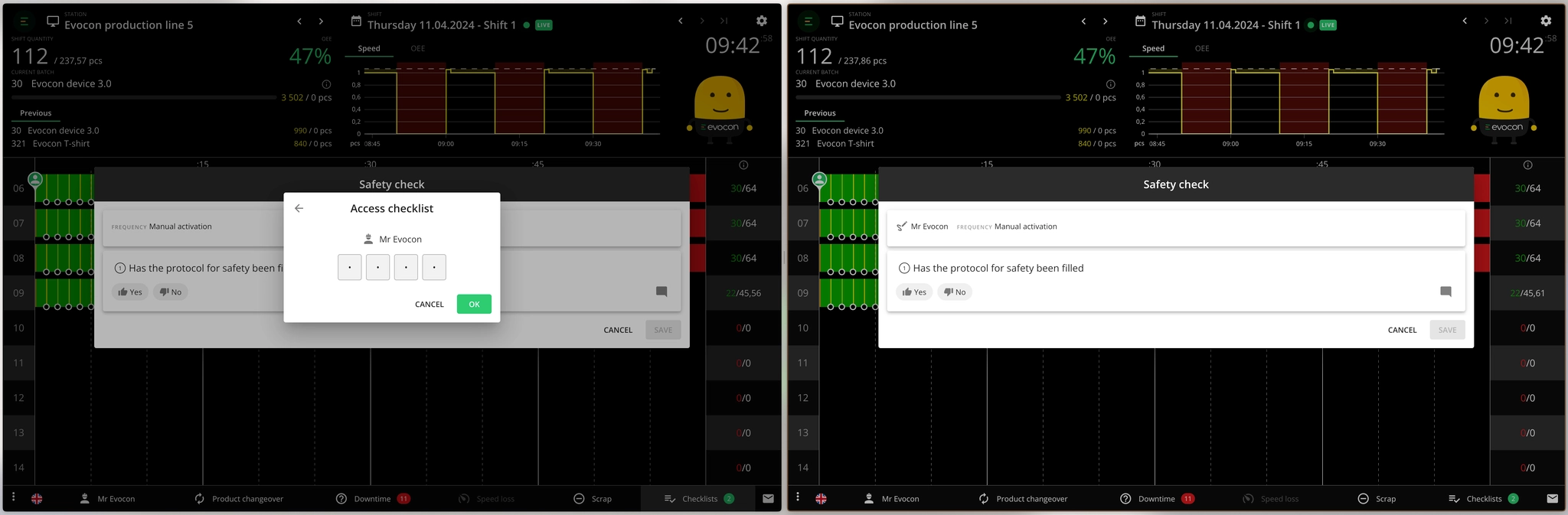
Companies seeking enhanced control and accountability over their checklist completion processes can start using Evocon's Checklists authentication feature by utilizing operator passcodes.
By requiring operators to enter their passcodes on the checks they complete, each check is explicitly linked to a responsible party. This level of transparency and accountability is crucial for internal controls and is invaluable during external audits.
Such practices reinforce responsibility and foster a culture of accountability within the company.
When Checklists authentication is enabled in settings:
- You can select which checklists require authentication by turning on the 'Checklists Authentication' feature in Checklists Settings.
- You can restrict access to passcode-protected checklists by providing passcodes to certain operators only.
- The name of the individual who completed the checklist will be displayed on Shift View and in Reports.
- In addition to recording operator names, the system will also save the names of admin and office users who complete checklists requiring authentication.
Please find more information on how to set up and use Checklists authentication here.
Mr Evocon's mood change

Mr Evocon is no longer angry/upset when OEE results are not as expected. Instead, he is sad because we want to help operators by instilling in them a feeling of care, not fear.

Usability improvements
-
Downtime and Speed loss widgets in the Dashboard now have the option to display stops or speed loss by locations (in addition to reasons or reason groups).
-
Alerts got 3 additional variables: Loss, Factory, and Product code.
-
Passwords now need 16 characters instead of 8.
-
The last used quantity input unit is now remembered in Shift View - this means that if the alternative unit is selected when entering scrap, signal, or changeover target quantity, then the next time the same action is done, the alternative unit is selected by default. This should help to reduce the risk of mistakes when entering quality data in Shift View and also reduce the number of clicks for operators when performing regular tasks.
-
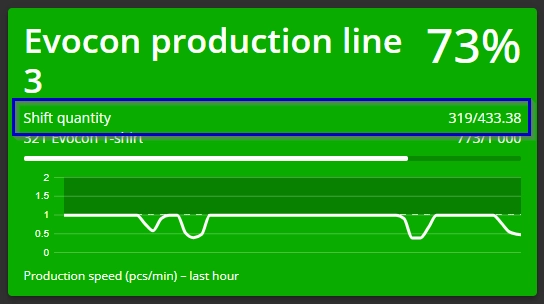
We made the station names in the Factory Overview Live view bigger to improve the readability from a distance. We also added the shift quantity information (showing total/ideal shift quantity), which was recently added to Shift View.
March
Standard Checklist report
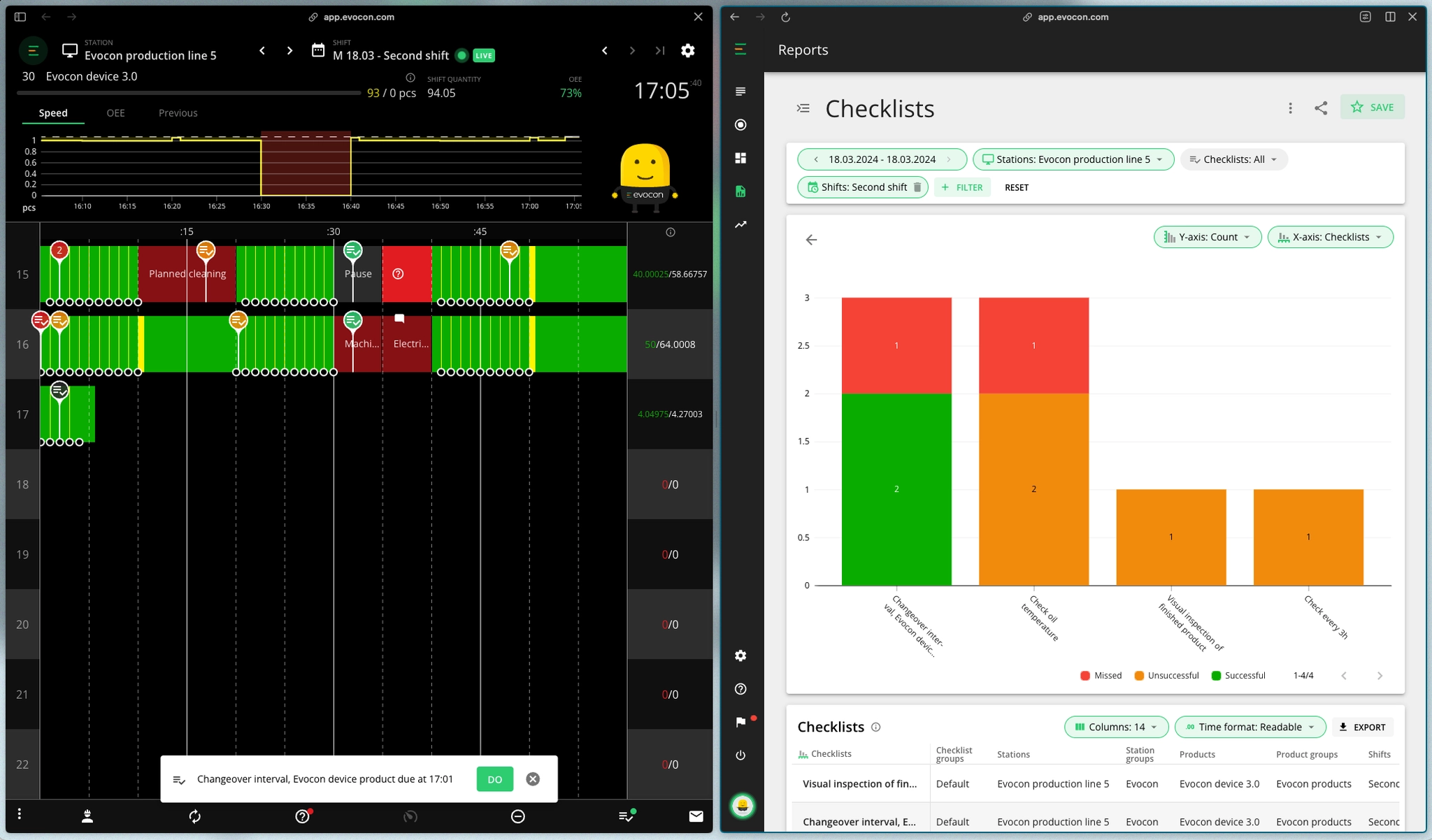
The standard report for Checklists is now available to all customers who have the Checklists feature. The report can be used to identify areas in the process that might need adjusting and helps to identify patterns across stations, products, shifts, etc., to make improvements where needed.
Additionally, it helps you track the status of your quality, maintenance, safety or regular information gathering checks.
Please find more information here.
Deleting finished shifts
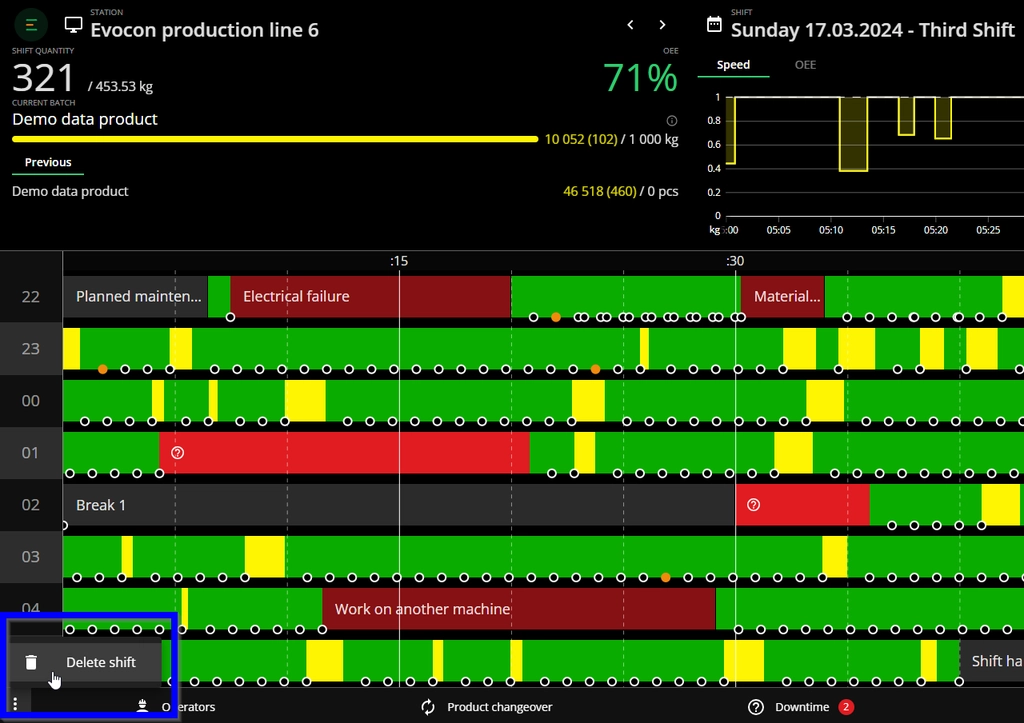
Factory and Company administrators can now delete ended shifts directly from Shift View.
This might be useful in case there are empty shifts that occur due to unexpected changes in work schedules, incorrectly started extra shifts, etc. It also helps ensure that data is more accurate in your downtime and time usage reports.
Please find more information here.
Alternative units for products

The alternative unit feature is now active for everyone. This was enabled by request before, but now it is available to all our customers.
This is a useful feature when, for example, your accounting and management uses one set of units (e.g. kg's) but your shop floor uses another unit (e.g. bags).
Currently this feature only extends to Shift View, allowing operators to see Shift View in alternative units and do operations in alternative units (e.g. registering scrap).
More information about the alternative unit feature can be found here and here. In case you need the custom report for alternative unit also enabled, please contact [email protected].
Usability improvements
-
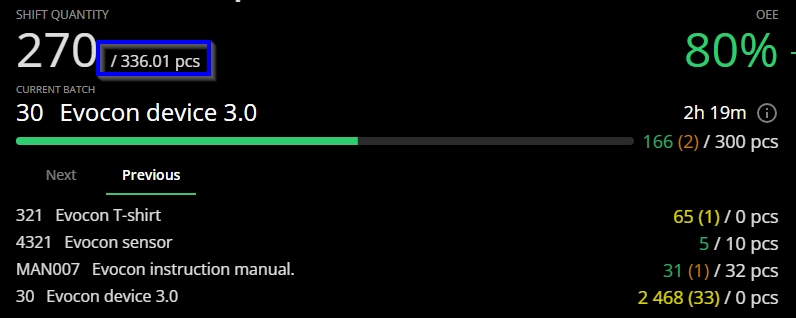
Ideal quantity of a shift is now shown next to produced quantity in Shift View.
-
The conditions for hourly produced quantity colors in Shift View were changed in March – if the produced quantity is more than the target (meaning that the cycle time is faster than the ideal cycle time), the number is no longer indicated as yellow, but as green. This change was done to unify how colors work in Shift View. Please find more information about hourly quantity colors here.
-
Product code field in product settings is now a mandatory field. However, if you do not use product codes, then you can leave it unchanged as it has the product name value by default. Please find more information on managing products here.
February
API keys management
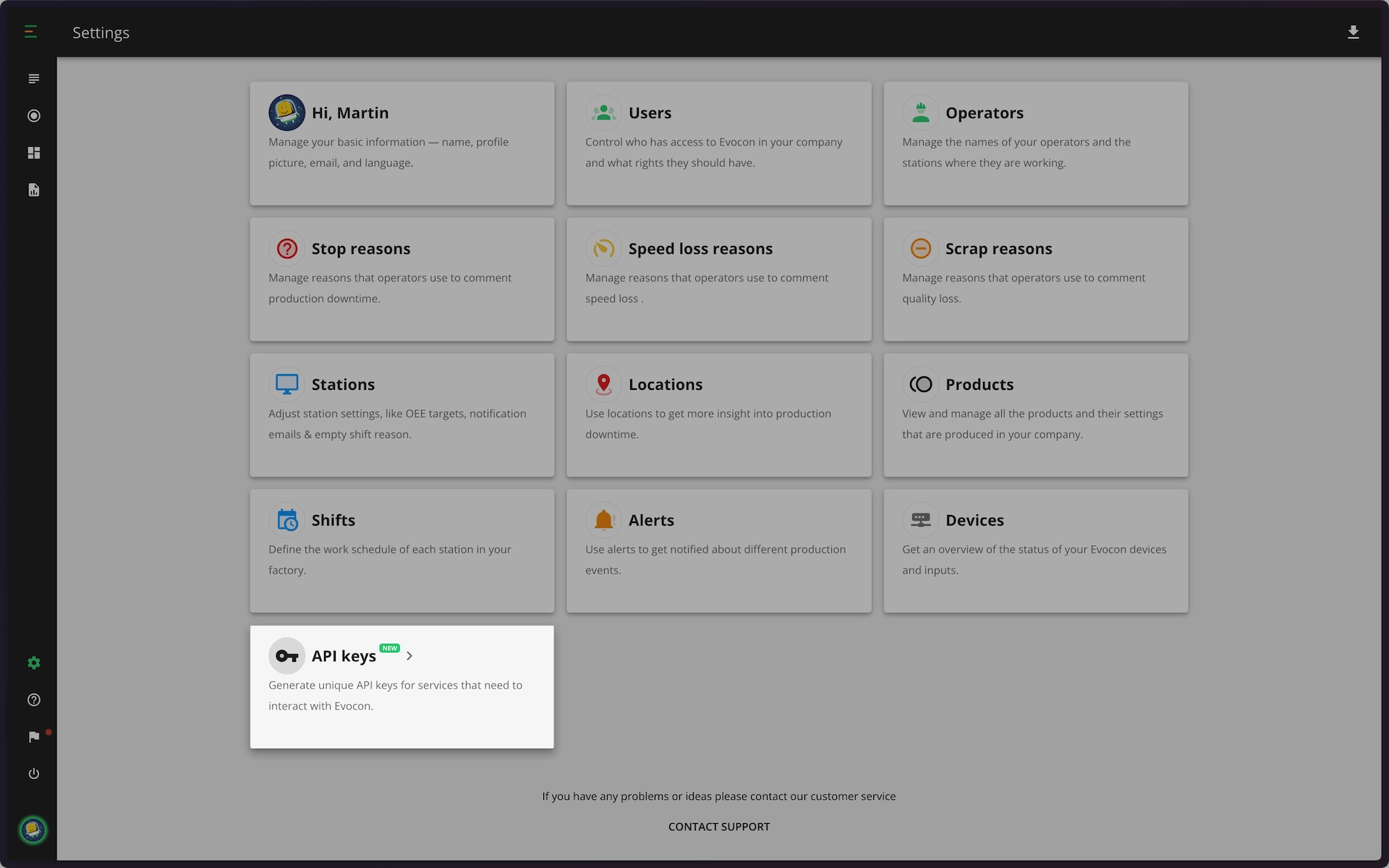
In February we released of our new API Key Management feature for Company Administrators. This addition allows you to generate, manage, and revoke API keys directly from our platform, providing a secure and efficient way to to connect other applications or services (ERP, Excel, PowerBI, custom programs) to Evocon.
Benefits of Using API Keys:
- Enhanced Security: API keys offer an added layer of security, ensuring that only authorized users and applications can access your data.
- Simplified Integration: Easily integrate with other tools and systems in your manufacturing processes, facilitating seamless data exchange and automation.
- Customized Access Control: Assign specific permissions to each API key, tailoring access according to the needs of different users or services.
- Operational Efficiency: Automate routine tasks and operations, reducing manual effort and improving overall efficiency in your manufacturing environment.
We are committed to providing solutions that enhance your operational capabilities and look forward to seeing the innovative ways you'll utilize this new feature.
Upgrading from Vue 2 to Vue 3 for Enhanced Efficiency and Features
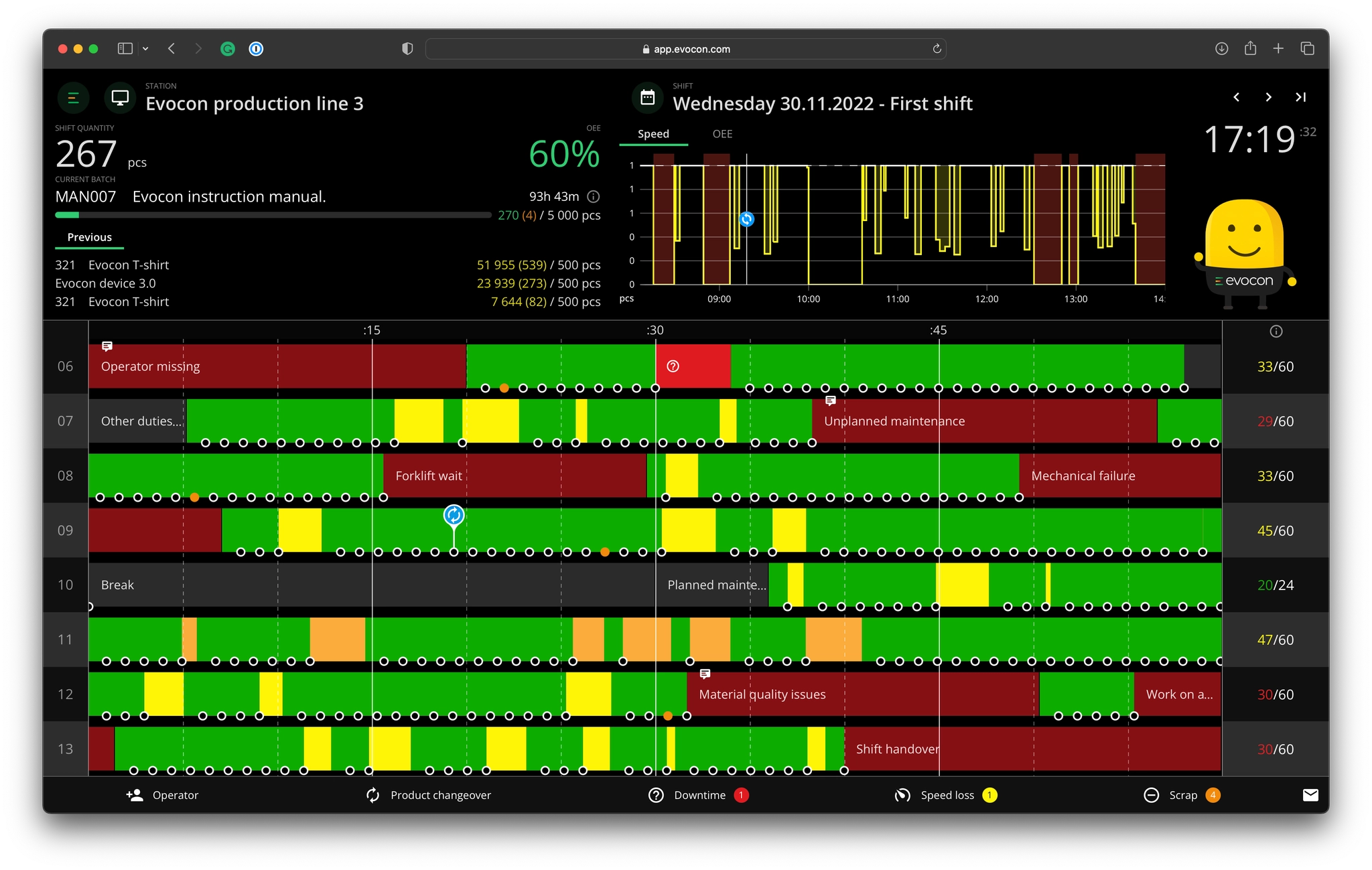
We're glad to announce that Evocon has successfully migrated from Vue 2 to Vue 3. Completing the migration is akin to modernizing the core machinery in manufacturing.
This development, though time-intensive, and which stopped us from releasing new features and funtionalites for 2 months, sets the stage for enhanced efficiency,